Current Article
How to Apply Tags to QR Codes in Bulk
How to Apply Tags to QR Codes in Bulk
Apply custom tags to multiple QR codes at once for easier campaign filtering and organization in your Lifetime QR Codes dashboard.
Apply tags to multiple QR codes at once to organize and filter codes by campaigns, locations, clients, or custom groups. Grouping your codes makes large collections easy to manage directly from your dashboard.
Before You Tag
- You can apply tags to multiple QR codes at once.
- Tags help organize and filter QR codes in your dashboard.
- Applying tags does not change the QR code destination or tracking behavior.
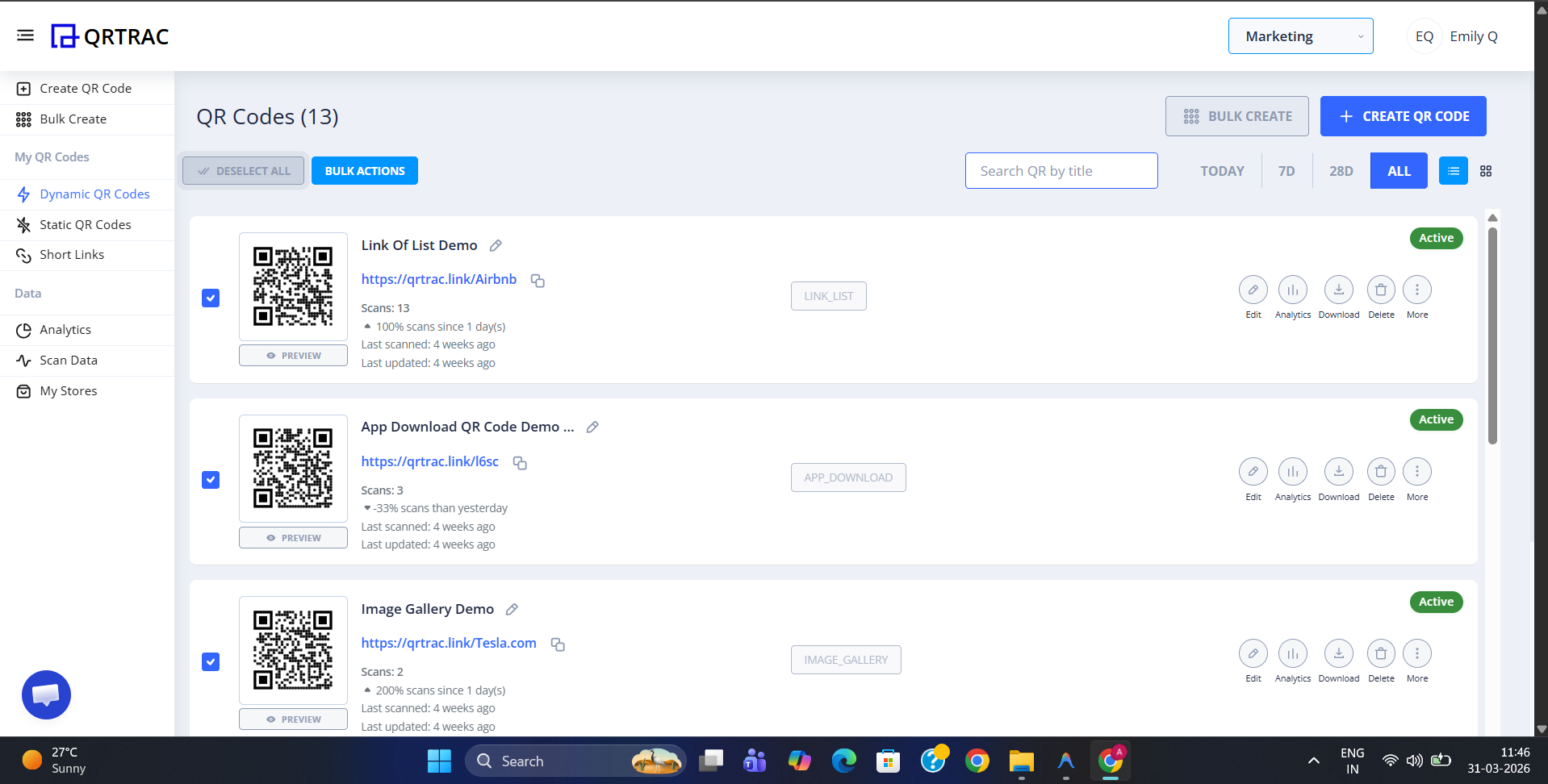
Step 1: Select Your QR Codes
- Log in to your Lifetime QR Codes dashboard.
- Use the checkboxes to select the QR codes you want to tag.
- You can select multiple QR codes at once.
Step 2: Open Bulk Actions
- Click the Bulk Actions button above the QR code list.
- Review the available bulk actions.
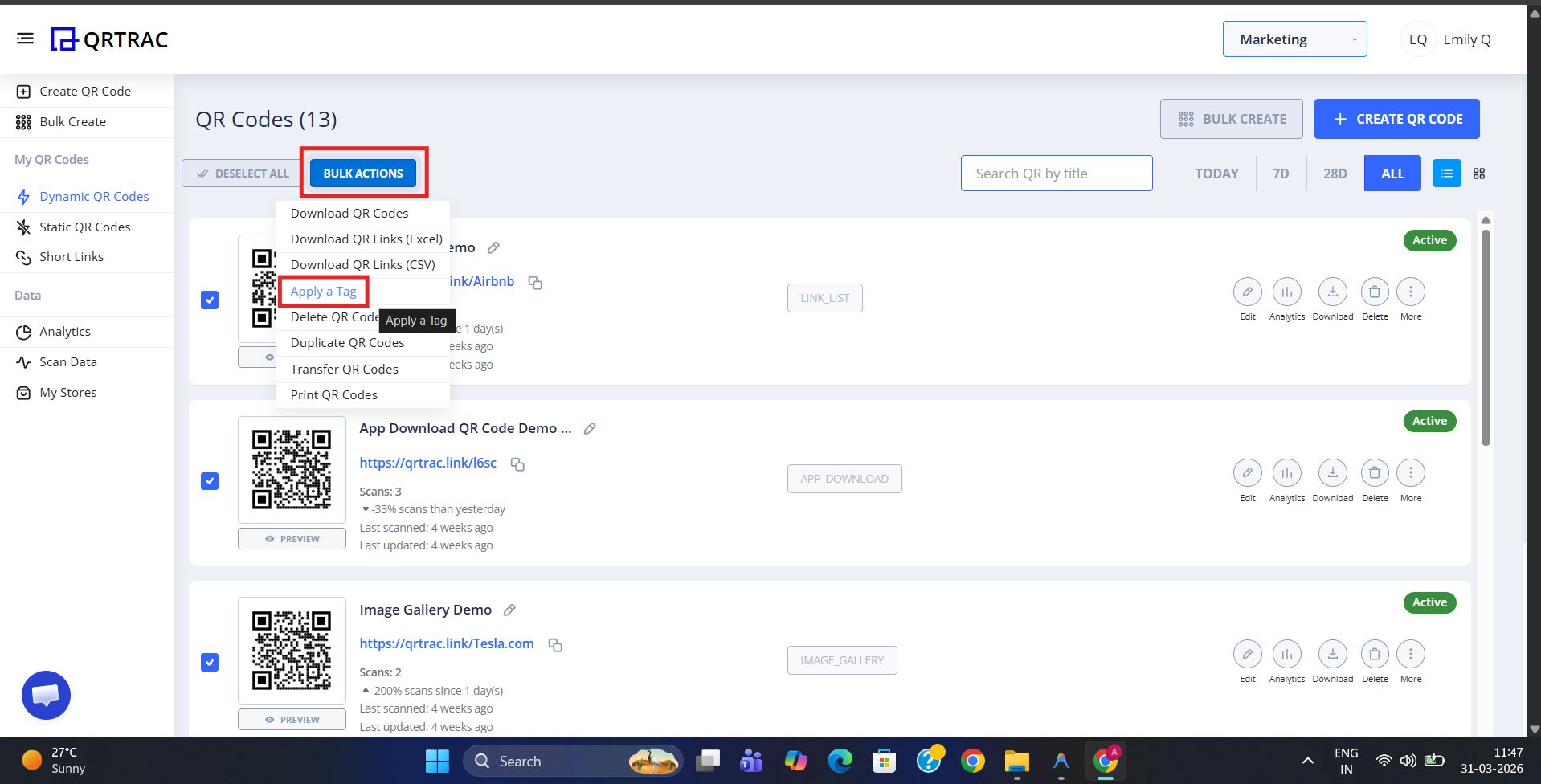
Step 3: Choose "Apply a Tag"
- Select Apply a Tag from the Bulk Actions menu.
- The tag dialog will open so you can enter or select a tag.
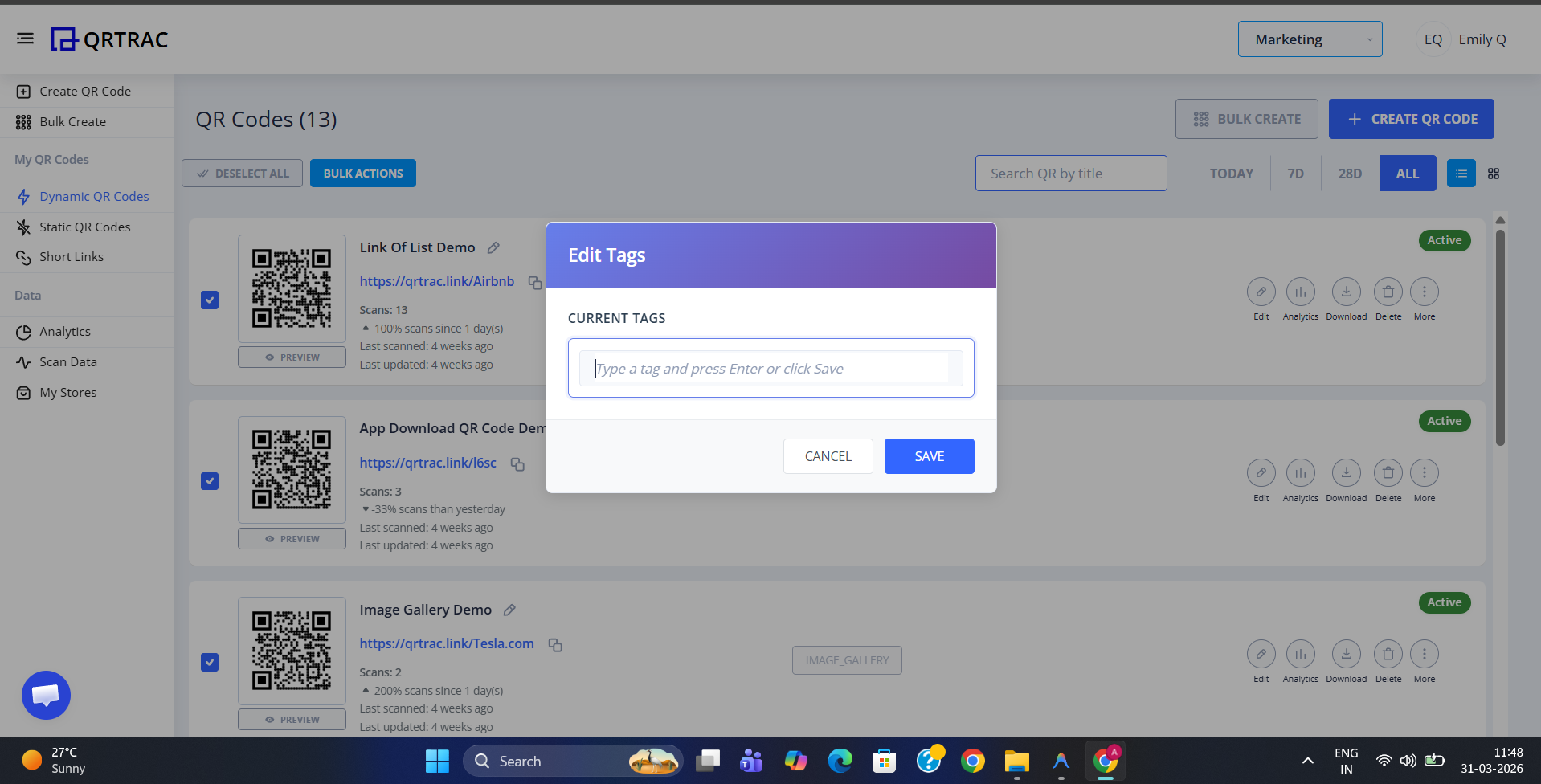
Step 4: Enter Your Tag and Save
- Enter the name of the tag you want to apply.
- If the tag already exists, select it from the available options.
- Click Save to apply the tag to the selected QR codes.
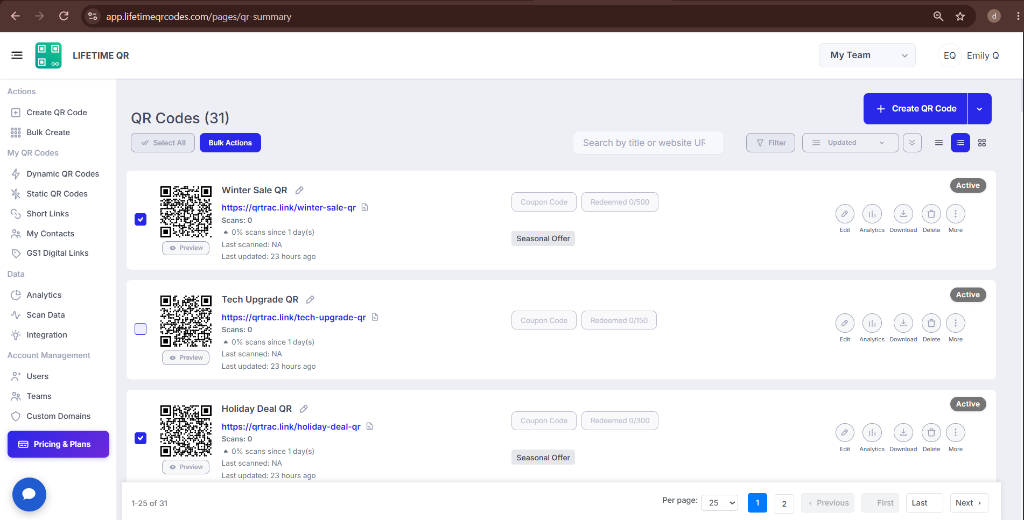
Tips for Managing QR Code Tags
- Use clear, consistent tag names so your QR codes are easier to organize and filter.
- Use tags to group QR codes by campaigns, locations, clients, or other useful categories.
What Happens After Tagging?
- The selected QR codes are updated with the tag.
- You can use tags to organize and filter your QR codes in the dashboard.
- Applying a tag does not change the QR code destination or disable the QR code.
Frequently Asked Questions
Can I apply multiple tags to QR codes at once?
Yes. You can select multiple QR codes in your dashboard and apply tags to all of them together in a single bulk action.
Can I remove or edit tags after applying them?
Yes. You can edit individual QR codes to remove or modify tags as your campaigns and organization needs change.
Do tags affect how my QR codes work or scan?
No. Tags are used solely for dashboard organization and filtering. They do not alter your QR code destinations, short links, or scan performance.
Can I filter analytics reports by tag?
Yes. Once tags are applied, you can filter your analytics dashboard by tag to view performance across specific campaigns, locations, or groups.
Where can I find more help?
Visit our help center or contact our support team for additional assistance with bulk operations.