For teachers, tutors, small schools and after-school programs
QR Codes for Classrooms You Can Update Without Reprinting
The video you linked goes private. The course page moves at the start of term. With an editable QR code, you change where the code points, and the worksheets you already copied keep working.
Why classroom links stop working
A printed QR code usually stores one web address. When that address changes, every copy of the handout points to a dead page. Over a school year, that happens more often than you'd expect:
- A YouTube video you linked is removed or made private by its owner.
- Your learning platform gives each new term or course copy a new URL.
- Copying a Google Form or Doc for a new class creates a new link.
- A school website is rebuilt and old page addresses stop working.
An editable (dynamic) code stores a short link instead. You decide where that short link goes, and you can change it from the dashboard at any time. Ours are paid for once, so they don't stop working when a school budget or a card on file changes. Static vs dynamic QR codes, explained For a class walkthrough or a how-to clip on a handout, see the video QR code page.
How teachers use them
Each of these works because the code is printed once and the link behind it changes.
One wall code for the whole year
Put a single code on the classroom wall and point it at this week's reading, homework or slides. Each Monday, change the destination. Students learn one code instead of a new one every week.
Worksheets and handouts
Link a worksheet to a video walkthrough or a worked example. You can point the code at the answer key later, after the work is handed in.
Parent communication
Add codes to newsletters and back-to-school handouts that open the class calendar, a volunteer form or a conference sign-up.
Lab and station instructions
Post a code at each lab or activity station that opens a short safety or how-to video. If the video moves, the station card stays.
Clubs, PTAs and after-school programs
Use codes on flyers for sign-ups, fundraisers and event schedules, and update them for next term without printing new flyers.
Tutors and homeschool groups
Give families one code per subject that always opens the current materials, whichever folder or platform they live in this term.
Before you print a class set
Six checks that save you from reprinting thirty copies.
Test it on the school network
School web filters sometimes block unfamiliar link domains. Scan a test code on the school's Wi-Fi, on a student device if you can, before you print a class set.
Print the short link under the code
Not every student has a phone, and some schools restrict them. Printing the short link as text lets students type it on a laptop or tablet instead.
Keep it at least 1.25 inches wide
Codes smaller than about 1.25 inches (32 mm) get hard to scan on photocopied handouts, where toner spreads. Test one copy from the actual copier.
Name codes by class and term
A name like "Grade 7 Science, Unit 3 lab, 2026–27" makes it obvious which code to update in May, when you have forty of them.
Don't let codes depend on one person
Add a colleague as an Editor so someone else can update the codes if you are away or move schools. There is no per-seat fee.
Check the destination on a phone
If a link opens a page behind a school login, students must be signed in on that device. Check what a signed-out student sees before you print.
More on sizes and file formats: QR code print guide
What it costs
A typical teacher's set
Three codes, for example a weekly wall code, a parent sign-up code and a class page code, cost $129 once ($43 each). There is no monthly fee for the codes and no limit on scans.
Links that never change
For a fixed address like your school's home page, use a free static code. It doesn't need an account or a service behind it. Free static generator
Your first code has a 30-day money-back guarantee if you haven't put it into use. See pricing
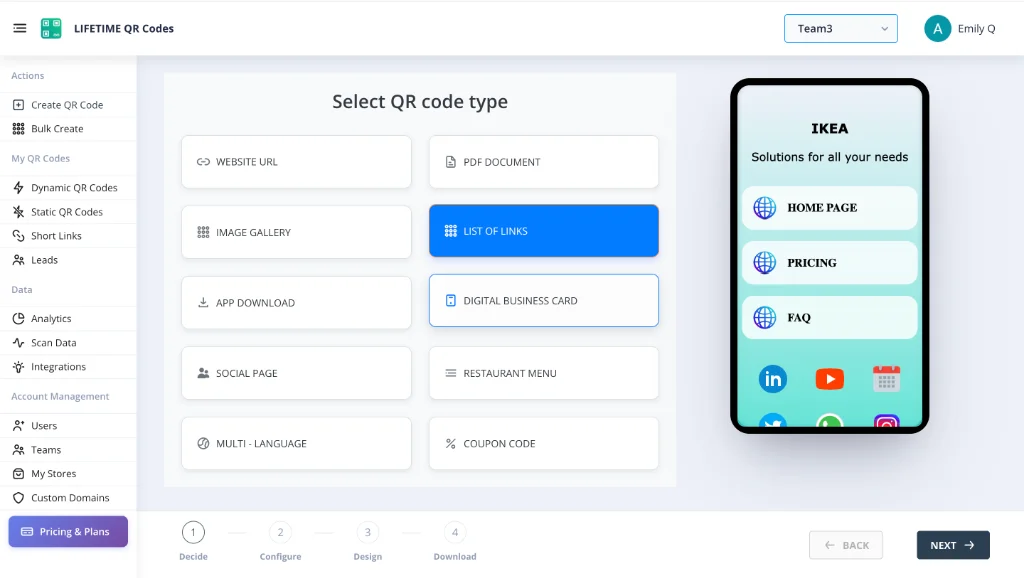
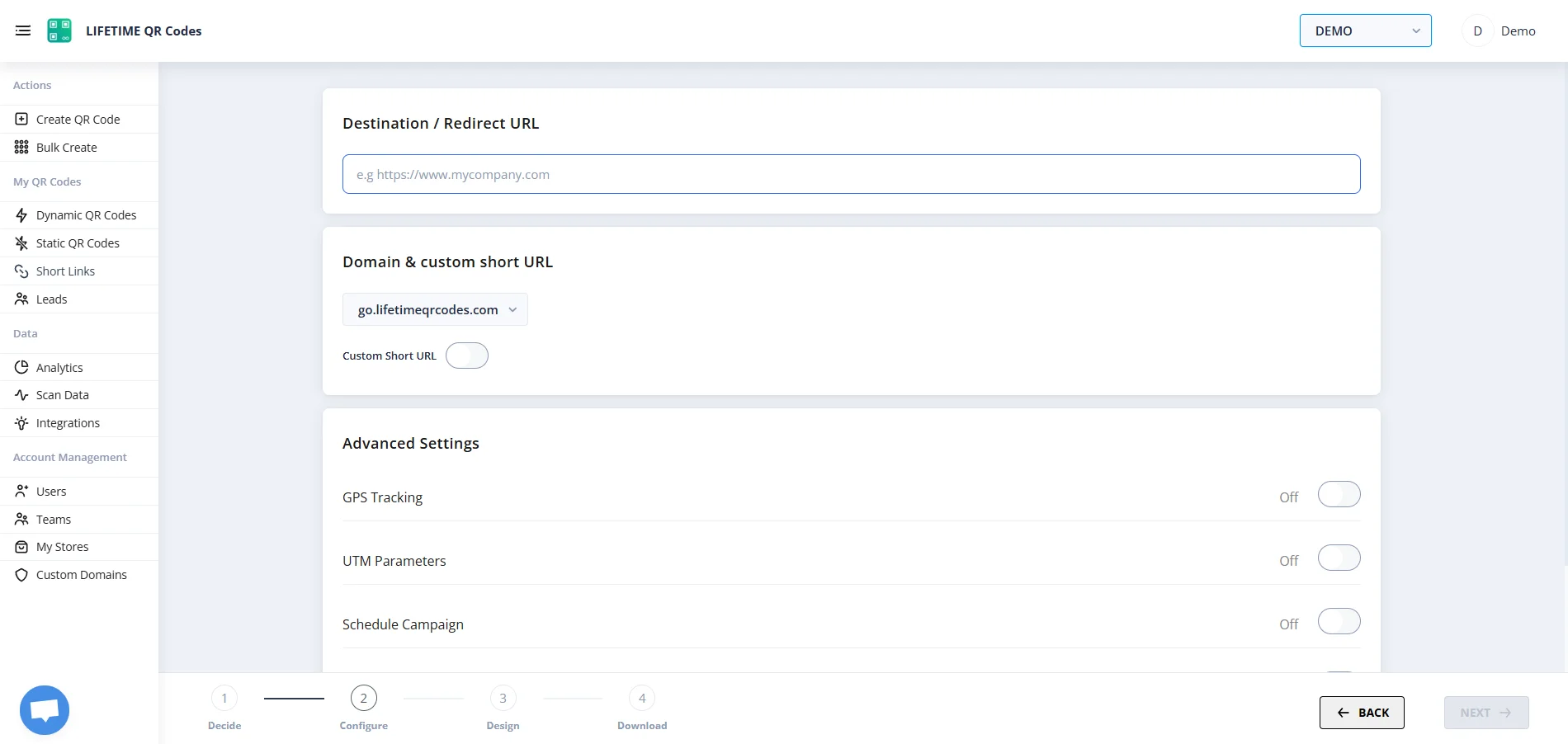
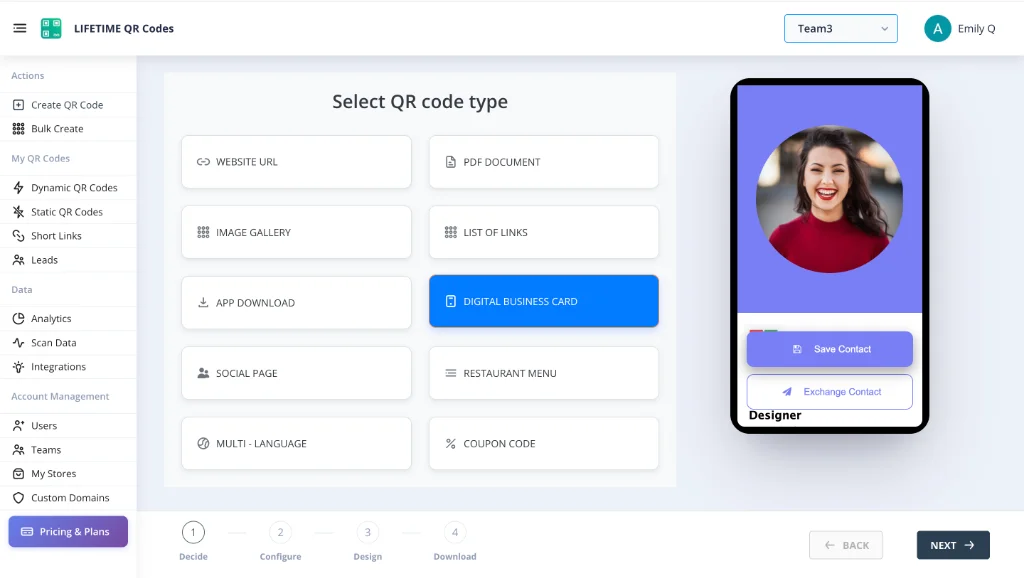
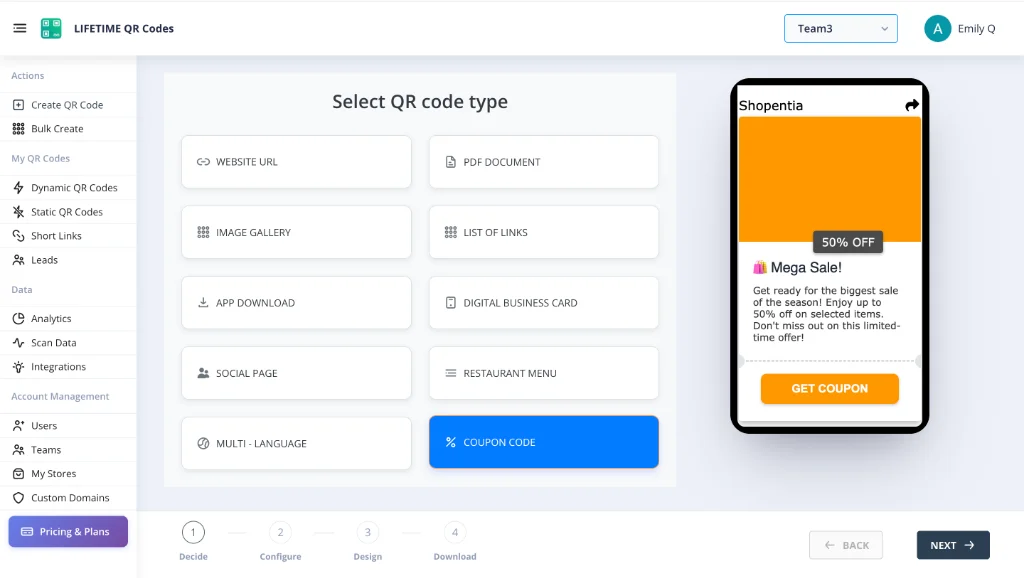
See the Platform In Action
Manage all your lifetime QR codes from one simple dashboard.
Questions teachers ask
Can we link to our school's learning platform, like Canvas, Moodle or Google Classroom?
Yes. A code can point to any web address, including pages inside your learning platform. Students still need to sign in to see protected pages. If the course moves to a new URL next term, update the code instead of reprinting.
Do students need an app or an account to scan?
No. Phone cameras on current iPhones and Android phones scan QR codes directly. Students only need an account if the page you link to requires one.
Are there ads during the redirect?
No. A scan goes straight to the page you chose, with no ad page in between.
What about student privacy?
Lifetime QR Codes is GDPR and CCPA compliant. Scanning a code doesn't ask students for their name or an account. If the page you link to collects information, such as a form or quiz, follow your school's own data policy for that page.
What happens to the codes if I move to another school?
Before you go, add a colleague as an Admin or Editor on the account so they can keep managing the codes. The codes keep working either way, because they don't depend on a subscription.
Do I need to pay at all?
Not always. If a link will never change, such as your school's home page, a free static code is enough. Pay for a lifetime code ($49 once, less per code when you buy more) when you will need to change where it points, or want to count scans. Your first code has a 30-day money-back guarantee if you haven't put it into use.
Start with your wall code
Make one code, put it up this week, and change where it points next Monday.
Create a classroom code