Website URL QR code
A Website URL QR code opens a web page when someone scans it with their phone camera. They don’t need an app. The code points to a short redirect link, so you can change the destination from your dashboard later and the printed code keeps working.
How to create a Website URL QR code in Lifetime QR Codes. More tutorials on our YouTube channel
What people see when they scan
The page opens in the phone’s browser. The phone needs mobile data or Wi-Fi to load it.
How to make a Website URL QR code
Four steps. The screenshots are from the dashboard.
- 1
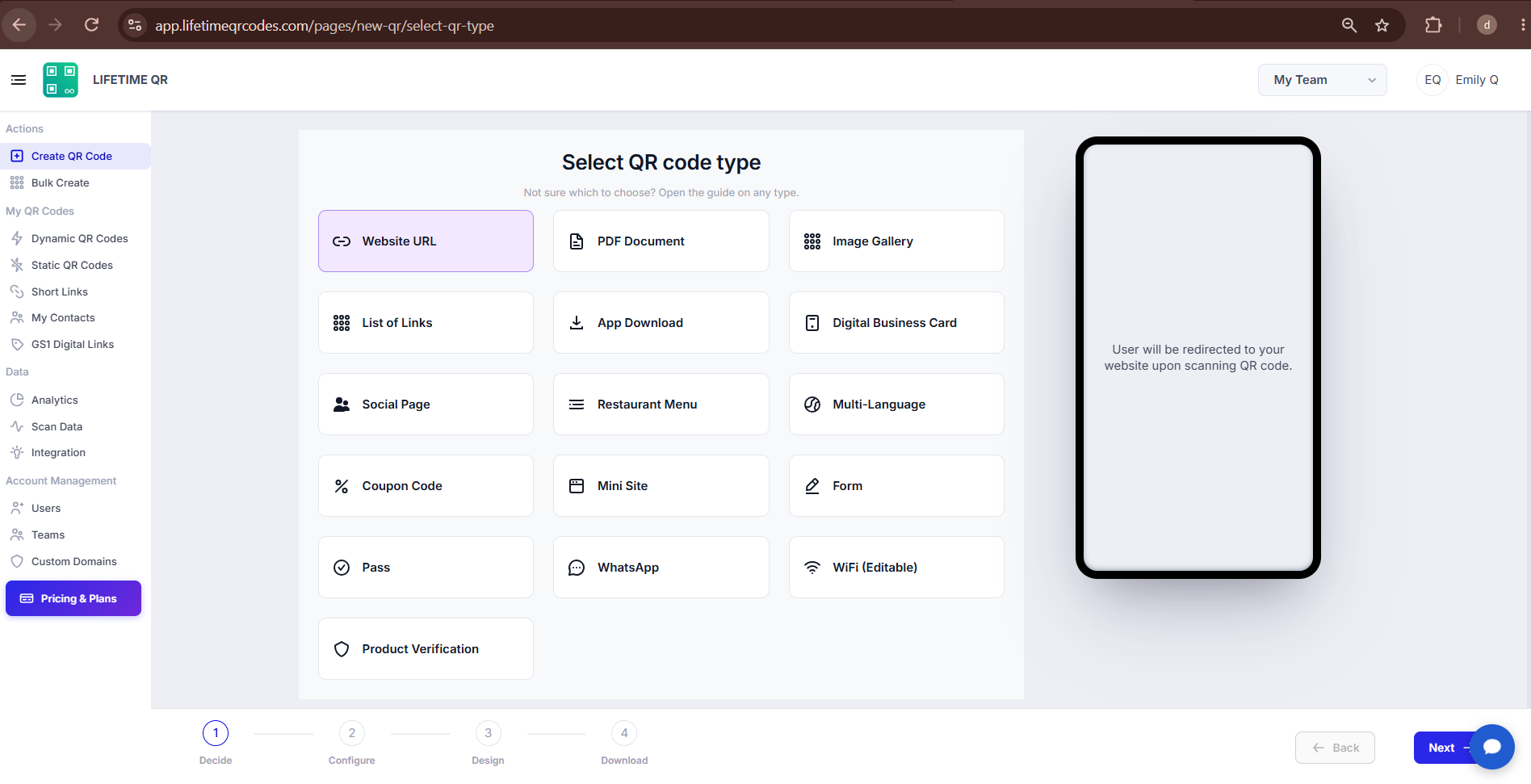
Choose Website URL
Log in to your dashboard and start a new code.
- Click Create QR Code in the header or dashboard.
- Select Website URL from the list of types.
- Click Next to open the settings.
- 2
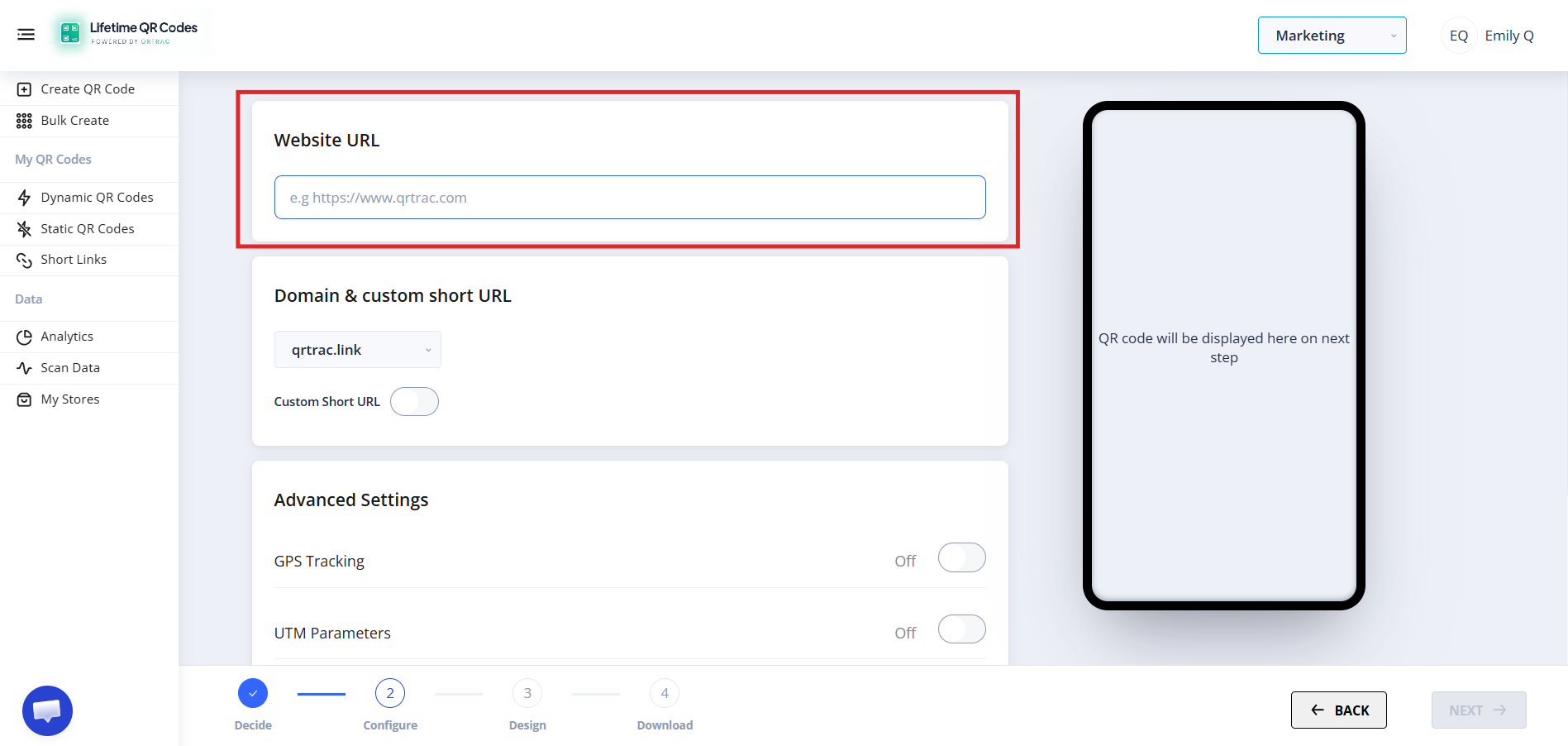
Enter the destination
Paste the full address of the page you want people to land on.
- Include the protocol: https://www.example.com/ works, www.example.com/ doesn’t.
- Add the path if you need a specific page, for example /spring-sale.
- Look for stray spaces or typos before you continue.
- 3
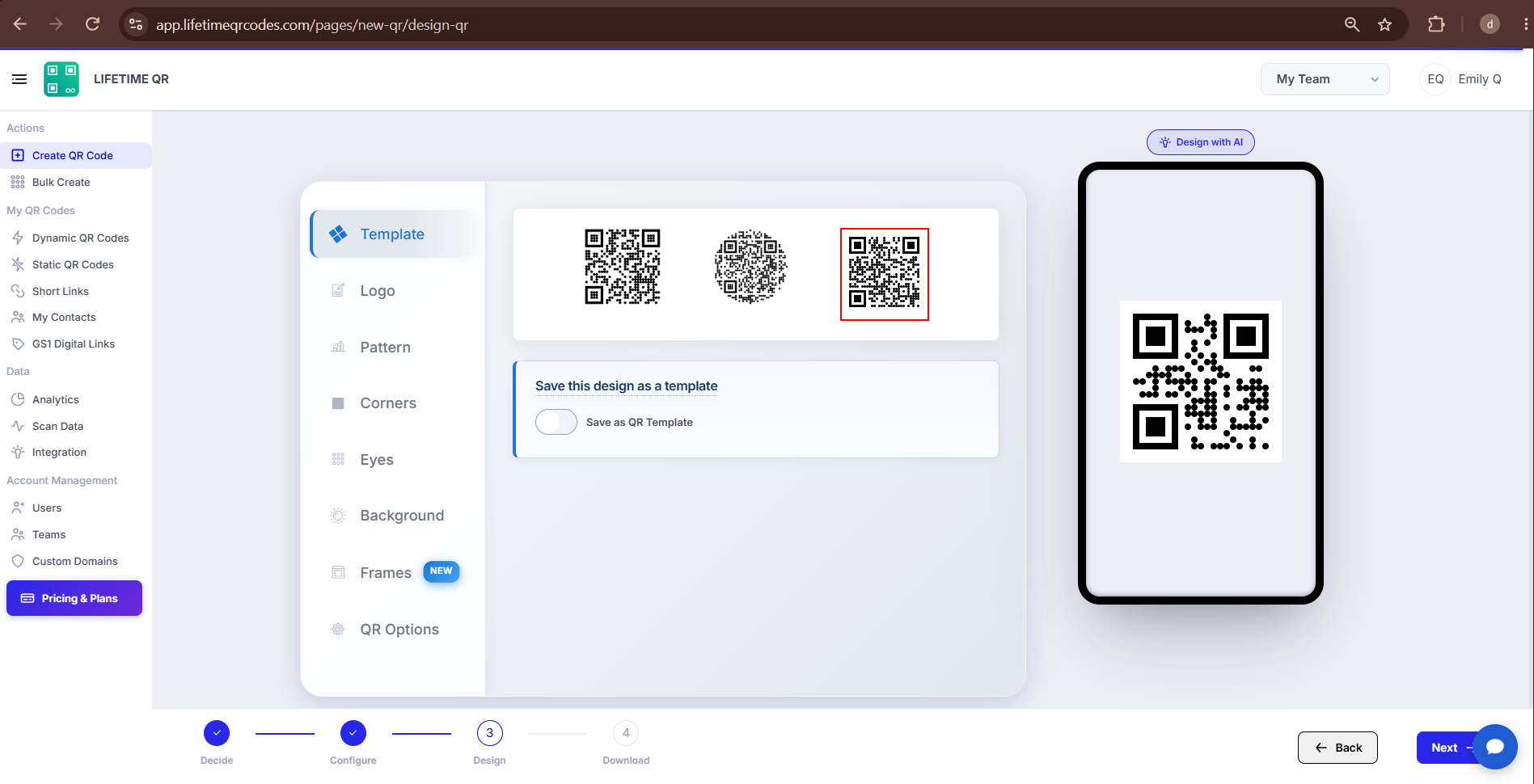
Style the code
Match the code to your brand, but keep it easy to scan.
- Colors: set the foreground and background. Keep strong contrast, with a dark pattern on a light background.
- Logo: add one in the center if you want.
- Patterns and corner eyes: choose the dot and corner shapes.
- 4
Test it, then download
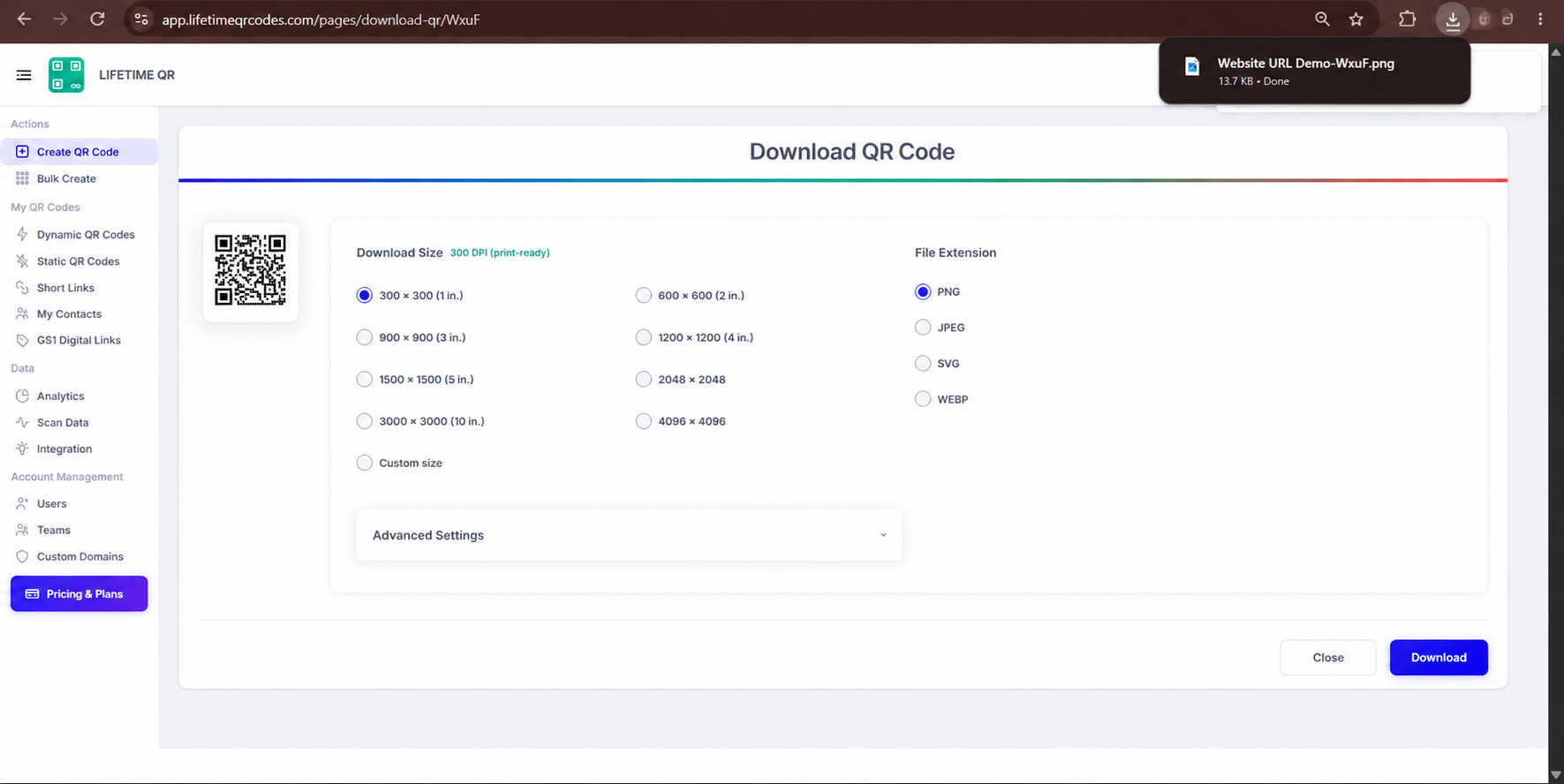
Check the preview and scan it before anything is printed.
- Hold your phone camera up to the preview on your screen and confirm the right page opens.
- PNG suits email, slides and websites.
- SVG scales to any size and suits web layouts.
- PDF suits flyers and desktop printing.
- EPS suits print shops and large signage.
After it’s printed
- Change the destination URL whenever you like. The printed code keeps working.
- See scan numbers in the analytics dashboard: total scans, unique visitors, device types, operating systems, browsers and locations.
If something isn’t working
The most common problems and what to check.
The code doesn’t open the website
- Check the destination starts with https://.
- Look for accidental spaces or typos in the address.
- Make sure the page is public and online.
- Check the website’s server is responding without errors.
The page loads slowly on phones
- Open the page on a phone using mobile data, not Wi-Fi, and see how long it takes.
- Shrink large images and trim heavy scripts on the destination page.
- Point the code at a mobile-friendly page instead of a desktop-only layout.
The destination changed after printing
- Open the code in your dashboard and update the destination URL.
- You don’t need to reprint. The printed code points at the redirect, and the redirect now goes to the new page.
Which QR code type should I use?
Pick by what you want the scanner to do. You can switch the destination of a code later, but not its type.
| Type | Best for |
|---|---|
| Website URL (this page) | Sending people to one web page: a site, landing page, menu link or sign-up page. |
| Short Links | A compact, trackable link you can also share as text, with an optional custom domain. |
| List of Links | Several destinations behind one code: shop, portfolio, socials, resources. |
| Social Bio | One page that lists all of your social profiles. |
| PDF Document | Menus, manuals, brochures and price lists that live in a PDF. |
| Image Gallery | A set of photos: products, events, properties, portfolios. |
| App Download | Apps on iOS and Android. Each phone is sent to its own store. |
| Restaurant Menu | A digital menu with categories, prices and ordering links. |
| Coupon Codes | Discounts with an expiry date, in-store or online redemption. |
| Multi-Language | One code that opens the page in the visitor’s phone language. |
| Location Tracking | Recording where scans happen, with the scanner’s permission. |
| Digital Business Card | Contact details people can save to their phone. |
Website URL QR code questions
Can I change the website URL after creating the QR code?
Yes. Website URL codes are dynamic, so you can update the destination from your dashboard without changing the printed code.
Do I need to reprint the code if I change the URL?
No. The code points to a short redirect. When you change the destination in your dashboard, scanners go to the new address straight away.
Can I track scans?
Yes. The analytics dashboard shows total scans, unique visitors, device types, operating systems, browsers and locations.
What URL should I enter?
The full public address of the page, including https://, for example https://www.example.com/. Don’t enter a bare domain name or a private admin address.
Does the person scanning need an internet connection?
Yes. Their phone needs mobile data or Wi-Fi to follow the redirect and load your page.
How much does a Website URL QR code cost?
Editable codes cost $50 each as a one-time payment, with volume discounts available. Static codes are free, but their destination can’t be changed once created. A custom domain is an optional add-on at $10 a month or $100 a year.
What it costs
Editable (dynamic) QR codes cost $50 each as a one-time payment, with volume discounts available. Static QR codes are free. A custom domain is an optional add-on at $10 a month or $100 a year.
Keep reading
- Full help article: how to create a Website URL QR code
- Short Links QR code – A compact, trackable link you can also share as text, with an optional custom domain.
- List of Links QR code – Several destinations behind one code: shop, portfolio, socials, resources.
- PDF Document QR code – Menus, manuals, brochures and price lists that live in a PDF.