Current Article
How To Create a Lifetime Digital Business Card QR Code
How To Create a Lifetime Digital Business Card QR Code
Step-by-step instructions on generating a dynamic lifetime vCard Digital Business Card QR Code.
If you want people to save your contact details instantly by scanning a QR code, this guide is for you. Follow the steps below to build a fully configured Digital Business Card QR Code in minutes.
Tip: Test scanning your Digital Business Card with a smartphone camera before printing or distributing to confirm that all contact details, links, and profile photos appear exactly as expected.
Maybe you are:
- Printing QR on visiting cards
- Sharing contact at networking events
- Adding QR to email signature
- Using it at exhibitions or trade shows
- Wanting paperless contact sharing
- Tracking profile views
Before You Create the QR Code
Have the following details ready before starting:
- Phone number: Your phone number is correct (with country code)
- Email address: Your email address is active and verified
- Social links: Your social profile links are ready to add
- Website URL: Your website URL works properly
Wrong contact details = Lost opportunities
Double-check every phone number, email, and URL before generating your QR code. A single typo means every scan leads to a dead end.
Step 1: Login & Start (Decide Phase)
- Log in to your Lifetime QR Codes dashboard.
- Click Create QR Code in the header or sidebar.
- Select Digital Business Card from the QR code types list.
- Click Next to open the configuration form.
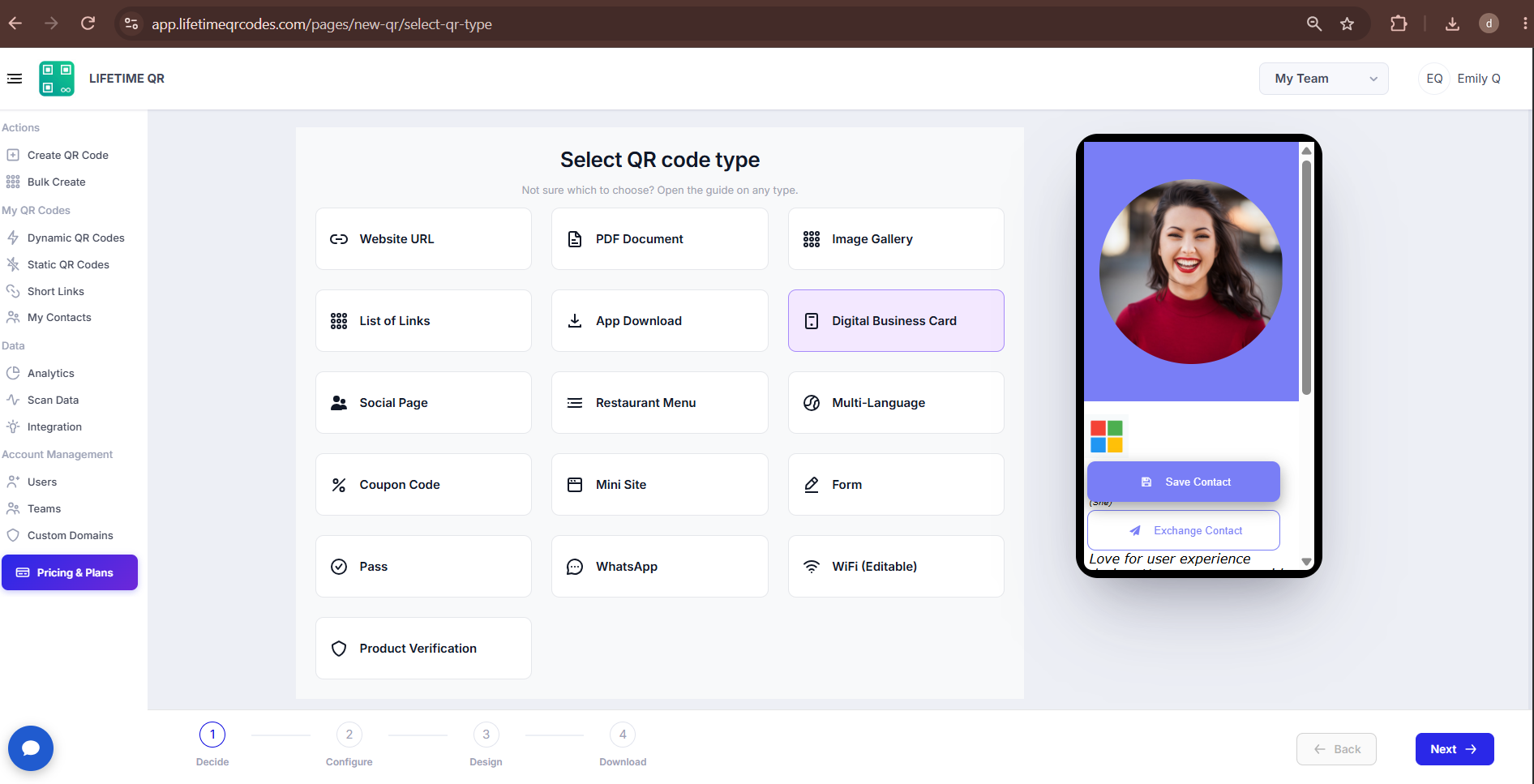
Step 2: Configure Your Digital Business Card (Configure Phase)
Configure your profile identity, template layout, professional summary, contact details, social links, theme appearance, and custom domain settings in the configuration panel:
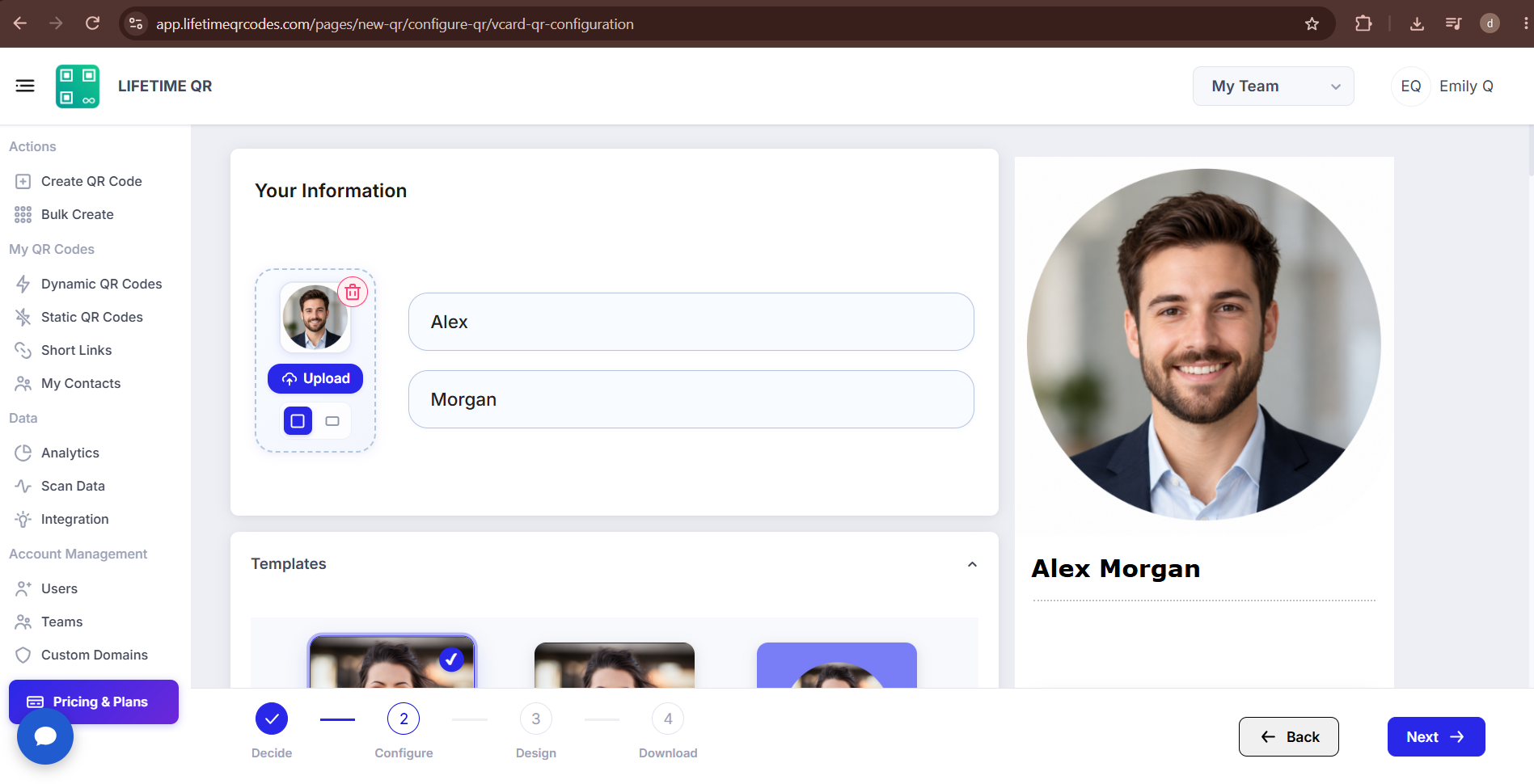
A) Your Information
Enter your core identity details, including Profile Image, First Name, and Last Name.
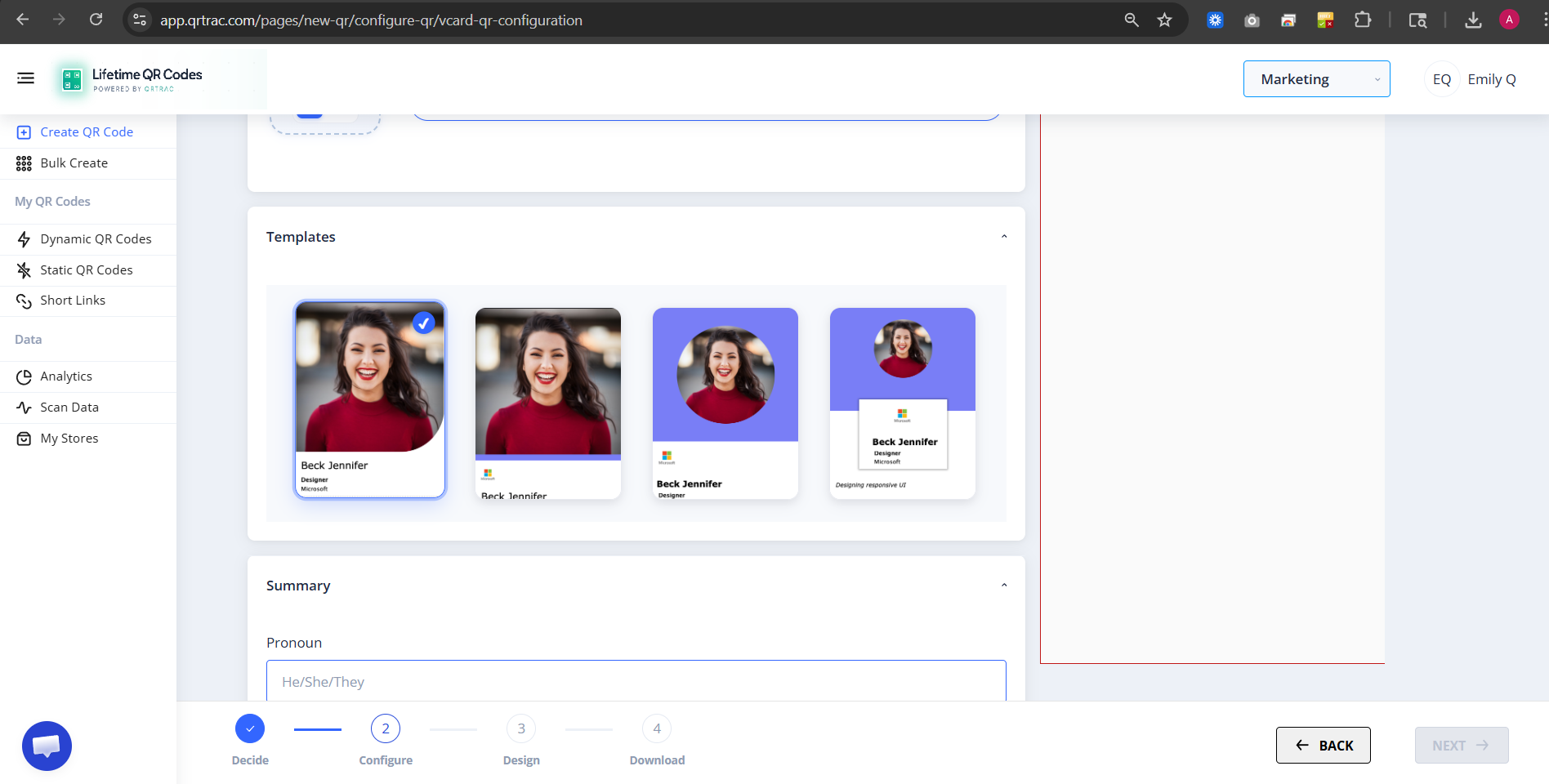
B) Templates
Choose from the available Digital Business Card template layouts to select the visual design and layout style for your card profile.
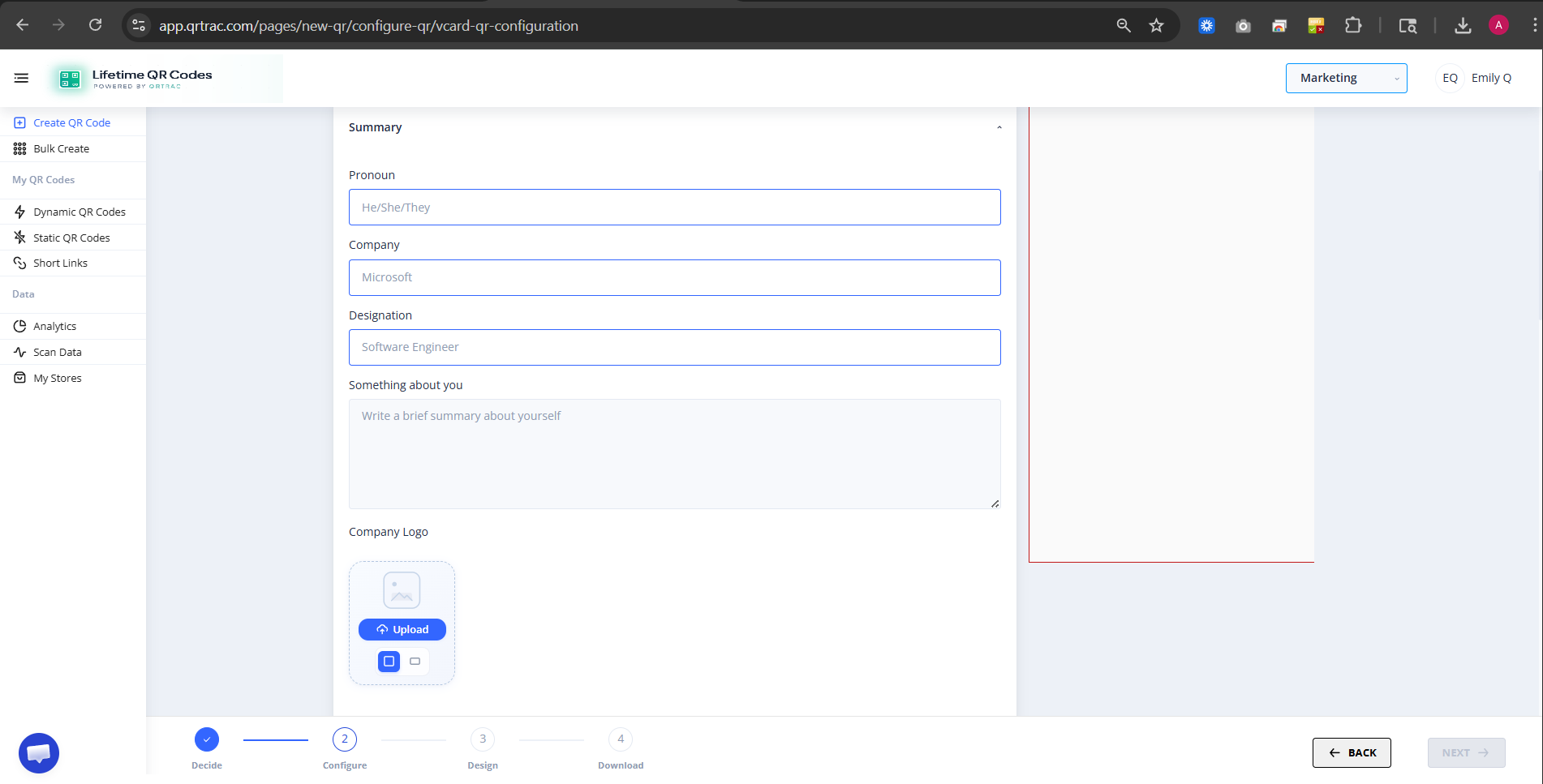
C) Summary
Add your professional summary details, including Pronoun, Company, Designation, Something about you (bio), and Company Logo.
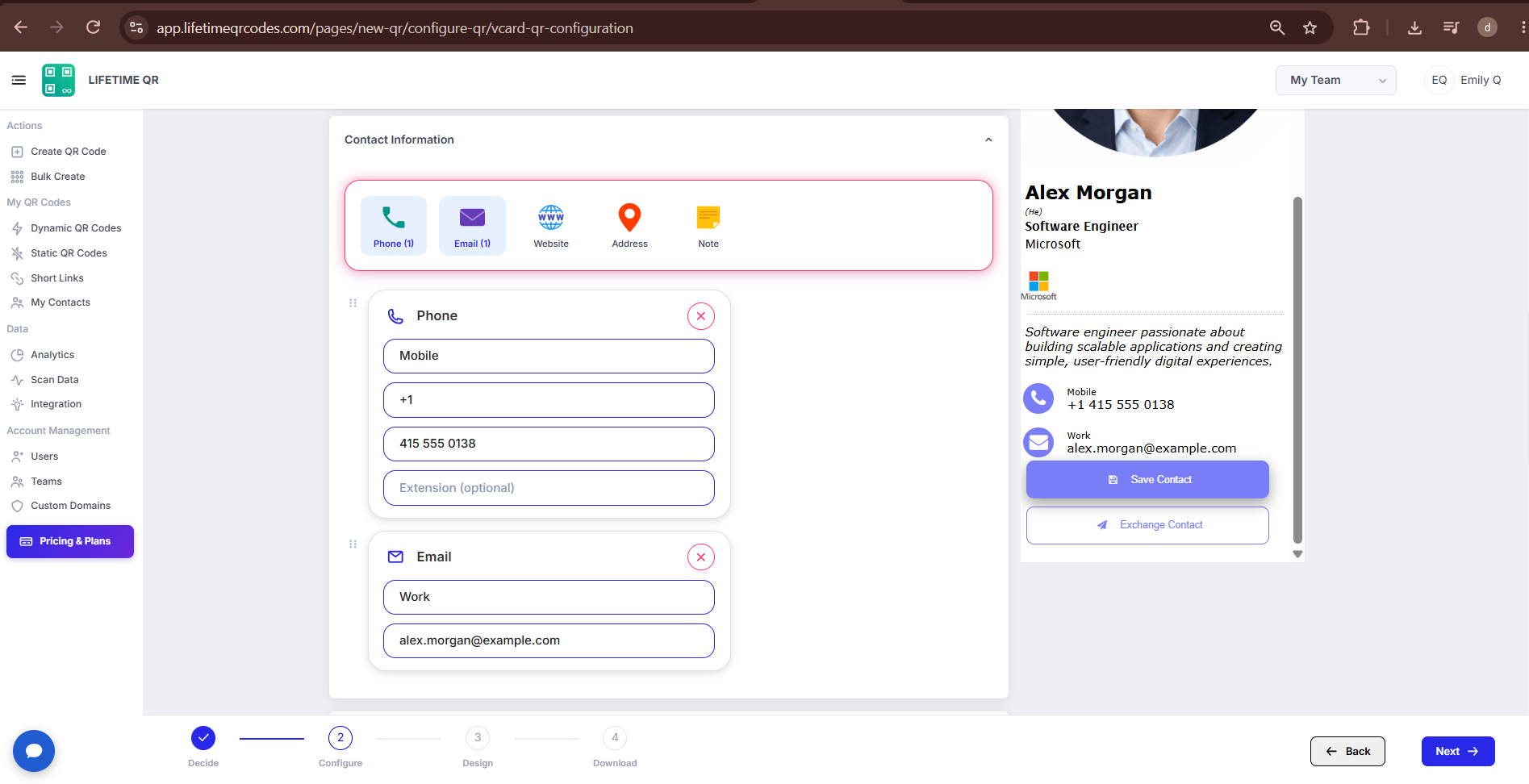
D) Contact Information
Add your direct communication channels, including Phone, Email, Website, Address, and Note.
Tip: Keep your Note short and professional — one or two sentences is ideal.
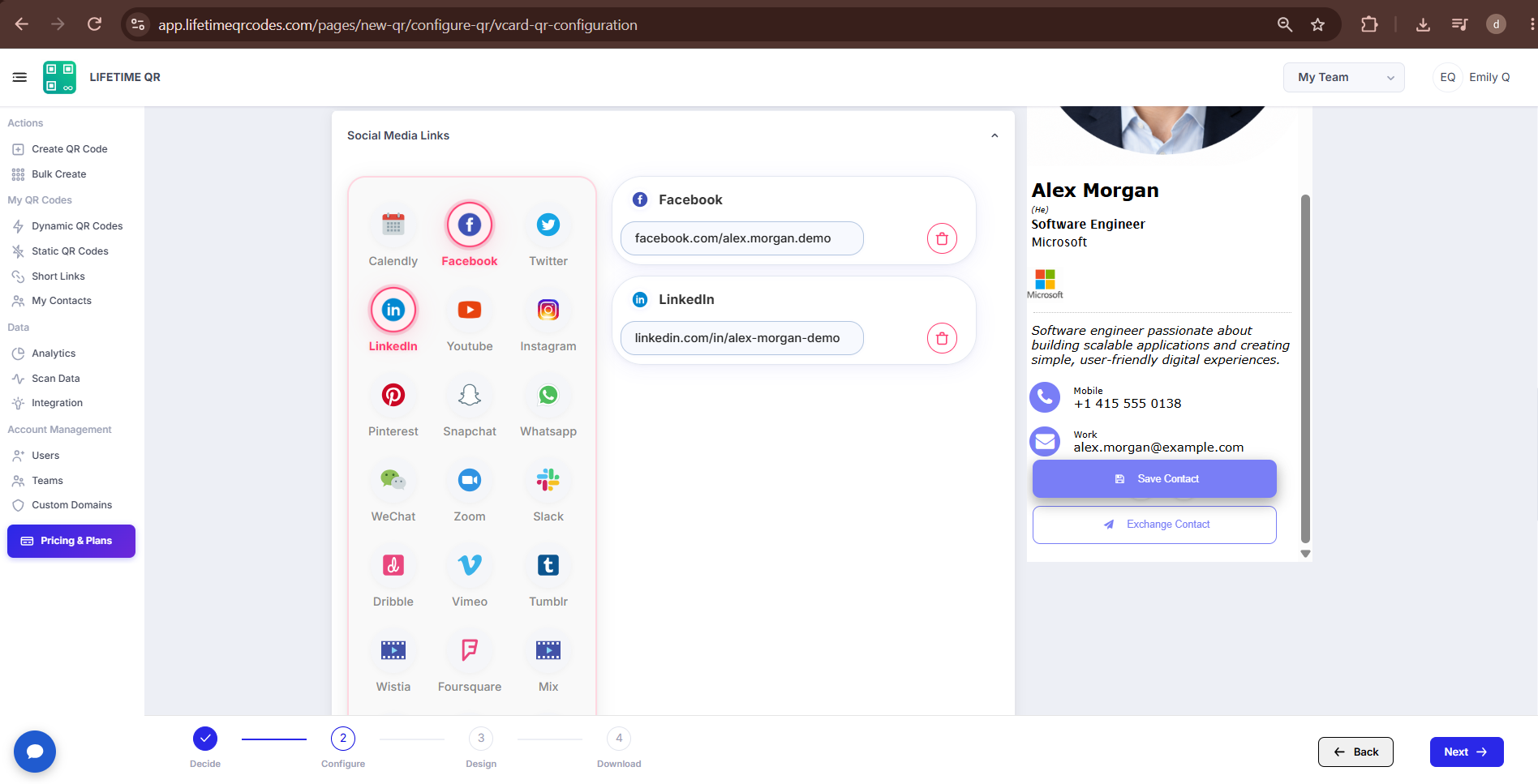
E) Social Media Links
Add links to your social profiles and communication channels, including Calendly, Facebook, Twitter, LinkedIn, YouTube, Instagram, Pinterest, Snapchat, WhatsApp, and more.
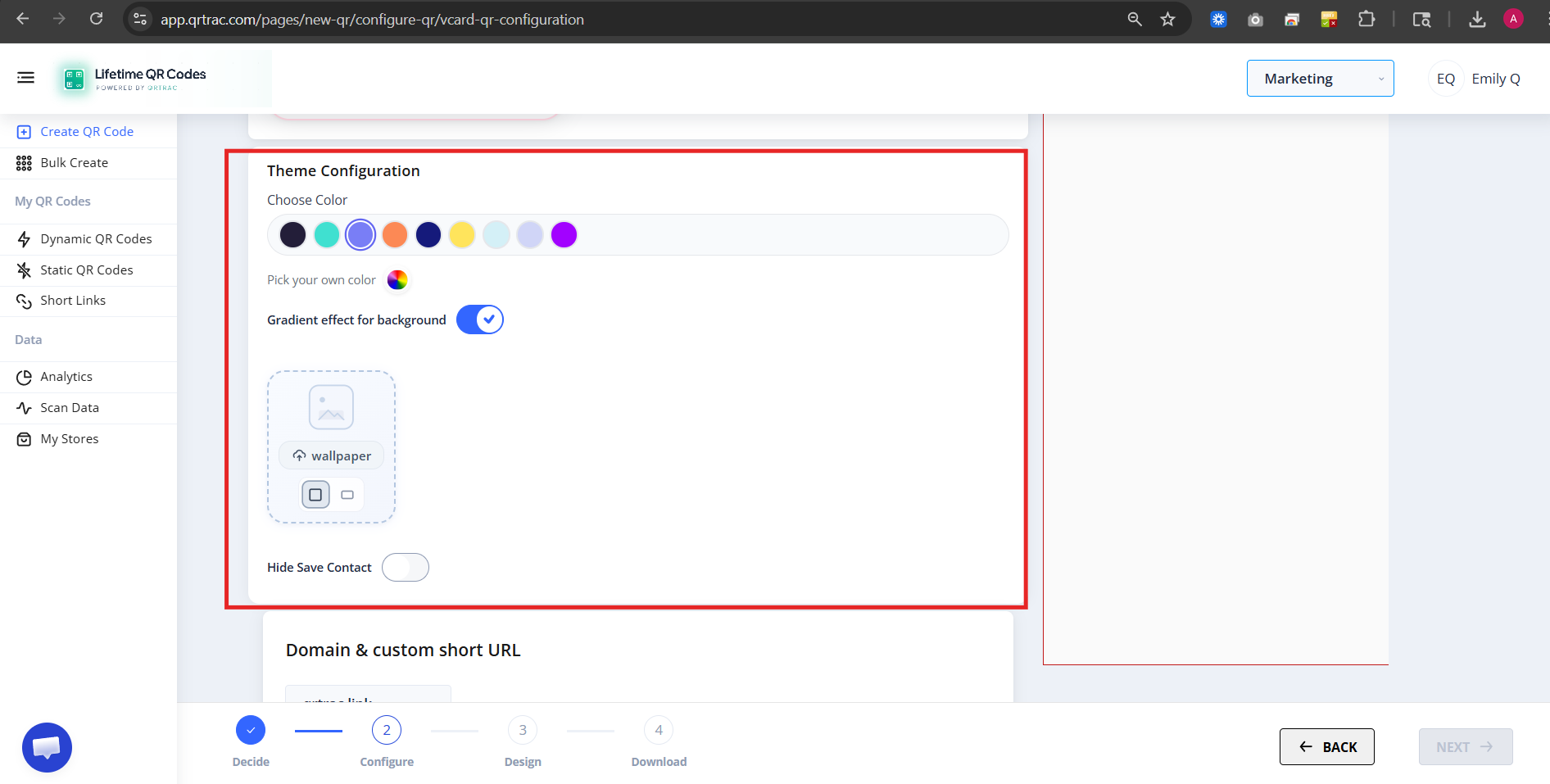
F) Theme Configuration
Customize your card appearance with color presets, a custom color picker, gradient backgrounds, wallpapers, and toggle the Hide Save Contact setting.
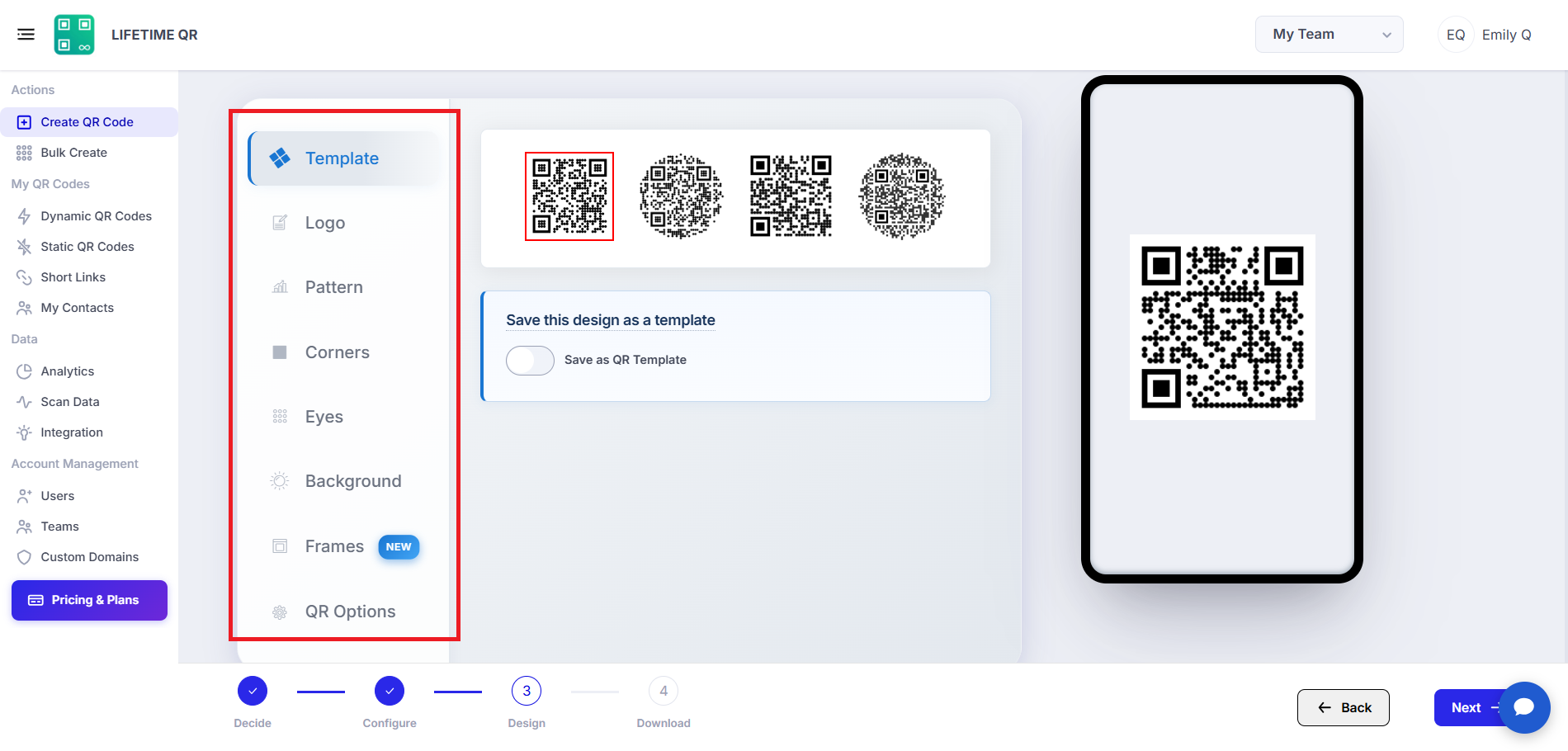
Step 3: Design Your QR Code (Design Phase)
Click Next to customize the visual appearance of your QR code:
- Frames: Add a frame with call-to-action text (e.g. "SCAN FOR CONTACT" or "SAVE MY VCARD").
- Pattern & Shapes: Choose dot patterns, body modules, and corner eye designs.
- Colors: Set single colors or multi-color gradients for foreground and background.
- Logo: Upload your personal photo, company logo, or vCard icon to center inside the QR code.
Dynamic QR — No Reprinting Needed
Update your contact details at any time from the Lifetime QR Codes dashboard without reprinting.
Step 4: Review & Download (Download Phase)
Review your Digital Business Card configuration and test the live mobile preview on the confirmation screen before downloading.
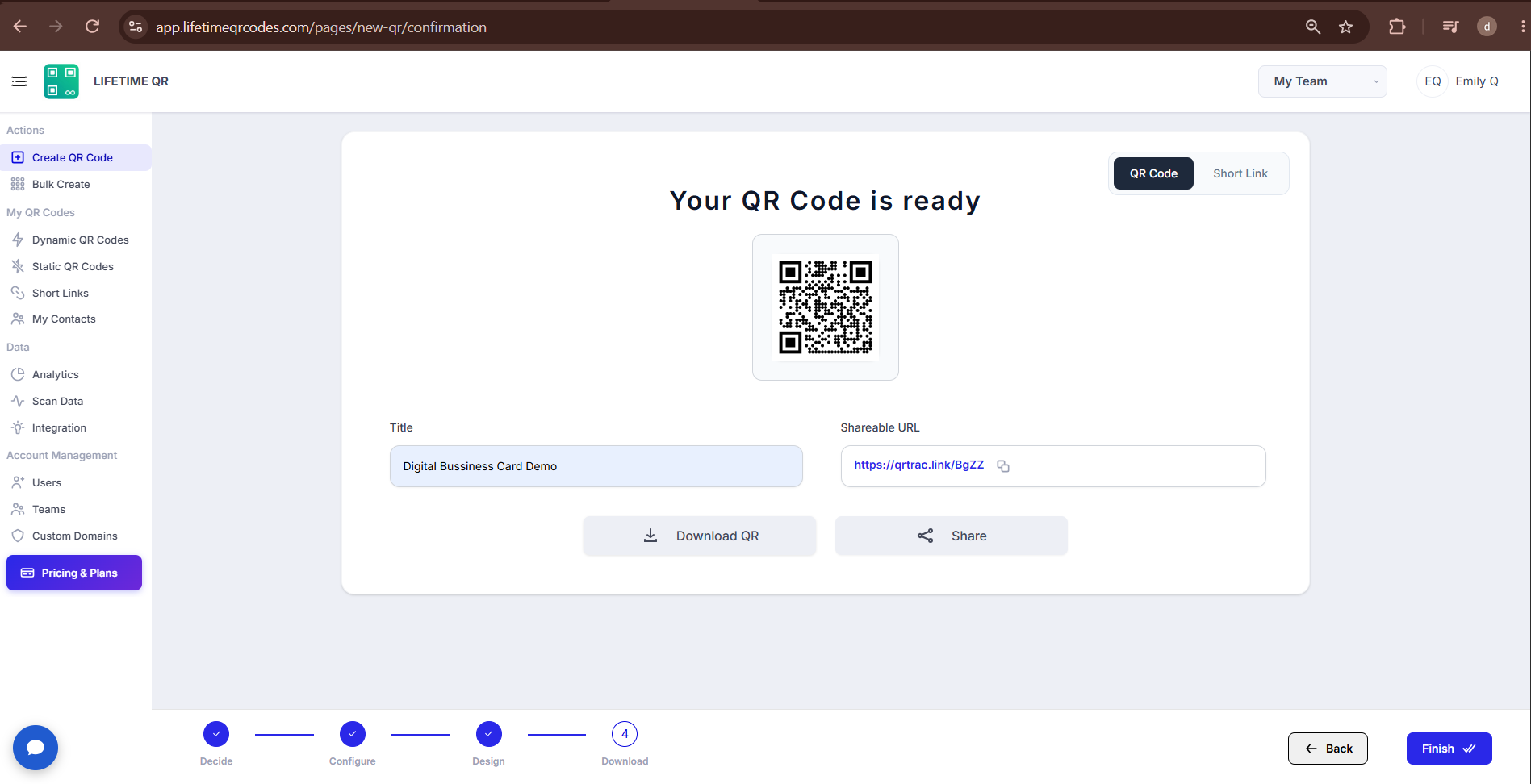
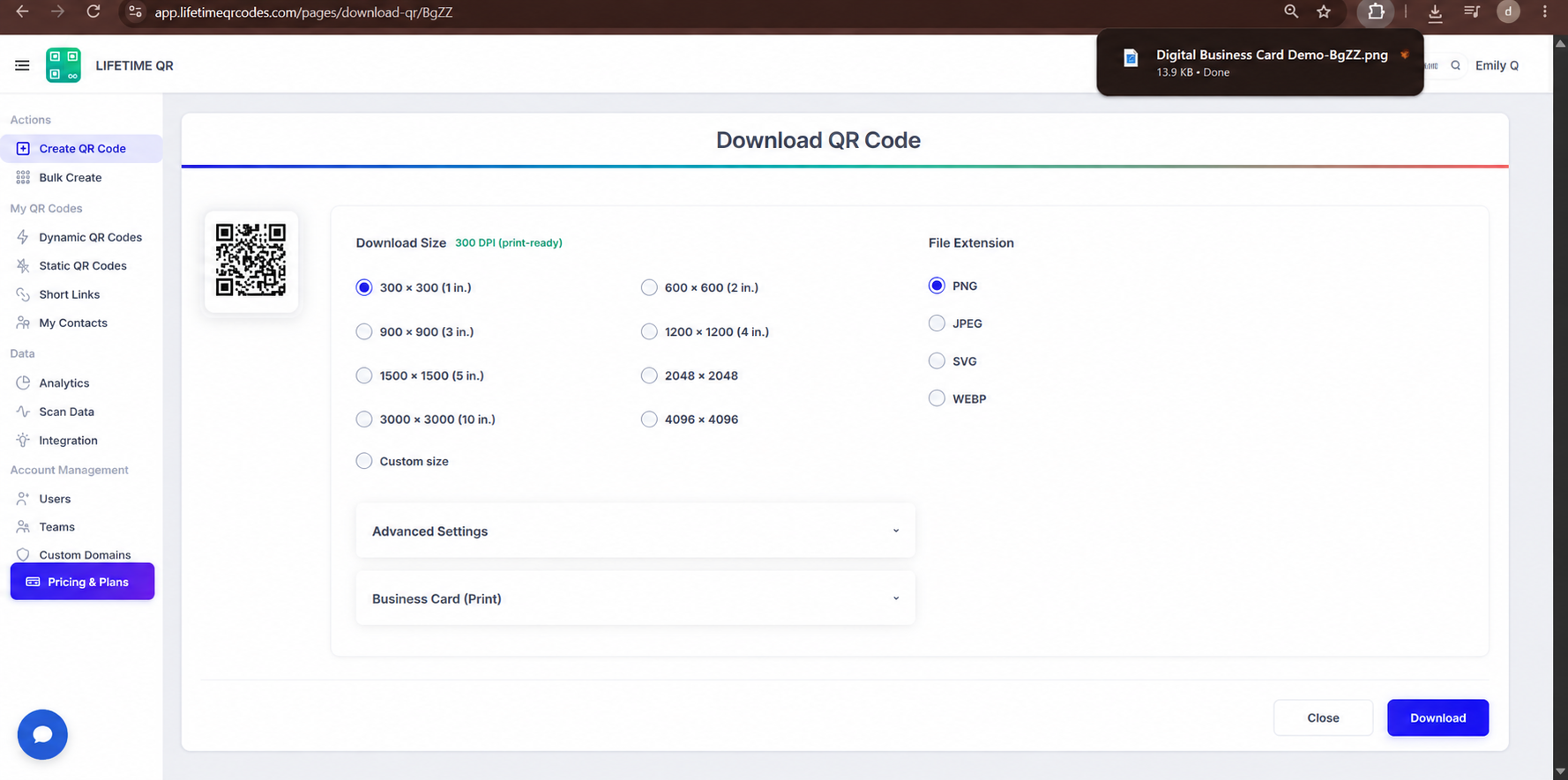
Click Download QR to export your QR code in your preferred format:
- PNG: Standard raster image for email signatures, digital resumes, and messaging apps.
- SVG: Scalable vector format for web profiles, landing pages, and digital design.
- PDF: Print-ready vector document for visiting cards, letterheads, and print stationery.
- EPS: Vector format for commercial printing presses and large-scale signage.
Save as Template
Toggle Save as Template on the confirmation screen to save your card design and settings for generating future Digital Business Card QR codes.
Frequently Asked Questions
What information can I include on a Digital Business Card?
You can include your name, profile photo, pronouns, company, designation, bio, phone numbers, email addresses, website URL, physical address, and links to multiple social profiles.
Can I update my details later without reprinting the QR code?
Yes. Because this is an editable Dynamic QR Code, you can log into your Lifetime QR Codes dashboard and update any contact details, links, or templates at any time without reprinting.
What happens when someone scans my Digital Business Card QR code?
The scanner sees your personalized digital landing page and can save your contact details directly to their phone contacts with a single tap via vCard (.vcf).
Can I track how many people viewed my card?
Absolutely. The analytics dashboard provides real-time data on scan volume, unique visitors, device types, and geographic locations.
Does the Digital Business Card work offline?
An internet connection is required for the scanner to load your digital profile and download the contact file.
Can I hide the Save Contact button?
Yes. In the Theme Configuration section, you can toggle the Hide Save Contact setting so scanners can view your profile without an automatic download prompt.