Current Article
How to Delete QR Codes in Bulk
How to Delete QR Codes in Bulk
Delete multiple QR codes at once using Bulk Actions in your Lifetime QR Codes dashboard.
Delete multiple QR codes at once instead of removing them individually. Review your selection carefully before confirming, as deleted QR codes cannot be restored.
Before You Delete
Make sure you have selected only the QR codes you no longer need. Deletion is permanent, so review your selection before opening Bulk Actions.
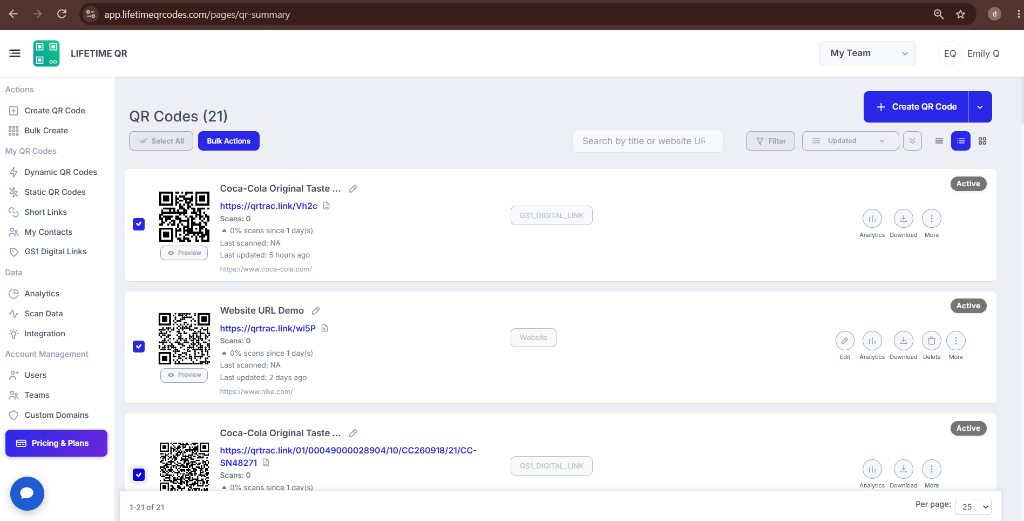
Step 1: Select Your QR Codes
- Log in to your Lifetime QR Codes dashboard and open your QR code list.
- Use the checkboxes to select the QR codes you want to delete.
- Select only the QR codes you no longer need.
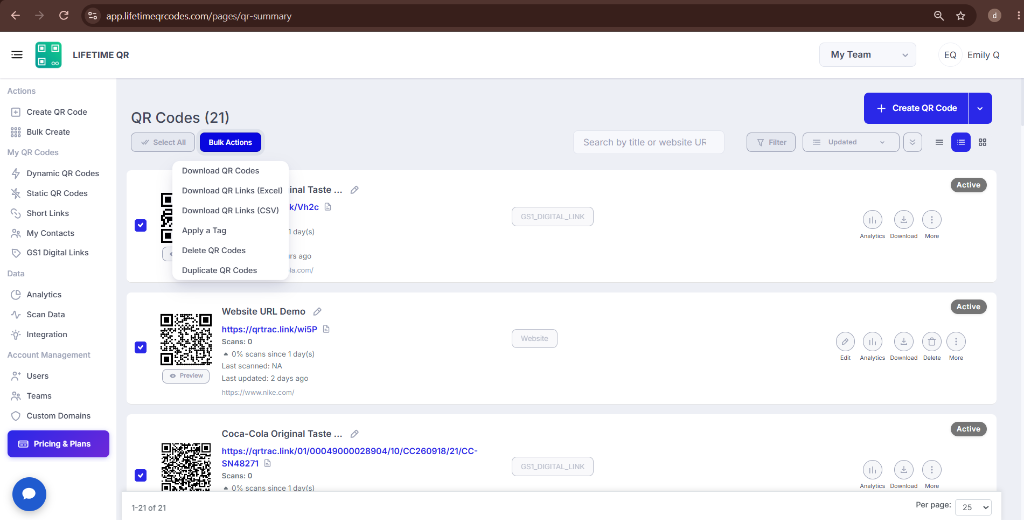
Step 2: Open Bulk Actions
- After selecting the QR codes, locate the Bulk Actions button.
- Click Bulk Actions to open the available bulk management options.
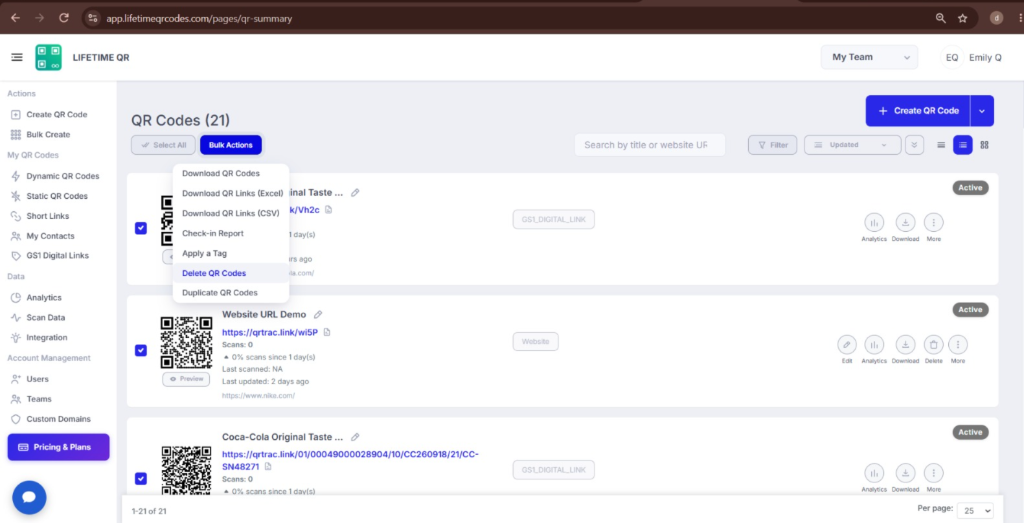
Step 3: Choose Delete QR Codes
- Select Delete QR Codes from the Bulk Actions menu.
- A confirmation window will appear before the selected codes are removed.
- Review the deletion warning before continuing.
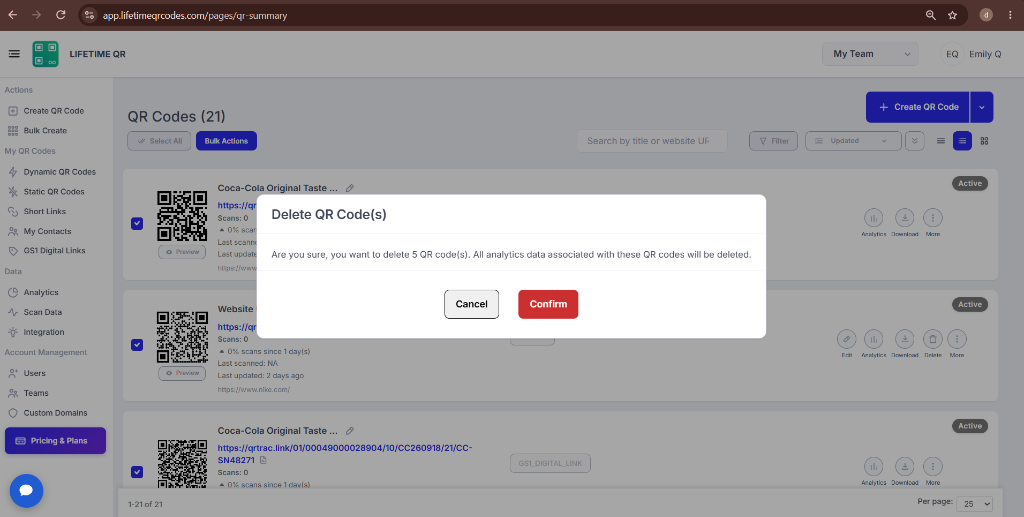
Step 4: Confirm the Deletion
- Review the selected QR codes carefully before confirming.
- Click Confirm Delete to permanently remove the selected QR codes.
- Deleted QR codes and their associated tracking history cannot be restored.
Warning: Irreversible Action
Deleted QR codes cannot be restored. Make sure you have selected the correct codes before confirming the deletion.
Tips for Safe Deletion
- Review the selected QR codes before opening Bulk Actions.
- Make sure you no longer need the selected codes before deleting them.
- Check the QR code names or destinations if you are deleting codes from a large list.
- Use bulk deletion only when you are confident the selected codes should be permanently removed.
What Happens After Deletion?
After confirmation, the selected QR codes are removed from your dashboard. Deleted codes cannot be restored, so make sure you have reviewed your selection before confirming.
Frequently Asked Questions
Can deleted QR codes be restored?
No. Bulk deletion is permanent, and deleted QR codes cannot be restored.
What happens to the scan data of a deleted QR code?
The deleted QR code and its associated tracking history are removed from your dashboard and cannot be recovered.
Can I delete multiple QR codes at once?
Yes. Select multiple QR codes and use Bulk Actions to delete them together.
Where can I find more help?
Visit our Help Center or contact our support team for additional assistance with bulk operations.