Current Article
How to Transfer QR Codes in Bulk
How to Transfer QR Codes in Bulk
Transfer multiple QR codes between teams at once using Bulk Actions in your Lifetime QR Codes dashboard.
Transfer multiple QR codes from one team to another at once instead of moving them individually. Bulk Transfer lets you reassign codes and their tracking data across teams directly from your Lifetime QR Codes dashboard.
Before You Transfer
- Make sure you have at least two teams available in your workspace.
- Confirm the destination team before starting the transfer.
- Select only the QR codes you want to move.
Step 1: Select Your QR Codes
- Log in to your Lifetime QR Codes dashboard.
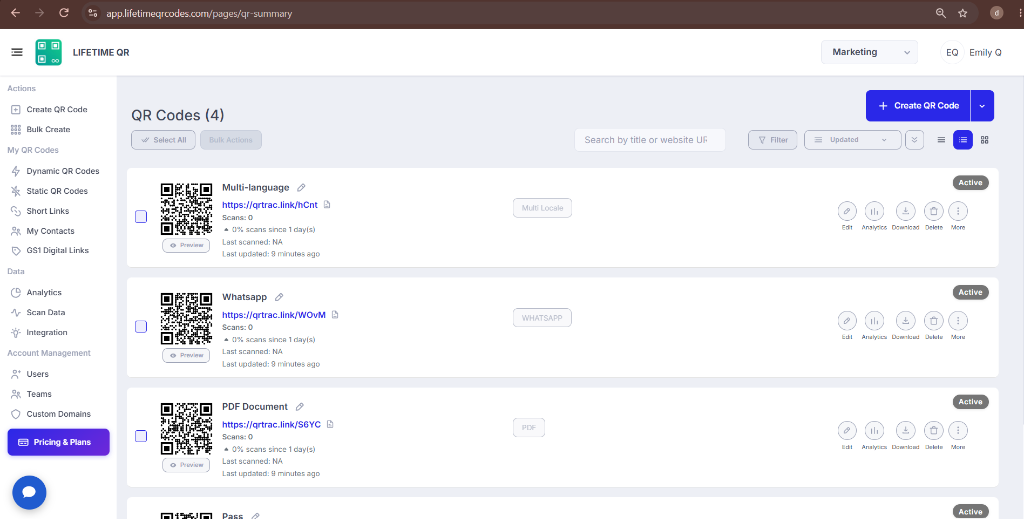
- Select the QR codes you want to transfer using the checkboxes.
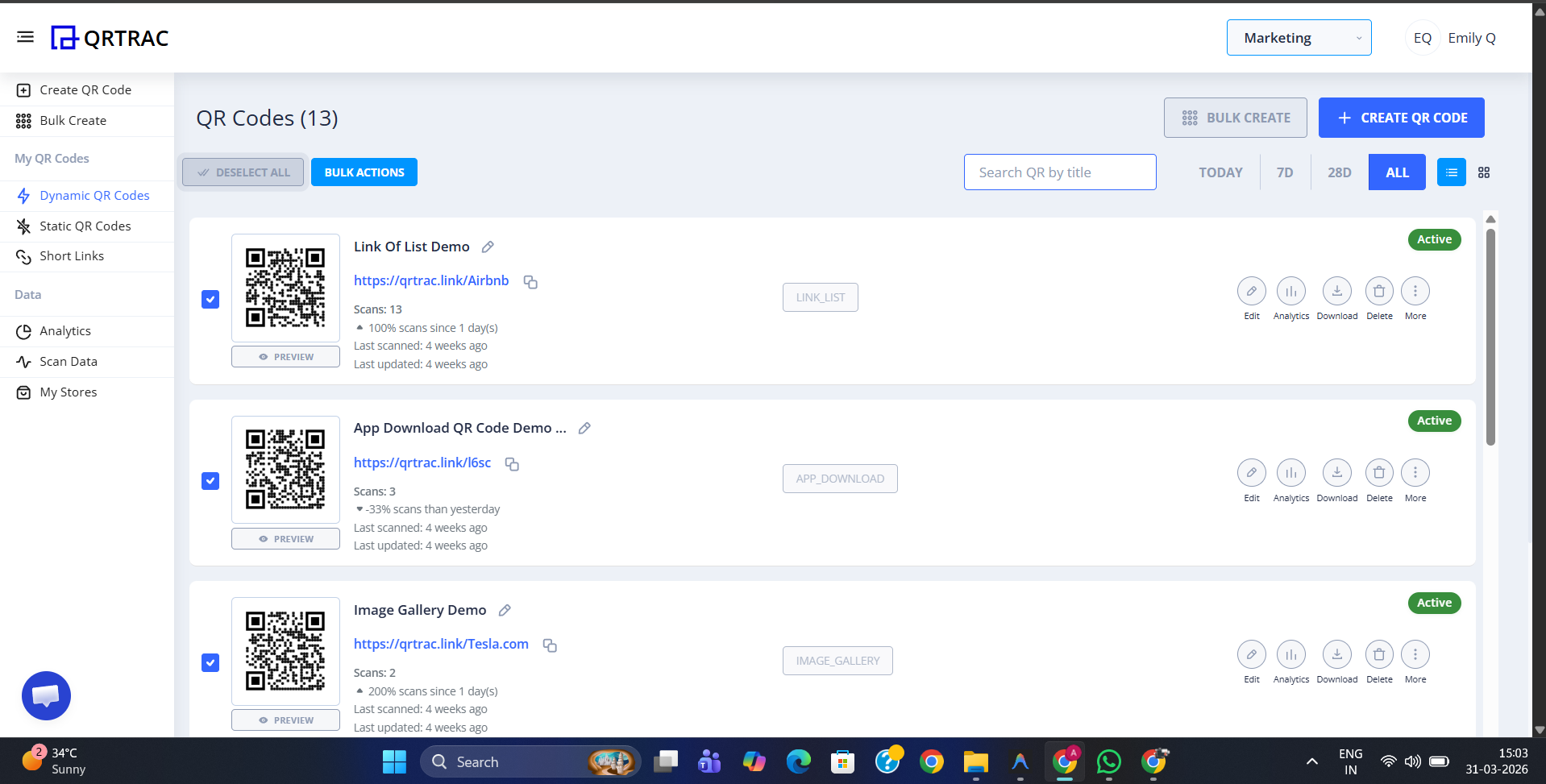
Step 2: Open Bulk Actions
- Open Bulk Actions after selecting the QR codes.
- Review the available bulk actions in the menu.
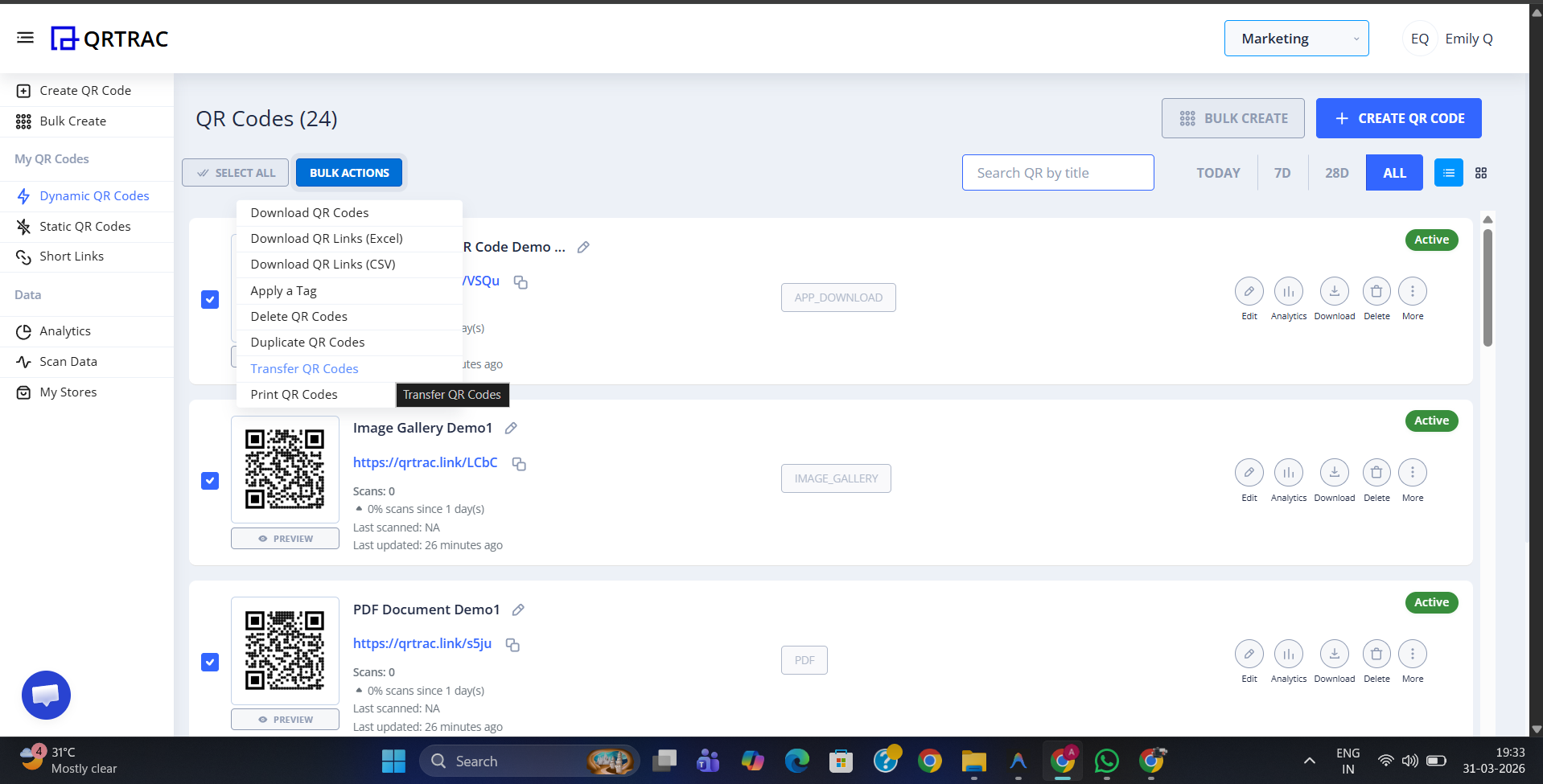
Step 3: Choose Transfer QR Codes
- Select Transfer QR Codes from the Bulk Actions menu.
- The transfer dialog will open.
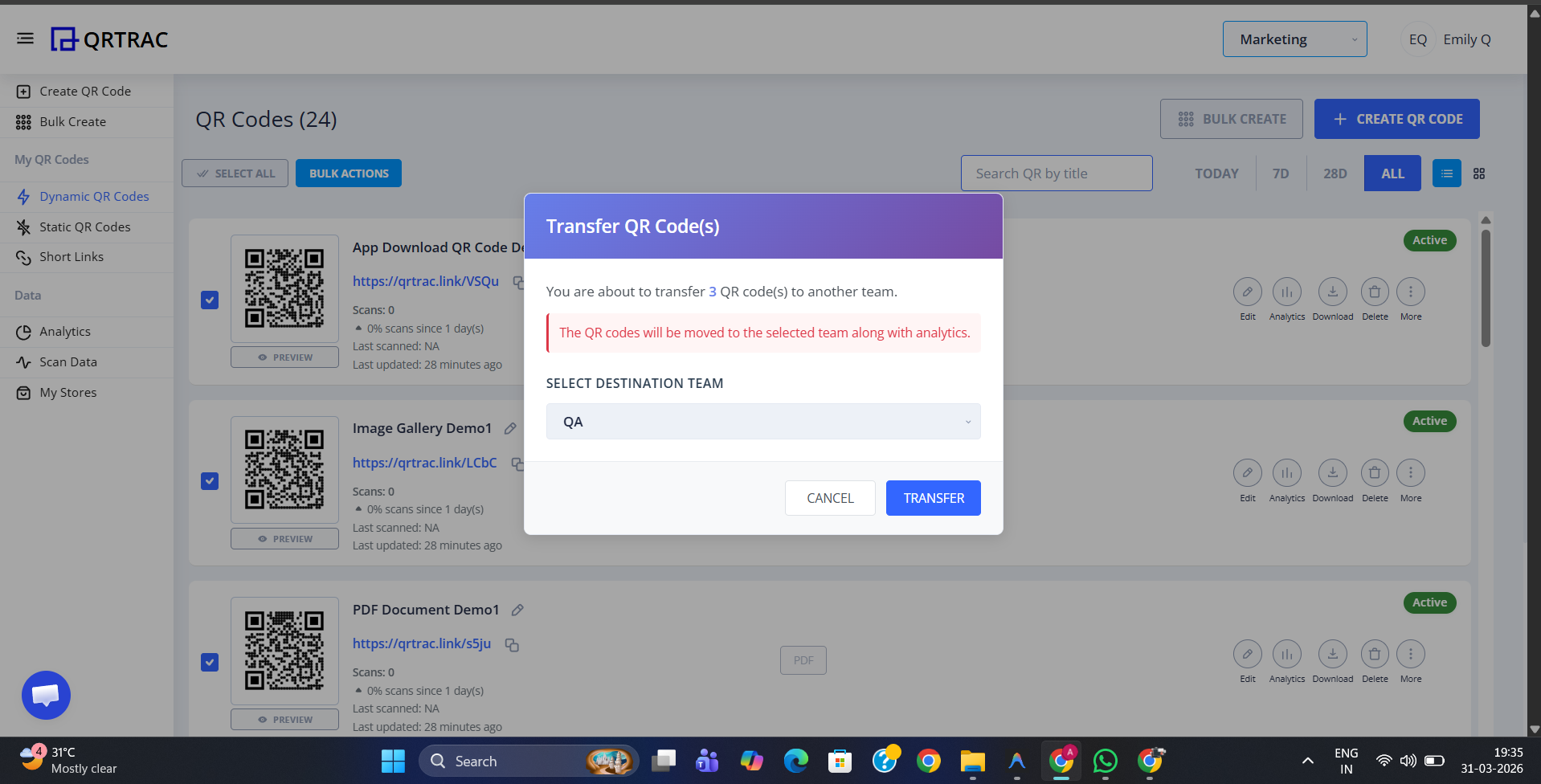
Step 4: Select the Destination Team
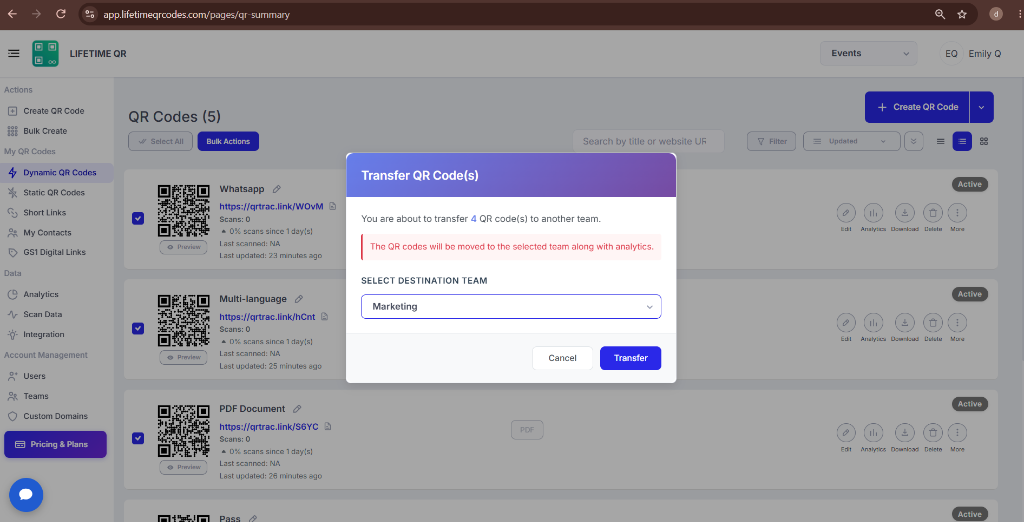
- Select the destination team from the SELECT DESTINATION TEAM dropdown.
- Example: Transfer QR codes from the Events team to the Marketing team.
- Review the destination team.
- Click TRANSFER.
Step 5: Verify the Transfer
- After clicking TRANSFER, switch to the destination team.
- Verify that the transferred QR codes are available in that team's QR Code list.
- For this example, the transferred QR codes should now appear under the Marketing team.
Warning: Ownership and Data Transfer
The selected QR codes and associated analytics/tracking data move to the destination team after the transfer.
Tips for Safe Transfers
- Verify the destination team before transferring.
- Select only the QR codes that should move.
- Make sure the destination team is available.
- Review everything before clicking TRANSFER.
What Happens After Transfer?
- The selected QR codes move to the destination team.
- Associated analytics/tracking data moves with the QR codes.
- The QR codes can then be managed from the destination team.
Frequently Asked Questions
Do I need multiple teams to use Bulk Transfer?
Yes. You need at least two teams available in your workspace so you have a destination team to select from the dropdown.
Can I transfer QR codes between teams?
Yes. Bulk Transfer allows you to move selected QR codes from your current team to another team in your workspace in a single action.
What happens to analytics after a transfer?
All scan analytics and tracking data move with the transferred QR codes to the selected destination team.
Where can I find more help?
Visit our Help Center or contact our support team for additional assistance with bulk transfers.