Current Article
How To Create a Lifetime Social Page QR Code
How To Create a Lifetime Social Page QR Code
Consolidate all your social media profiles into one scannable QR code. Create a lifetime Social Page with a custom landing page in Lifetime QR Codes.
A Social Page QR Code connects scanners to a clean, mobile-optimized landing page that displays all of your social media profiles, websites, and contact channels in one place. Instead of sharing multiple separate links, you can share a single scannable QR code that lets visitors follow, subscribe, and engage across every platform you use.
Tip: Test your social links after generating your QR code to verify that each platform handle or URL opens directly to the correct profile on mobile devices.
Common uses:
Before You Start
Before creating your Social Page QR code, have the following ready:
- Social Links & Handles: Active profile URLs or usernames for each platform you want to display (such as Instagram, YouTube, LinkedIn, X, Facebook, and TikTok).
- Profile Branding: A profile photo, avatar, or company logo to display at the top of your landing page.
- Page Information: A clear page title and a short bio or description summarizing who you are or what you offer.
- Brand Styling: Preferred accent colors or theme style to match your personal brand or business identity.
Public Profiles Only
QR codes direct users to public web pages. If your social profile or account is set to private, visitors may not be able to view your posts or profile details without following or logging in first.
Step 1: Login & Select Social Page (Decide Phase)
- Log in to your Lifetime QR Codes dashboard.
- Click Create QR Code in the header or sidebar.
- Select Social Page from the QR code types list.
- Click Next to open the configuration panel.
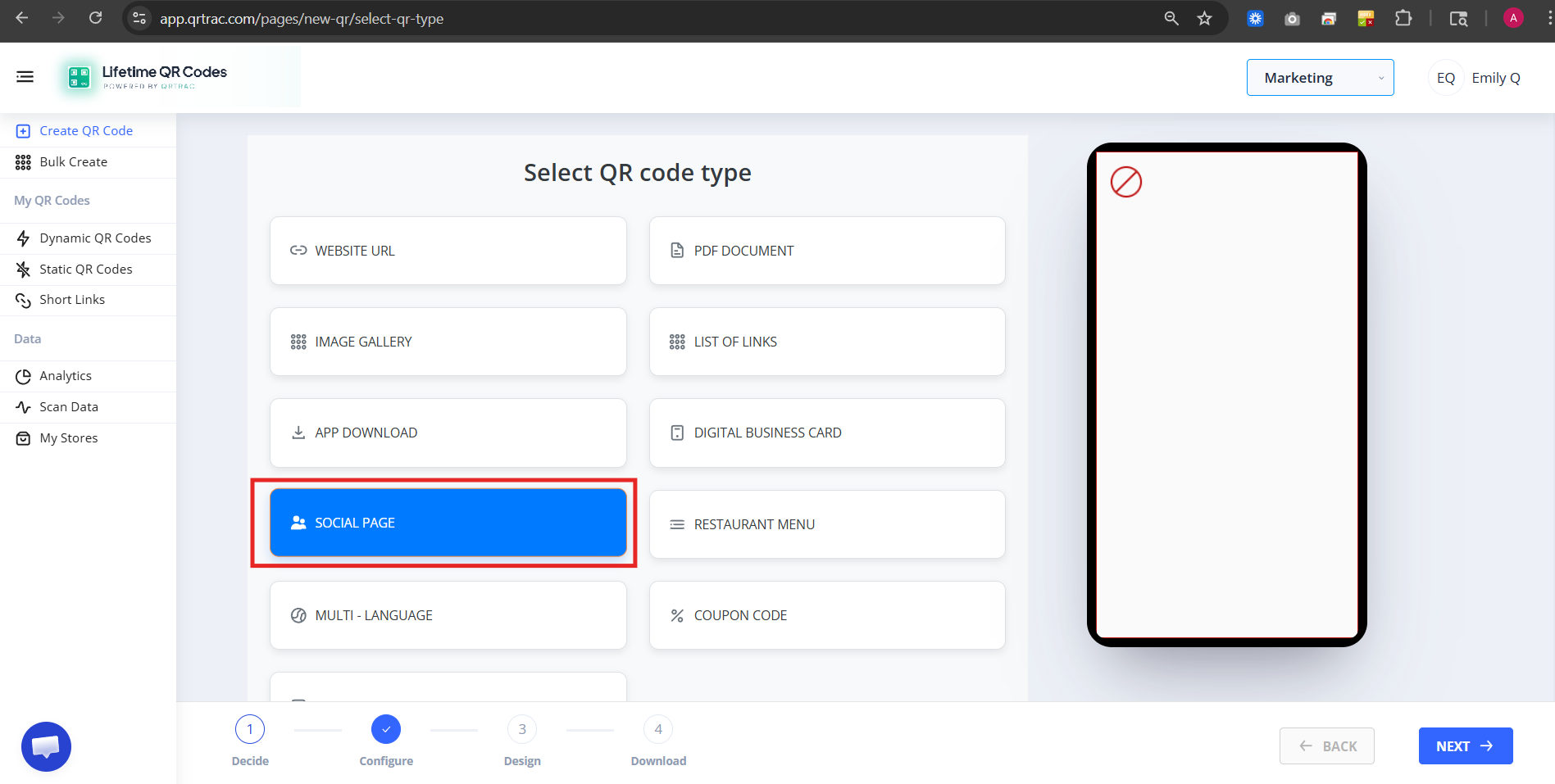
Step 2: Configure Social Page (Configure Phase)
Configure your social media channels, profile branding, header details, and theme styling in the Social Page configuration panel:
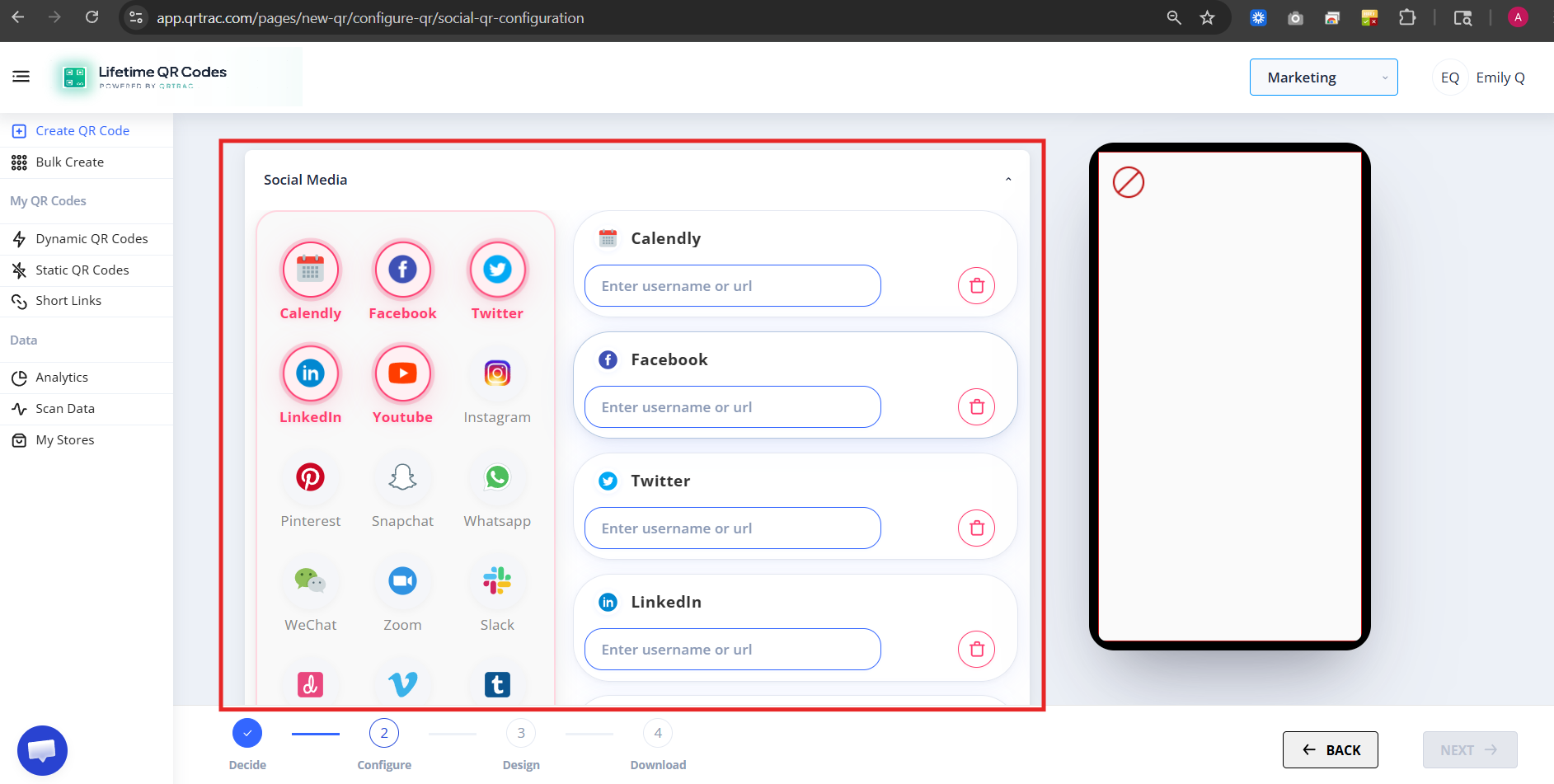
A) Social Media Links
Click the platform icons to add your social channels (such as Instagram, YouTube, Facebook, LinkedIn, X, TikTok, or custom links). Enter your profile handle or full URL for each added channel. You can add multiple platforms, drag to reorder them, or remove channels you no longer need.
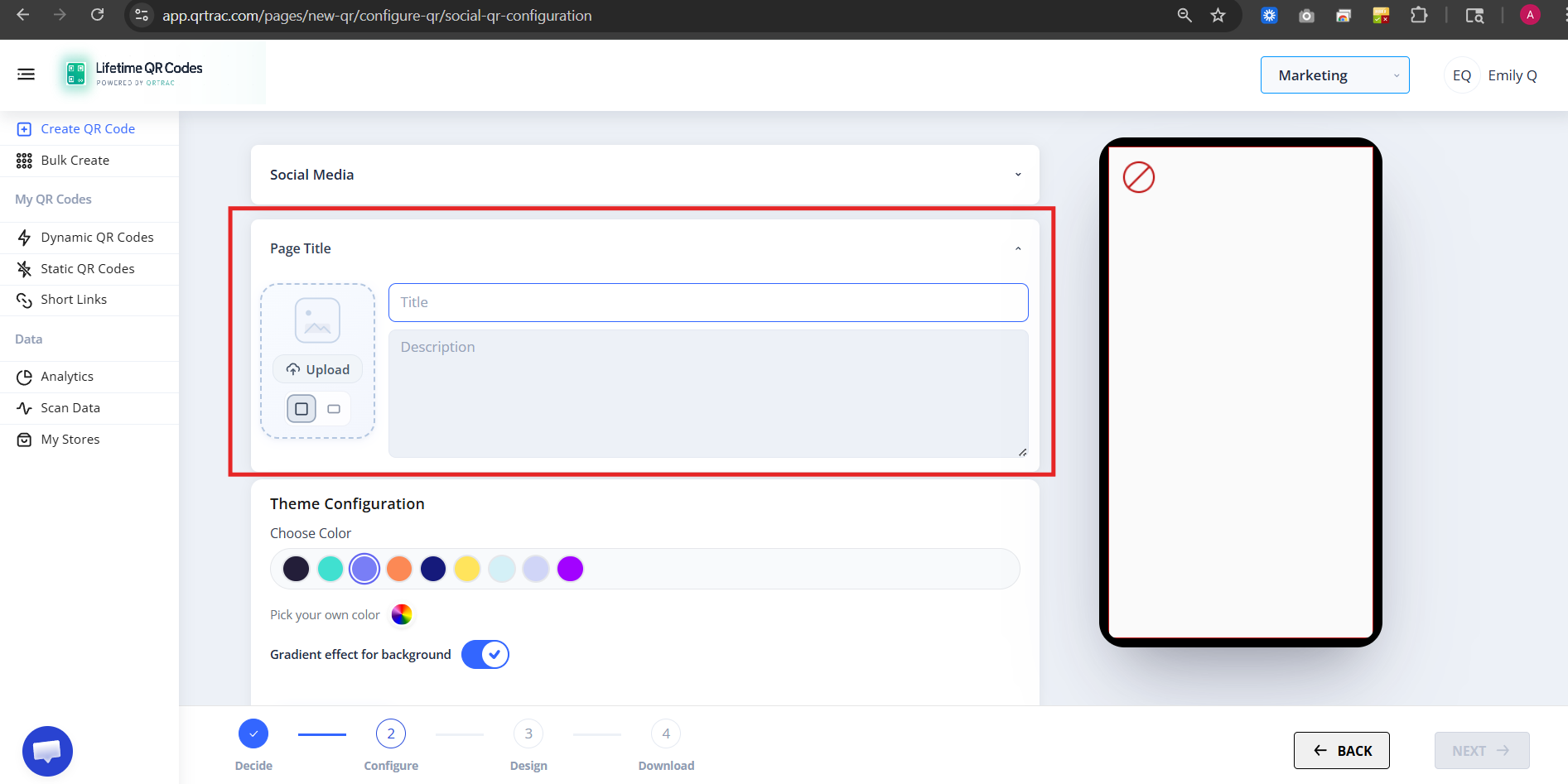
B) Profile & Page Details
Upload a profile image, avatar, or brand logo to display prominently at the top of your mobile landing page. Enter a clear page title and a brief description or bio to introduce yourself or your business to scanners.
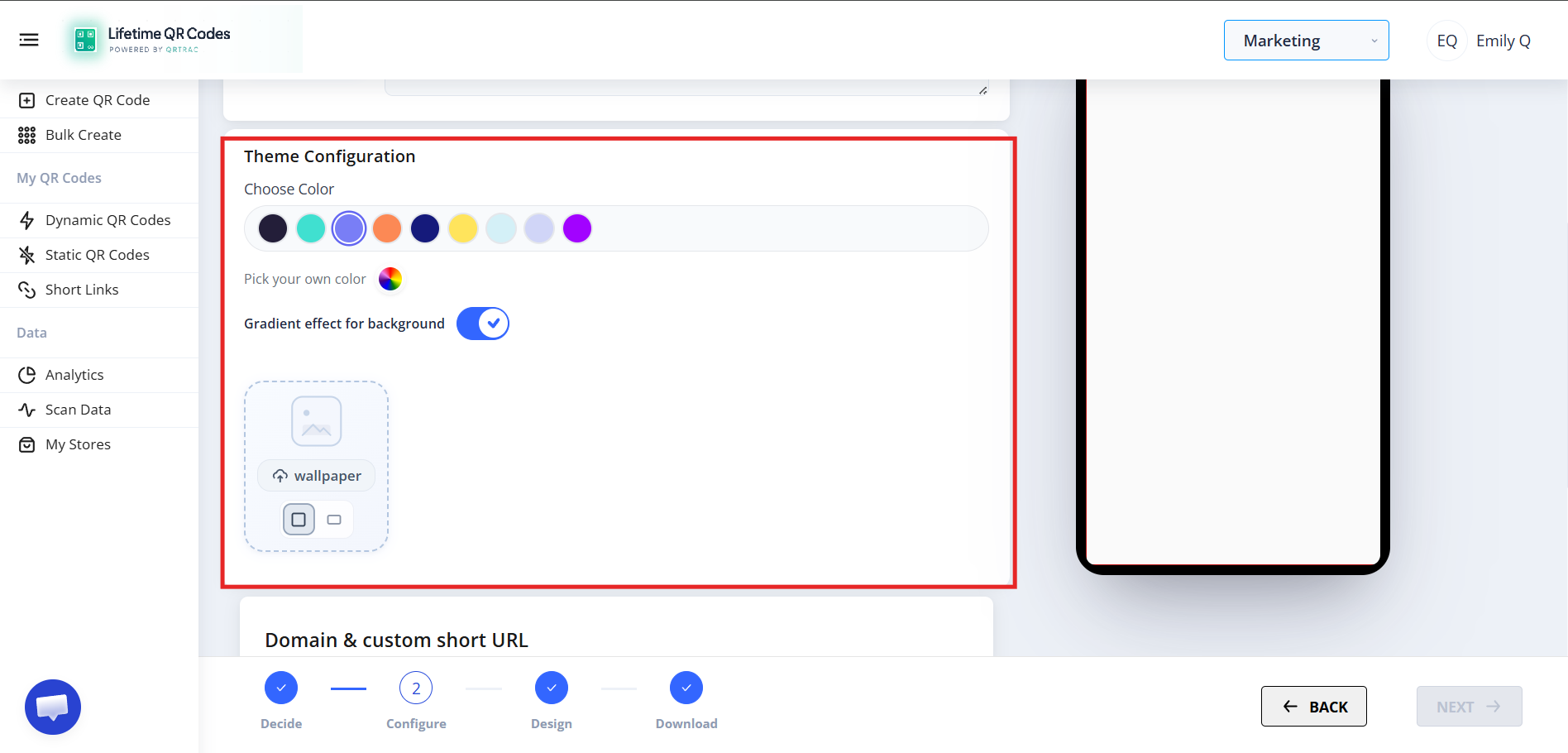
C) Theme Configuration
Choose a color theme for your landing page from the available presets, or enter a custom hex color to match your brand palette. You can also toggle the background gradient effect or set a background style to enhance the visual presentation.
Step 3: Design Your QR Code (Design Phase)
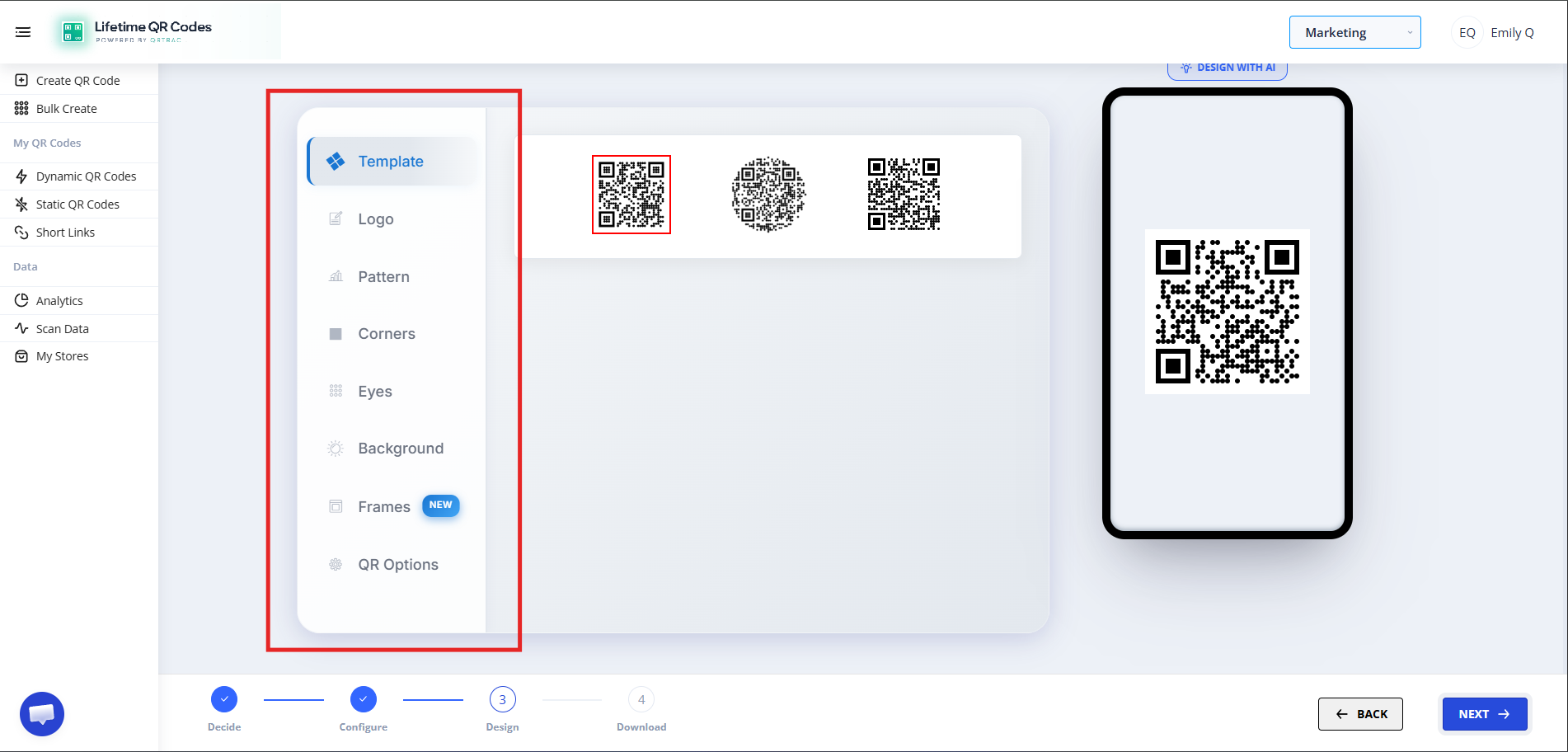
Click Next to enter the Design section where you can customize the visual appearance of your QR code:
- Template: Choose a ready-made QR design layout.
- Pattern & Shapes: Customize the QR pattern and corner eye shapes.
- Colors: Set custom foreground and background colors to match your branding.
- Logo: Add your logo or platform icon to the center of the QR code.
Dynamic QR — No Reprinting Needed
Because Social Page QR Codes are dynamic, you can update your social links, bio, or branding at any time from your dashboard without changing or reprinting the physical QR code.
Step 4: Review & Download (Download Phase)
Before downloading, preview your QR code on the screen and test it on real devices.
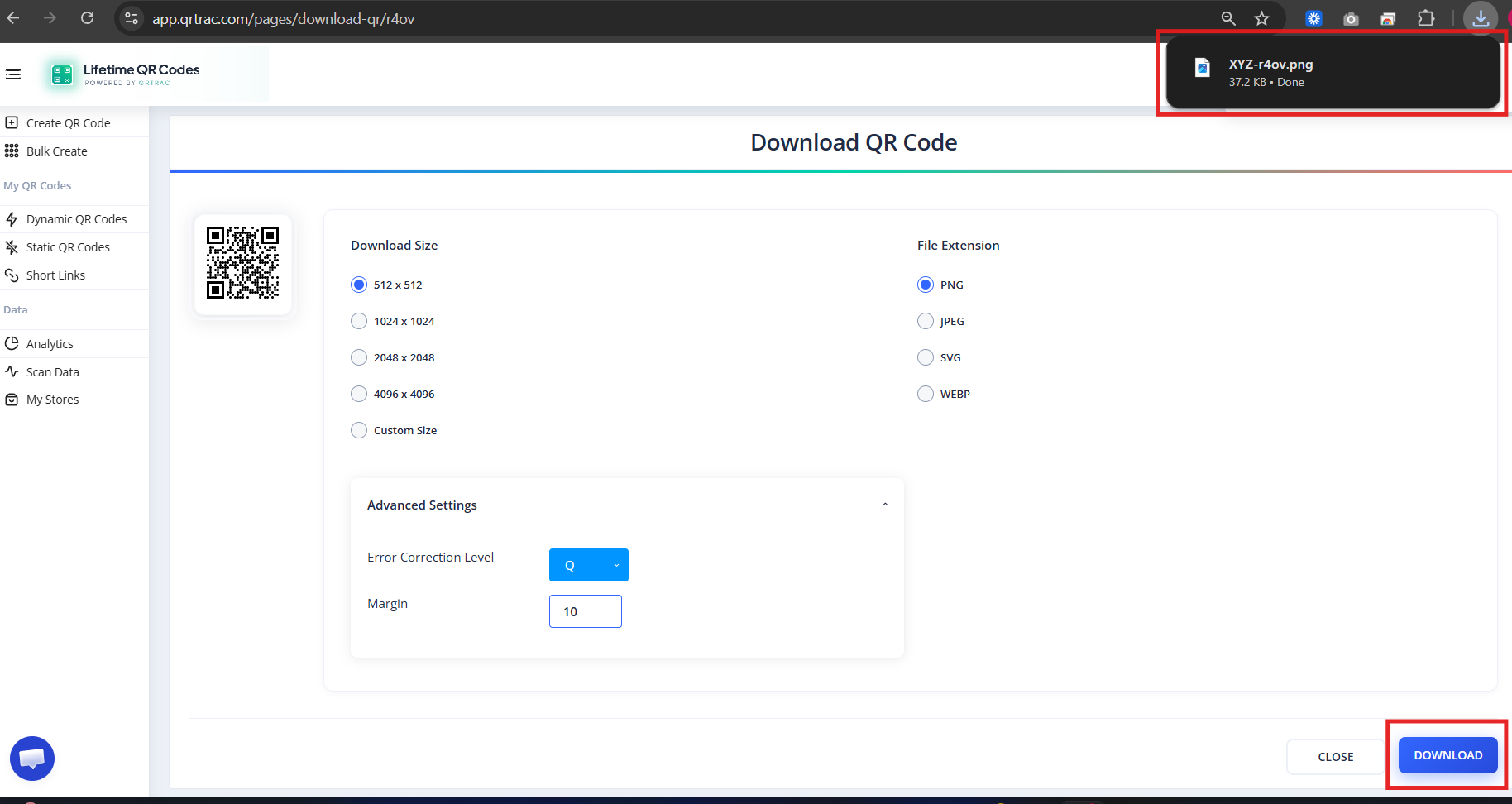
Click Download QR to export your QR code in your preferred format:
- PNG: Standard high-resolution raster format for digital use and screen displays.
- JPEG: Compact image format suitable for digital sharing and general print materials.
- SVG: Scalable vector format ideal for professional printing, signage, and merchandise without quality loss.
- WEBP: Modern web format with lightweight compression for fast page loading.
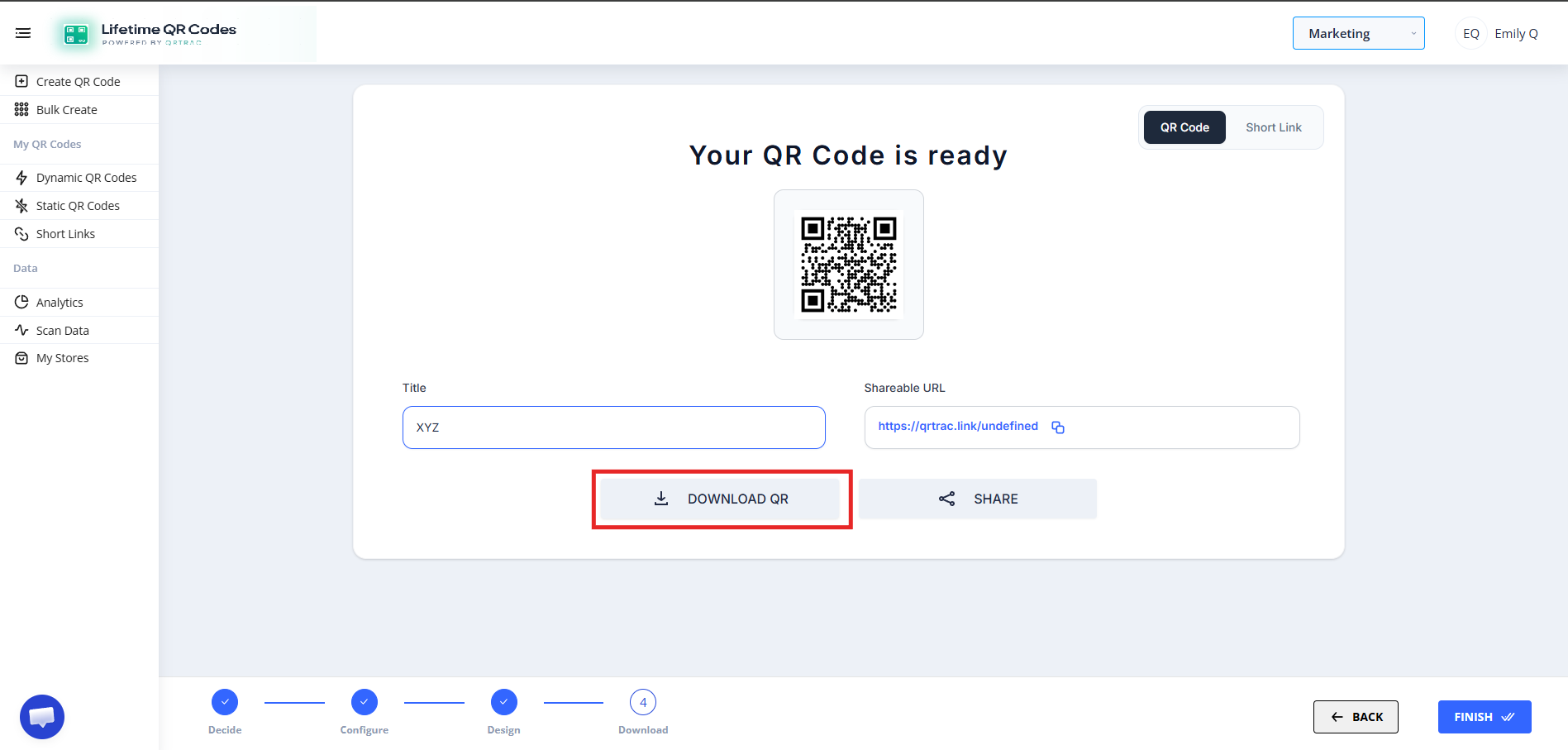
Save as Template
Toggle Save as Template on the confirmation screen to save your design styles and configuration for quickly generating future QR codes.
Pro Tip
Always scan your QR code on a mobile device before final printing. Confirm that all social buttons link to the active profiles and that the landing page renders cleanly across various screen sizes.
Frequently Asked Questions
Can I add, remove, or update social links after printing?
Yes. Because Social Page QR Codes are dynamic, you can add new social channels, update usernames, change URLs, or remove old links anytime from your dashboard without reprinting the QR code.
Can I track how many people scan my QR code?
Yes. The analytics dashboard provides real-time tracking metrics, including total scans, unique visitors, scan locations (city and country), device types, operating systems, and browser data.
Which social platforms can I connect?
You can connect all major social networks and platforms, including Instagram, YouTube, Facebook, LinkedIn, X (Twitter), TikTok, Pinterest, Spotify, WhatsApp, Discord, and custom web links.
Do users need a specific app to open the Social Page?
No. Users simply scan the QR code using their regular smartphone camera. The Social Page opens instantly in their default mobile browser, where they can tap any link to visit your profile.
Can I customize the colors and branding of my landing page?
Yes. You can upload your profile photo or logo, customize the title and bio description, and select preset color themes or enter a custom hex color code to match your branding.