Current Article
How to Download QR Images in Bulk
How to Download QR Images in Bulk
Learn how to download multiple QR code images at once in PNG, JPEG, SVG, or WEBP formats in a single ZIP archive from your Lifetime QR Codes dashboard.
Download multiple QR code images at once instead of downloading them one by one. Select your QR codes, choose your download settings, and download them together as a ZIP file.
Step 1: Select Your QR Codes
- Log in to your Lifetime QR Codes account and open your dashboard.
- From the left sidebar, open Dynamic QR Codes or Static QR Codes.
- Select the QR codes you want to download.
- Use SELECT ALL to select the QR codes shown on the current page.
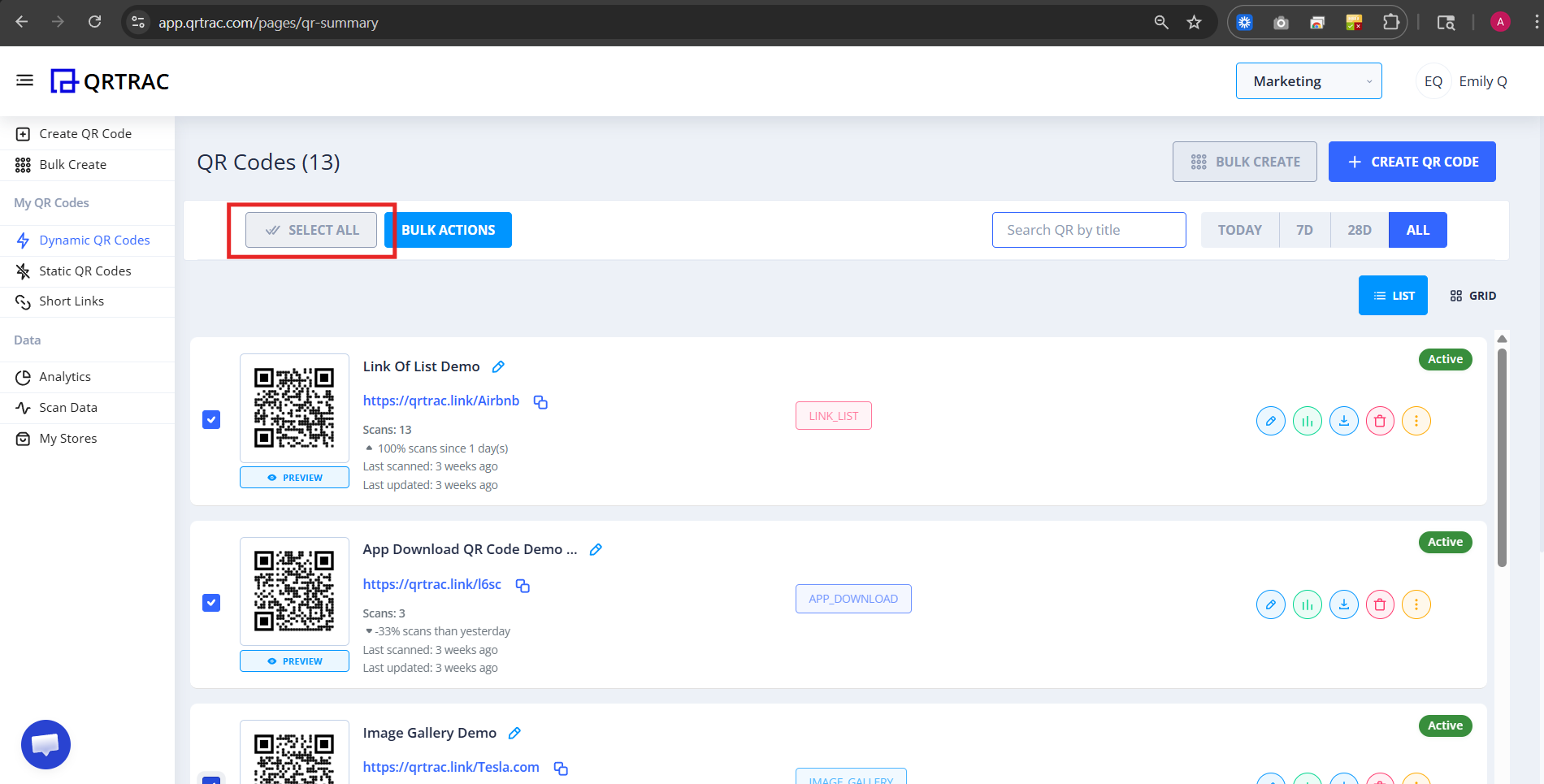
Step 2: Open Bulk Actions
- After selecting your QR codes, click BULK ACTIONS.
- This opens the available actions for the selected QR codes.
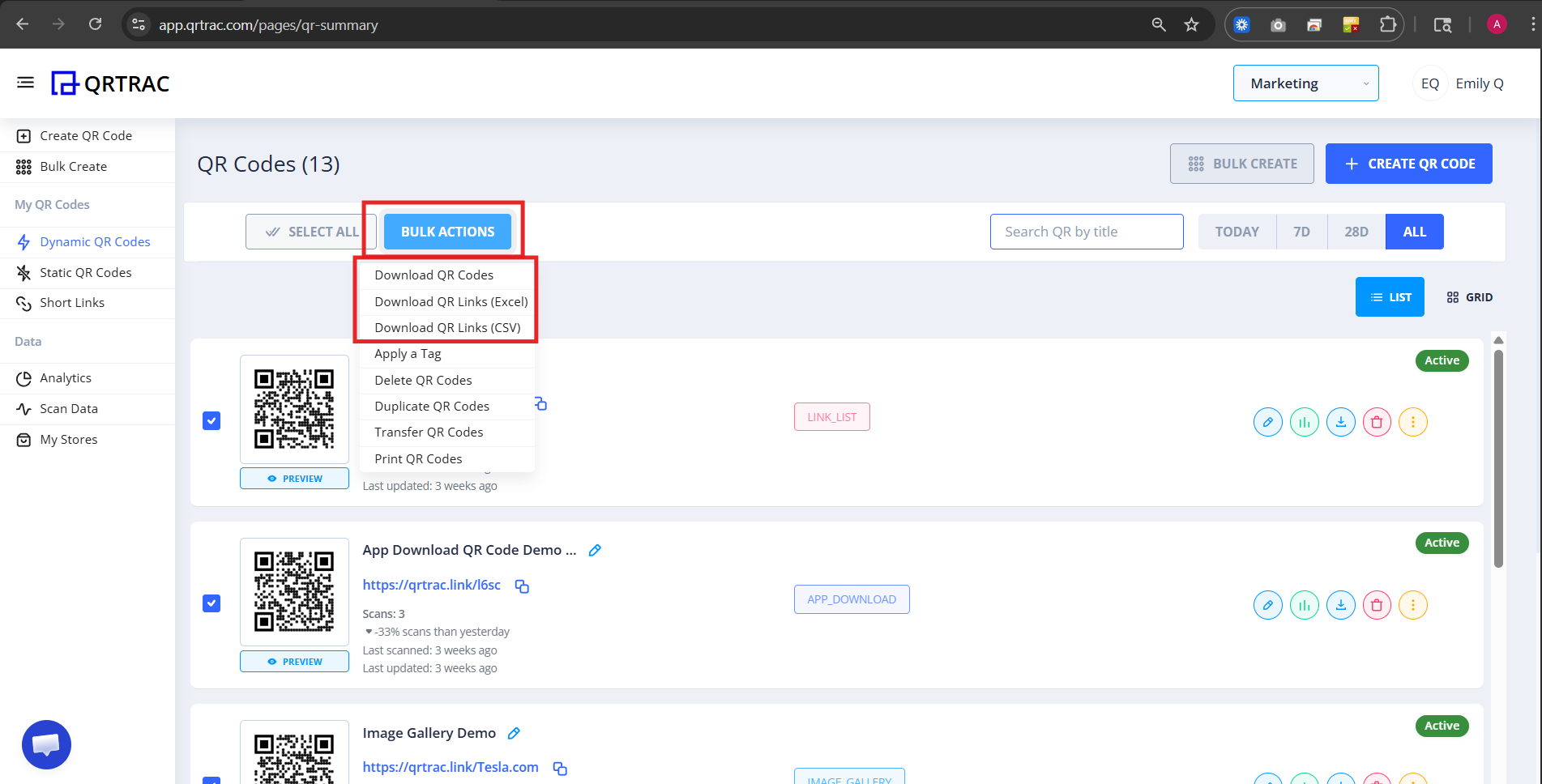
Step 3: Choose Bulk Image Download
- Select Download QR Codes from the BULK ACTIONS menu.
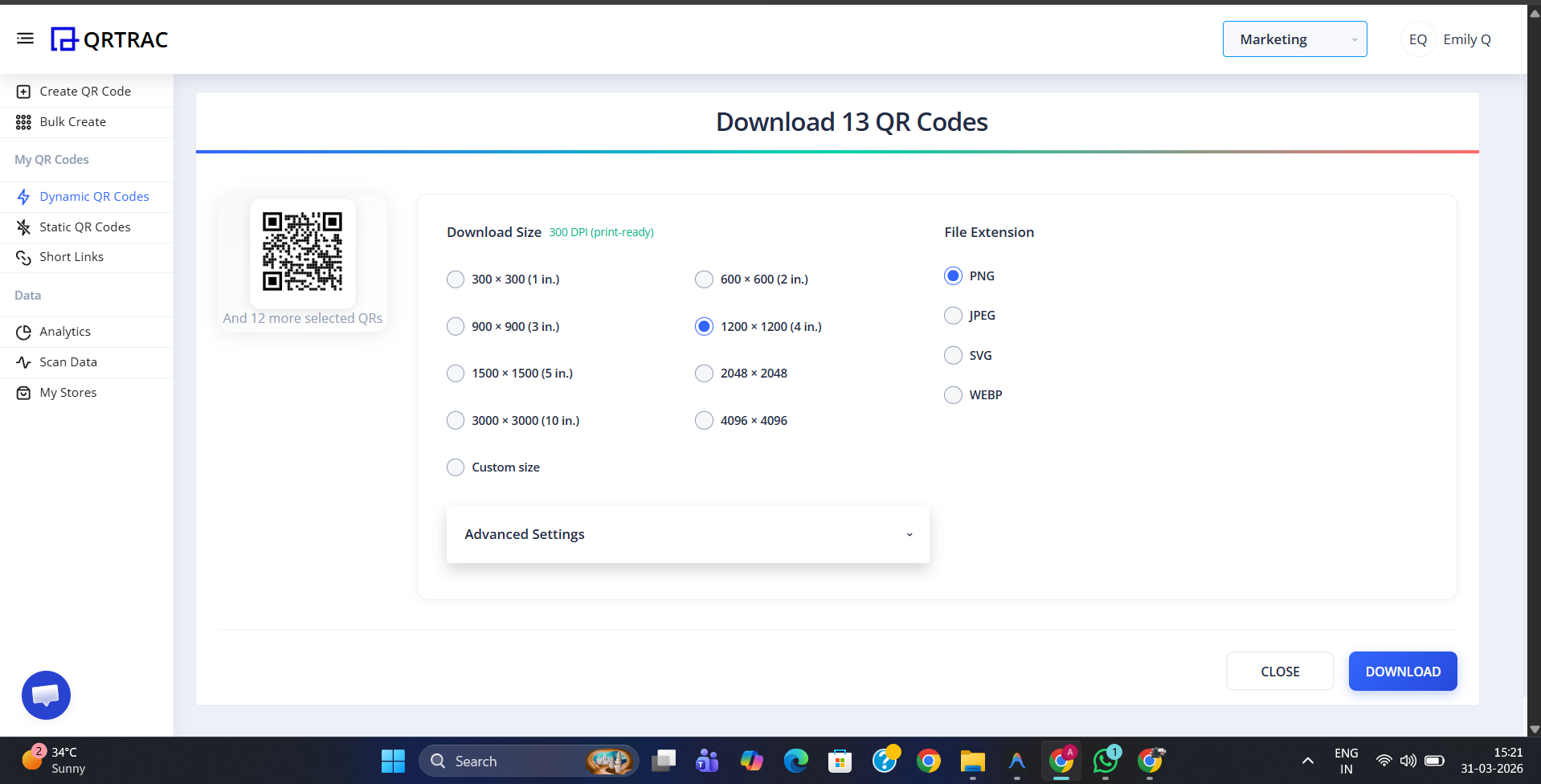
- The download settings window will open.
Note
Choose Download QR Codes to download image files. The Excel and CSV options download link spreadsheets.
Step 4: Select Download Options
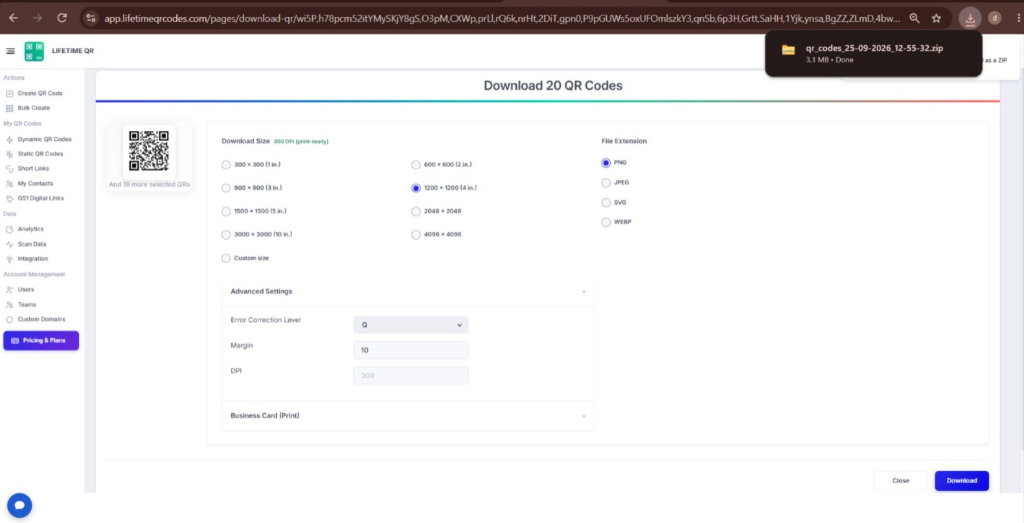
- Choose the image size or enter custom dimensions.
- Select the file format: PNG, JPEG, SVG, or WEBP.
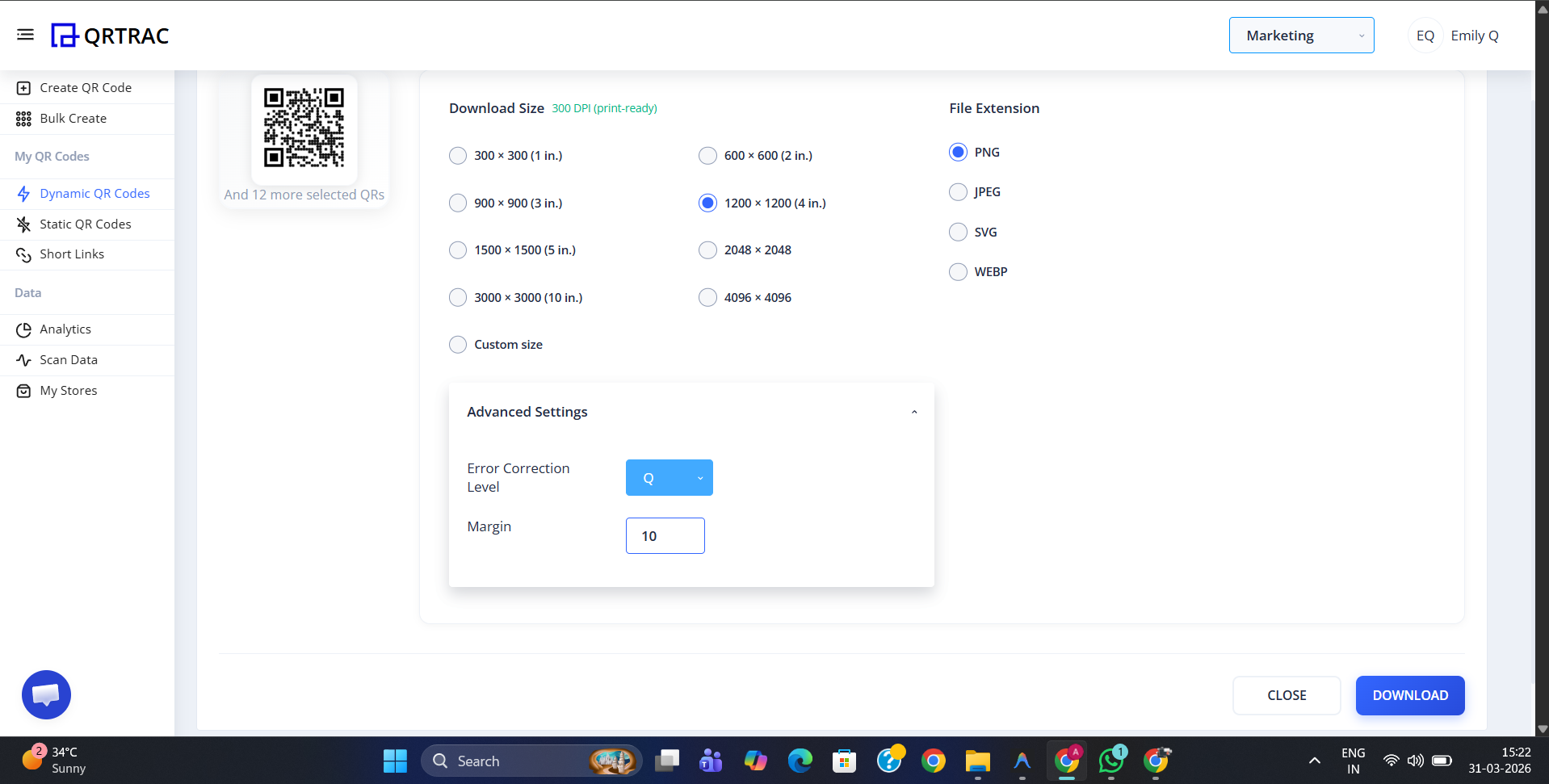
- Open Advanced Settings if you want to adjust error correction or margin.
- Review your settings before downloading.
Tip for Printing
Use SVG or a 300 DPI size for professional print quality.
Step 5: Start the Download
- Review your selected settings.
- Click DOWNLOAD.
- Your QR code images will be prepared as a ZIP file.
Step 6: Download and Extract the ZIP File
- Download the generated ZIP file.
- Open the ZIP file on your computer.
- Extract the files to access your QR code images.
- The image files use the QR code titles as their file names.
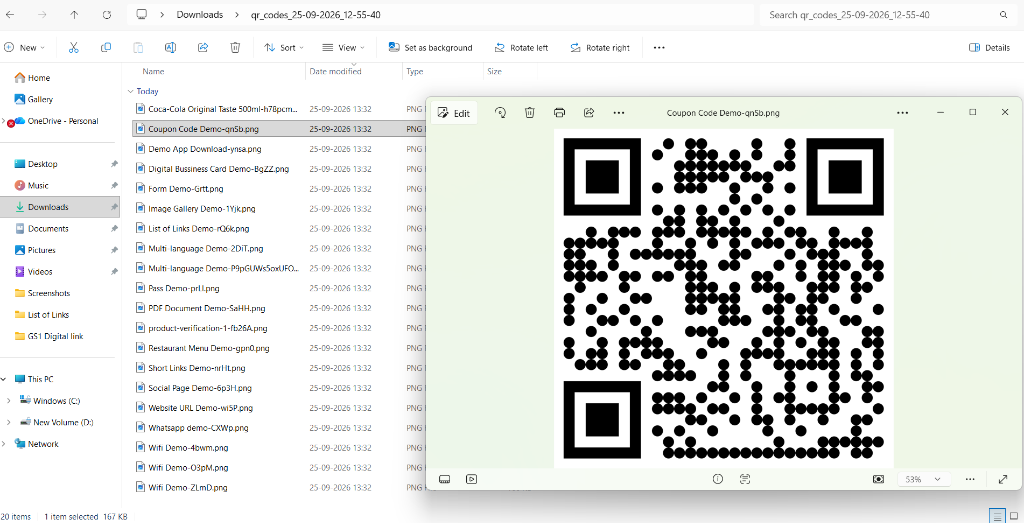
Tip: Name your QR codes clearly before downloading so your extracted files are easy to identify.
Frequently Asked Questions
Can I download only selected QR codes?
Yes. Select the QR codes you want to download from your QR code list before opening Bulk Actions. Only the selected QR codes will be included in the download.
Which image formats can I download?
You can download QR code images in PNG, JPEG, SVG, or WEBP formats. You can select the format when configuring the download settings.
Are the QR images downloaded individually or as a ZIP file?
The selected QR code images are packaged into a single ZIP file, making it easier to download multiple QR codes at once.
Where are the downloaded QR images saved?
The ZIP file is saved to your browser's default Downloads folder unless your browser is configured to ask where downloaded files should be saved.
Can I use the downloaded QR images for printing?
Yes. You can select an appropriate image size and resolution, including 300 DPI options, when preparing QR codes for printing.
How are the QR image files named?
The downloaded image files are named using the QR code title, making it easier to identify each QR code after extracting the ZIP file.
What should I do if the download does not start?
Make sure the QR codes are selected and that you have completed the download settings. Then click DOWNLOAD again. If the download still does not start, check your browser's download settings or download permissions.
Can I download QR codes from both Dynamic and Static QR Codes?
Yes. You can select QR codes from the available Dynamic QR Codes or Static QR Codes list and use the bulk download option for the selected codes.