Current Article
How To Create a Lifetime App Download QR Code
How To Create a Lifetime App Download QR Code
Let users download your mobile app instantly via a lifetime QR code — for any platform — by scanning a single QR code. This guide walks you through the full setup in Lifetime QR Codes.
Tip: Test your App Download QR Code on both iOS and Android devices before printing or distributing to confirm that each device redirects smoothly to the correct app store.
Common uses:
- Cross-platform app promotion (iOS & Android)
- Product packaging and user manuals
- Retail checkout counters & posters
- Flyers, print ads, and brochures
- Event banners and trade show booths
- Tracking app install campaigns
Before You Create the QR Code
Have the following details ready before starting:
- Store URLs: Live store links for Google Play, Apple App Store, Amazon, or Microsoft Store
- Fallback URL (Optional): A website URL or web landing page for desktop scanners or unsupported devices
- App Branding: App title, logo/icon upload, and theme color preferences for the landing page
- Campaign Tracking: Any UTM parameters or tracking parameters you want appended to store URLs
Verify Live Store Links
Ensure your app is approved and live in each respective app store before printing or distributing materials. Inactive or broken store URLs will prevent scanners from downloading your app.
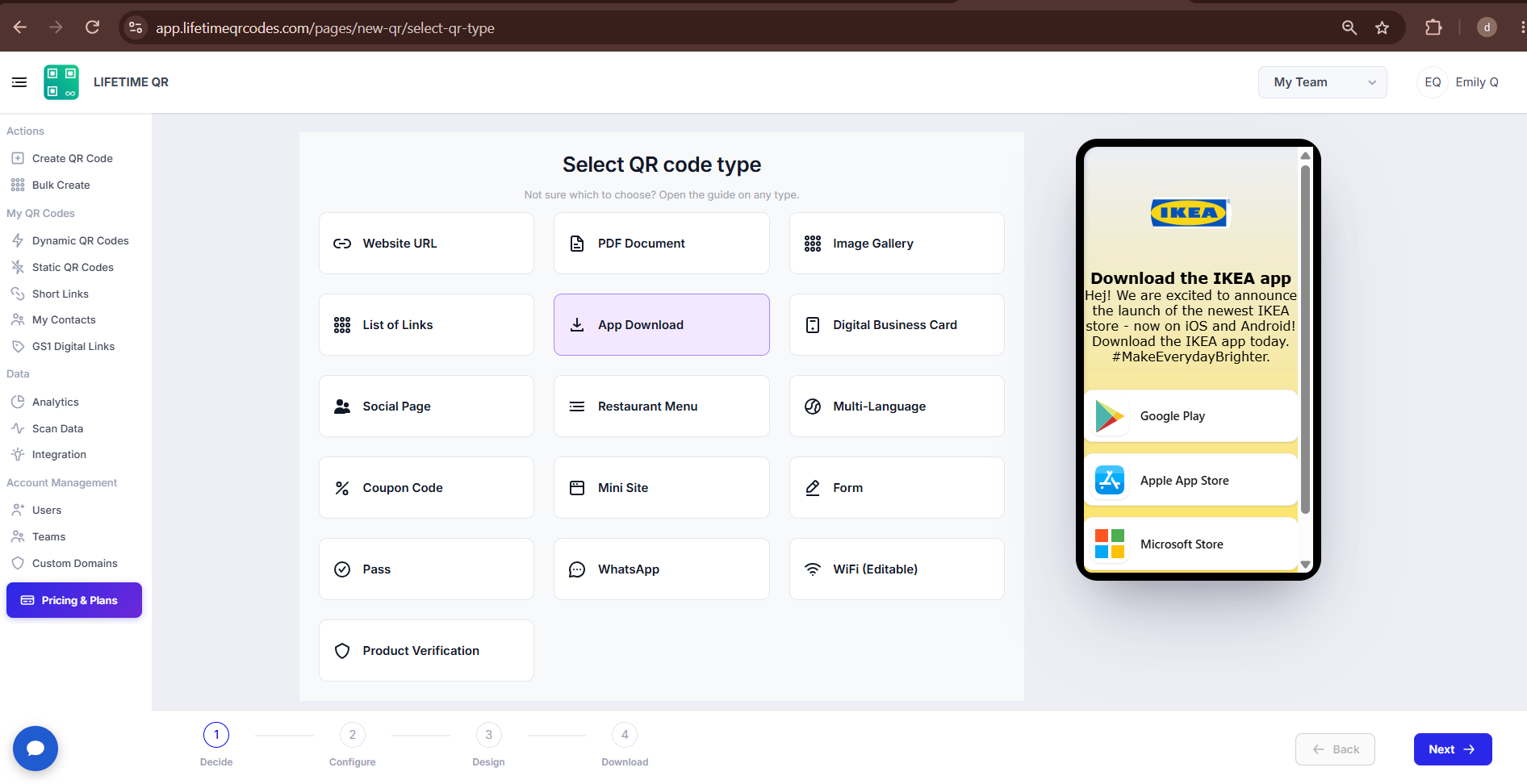
Step 1: Login & Select App Download (Decide Phase)
- Log in to your Lifetime QR Codes dashboard.
- Click Create QR Code in the header or sidebar.
- Select App Download QR Code from the QR code types list.
- Click Next to open the configuration form.
Step 2: Configure App Download (Configure Phase)
Configure your app store links, landing page settings, Smart Download, and theme options in the App Download configuration panel:
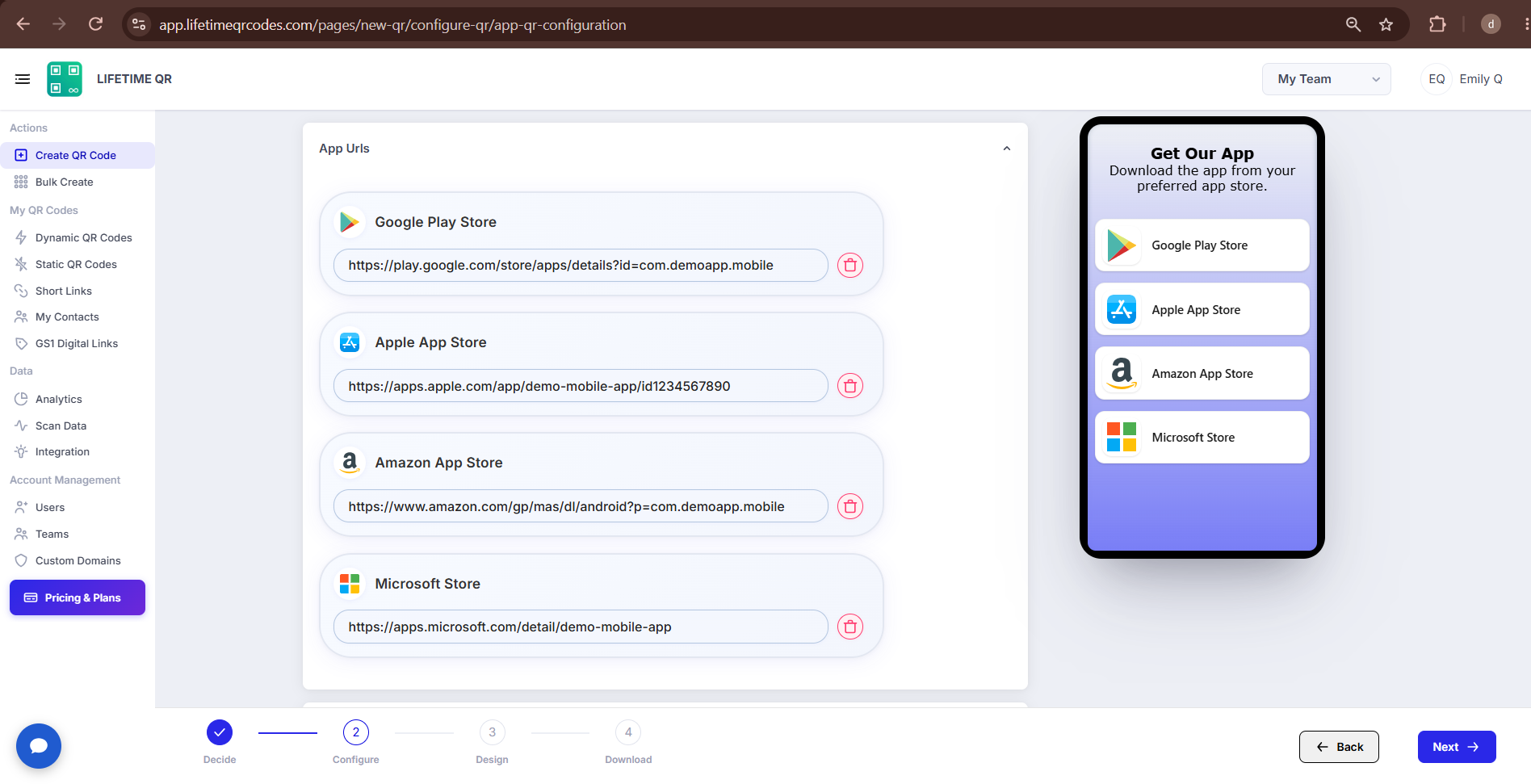
A) App URLs
Enter the corresponding app-store URL for each mobile platform you support. Scanners will be routed to their native store automatically:
| Platform | Store |
|---|---|
| Android | Google Play Store |
| iPhone / iPad | Apple App Store |
| Amazon devices | Amazon App Store |
| Windows | Microsoft Store |
Correct URL examples:
B) Page Title & Smart Download
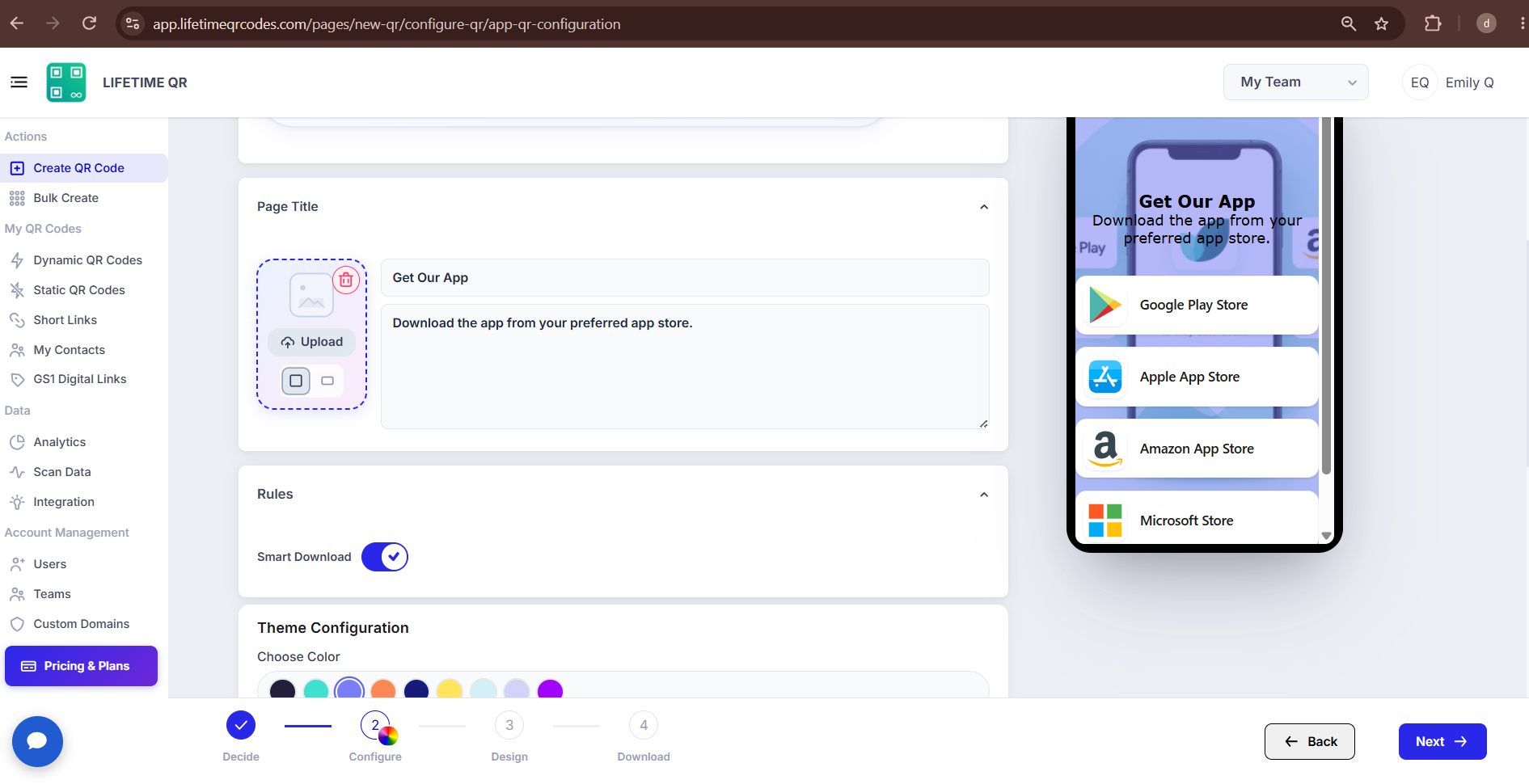
Configure the landing page display details and automated device detection for visitors:
- Page Title: Enter a clear, welcoming title (e.g., your mobile application name).
- Page Description: Add a brief summary of what your app does or why users should install it.
- Image Upload: Upload an app icon or brand image displayed at the top of the landing page.
Smart Download: Enable the Smart Download toggle to automatically detect the visitor's device platform (iOS, Android, Windows, or Amazon) and direct them immediately to the appropriate app store — reducing friction and eliminating manual store selection.
Tip
Keep Smart Download enabled for the smoothest experience and fewer drop-offs.
C) Theme Configuration
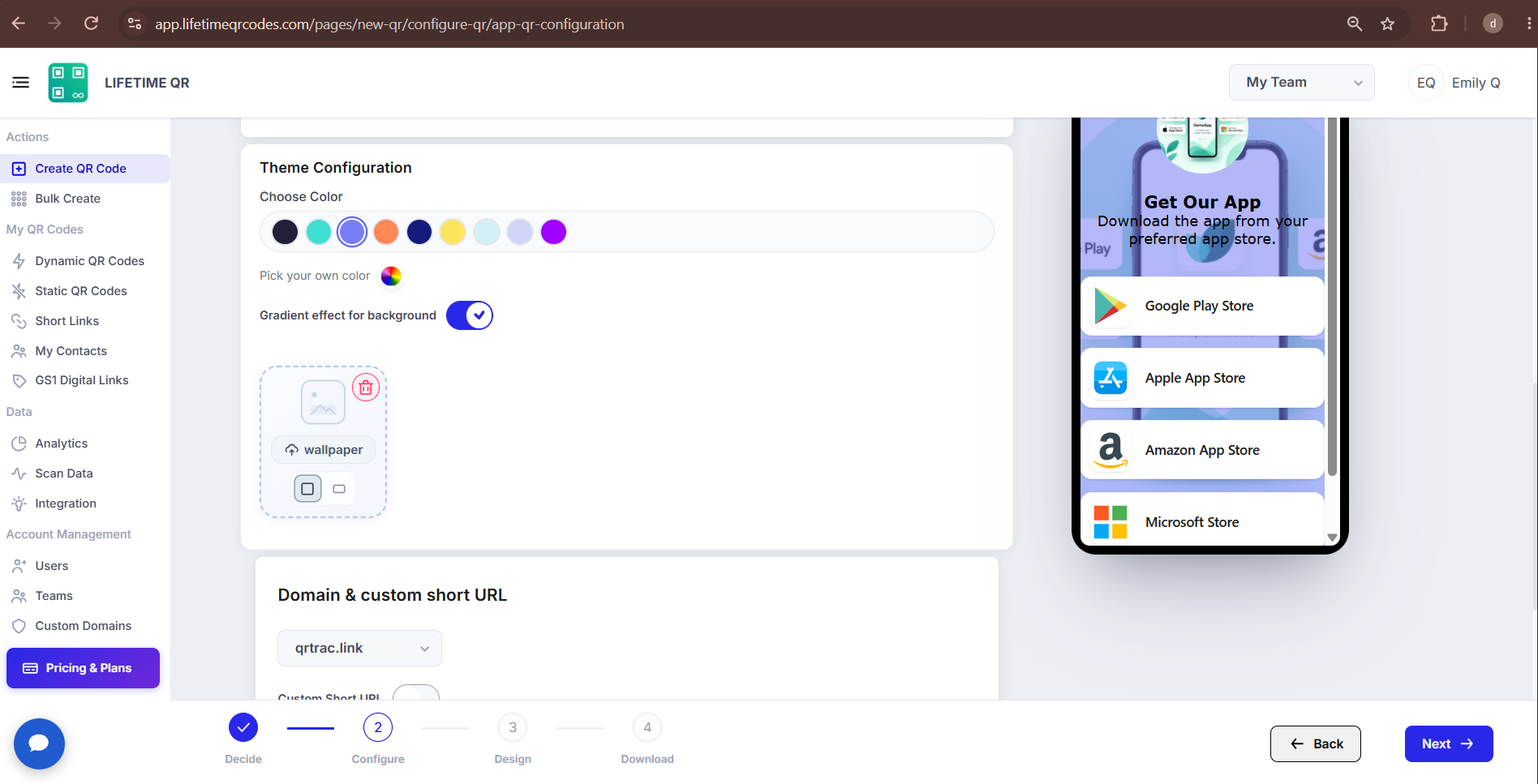
Customize the visual appearance and styling of your app landing page to match your brand identity:
- Choose Color: Select from curated preset color palettes for fast, harmonious styling.
- Custom Color Picker: Enter your exact brand hex code or select a custom primary color.
- Gradient Effect: Apply smooth gradient backgrounds across the landing page.
- Wallpaper: Choose from styled background patterns or upload a custom backdrop wallpaper.
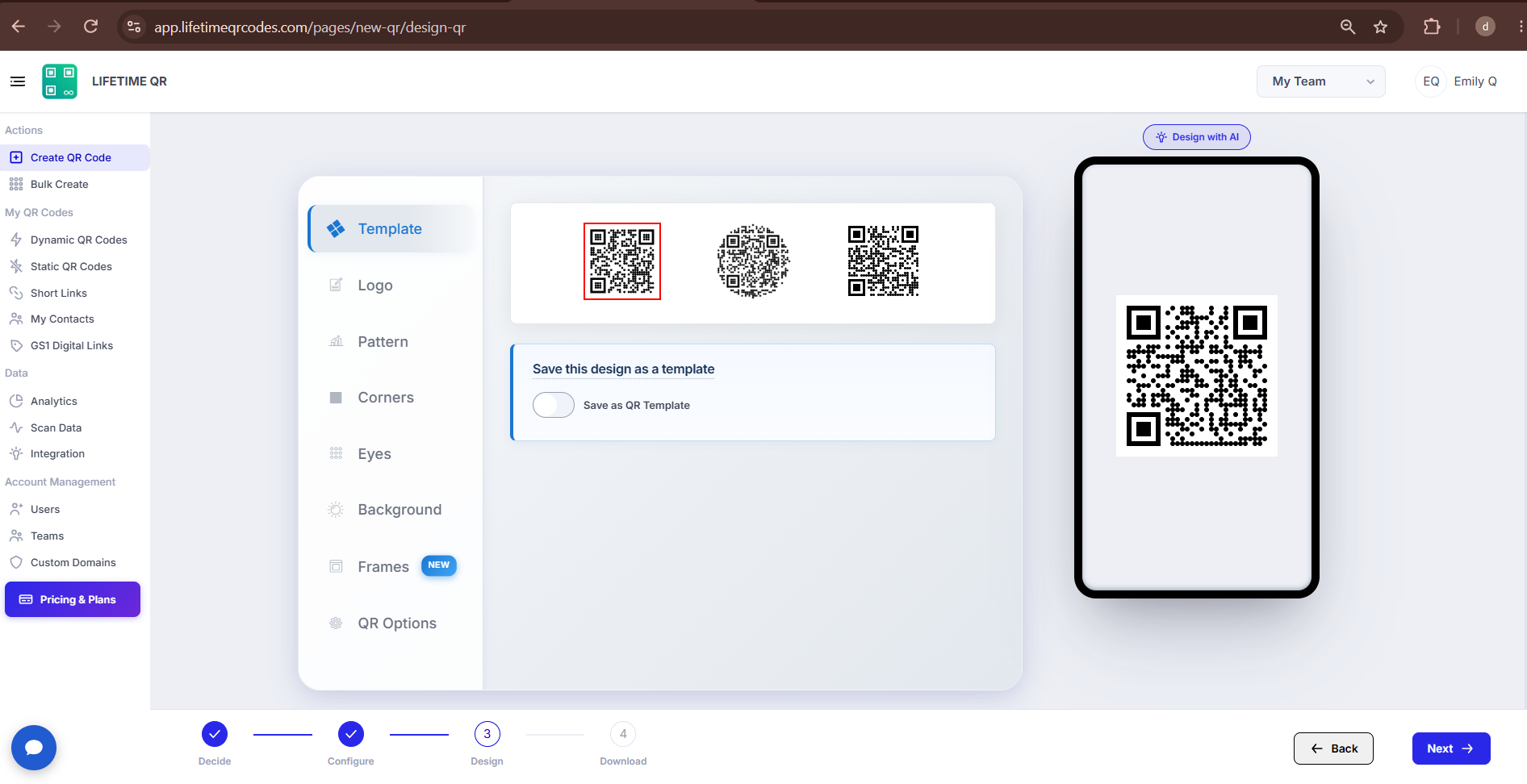
Step 3: Design Your QR Code (Design Phase)
Click Next to enter the Design section where you can make the QR code fully on-brand:
- Frames: Add a frame with call-to-action text (e.g. "DOWNLOAD APP" or "SCAN TO INSTALL").
- Pattern & Shapes: Choose dot patterns, body modules, and corner eye designs.
- Colors: Set single colors or multi-color gradients for foreground and background.
- Logo: Upload your app icon or brand logo to center inside the QR code.
Dynamic QR — No Reprinting Needed
If you are using a Dynamic QR Code, you can update store links at any time from your dashboard without reprinting or redistributing the QR code.
Step 4: Review & Download (Download Phase)
Before downloading, preview your QR code on the screen and test it on real devices.
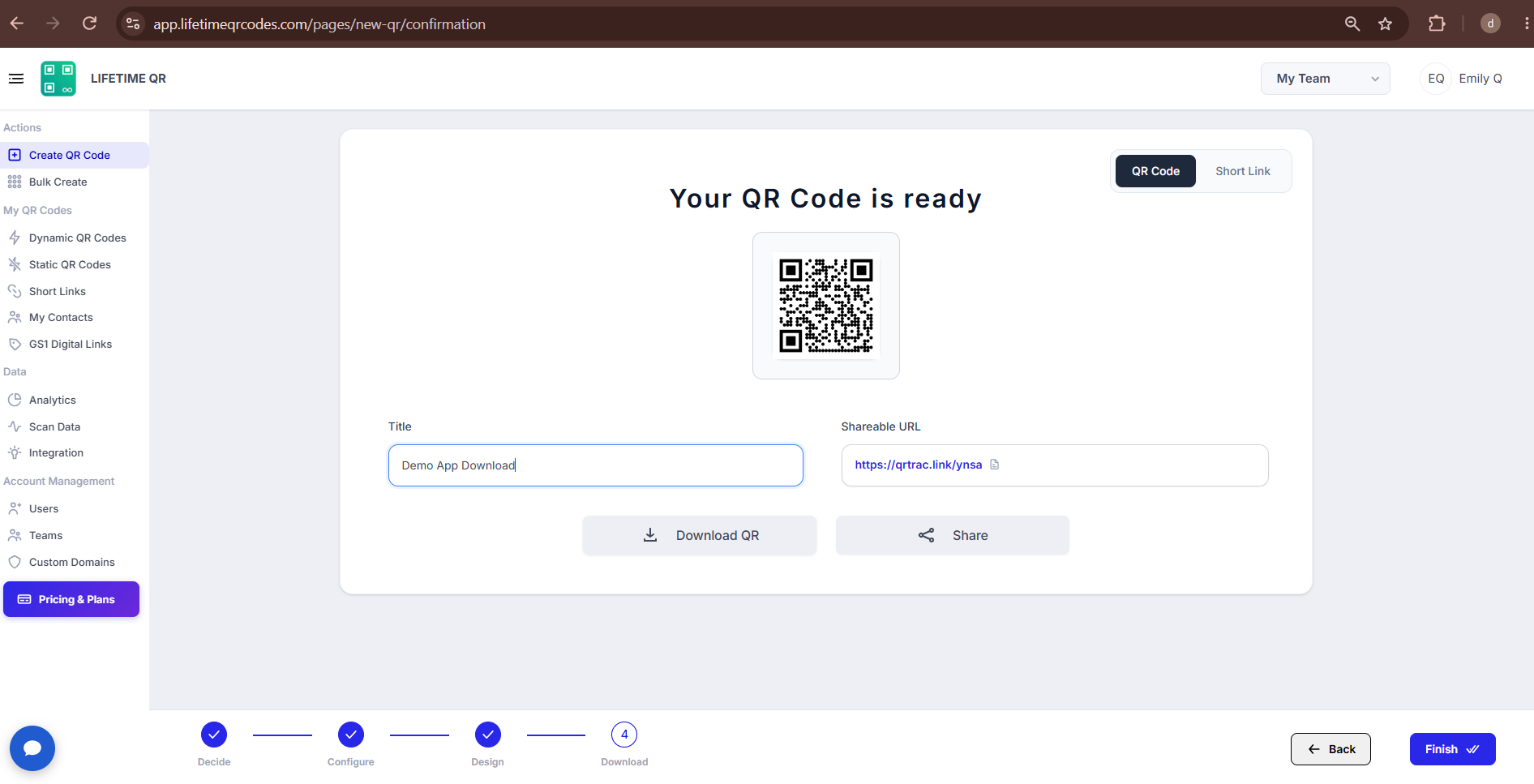
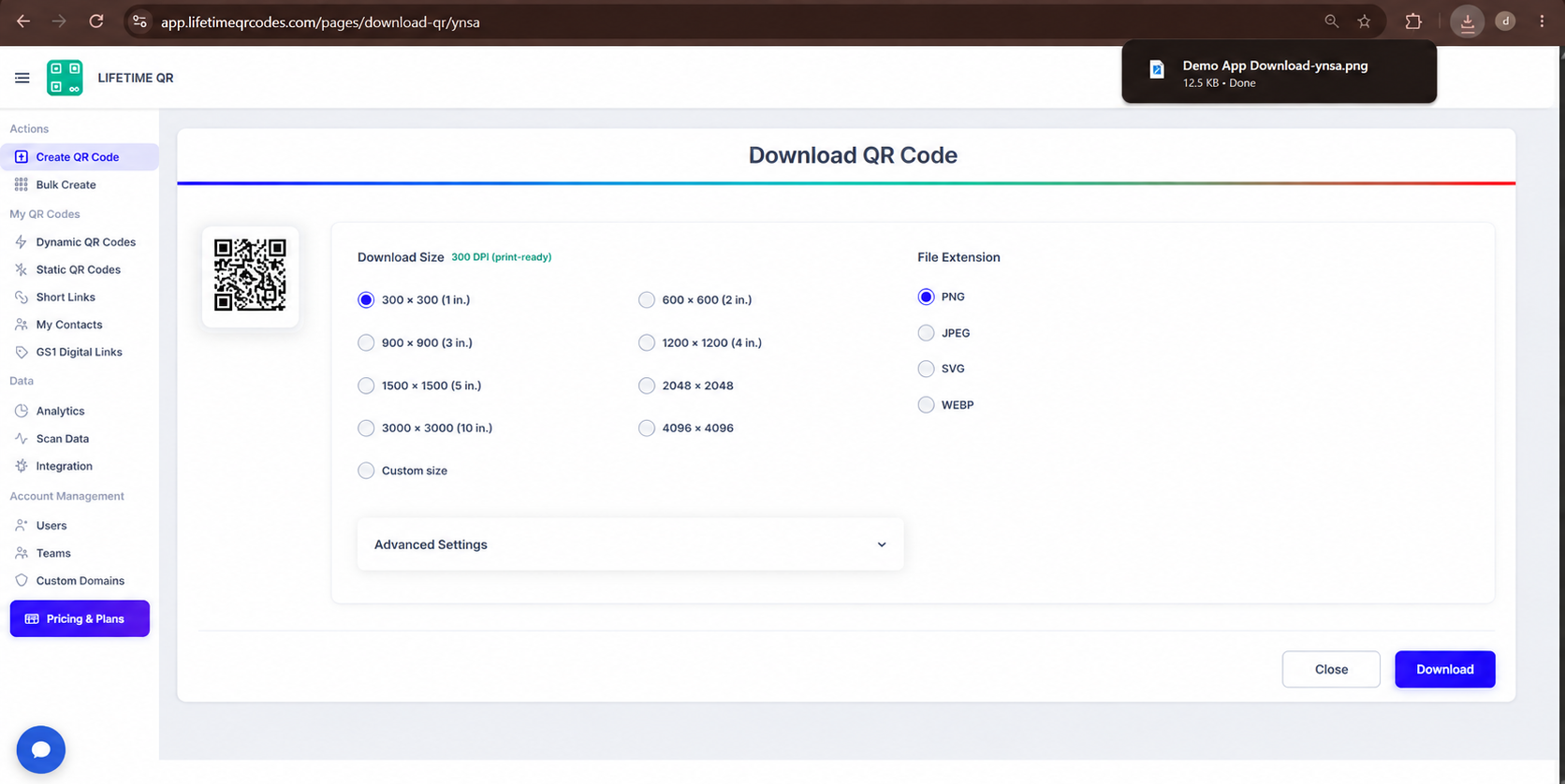
Click Download QR to export your QR code in your preferred format:
- PNG: Standard raster image for digital promotion, email newsletters, and websites.
- SVG: Scalable vector format for app landing pages, responsive banners, and UI design.
- PDF: Print-ready vector document for brochures, flyers, and retail point-of-sale displays.
- EPS: Vector format for commercial printing presses, billboards, and product packaging.
Save as Template
Toggle Save as Template on the confirmation screen to save your design and store settings for generating future App Download QR codes.
Frequently Asked Questions
Can I edit store links later without reprinting?
Yes — if you created a Dynamic QR Code, you can update store links at any time from your dashboard without reprinting the physical code.
Can I track how many people scanned and downloaded my app?
Yes. Analytics are available inside your Lifetime QR Codes dashboard, including scan counts, unique visitors, device types, and locations.
What happens if a user scans on an unsupported device or desktop?
When Smart Download is disabled or when scanned from a desktop computer, users see your customized landing page with buttons for each available app store.
Do I need separate QR codes for iOS and Android?
No. A single App Download QR Code automatically detects the scanner’s device and routes them to the correct store.