Current Article
How to Edit a QR Code
How to Edit a QR Code
Follow this step-by-step guide to update the content, design, or settings of an existing dynamic QR code in Lifetime QR Codes.
Dynamic QR Codes in Lifetime QR Codes can be edited after they are created. You can update the available configuration, destination, or design settings from your dashboard without creating a replacement QR code.
This guide shows you how to find an existing Dynamic QR Code, edit its available settings, customize its design, review the changes, and finish the update.
Who This Guide Is For
This guide is for Lifetime QR Codes users who already have a Dynamic QR Code and want to update its available content, destination, or design settings.
Quick Answer: How do I edit an existing QR code?
Navigate to Dynamic QR Codes, locate the code you want to update, and click Edit on its card. Update your settings across Configure and Design, review your changes, and click Finish.
What Does Editing a QR Code Mean?
A static QR code has fixed information encoded directly into its pattern. Once created, its content and destination cannot be changed, meaning any updates require generating and printing a brand-new code.
A Dynamic QR Code allows its destination and content to be managed directly from your Lifetime QR Codes dashboard. Editing means updating the existing Dynamic QR Code rather than creating another one. The printed QR pattern stays the same while scanners access your newly updated information.
What Can You Change?
What you can change depends on the QR code type. Depending on the format, you can update its settings and visual styling:
Configuration
Update the available information or destination for the selected QR code type.
Design
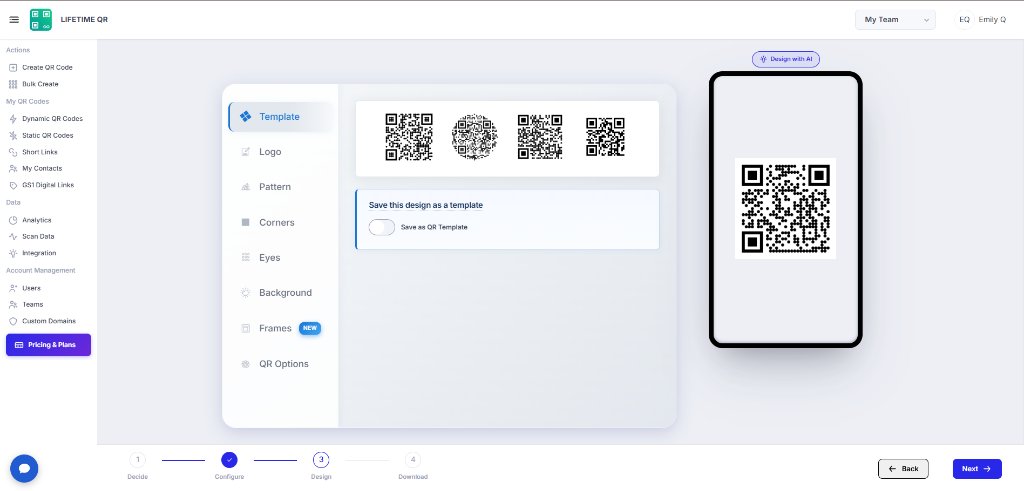
Customize available options such as templates, logos, patterns, corners, eyes, backgrounds, frames, and QR options.
Final Details
Review the QR preview, title, and shareable URL before finishing.
Available options depend on the QR code type.
How to Edit a QR Code
Follow these six steps to update your Dynamic QR Code from within your Lifetime QR Codes dashboard:
Step 1: Find Your QR Code
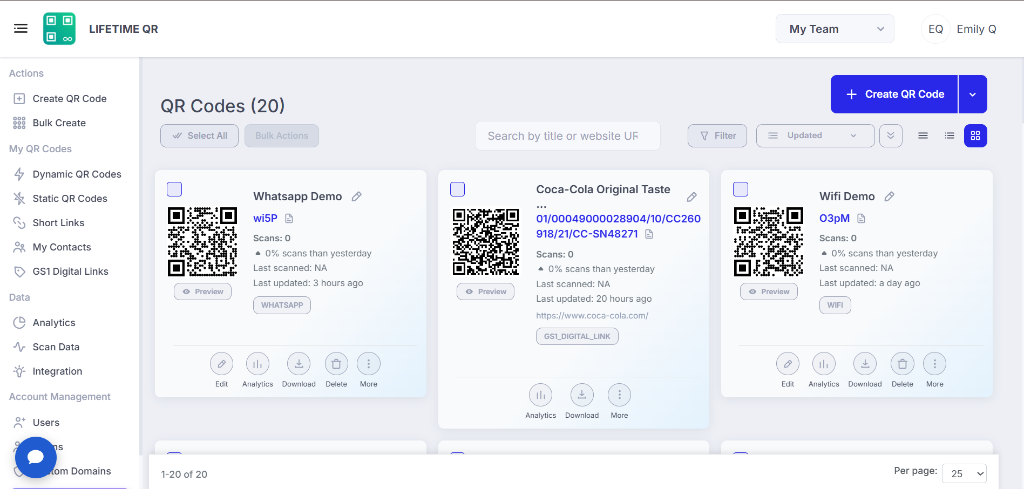
Log in to your Lifetime QR Codes dashboard and open Dynamic QR Codes. Find the QR code you want to edit.
Step 2: Open the Edit Screen
Click Edit on the QR code you want to update. The editor will open.
Step 3: Update the QR Code
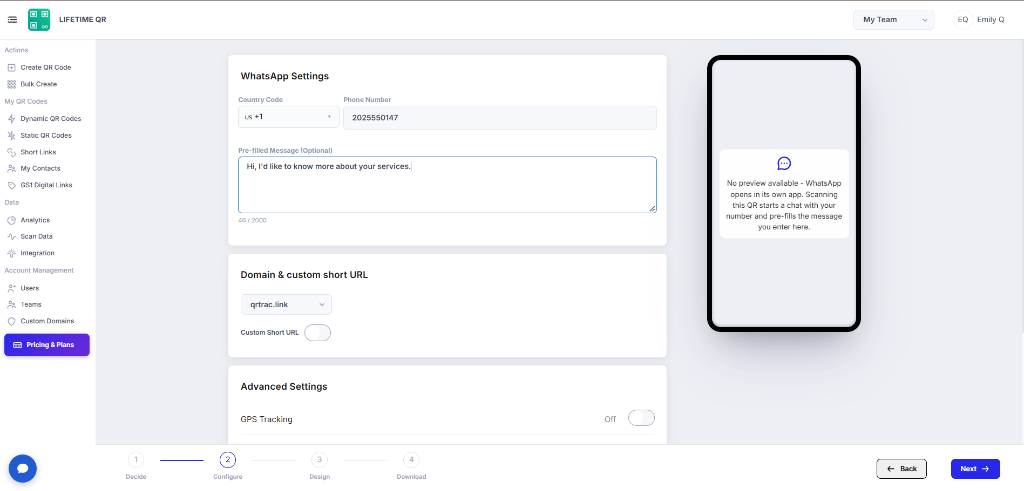
On the Configure stage, update the available information or destination. Click Next when you're done.
Step 4: Customize the Design
On the Design stage, adjust the QR code's appearance using the available options. Click Next to continue.
Step 5: Review Your Changes
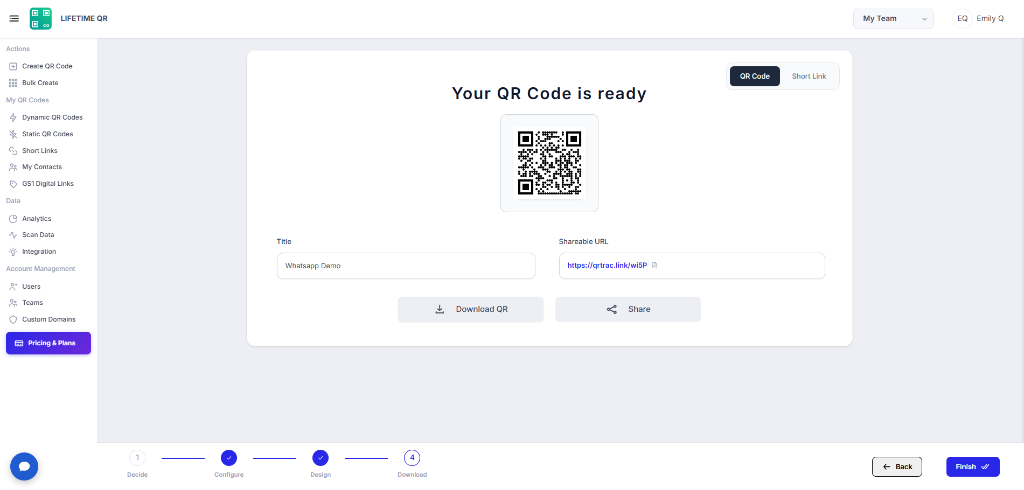
Review the QR preview, title, and shareable URL on the final screen. Make sure everything looks correct.
Step 6: Finish Editing
Click Finish to complete the update.
What Happens After You Edit Your QR Code?
After you finish editing, the updated settings are applied to the existing Dynamic QR Code. If you changed supported destination or content, future scans use the updated information. You can also download or share the QR code from the final screen.
Things to Check Before Finishing
Configuration
Make sure the updated information is correct.
Design
Check that the QR code is clear and readable.
Preview
Review the QR preview, title, and shareable URL.
Test
Scan the QR code before using or distributing it.
Common Mistakes to Avoid
Editing the wrong QR code: Double-check the QR code title and current destination before editing.
Forgetting to click Next: Advance through each stage with the Next button to carry your changes forward.
Skipping the final review: Check the preview, title, and shareable URL on the final screen before completing.
Leaving without clicking Finish: Make sure you click Finish on the final screen so your edits are saved.
Not testing the QR code: Scan the QR code before using or distributing it to verify that it opens the intended result.
Common Use Cases for Editable QR Codes
Editable QR codes are useful when the information behind a printed QR code may need to change later. Instead of replacing the printed QR code each time the information changes, users can update the available configuration or destination from their dashboard.
Restaurant Menus
Update menu items, prices, or seasonal offerings without replacing the printed QR code.
Events & Conferences
Link attendees to registration, schedules, venue information, or event resources.
Product Packaging
Connect packaging to product information, manuals, warranty details, or support resources.
Flyers & Posters
Update campaign pages, offers, or registration destinations while printed materials remain in use.
Business Cards
Connect to a website, digital profile, portfolio, or contact information that may change later.
Brochures & Printed Documents
Link printed materials to current webpages, PDFs, guides, or downloadable resources.
Retail & In-Store Signage
Connect shoppers to product details, offers, catalogs, or other online information.
Feedback & Forms
Direct users to feedback, contact, registration, or other forms.
Frequently Asked Questions
Can I edit an existing QR code?
Yes. You can edit an existing Dynamic QR Code from the Dynamic QR Codes section of your Lifetime QR Codes dashboard.
Where can I find the Edit option?
Open Dynamic QR Codes from the left navigation, find the QR code you want to change, and click Edit on the QR code card.
What happens when I click Edit?
The QR code opens in the editing workflow, where you can review and update its available configuration before moving through the Design and Download stages.
Can I change the information stored in my QR code?
Yes. The Configure stage lets you update the information available for that particular QR code type. The fields shown depend on the QR code you are editing.
Can I change the design of an existing QR code?
Yes. The Design stage lets you customize available options such as the template, logo, pattern, corners, eyes, background, frames, and QR options.
Do I need to create a new QR code after editing?
No. The editing workflow is designed for updating an existing Dynamic QR Code. After making your changes, complete the workflow by clicking Finish.
Can I preview my QR code before finishing?
Yes. The final stage displays your QR code preview along with its title and shareable URL so you can review the result before finishing.
Can I download my QR code after editing?
Yes. The final screen includes the Download QR option, allowing you to download the updated QR code after reviewing your changes.
Can I share my QR code after editing?
Yes. The final screen includes a Share option for sharing the QR code after you have reviewed your changes.
What button do I click to complete the editing process?
Click Finish on the final screen to complete the editing process.