Current Article
How to Change a QR Code Type
How to Change a QR Code Type
Follow this step-by-step tutorial to change the type of an existing Dynamic QR Code in Lifetime QR Codes without reprinting physical materials.
Dynamic QR Codes in Lifetime QR Codes allow you to change an existing QR code's type whenever your campaign needs change. If you initially set up a Website URL code and later need a PDF Document, Digital Business Card, or Coupon Code, you can switch types directly from your dashboard.
Because dynamic codes connect through a permanent redirect link, changing the QR code type updates the destination experience while keeping your existing printed QR code image completely functional.
Quick Answer: How to change an existing QR code type
Go to Dynamic QR Codes → click Edit → click Back (or the Decide stage) → select the new type → click Confirm → configure the new settings → click Finish.
What Happens When You Change the QR Code Type?
When you change an existing QR code's type, you alter the functional category and landing experience connected to that code.
No Reprinting Required
The printed QR pattern and short redirect link remain identical. Physical flyers, packaging, or business cards continue working seamlessly.
New Experience for Scanners
Anyone scanning the code will immediately be directed to your newly configured type instead of the previous destination.
Type-Specific Settings
The editor adapts to display the configuration fields, media inputs, and controls specific to the new QR code format.
How to Change a QR Code Type
Follow these 8 steps to switch the type of any active Dynamic QR Code:
Step 1 — Find Your QR Code
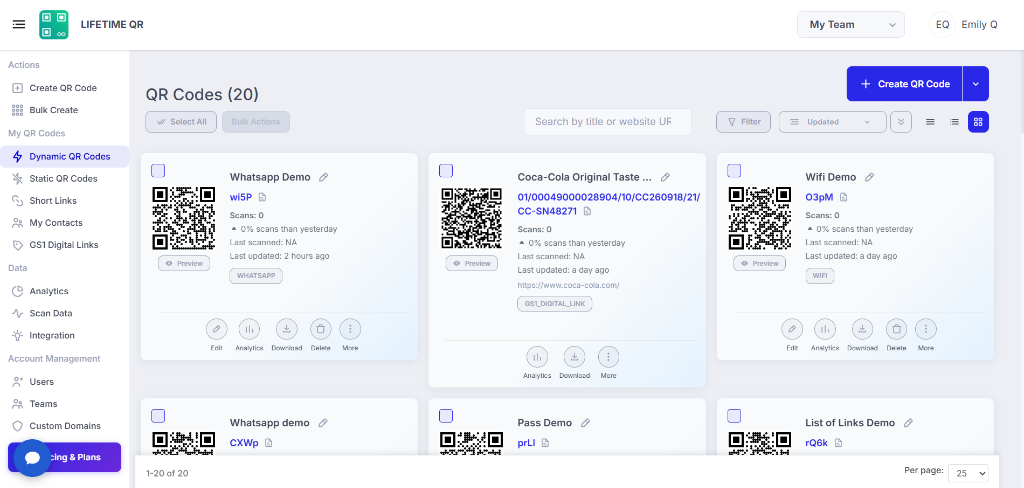
Log in to your Lifetime QR Codes dashboard and navigate to Dynamic QR Codes. Find the QR code whose type you want to change.
Step 2 — Open the Edit Screen
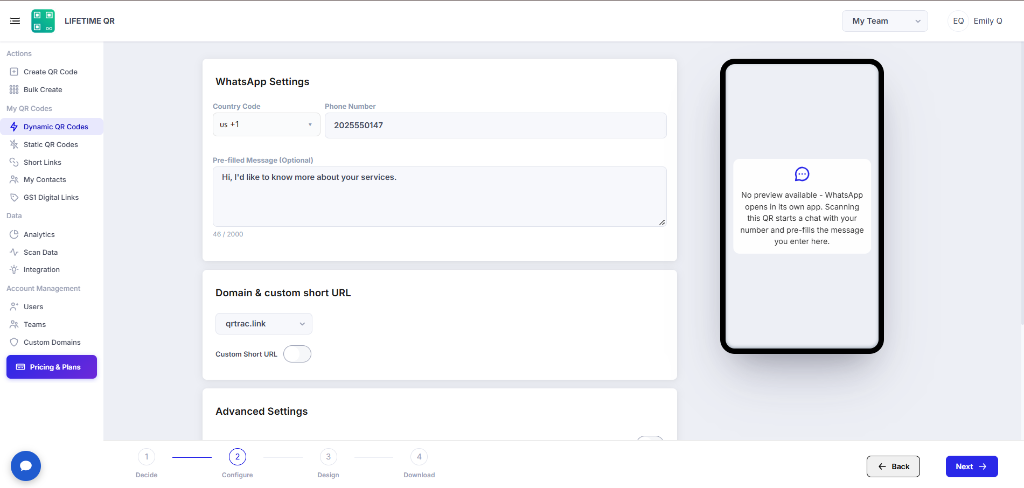
Click the Edit button on the QR code card. By default, the editor opens into the Configure stage for the code's current type.
Step 3 — Return to QR Code Type Selection
To change the type, you must navigate back to the initial selection screen. In the bottom navigation bar, click the Back button, or click the Decide stage indicator in the bottom stepper. This returns you to the Select QR code type screen.
Step 4 — Select the New QR Code Type
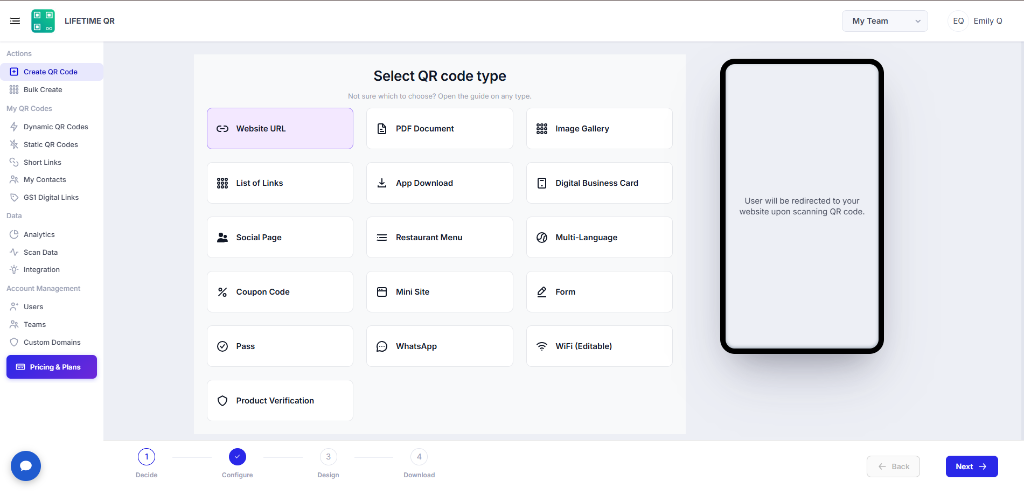
Select the new QR code type you want to use. For example, choose Website URL.
Step 5 — Confirm the Type Change
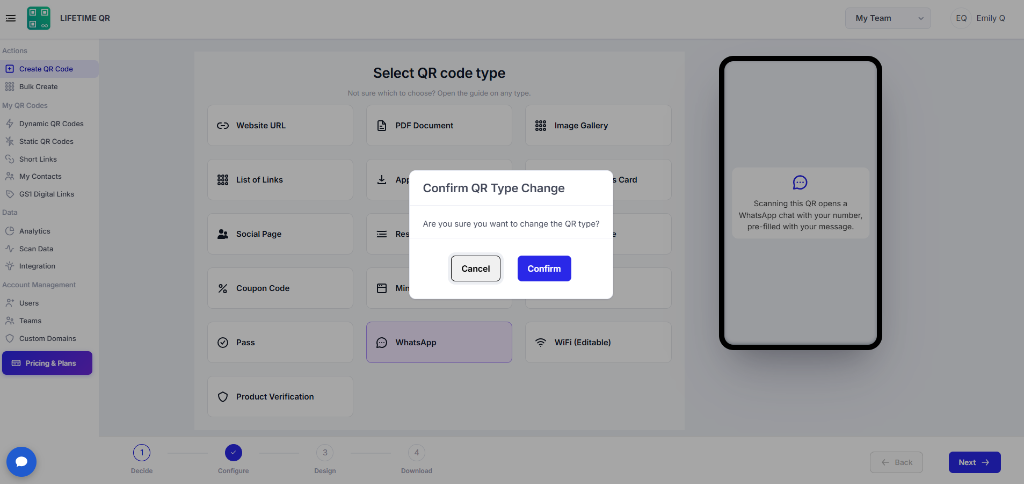
Review your selection and click Confirm to change the QR code type.
Step 6 — Configure the New QR Code Type
Click Next to enter the Configure stage. Fill in the required fields, destination links, or media files for your new QR code type, then click Next.
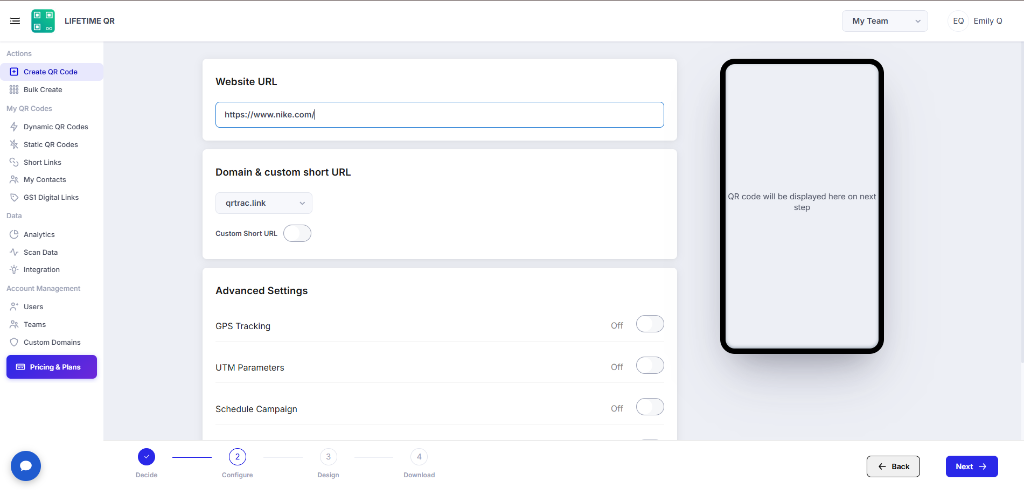
Step 7 — Customize the Design
On the Design stage, review or update visual styling such as colors, frame, logo, pattern, or corners. If you are satisfied with the current appearance, click Next to proceed.
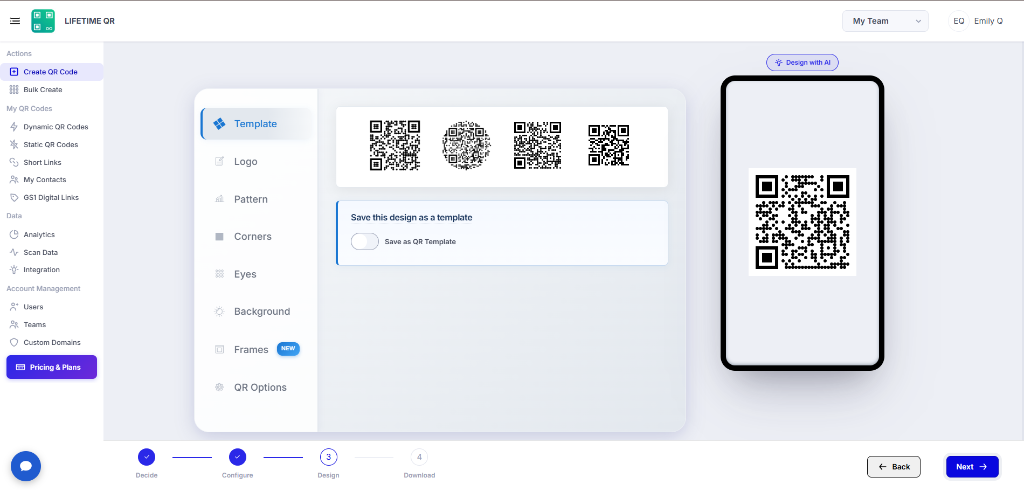
Step 8 — Review and Finish
On the final review screen, examine your updated QR code preview, title, and shareable link. Click Finish to complete the process and save your changes.
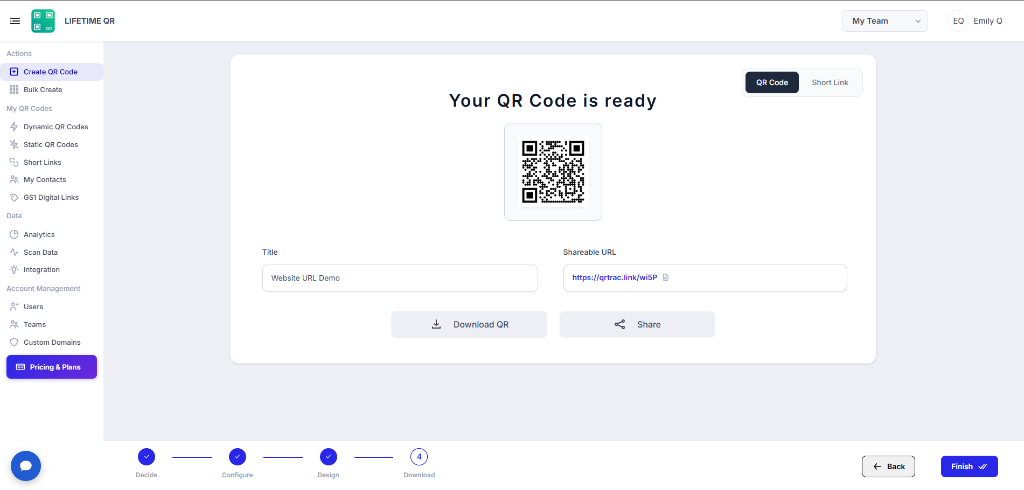
What Happens to Your Existing Content?
When you switch to a new QR code type, the configuration requirements change. Here is a clear breakdown of what is kept versus what is replaced:
What Is Kept (Unchanged)
- •Printed QR Code: The physical square matrix and vector patterns remain completely unchanged.
- •Short Link Redirect: The permanent redirect URL encoded in the code continues routing active scanners.
- •QR Code Title & Placement: Your code retains its listing within your dashboard folders.
What Is Replaced (Lost)
- •Previous Configuration Data: Information specific to the old format (e.g., previous destination URL, contact details, or coupon codes) is cleared.
- •Uploaded Files & Media: Documents, images, or files tied exclusively to the previous type are replaced by your new configuration.
- •Type-Specific Fields: Input fields not relevant to the new type are removed from the editor.
Common Examples
Customers commonly switch QR code types to adapt physical materials to new marketing phases:
Image Gallery → Website URL
Replace an event photo gallery with a direct link to an official recap website or online ticket store.
PDF Document → Website URL
Transition printed packaging from a downloadable PDF manual to an interactive mobile support portal.
Website URL → Digital Business Card
Upgrade a printed business card linking to a website into an interactive contact card with one-tap saving.
Things to Check Before Finishing
Correct QR Code
Verify that you selected the intended code in your Dynamic QR Codes list before editing.
Correct New QR Type
Confirm that the selected type matches the experience you wish to deliver to scanners.
Mandatory Fields
Ensure all required fields, links, and assets for the new format are filled in on Configure.
Mobile Test Scan
Scan the preview screen or your printed code with your phone camera to confirm it opens properly.
Common Mistakes to Avoid
Editing the wrong QR code: Double-check the title and current destination on your dashboard before entering the editor.
Canceling the confirmation modal: You must click Confirm on the "Confirm QR Type Change" prompt to activate the new type selection.
Leaving required configuration blank: The new type requires its own inputs. Ensure all required fields on the Configure stage are completed.
Leaving without clicking Finish: Your changes are only saved once you navigate to the final review screen and click Finish.
Not testing the updated QR code: Always scan your QR code with a smartphone camera before public use to verify the new landing page.
Frequently Asked Questions
Can I change the type of an existing QR code?
Yes. In Lifetime QR Codes, you can change the type of any existing Dynamic QR Code at any time without creating a new code or reprinting physical materials.
How do I return to the QR code type selection screen?
After clicking Edit on your QR code card, the editor opens to Configure. Click the Back button in the bottom navigation bar or click the Decide stage indicator to return to the type selection screen.
What happens to my old content when I switch types?
Content specific to your previous QR code type (such as uploaded files, photo albums, or contact fields) is replaced by the new type's settings. Your printed QR code graphic and permanent redirect URL remain unchanged.
Do I need to reprint my QR code after changing the type?
No. The printed QR code pattern and its short link stay identical. Scanners are routed instantly to your newly configured type and content.
Can I switch between any dynamic QR code types?
Yes. You can switch between any available dynamic QR code types in Lifetime QR Codes, such as Website URL, PDF Document, Digital Business Card, WhatsApp, and Coupon Code.
Do I need to configure the QR code again after changing types?
Yes. Because each QR code type has unique settings and requirements, you must provide the configuration details for the new type on the Configure stage.
Can I customize the QR code design after changing its type?
Yes. The Design stage allows you to customize or update colors, patterns, logos, corners, and frames, or you can keep your existing design styling.
How do I save the changes permanently?
Navigate through the Configure and Design stages to the final review screen, then click Finish. Your updated QR code type goes live immediately.
Related Articles
How to Edit a Lifetime QR Code
Learn how to edit the destination, content, or visual design of an existing QR code.
QR Code Tutorials
Browse tutorials and configuration guides across all available QR code types.
Website URL QR Code Guide
Configure and manage dynamic web link QR codes with instant URL redirection.
PDF Document QR Code Guide
Share downloadable PDF files, menus, brochures, and guides via a dynamic QR code.
Digital Business Card Guide
Create an interactive vCard contact page with one-tap saving to smartphone address books.