Current Article
How To Create a Lifetime Wi-Fi QR Code
How To Create a Lifetime Wi-Fi QR Code
Step-by-step instructions on generating a dynamic lifetime Wi-Fi QR Code.
Use an editable Wi-Fi QR Code to let users connect to your network by scanning with a smartphone camera. Configure the network name, security type, password, and visibility settings, and update them anytime from your dashboard without reprinting the QR code.
Tip: Test the QR code with a smartphone camera before printing or framing to confirm that devices prompt to connect to the correct Wi-Fi network.
Common uses:
- Coffee shops & restaurants
- Hotels & rental properties
- Office guest Wi-Fi
- Retail stores
- Event venues & conferences
- Home networks
Before You Create the QR Code
Have the following details ready before starting:
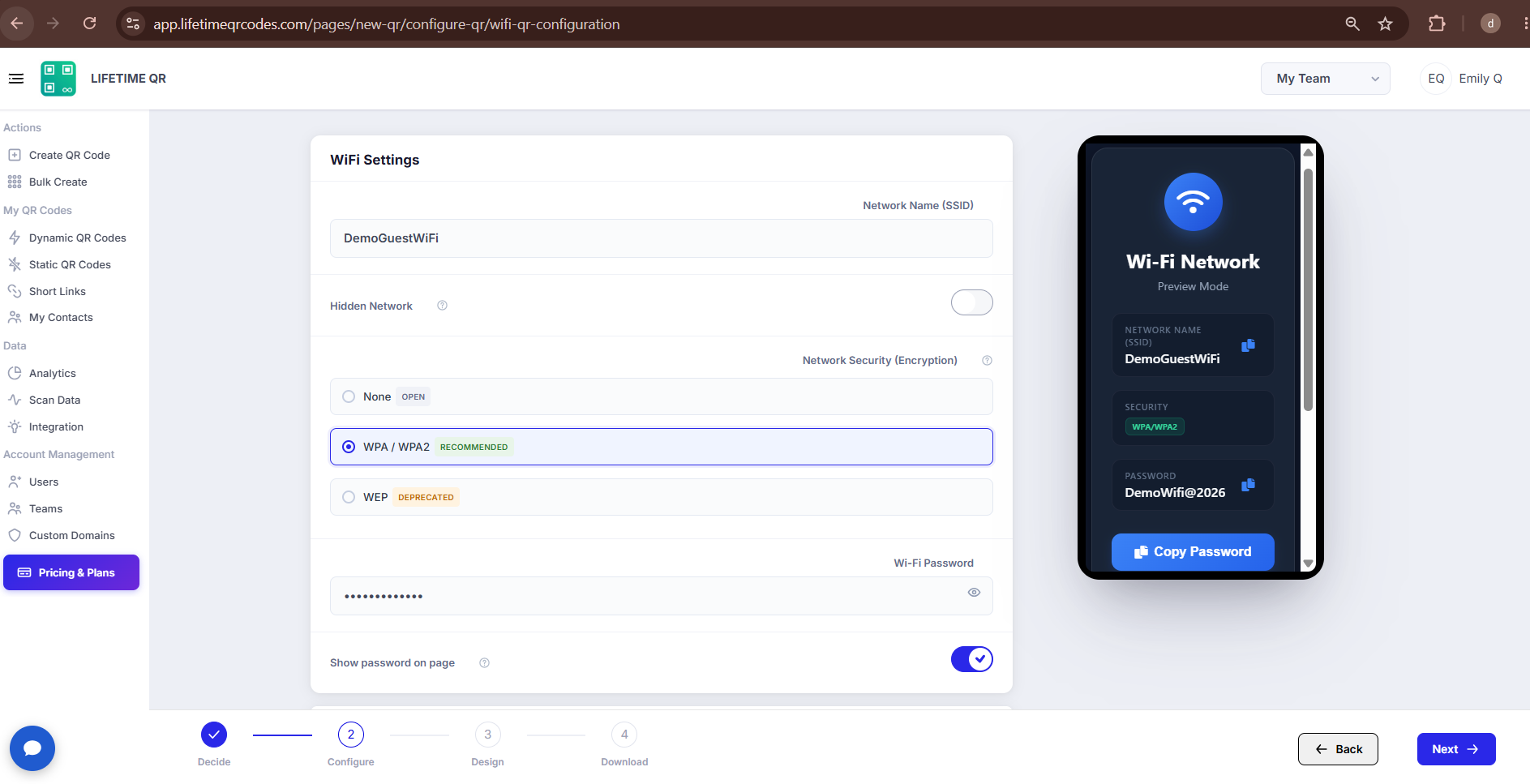
- Network Name (SSID): The exact name of your Wi-Fi network (required, up to 32 characters)
- Network Security: WPA / WPA2 (Recommended), None (Open), or WEP (Deprecated)
- Wi-Fi Password: Security key for password-protected networks (up to 64 characters)
- Network Visibility: Whether your network broadcasts its SSID or is hidden
Exact SSID Required
Enter the network name (SSID) exactly as configured on your router, including exact capitalization and spacing. Devices fail to connect if the SSID does not match.
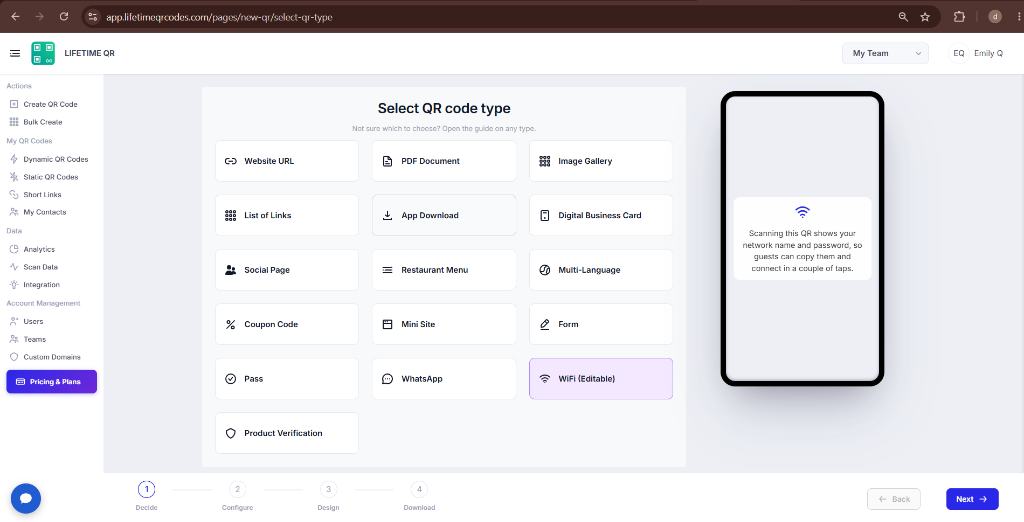
Step 1: Login & Select Wi-Fi (Decide Phase)
- Log in to your Lifetime QR Codes dashboard.
- Click Create QR Code in the header or sidebar.
- Select WiFi (Editable) from the QR code types list.
- Click Next to open the configuration form.
Step 2: Configure Wi-Fi QR Code (Configure Phase)
Configure your network credentials, encryption mode, and display settings in the WiFi Settings panel:
Step 3: Design Your QR Code (Design Phase)
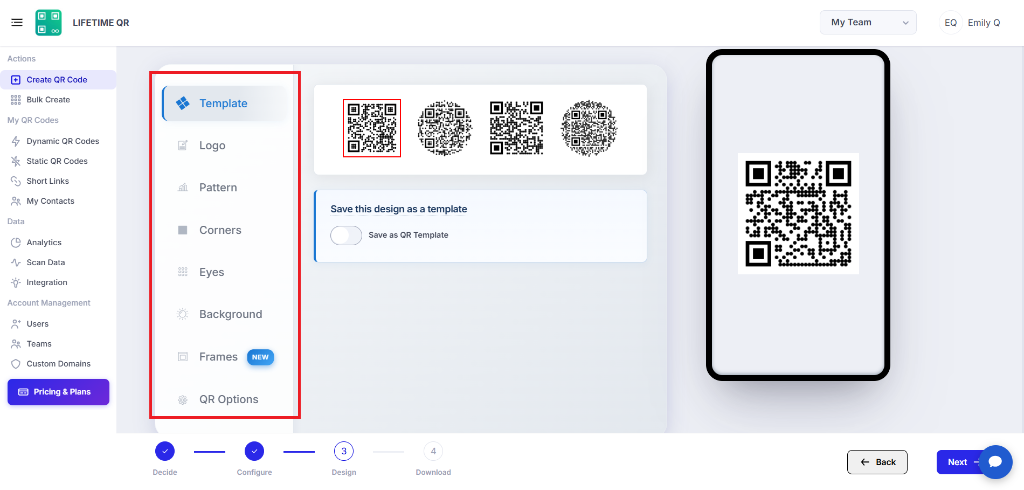
Click Next to customize the visual appearance of your QR code:
- Frames: Add a frame with call-to-action text (e.g. "SCAN FOR WI-FI" or "CONNECT TO GUEST NETWORK").
- Pattern & Shapes: Choose dot patterns, body modules, and corner eye designs.
- Colors: Set single colors or multi-color gradients for foreground and background.
- Logo: Upload an image, business logo, or Wi-Fi icon to center inside the QR code.
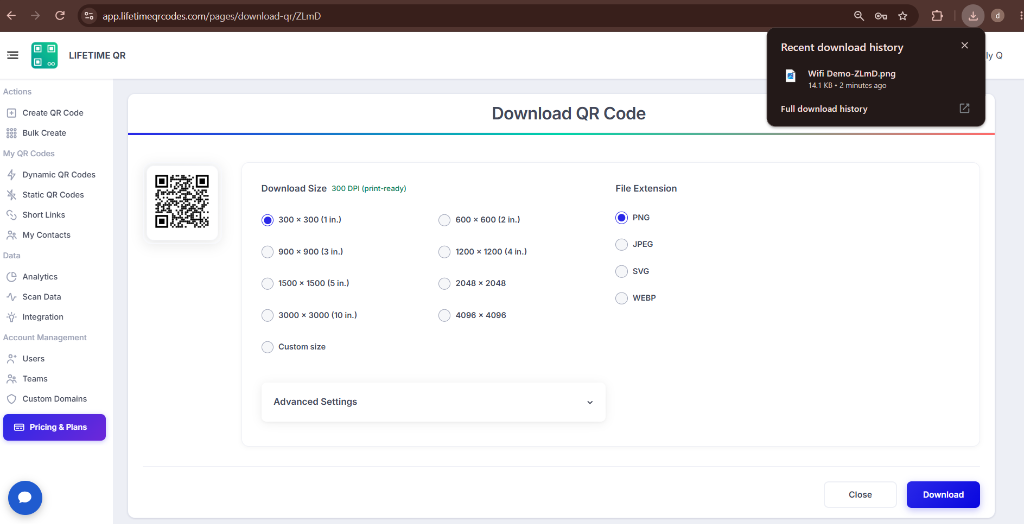
Step 4: Review & Download (Download Phase)
Review the Wi-Fi configuration and test the live mobile preview on the confirmation screen before downloading.
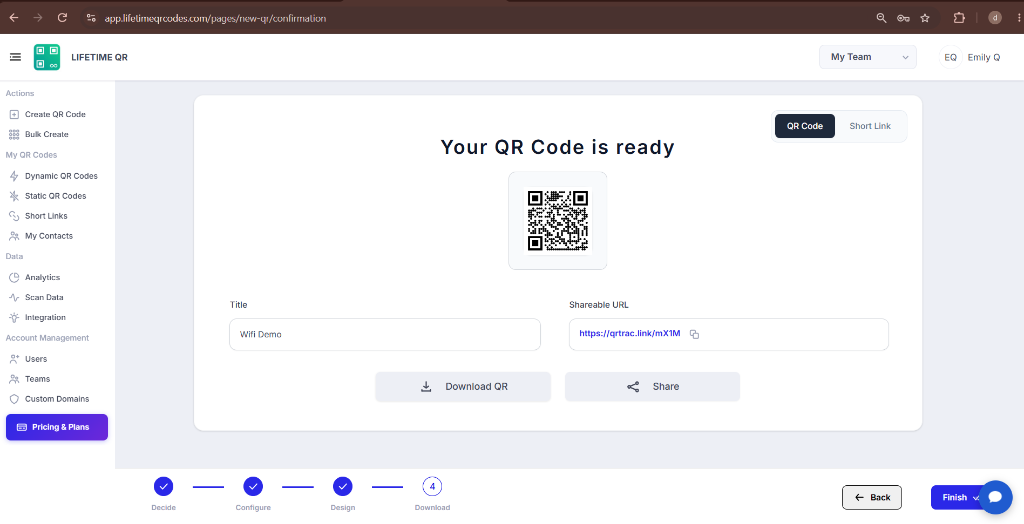
Click Download QR to export your QR code in your preferred format:
- PNG: Standard raster image for digital signs, PDFs, and email attachments.
- SVG: Scalable vector format for web layouts, stickers, and digital signage.
- PDF: Print-ready vector document for acrylic table stands, tent cards, and posters.
- EPS: Vector format for professional commercial printing and large-scale signage.
Save as Template
Toggle Save as Template on the confirmation screen to save your design and settings for generating future Wi-Fi QR codes.
Frequently Asked Questions
What is a Wi-Fi QR Code?
A dynamic QR code that allows users to join a Wi-Fi network automatically by scanning with a smartphone camera.
Can I change the Wi-Fi password or network name after printing?
Yes. Because this is an editable dynamic QR code, you can update your SSID, password, or security settings from the dashboard without reprinting.
Which security types are supported for Wi-Fi QR Codes?
You can select WPA / WPA2 (Recommended), None (Open), or WEP (Deprecated).
Can I connect to a hidden Wi-Fi network?
Yes. Enable the Hidden Network toggle in the Wi-Fi settings so scanning devices know to search for the hidden SSID.
Can users see the Wi-Fi password if their device cannot connect automatically?
Yes. When Show password on page is toggled on, the plain-text password is displayed on the landing page for manual entry.