Current Article
How to Duplicate QR Codes in Bulk
How to Duplicate QR Codes in Bulk
Duplicate multiple QR codes at once while keeping each copy independent.
Duplicate multiple QR codes without creating each one from scratch. Each copy keeps its own settings, unique ID, and tracking.
Before You Duplicate
Make sure the QR codes you want to copy are already available in your dashboard. Select only the QR codes you want to duplicate before opening Bulk Actions.
Step 1: Select Your QR Codes
- Log in to your Lifetime QR Codes account and open your dashboard.
- Navigate to your QR code list.
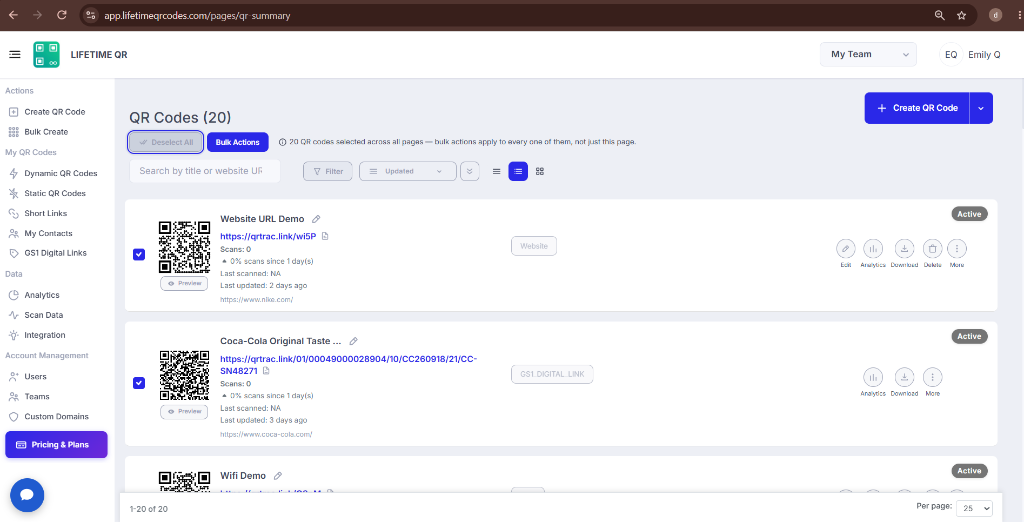
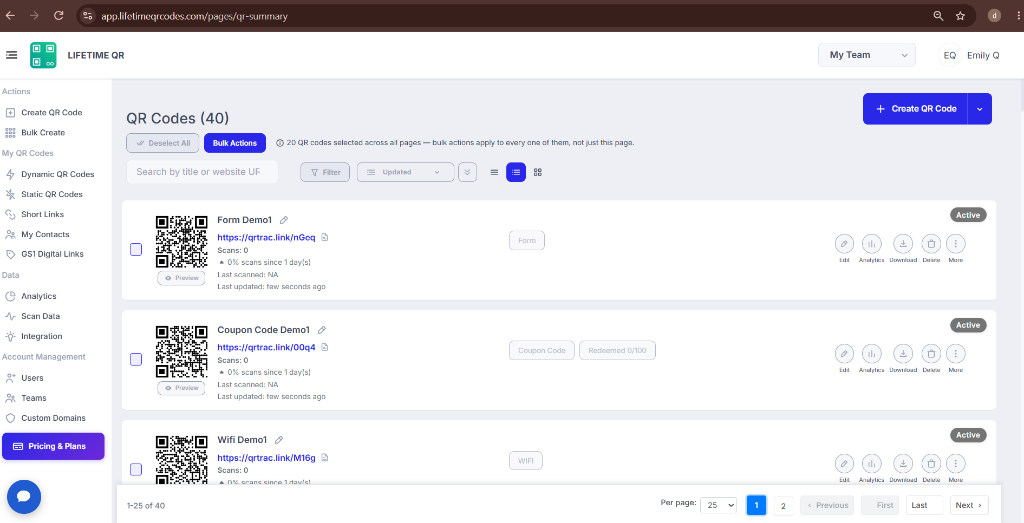
- Use the checkboxes on the left side of each row to select the codes you want to duplicate.
- You can select multiple individual codes or select all codes displayed on the page.
Step 2: Open Bulk Actions
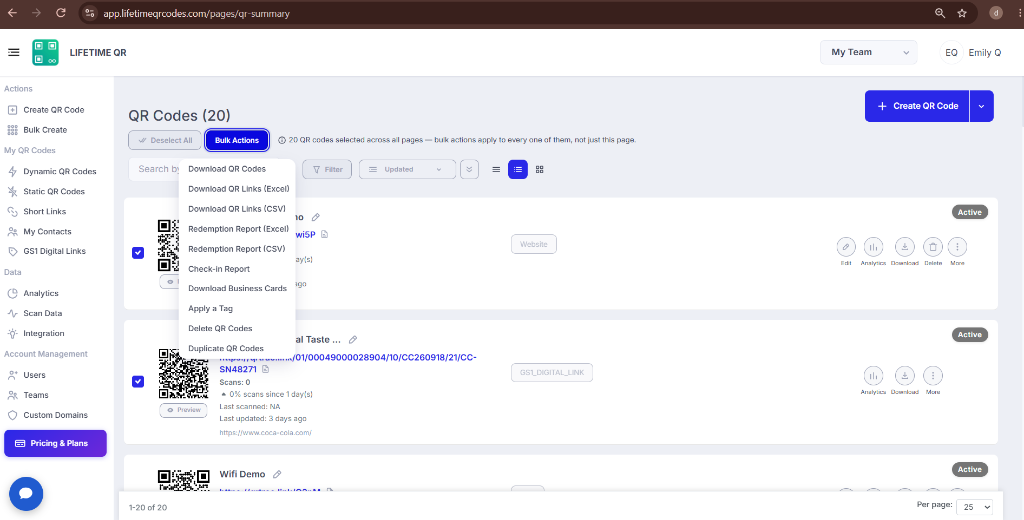
- After selecting your QR codes, click BULK ACTIONS in the action bar above your list.
- This opens the dropdown menu with available batch management operations.
Step 3: Choose Duplicate QR Codes
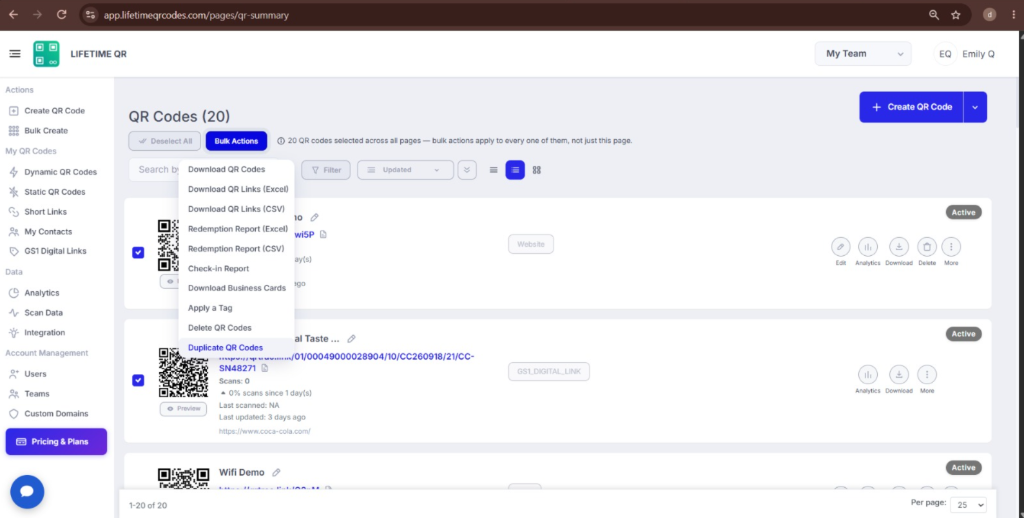
- Select Duplicate QR Codes from the BULK ACTIONS dropdown menu.
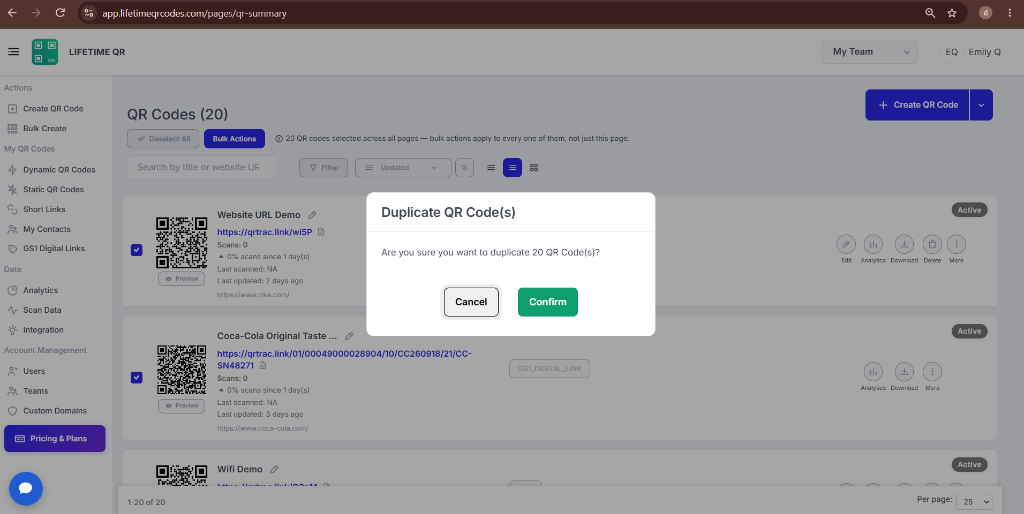
- A confirmation window will appear prompting you to confirm the bulk duplication request.
Step 4: Confirm the Duplication
- Review the prompt in the confirmation dialog.
- Click confirm to create copies of the selected QR codes.
- The system generates a new, independent copy for each selected code.
- Each duplicated QR code receives its own unique ID and fresh analytics tracking.
Efficient Setup
Bulk duplicate QR codes to quickly set up identical designs for different store locations, event booths, or team members while maintaining brand consistency.
Step 5: Review and Manage the Duplicated QR Codes
- Return to your dashboard list to view the newly created duplicate QR codes.
- Duplicates are automatically given numbered names (such as "Untitled1") to distinguish them immediately.
- Click Edit on any individual duplicate row to customize its title, update its destination URL, or adjust visual styles.
Tips for Bulk Duplication
- Rename duplicated QR codes immediately so you can identify them easily.
- Update the destination URL if the duplicate is intended for a different location, campaign, product, or team member.
- Review each duplicate before sharing or printing it.
- Use bulk duplication when multiple QR codes need a similar setup instead of creating each one from scratch.
Important to Know
Duplicated QR codes are separate QR codes. Each duplicate has its own unique ID and scan analytics. Changes made to a duplicate do not change the original QR code.
What Happens After Duplication?
After duplication, the new QR codes appear in your dashboard. You can rename them, change their destination, update their design, or manage them independently from the original QR codes.
Frequently Asked Questions
Do duplicated QR codes share analytics with the originals?
No. Each duplicated QR code is created as an independent code with its own unique tracking ID and separate scan analytics. Scans on a duplicate will not affect the original code's analytics.
Can I duplicate different types of QR codes together in bulk?
Yes. You can select multiple QR codes of different types from your dashboard list and duplicate them all at once in a single bulk action.
What happens to the design and settings of duplicated QR codes?
Duplicated QR codes inherit all visual customizations, colors, frames, and settings from the original codes, allowing you to reuse existing designs without reconfiguring them from scratch.
What default names are given to duplicated QR codes?
Newly duplicated QR codes are given default numbered titles, such as "Untitled1", making them easy to identify in your list so you can rename them.
Can I change the destination URL of a duplicated dynamic QR code?
Yes. You can edit the destination URL and title of any duplicated dynamic QR code at any time from your dashboard without changing its design.
Where can I find more help with bulk operations?
Visit our Help Center or contact our support team for additional assistance with bulk QR code management and dashboard features.