Current Article
How To Create a Lifetime Image Gallery QR Code
How To Create a Lifetime Image Gallery QR Code
Create a lifetime image gallery QR code that lets scanners browse a photo collection directly on their phone with no app required. Step-by-step guide.
An Image Gallery QR Code lets users scan and instantly view multiple images in a clean, mobile-friendly gallery — no app required. This guide walks you step-by-step through the process and covers the most common mistakes.
Common uses:
- Product showcases & catalogs
- Restaurant food galleries
- Event & wedding photos
- Real estate property images
- Artist & creative portfolios
- Before / after project showcases
Before You Create the QR Code
Have your images and assets prepared before starting:
- Supported Formats: Images in JPG or PNG format.
- Optimized File Sizes: High-quality images compressed to keep file sizes reasonable for mobile networks.
- Mobile Readiness: Clear images formatted for horizontal and vertical smartphone displays.
- Gallery Details: An optional title, short description, and cover thumbnail ready to configure.
Watch Your File Sizes
Very large image files may load slowly for users, especially on mobile networks. Compress images before uploading to keep the gallery snappy.
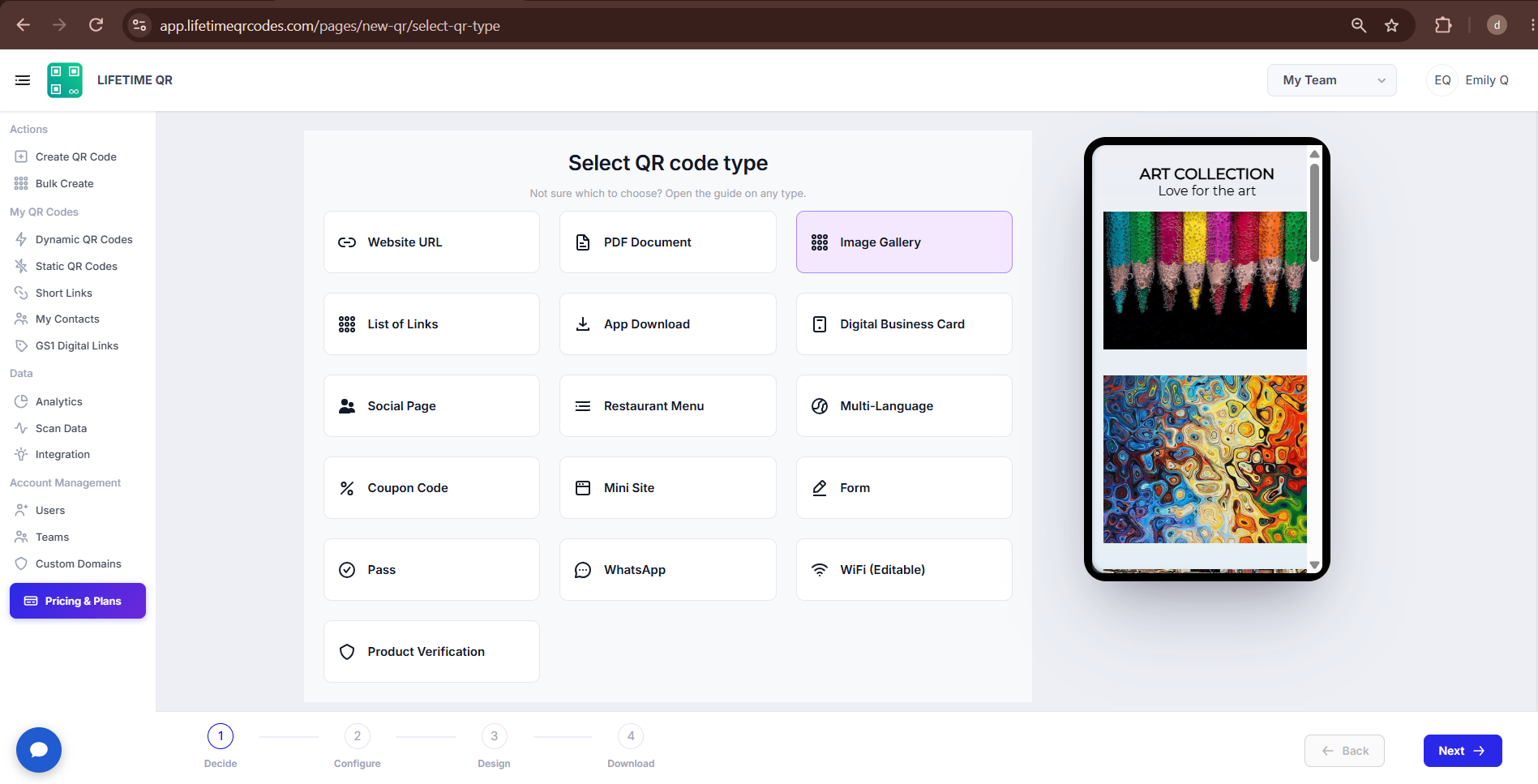
Step 1: Login & Select Gallery (Decide Phase)
- Log in to your Lifetime QR Codes dashboard.
- Click Create QR Code in the header or sidebar.
- Select Image Gallery from the QR code types list.
- Click Next to open the configuration form.
Step 2: Configure Image Gallery (Configure Phase)
Configure your image uploads, gallery details, and theme options in the Image Gallery configuration panel:
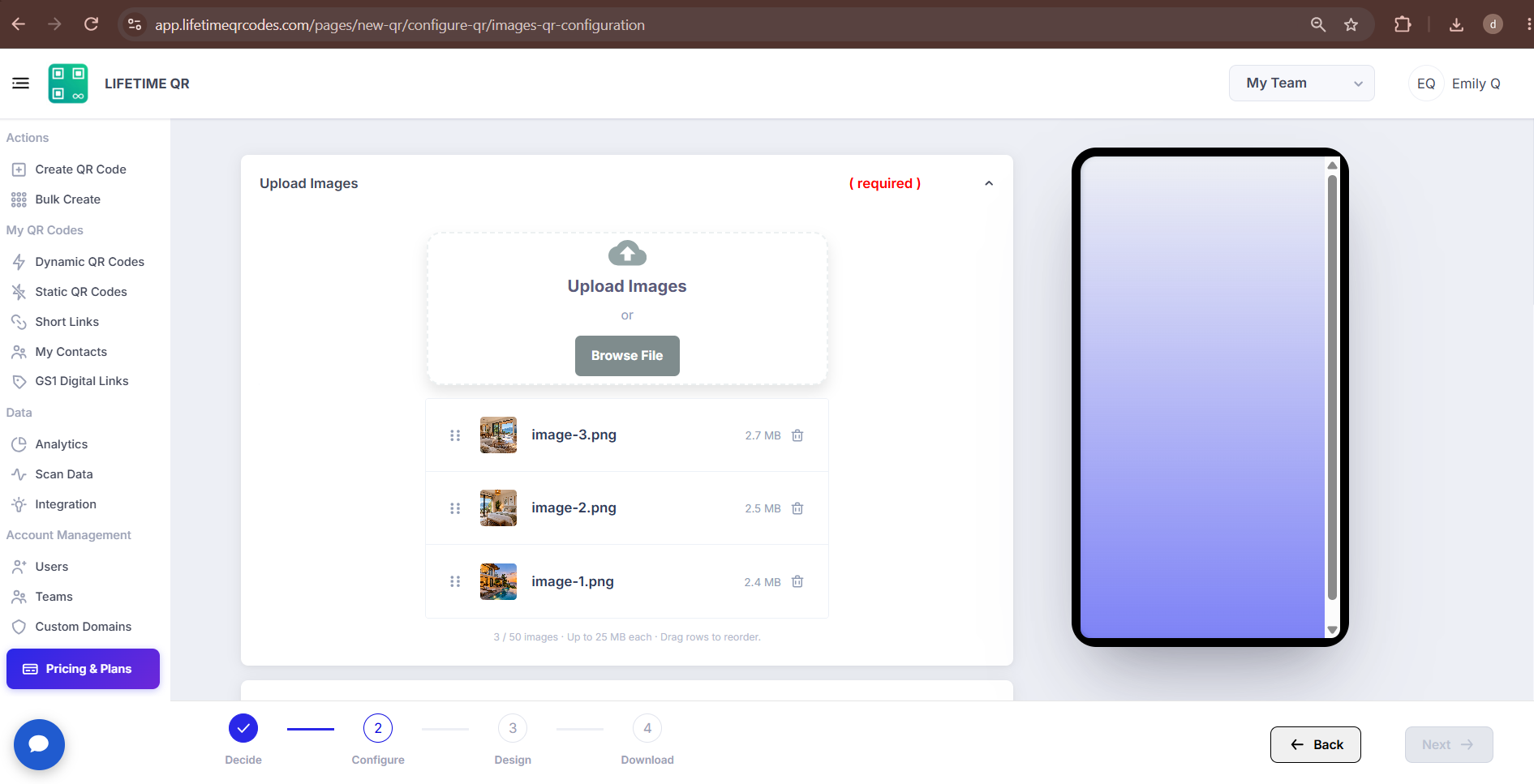
A) Upload Your Images
In the Image Upload section, add the photos or graphics you want to display in your gallery:
- Click Browse File or drag and drop image files from your device.
- Select one or multiple images (supported formats: JPG and PNG).
- Wait for the upload to complete and review your image order.
❌ Images not uploading
Check file size, internet connection, and format (JPG/PNG).
❌ Gallery opens slowly
Images are too large. Compress images before uploading to keep loading fast.
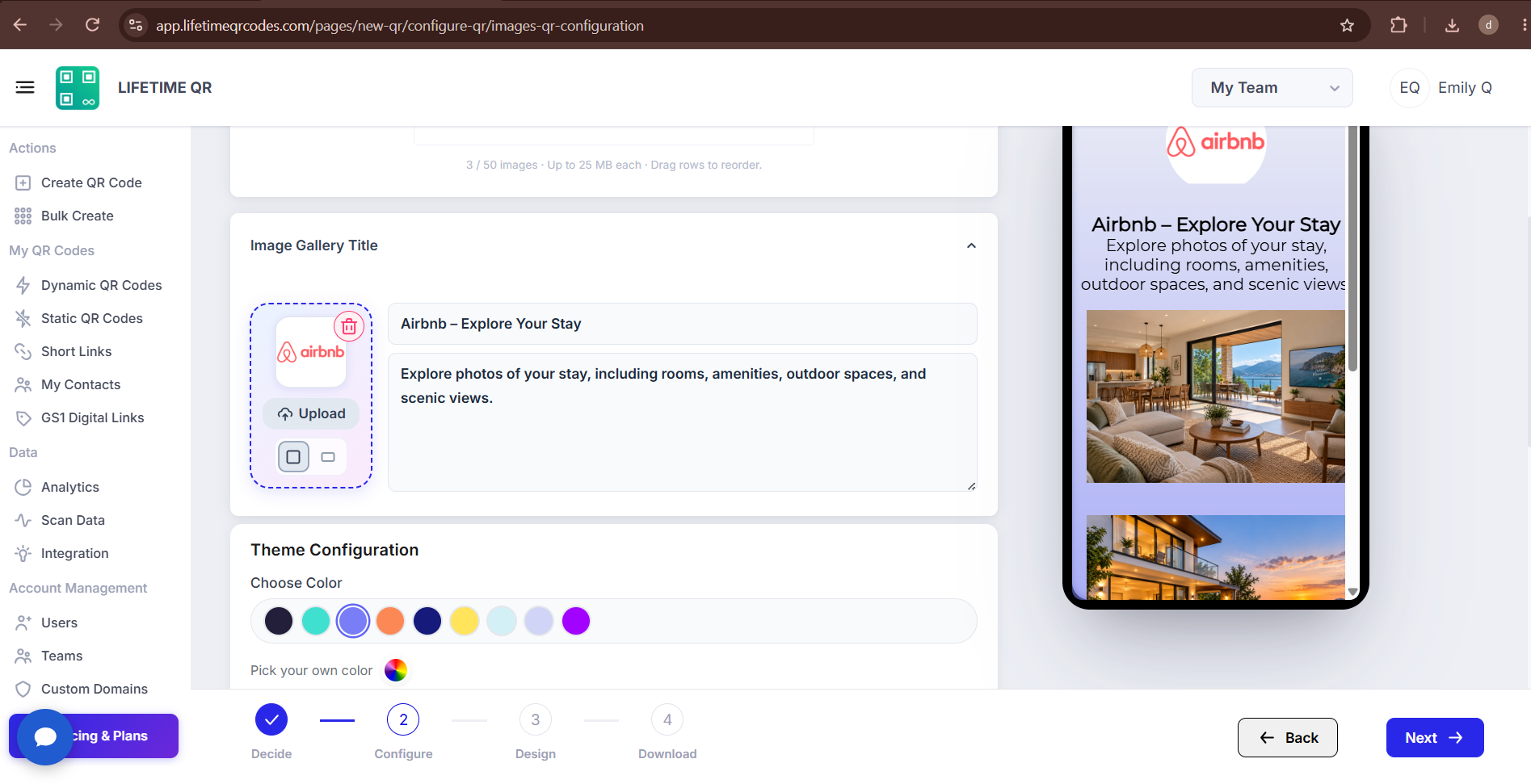
B) Gallery Details
After uploading your images, add descriptive information to give context to your gallery:
- Gallery Title: Add a clear, descriptive headline for your photo collection.
- Description: Provide details or instructions for scanners browsing the gallery.
- Thumbnail: Upload an optional cover image or featured thumbnail that represents the gallery.
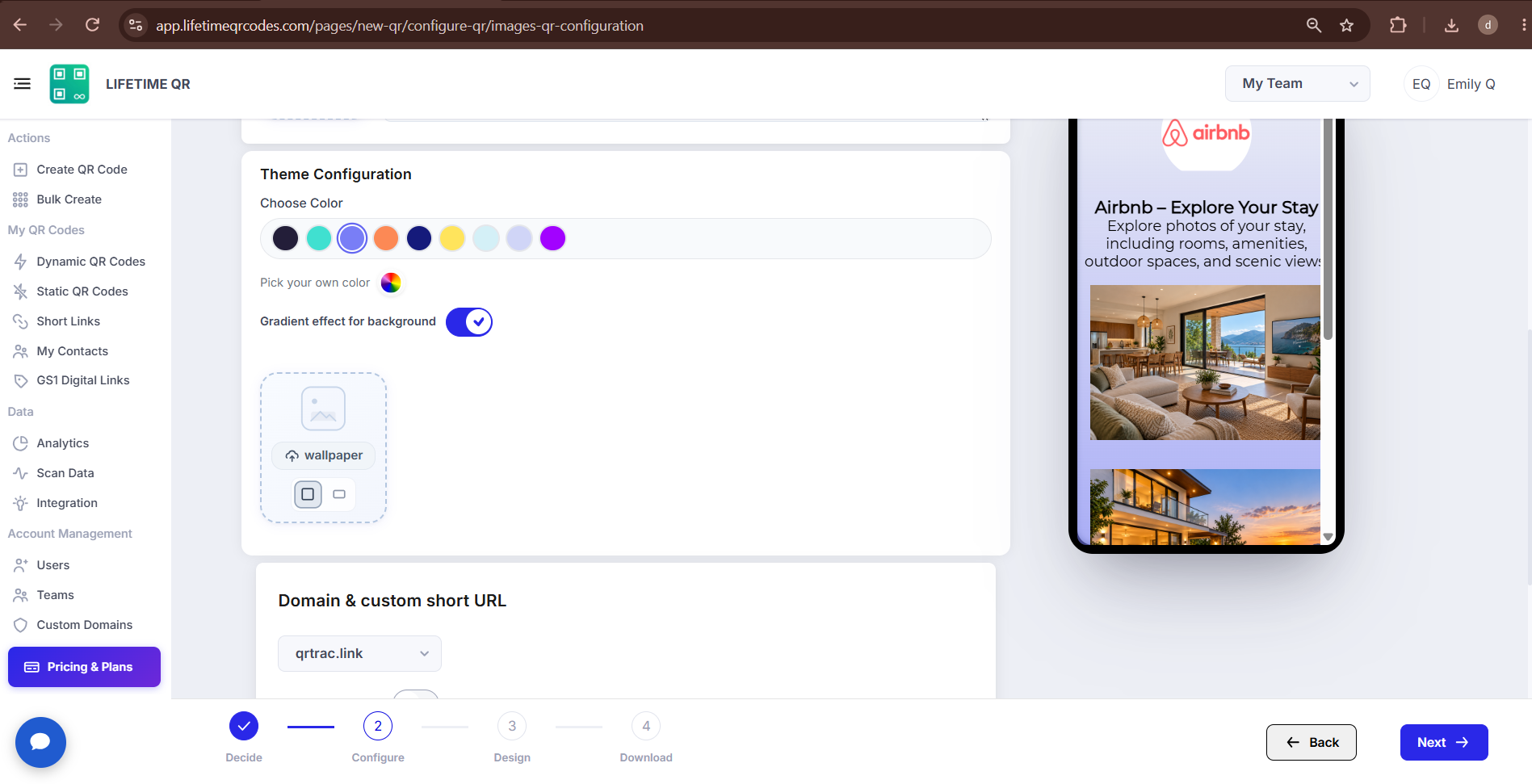
C) Theme Configuration
Personalize the appearance of your gallery landing page to match your brand:
- Theme Color: Select from preset color palettes for fast, balanced styling.
- Custom Color: Choose an exact custom hex color for page accents.
- Gradient Background: Enable a modern gradient blend across the background.
- Background Image: Upload a custom background image or pattern.
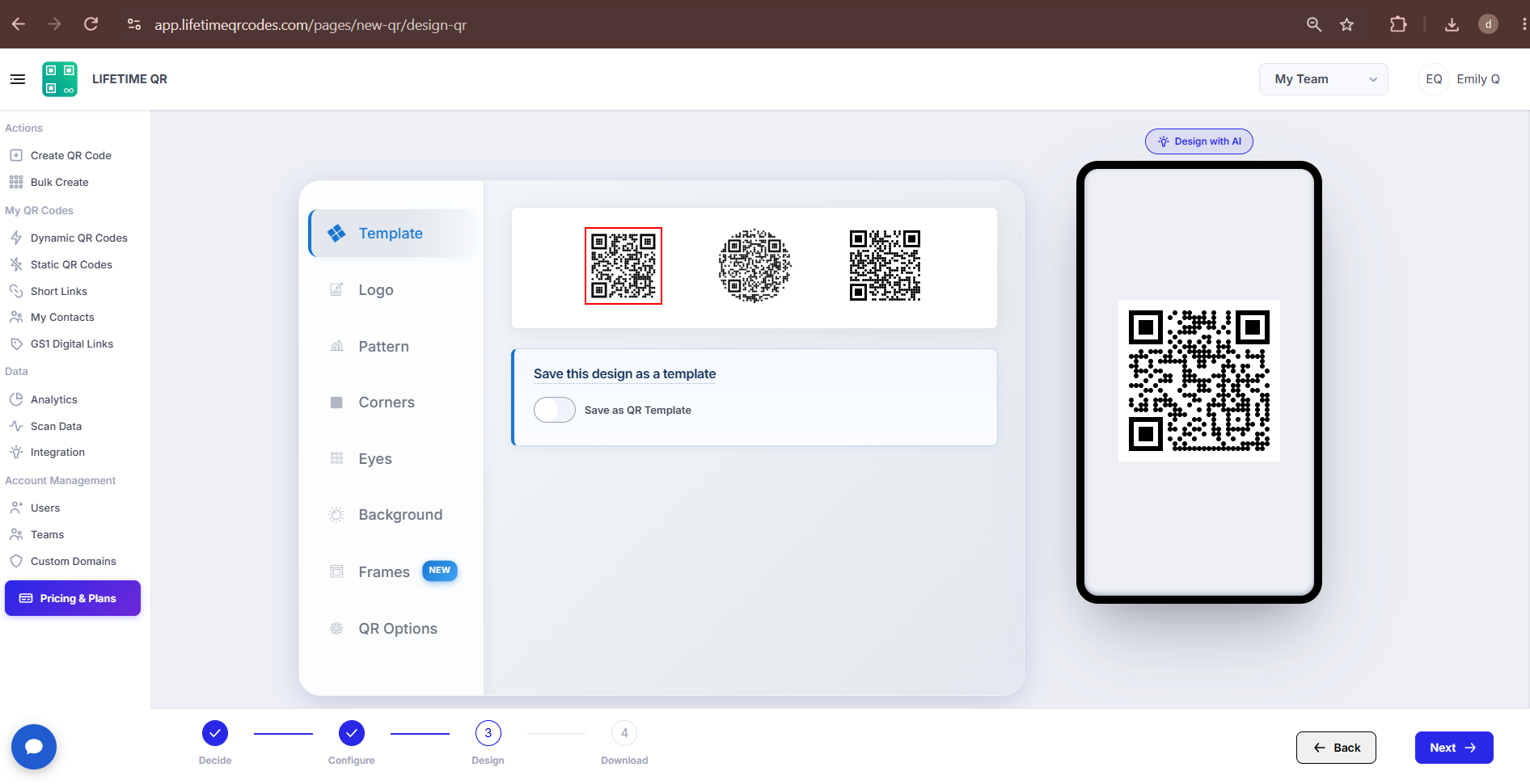
Step 3: Design Your QR Code (Design Phase)
Click Next to customize the design of your QR code so it matches your brand:
- Colors: Change foreground and background colors to fit your brand identity.
- Logo: Add your logo or custom icon to the center of the QR code.
- Dot Pattern: Modify the dot style and body module shape.
- Corner Eyes: Adjust the corner eye frame and eyeball styles.
- Background: Adjust background color or contrast.
Dynamic QR — No Reprinting Needed
Add, remove, or swap gallery images at any time from the dashboard without reprinting your QR code.
Step 4: Review & Download (Download Phase)
Before downloading, preview your QR code on the screen and test it on real devices.
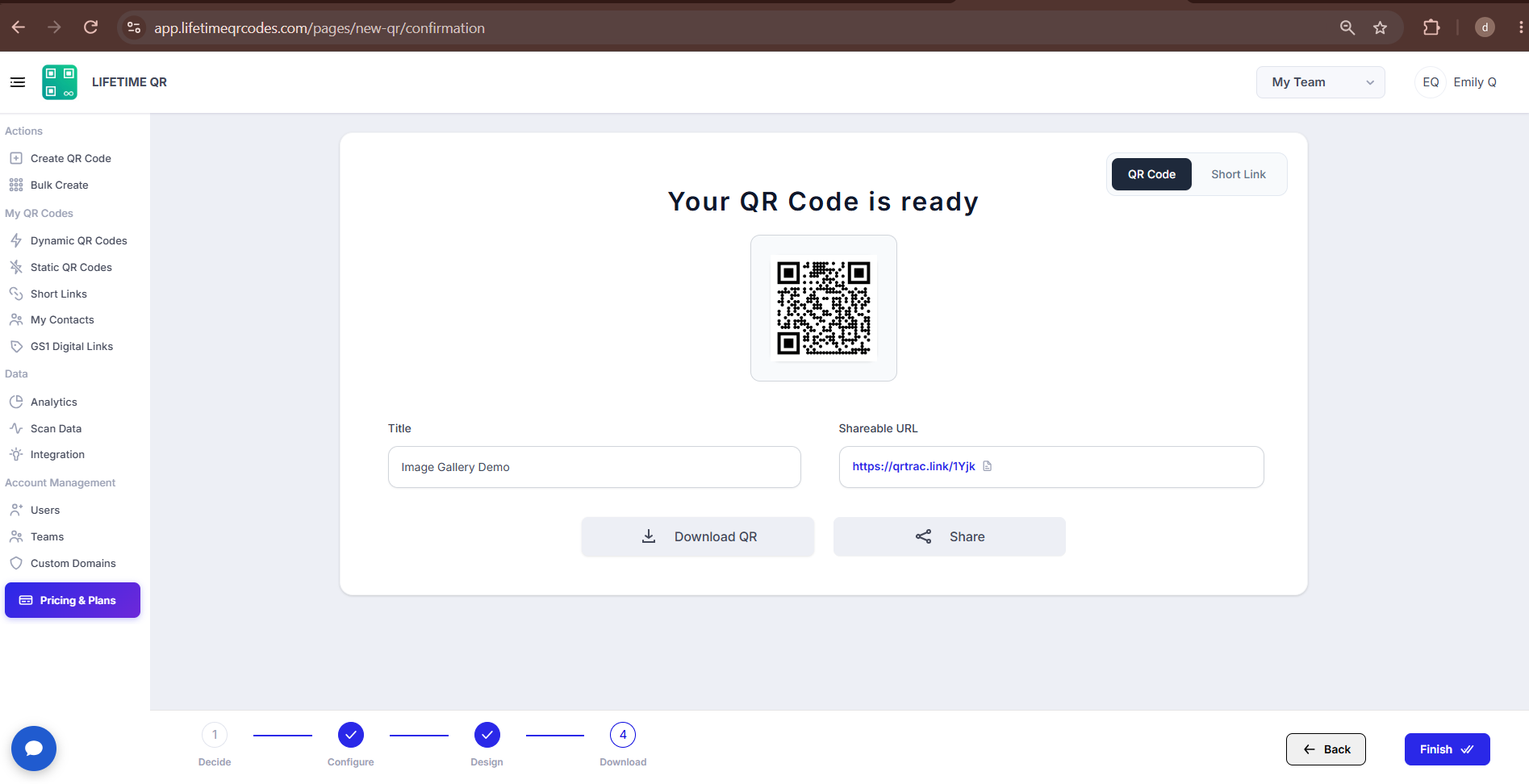
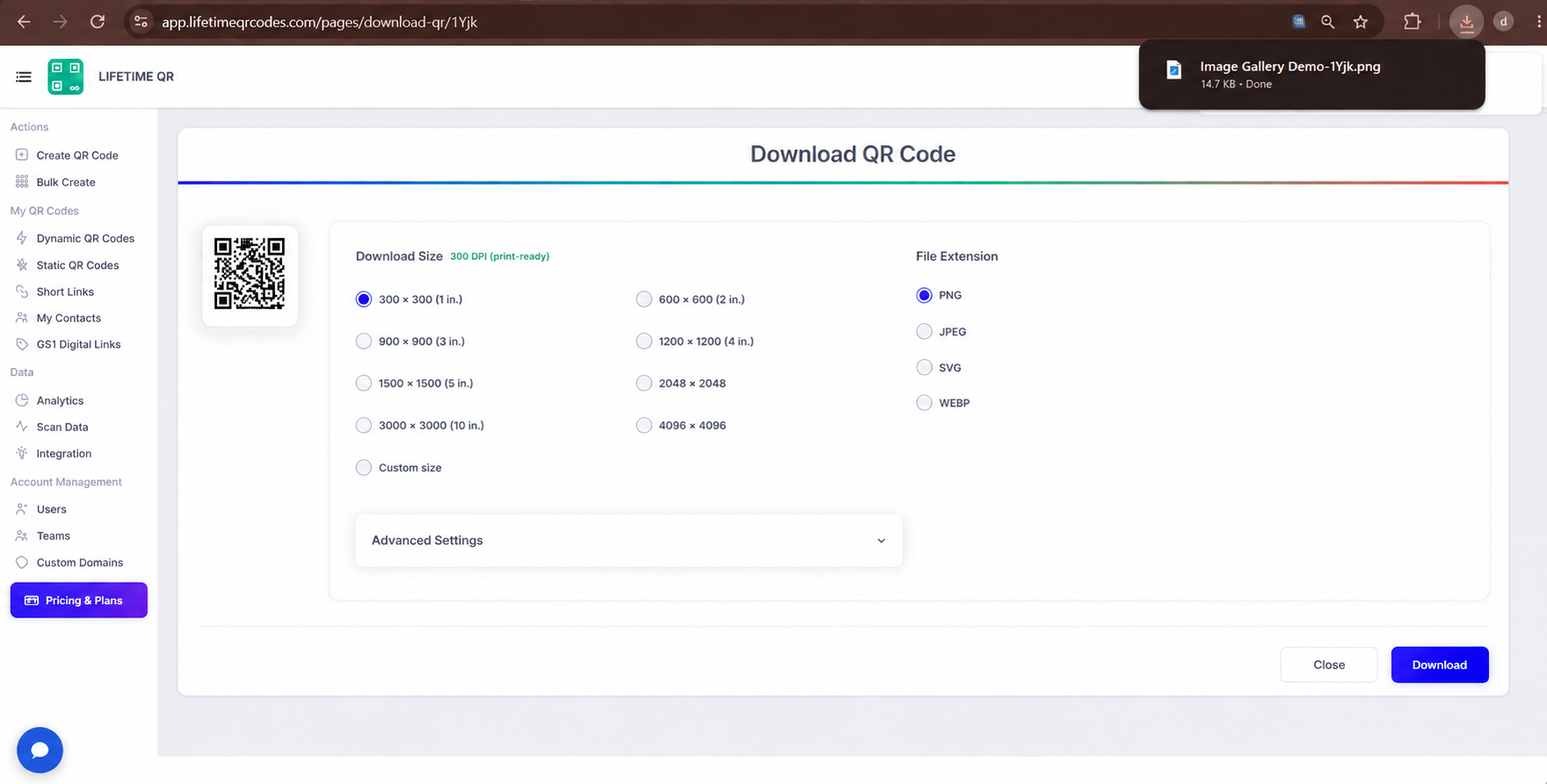
Click Download to export your QR code in your preferred format:
- PNG: Standard raster image for digital promotions, emails, and website displays.
- SVG: Scalable vector format for responsive digital designs and UI layouts.
- PDF: High-resolution vector document ready for print collateral, flyers, and brochures.
- EPS: Professional vector format for print shops, signs, and merchandise packaging.
Tip: Always test your QR code with a smartphone camera straight from your computer monitor before you download and print it.
Frequently Asked Questions
Can I add or remove images later?
Yes. Because this is a Dynamic QR Code, you can log in to your dashboard and add, remove, or reorder images at any time. Your printed QR code keeps working without any changes.
What file formats are supported?
Lifetime QR Codes supports JPG and PNG image formats. For best results, use high-quality originals and compress them to keep file sizes reasonable.
Can I track scans?
Yes. The analytics dashboard shows real-time scan counts, unique visitors, device types, and geographic locations.