Current Article
How To Create a Lifetime Restaurant Menu QR Code
How To Create a Lifetime Restaurant Menu QR Code
Create a lifetime contactless digital menu QR code for your restaurant — customers scan and view your full menu on their phone, and you can update it anytime without reprinting.
If you want customers to view your restaurant menu instantly by scanning a QR code, this guide is for you.
You might be:
- Placing QR codes on tables
- Printing QR on table tents
- Adding QR on packaging
- Using contactless menus
- Updating menus without reprinting
- Tracking customer views
Before You Create the QR Code
Before starting, make sure you have:
- Your restaurant name ready
- Your menu items list ready
- Your restaurant logo (optional)
- Contact details (optional)
Optimize for mobile
Most customers scan from a phone while seated. Make sure your menu is clear and easy to read on a small screen before printing.
Step 1: Login & Start
- Login to your Lifetime QR Codes dashboard
- Click Create QR Code
- Select Restaurant Menu QR Code
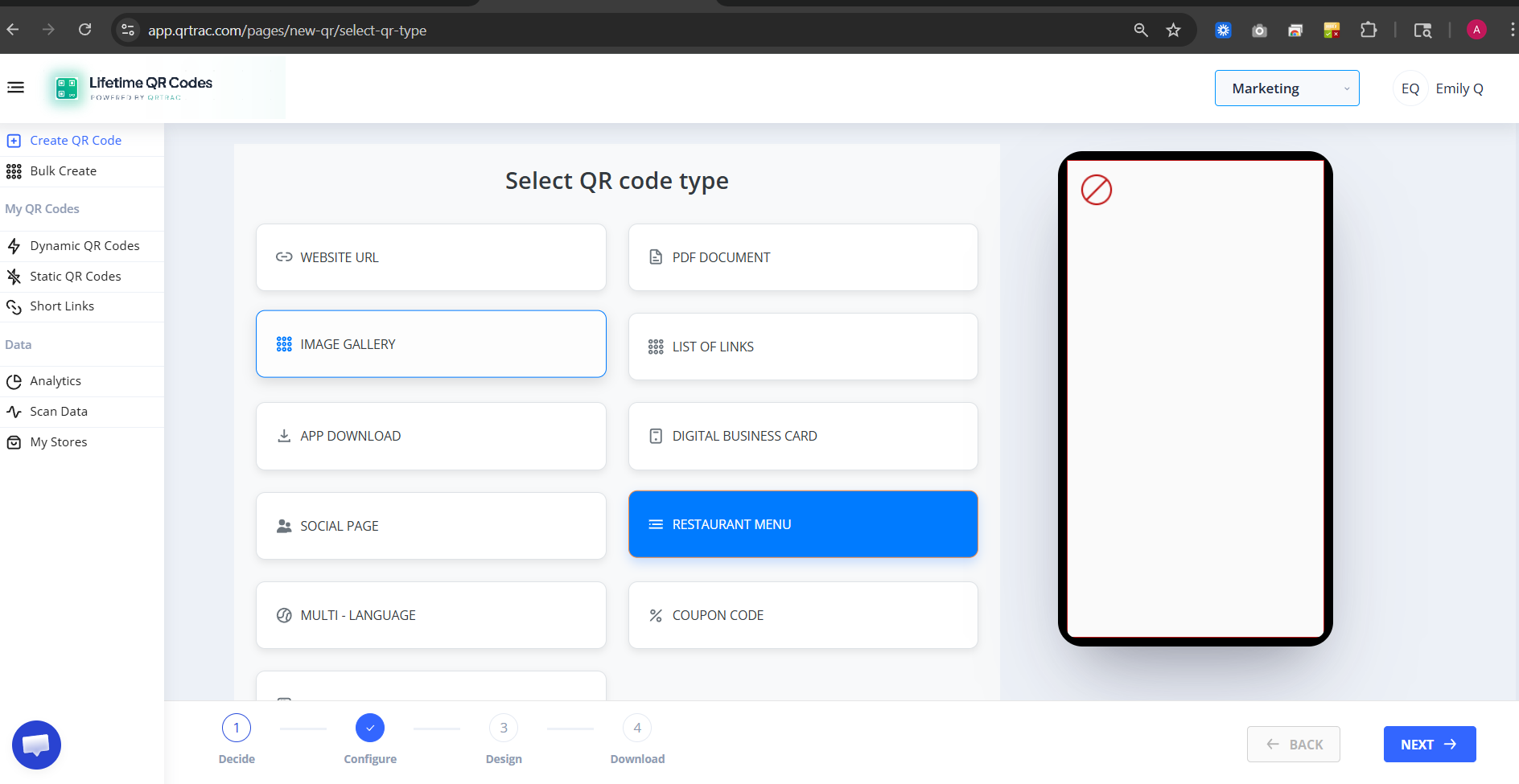
Step 2: Enter Restaurant Information
You will see the Restaurant Information fields. Enter:
- Restaurant Name
- Restaurant Type (e.g. Indian, Italian, Cafe)
- Upload a restaurant image (optional)
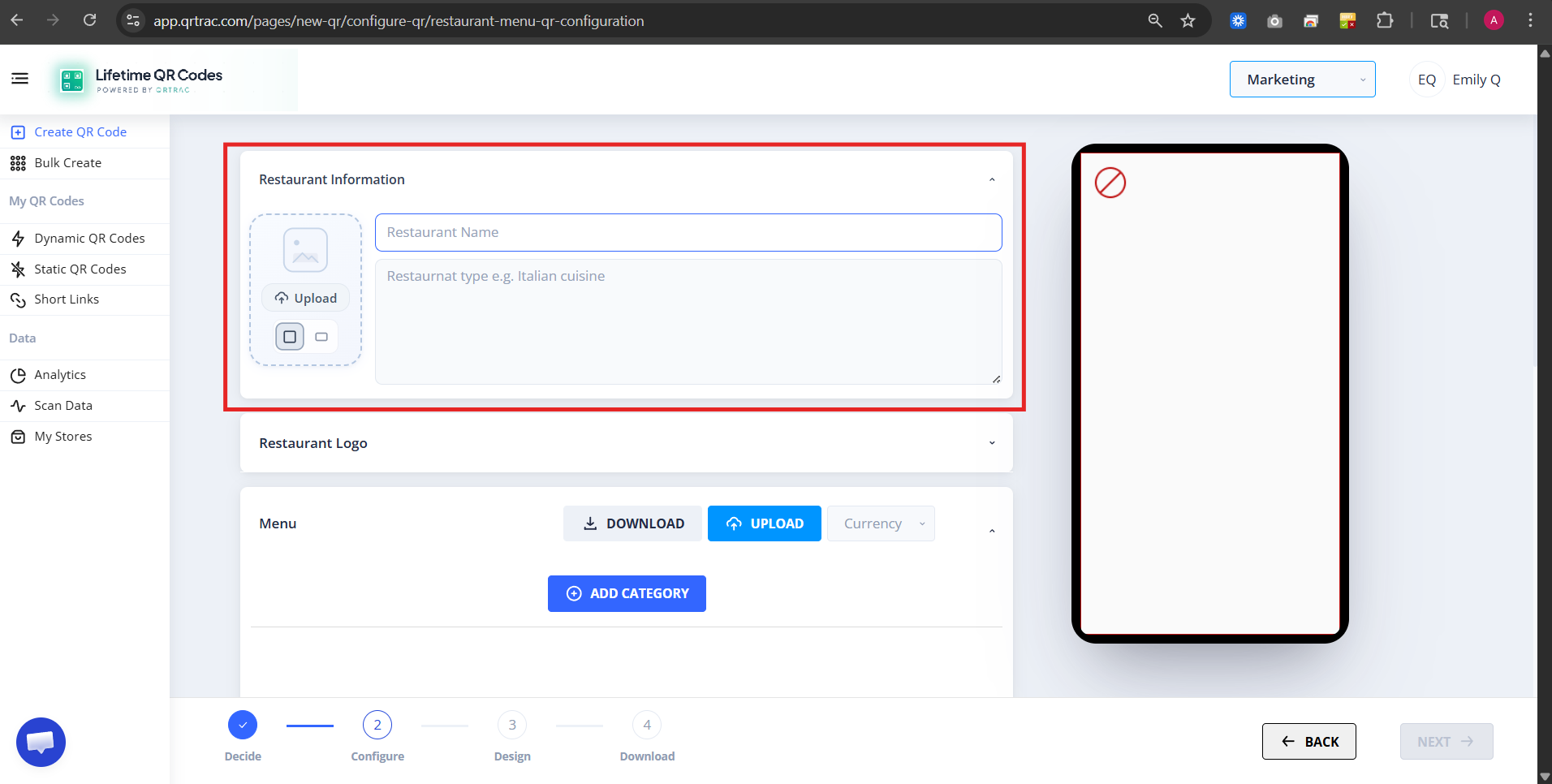
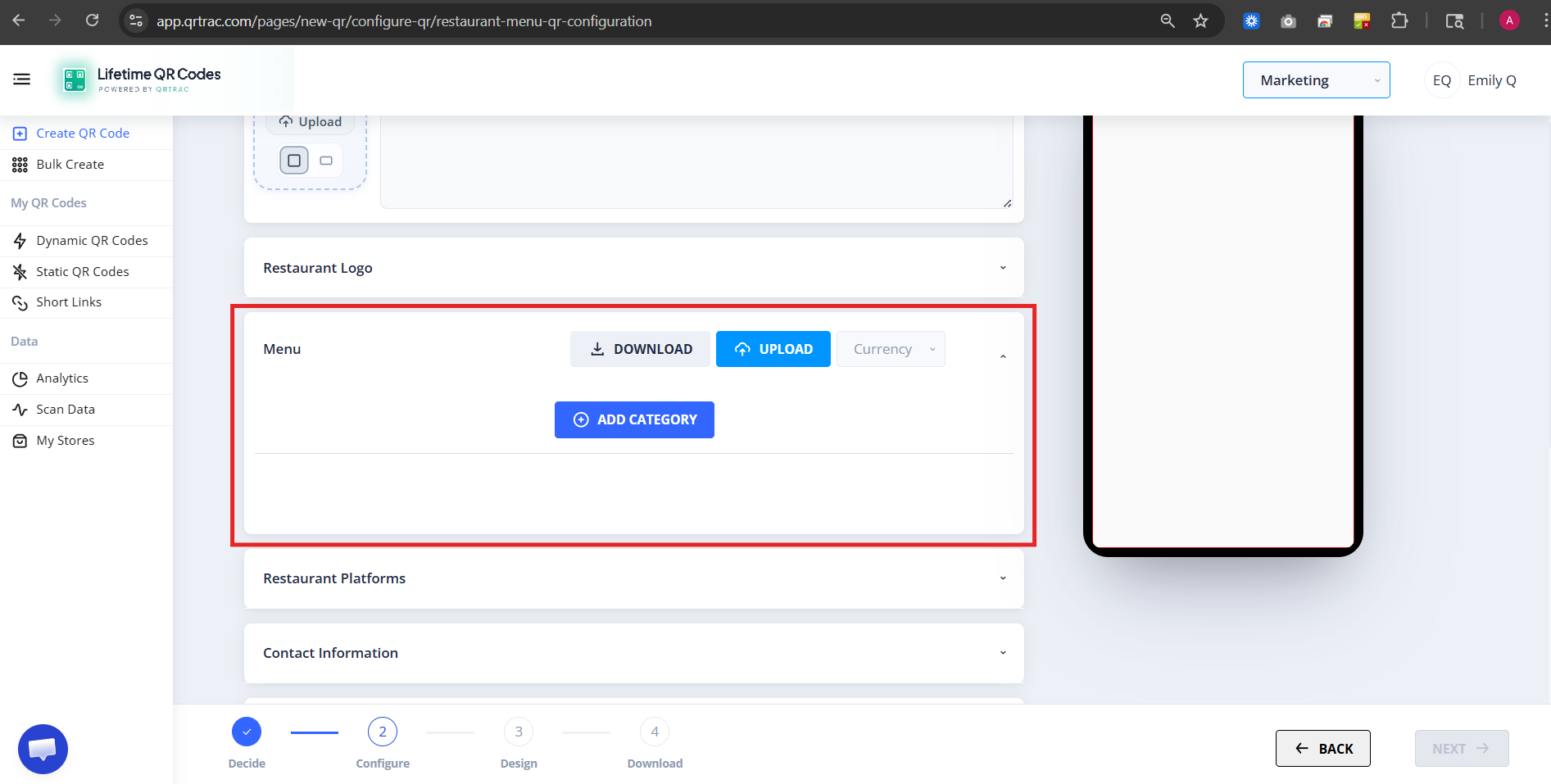
Step 3: Add Your Menu
You have two options for adding menu items:
Option 1 — Upload Excel
- Download Excel template
- Fill in your items
- Upload the file
Option 2 — Add Manually
- Click Add Category
- Enter category name
- Add individual items
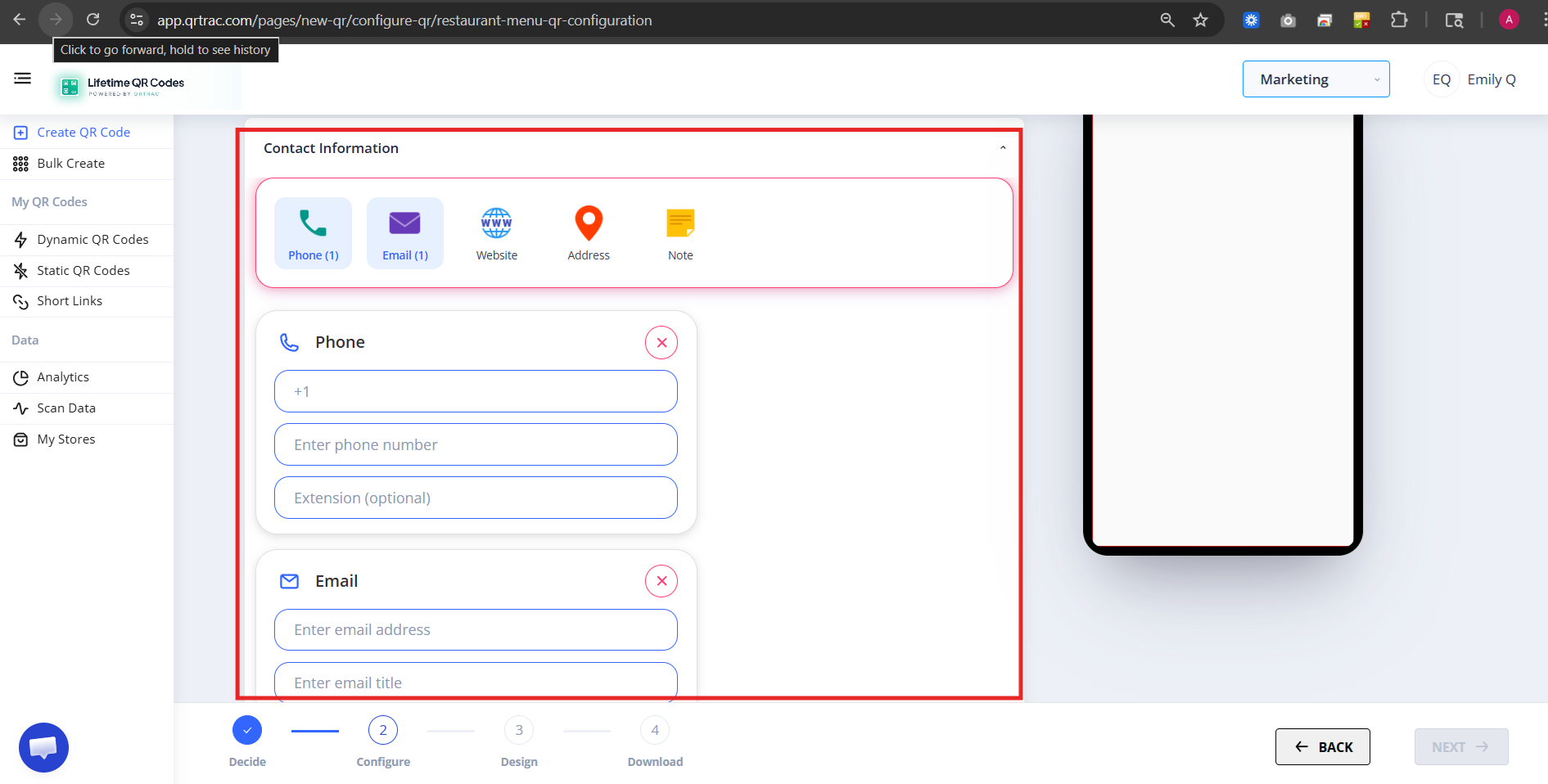
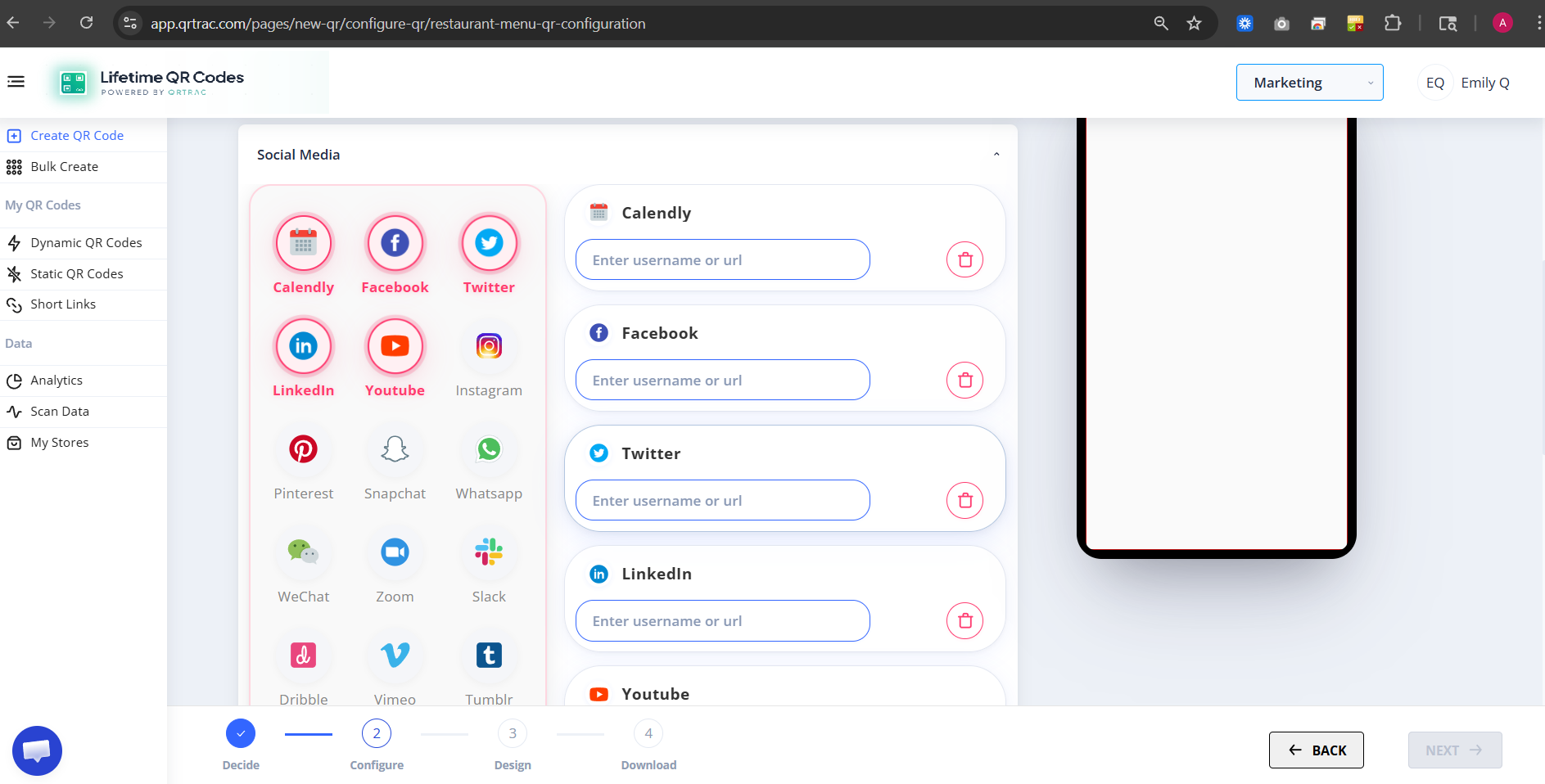
Step 4: Contact & Social Media
Add your contact details and social links (Instagram, Facebook, WhatsApp, etc.).
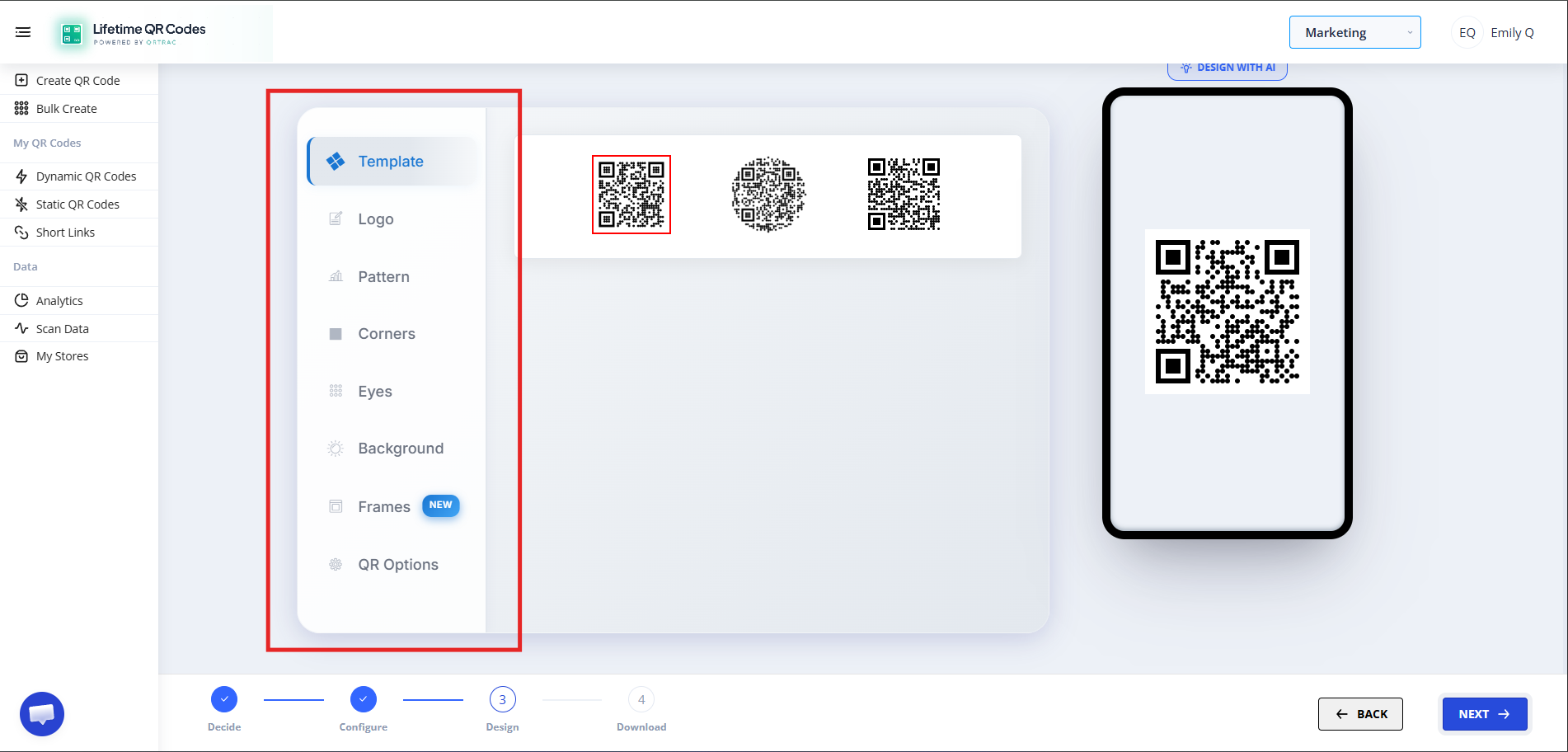
Step 5: Design & Download
Customize your QR code design with your restaurant colors and logo.
Dynamic QR — No Reprinting Needed
Update items, prices, and categories anytime from the dashboard without reprinting.
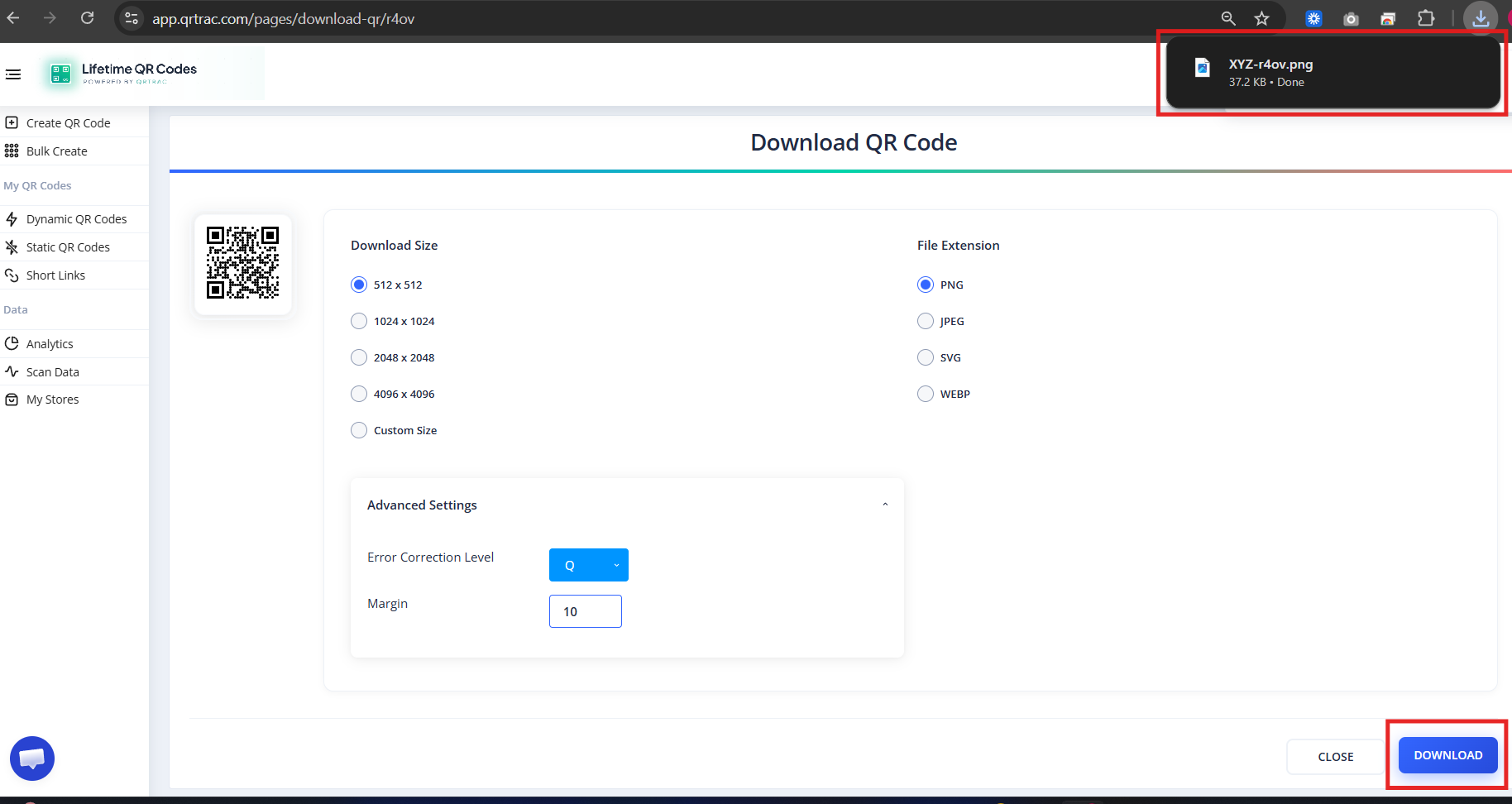
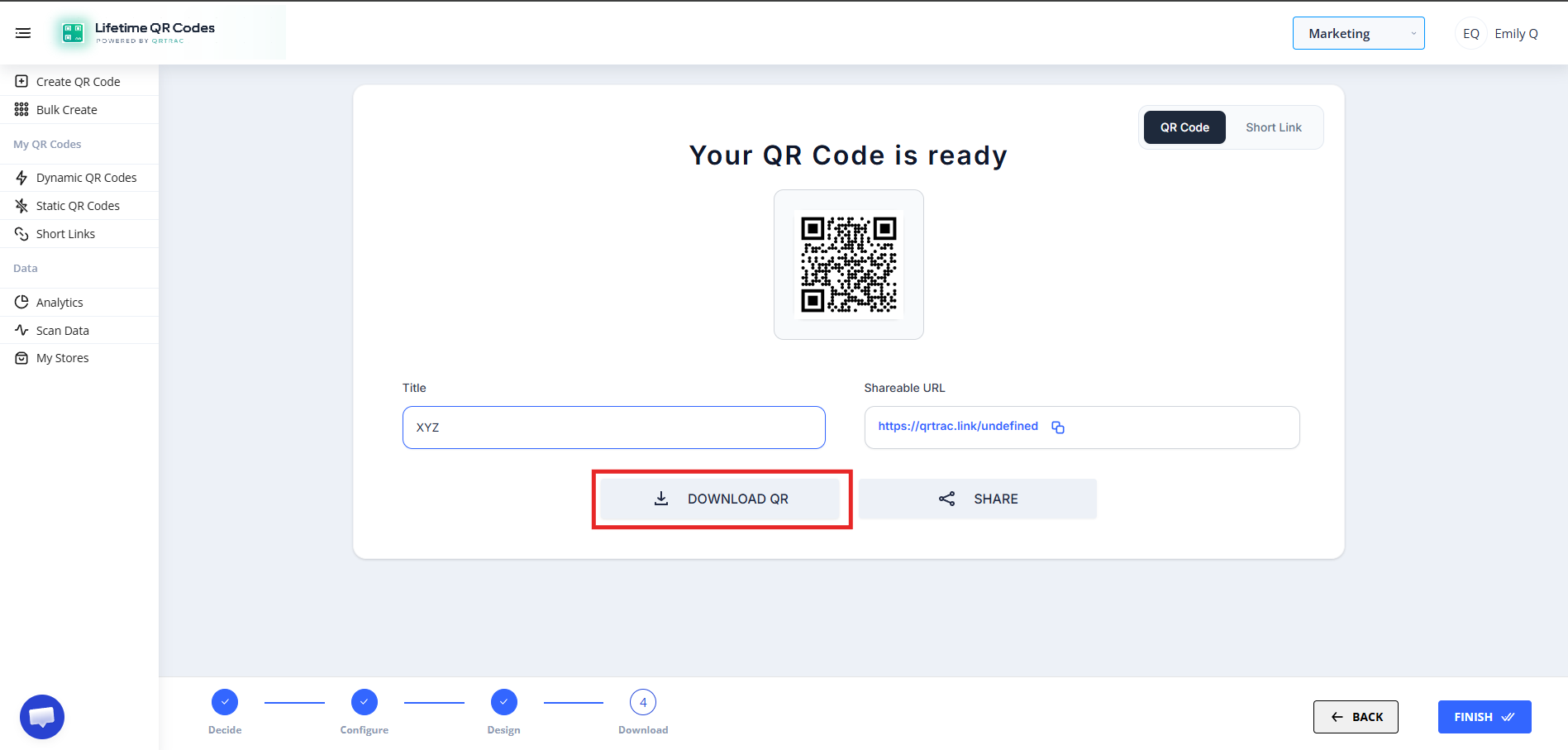
Step 6: Review & Download
Frequently Asked Questions
Can I update menu items later?
Yes. You can update items, prices, and categories anytime from your dashboard — no reprinting required.
Can I add photos to menu items?
Yes. You can upload an image for each menu item to help customers visualize your dishes.
Can I track scans?
Yes. The analytics dashboard shows scan volume, device types, and geographic locations for your menu QR.