Current Article
How To Create a Lifetime List of Links QR Code
How To Create a Lifetime List of Links QR Code
Create a lifetime List of Links QR Code that directs scanners to a single page containing your important links, such as websites, social media profiles, and other destinations.
A List of Links QR Code (often called a Link in Bio QR Code) lets you connect your audience to multiple destinations through a single dynamic QR code. When scanned, it opens a clean, mobile-optimized landing page featuring your profile, custom buttons, multimedia widgets, and social channels. You can update, add, or reorder your links anytime from your dashboard without reprinting the QR code.
Common uses:
- Creator & influencer social bio pages
- Digital business cards & professional profiles
- Multi-location restaurants & online menus
- Product packaging & customer resource hubs
- Event schedules, speaker profiles & ticketing
- Marketing campaigns & multi-channel promotions
Before You Start
Before creating your List of Links QR code, make sure you have the following ready:
- Destination Links: Gather the full web addresses (including
https://) for your website, shop, portfolio, or resources. - Profile & Bio Information: Have a clear page title, a brief introductory bio or tagline, and a profile photo or company logo ready to upload.
- Social Media Links: Prepare direct links to your active social profiles (e.g. Instagram, LinkedIn, YouTube, X, TikTok, Facebook).
- Branding Preferences: Decide on your button corner style, button color palette, and background theme to match your brand identity.
Test Every Destination Link First
Always copy links directly from your browser's address bar and test them in a private window. Verifying that each URL is active and publicly accessible ensures visitors never encounter a broken page after scanning.
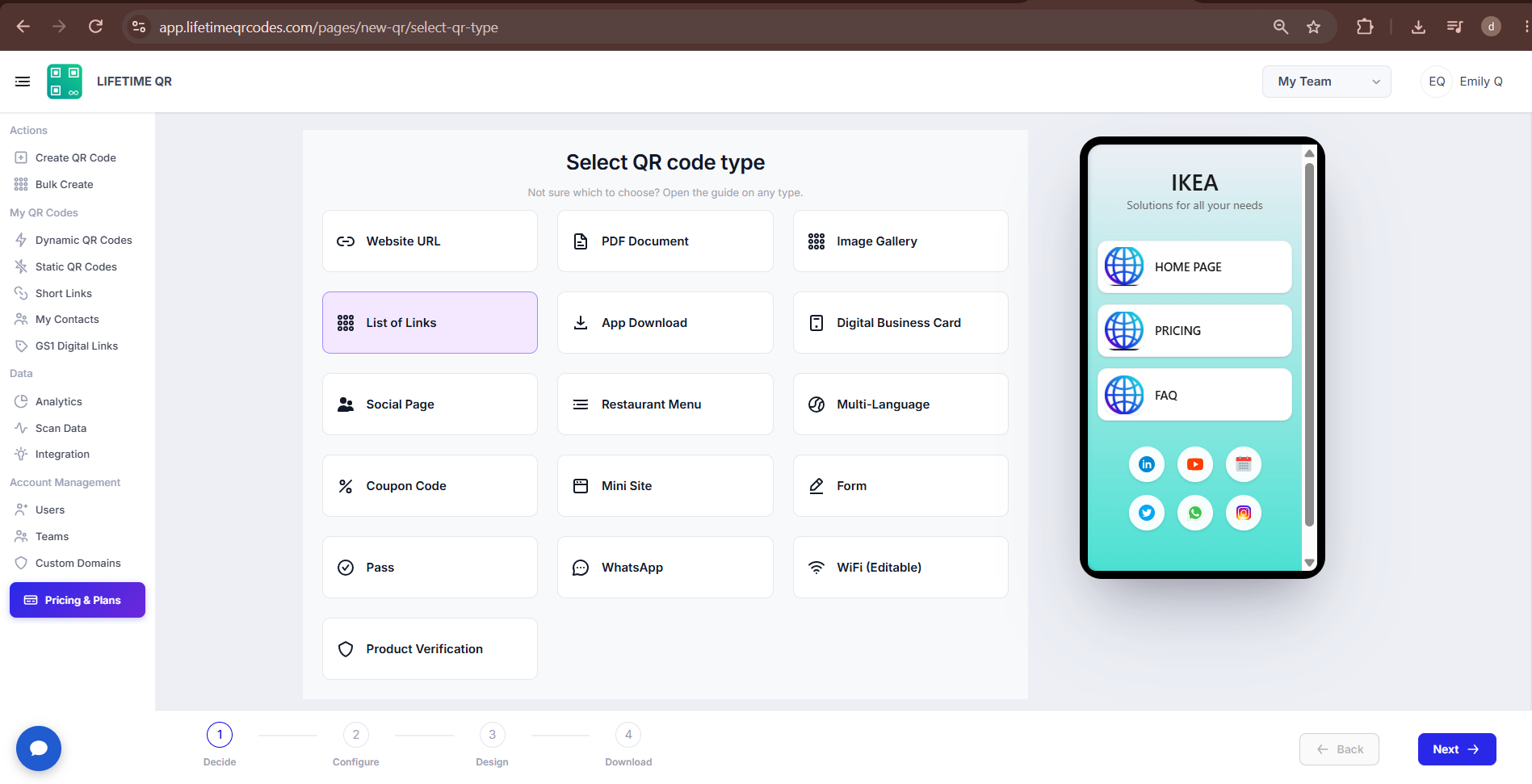
Step 1: Login & Select List of Links QR
- Log in to your Lifetime QR Codes dashboard.
- Click Create QR Code in the header or sidebar.
- Select List of Links from the QR code types list.
- Click Next to open the configuration panel.
Step 2: Configure Your Links QR Code
- Click Create QR Code and select the Links QR Code type.
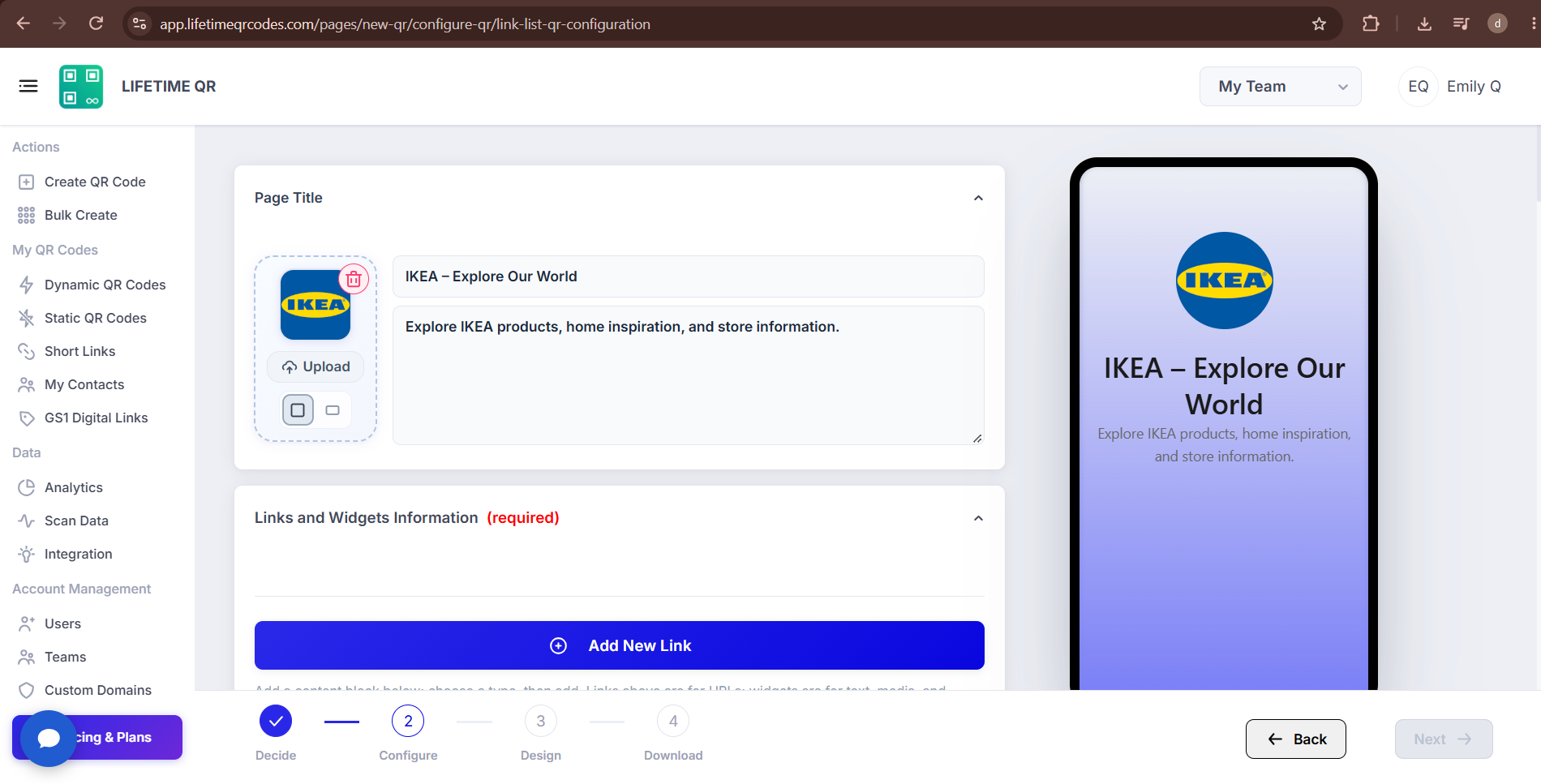
A) Add Page Title
- Enter a Title for your Links page.
- Add a Description.
- Upload an image or logo.
B) Add Links
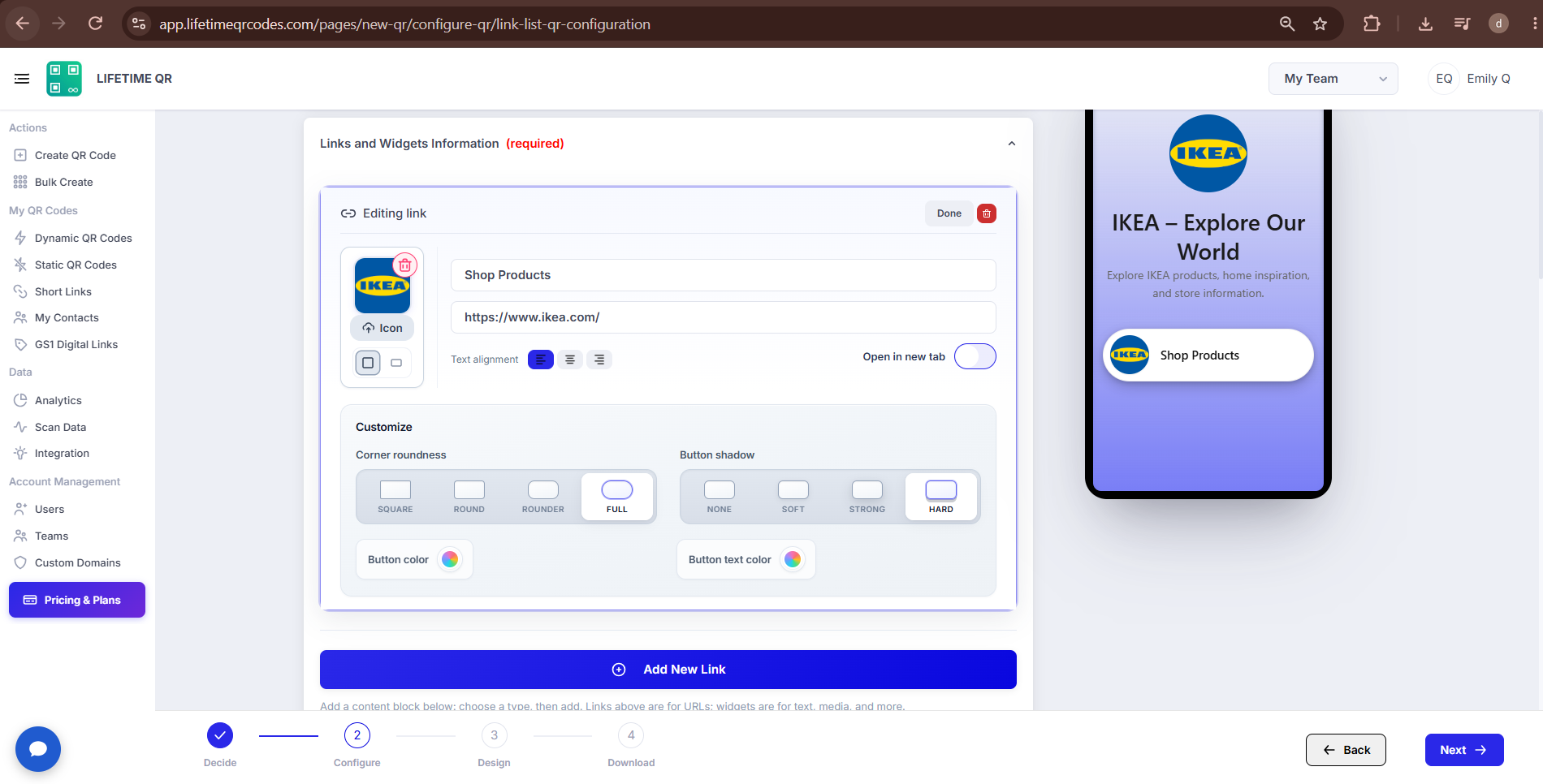
In the Links and Widgets Information section, click Add New Link.
- Enter a Link Title.
- Enter the Link URL.
- Add an Icon.
- Choose the text alignment.
- Enable Open in new tab.
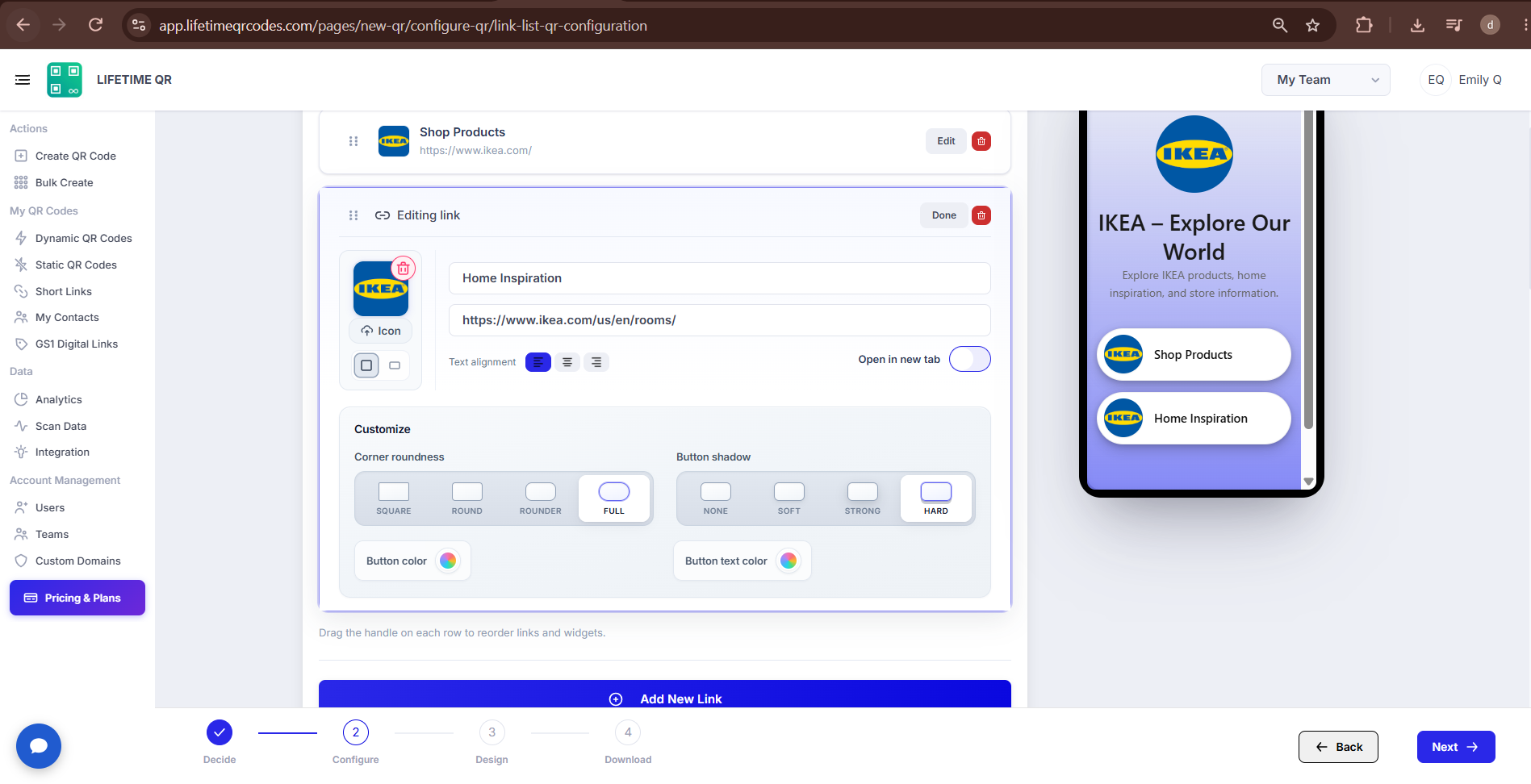
- Customize the link using the available options for corner roundness, button shadow, button color, and button text color.
- Click Done to save the link.
- Click Add New Link again to add additional links to your Links QR Code.
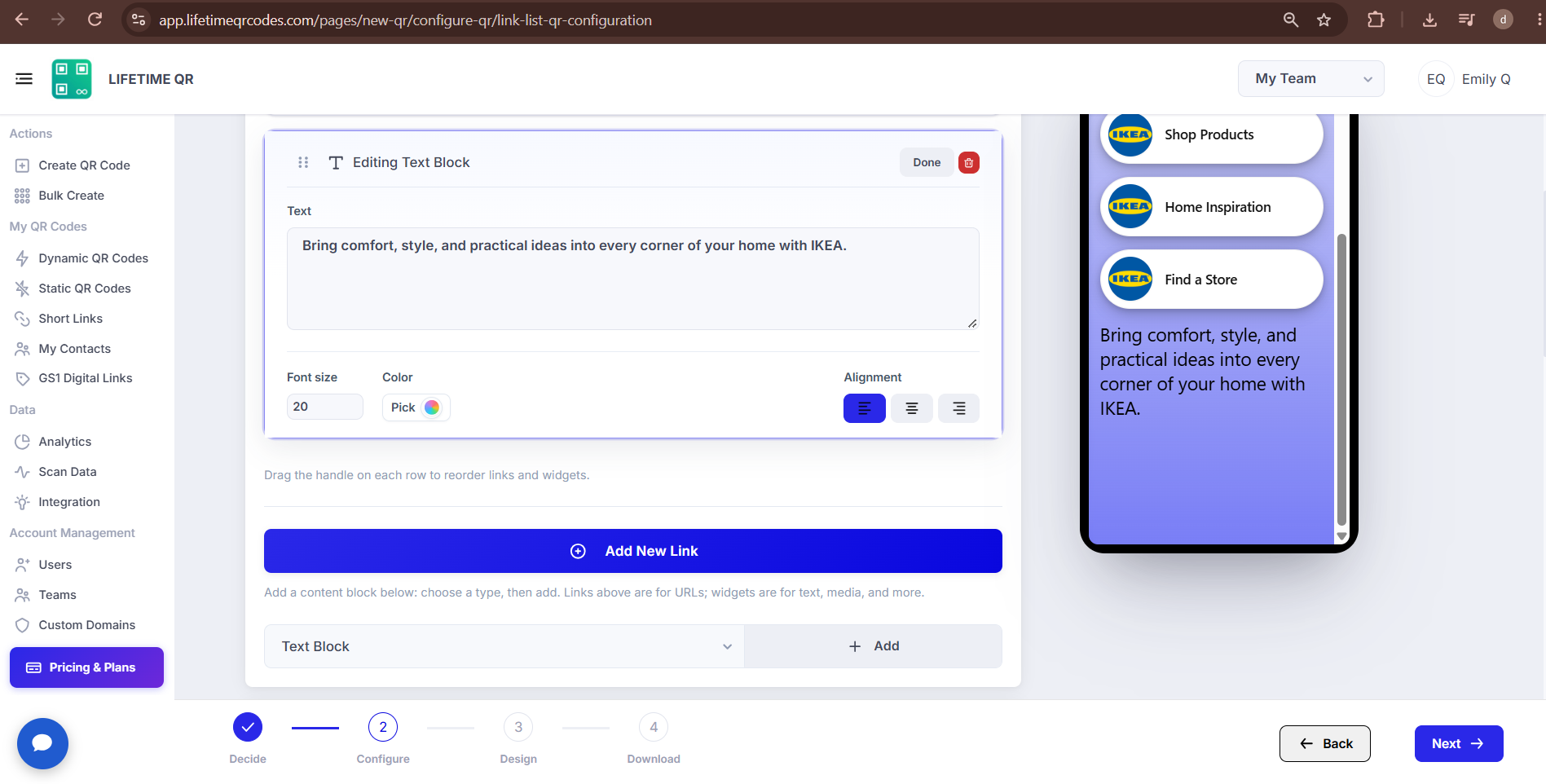
C) Add Content Blocks
In the content block section, select the required content type and click Add.
Available options include:
- Text Block
- Image Gallery
- Video
- Button
- HTML
- Divider
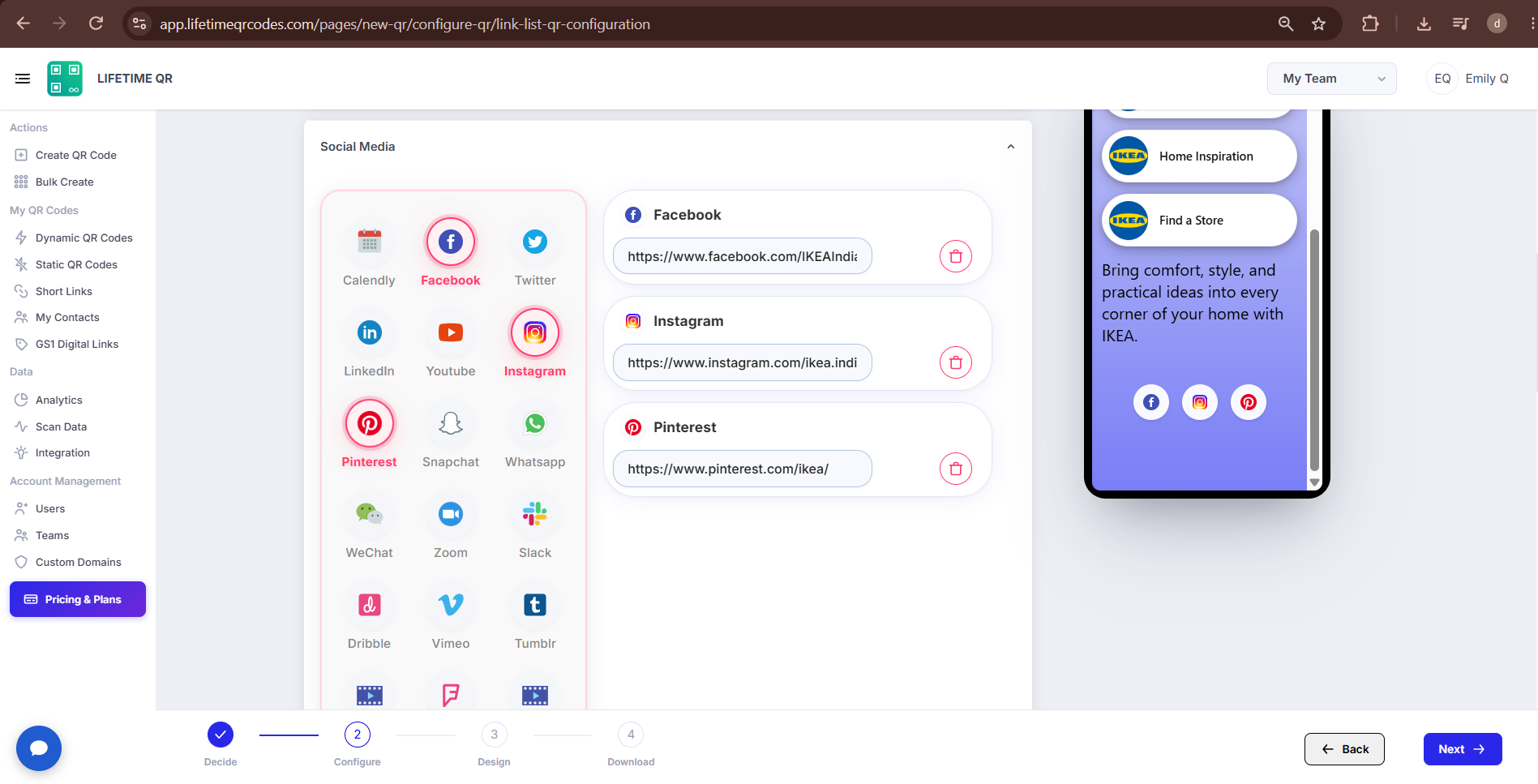
D) Add Social Media
- Use the Social Media section to add social media profiles.
- Select the required platform and add the corresponding profile or page details.
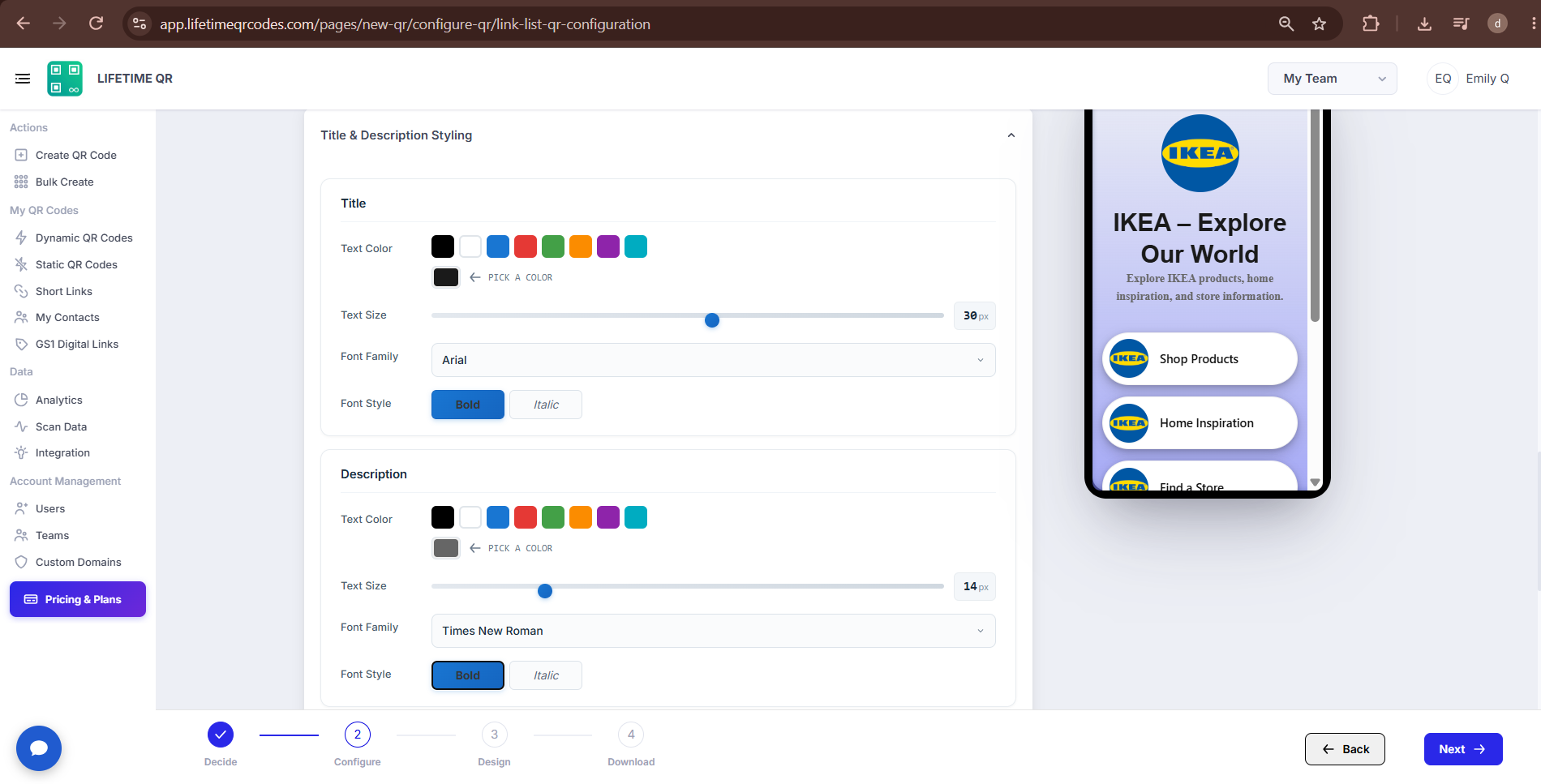
E) Customize Title & Description
In Title & Description Styling, customize the appearance of the title and description using the available options.
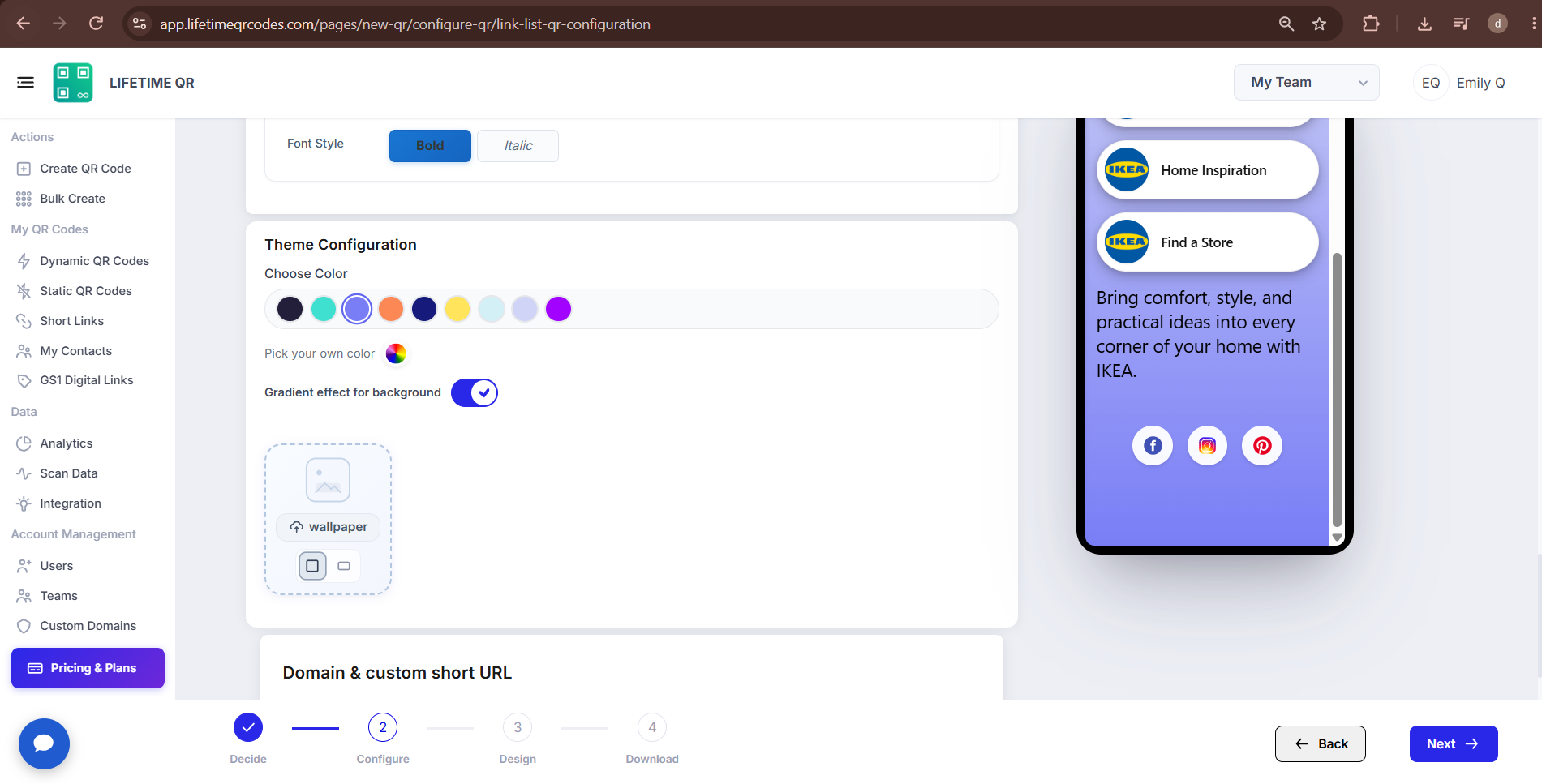
F) Customize the Theme
In Theme Configuration:
- Choose a background color.
- Pick a custom color.
- Enable or disable the Gradient effect for background.
- Upload a wallpaper.
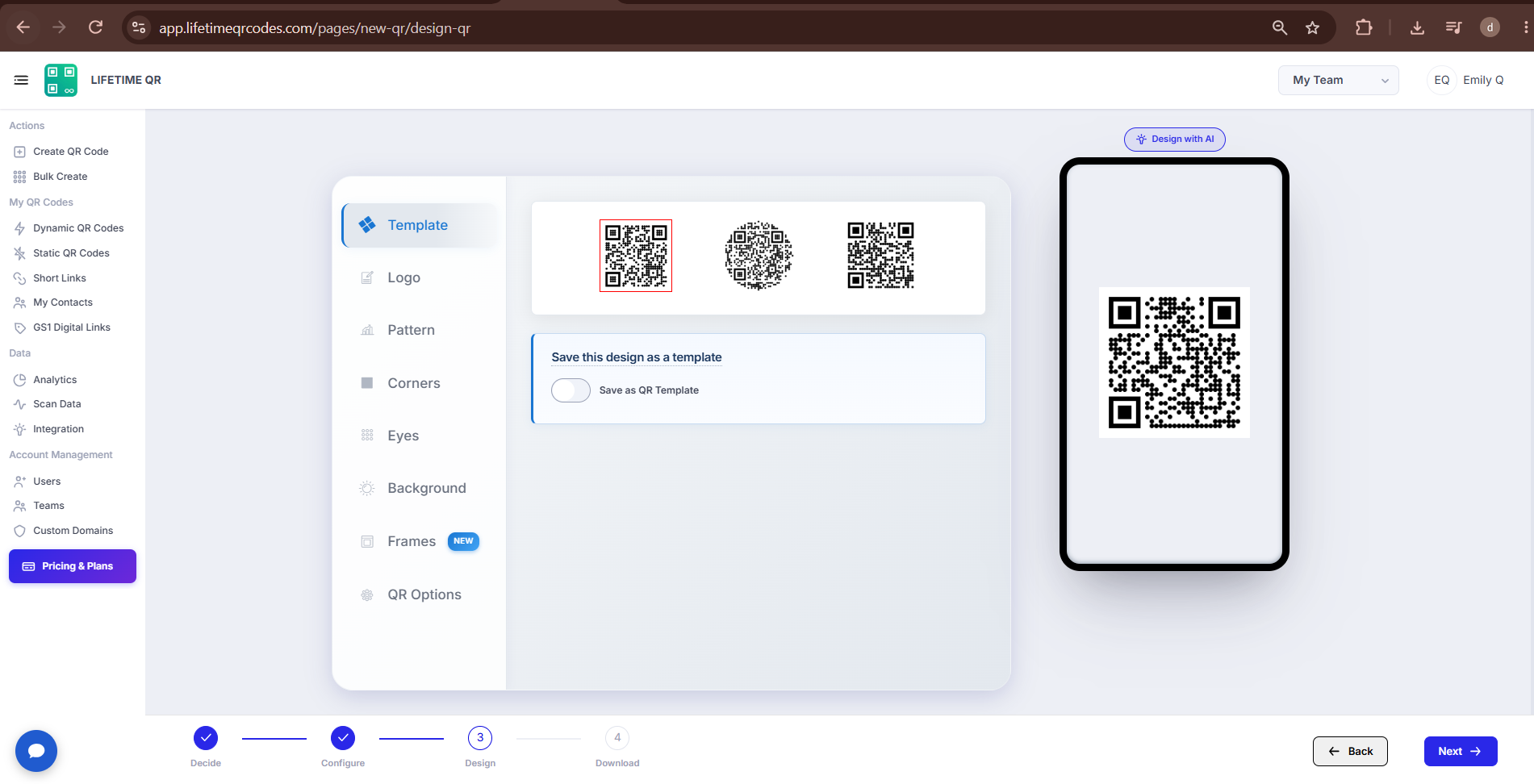
Step 3: Design Your QR Code (Design Phase)
Click Next to customize the visual appearance of your QR code:
- Templates: Select from pre-designed aesthetic layouts.
- Logo: Upload your personal avatar or company logo to display in the center of the QR code.
- Pattern & Shapes: Choose custom data dot styles and corner eye marker shapes.
- Colors: Select contrasting foreground and background colors to match your brand palette.
- Frames: Add a frame with a clear call-to-action (e.g. "SCAN FOR LINKS" or "MY BIO LINKS") to maximize scans.
Maintain High Color Contrast
Ensure a strong visual contrast between your QR code pattern (dark) and background (light). Clean contrast helps smartphone cameras scan your code quickly in different lighting.
Step 4: Review & Download (Download Phase)
Click Next to reach the confirmation screen. Review your QR code preview, enter a recognizable title for your dashboard, and click Download QR to select your preferred file format:
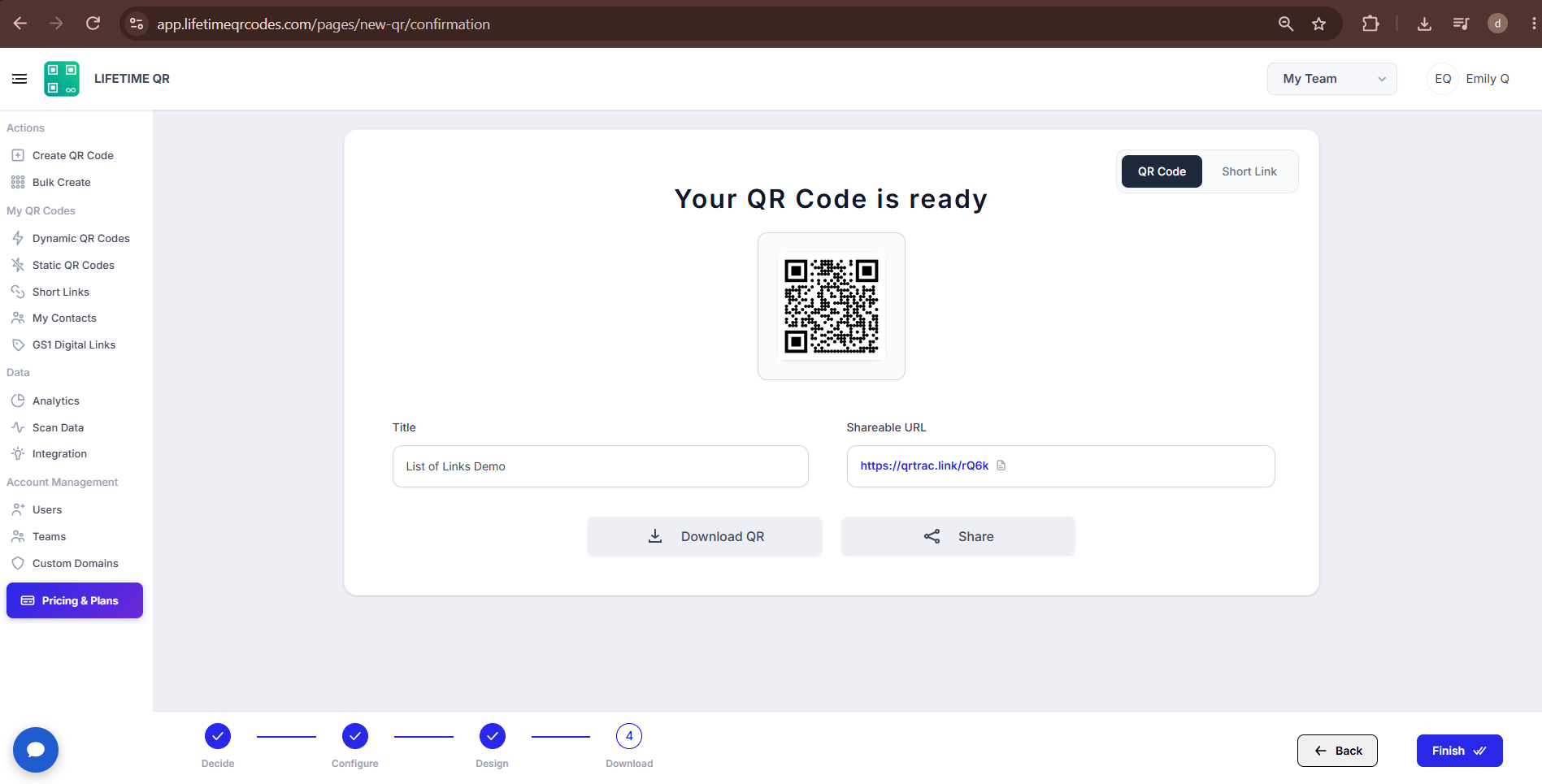
- PNG: High-resolution raster format, ideal for digital graphics, social media, websites, and email signatures.
- JPEG: Compact raster format suitable for digital sharing and office documentation.
- SVG: Lossless vector format best for commercial printing, business cards, posters, packaging, and banners at any scale.
- WEBP: Lightweight modern web format designed for fast-loading websites and applications.
Pro Tip
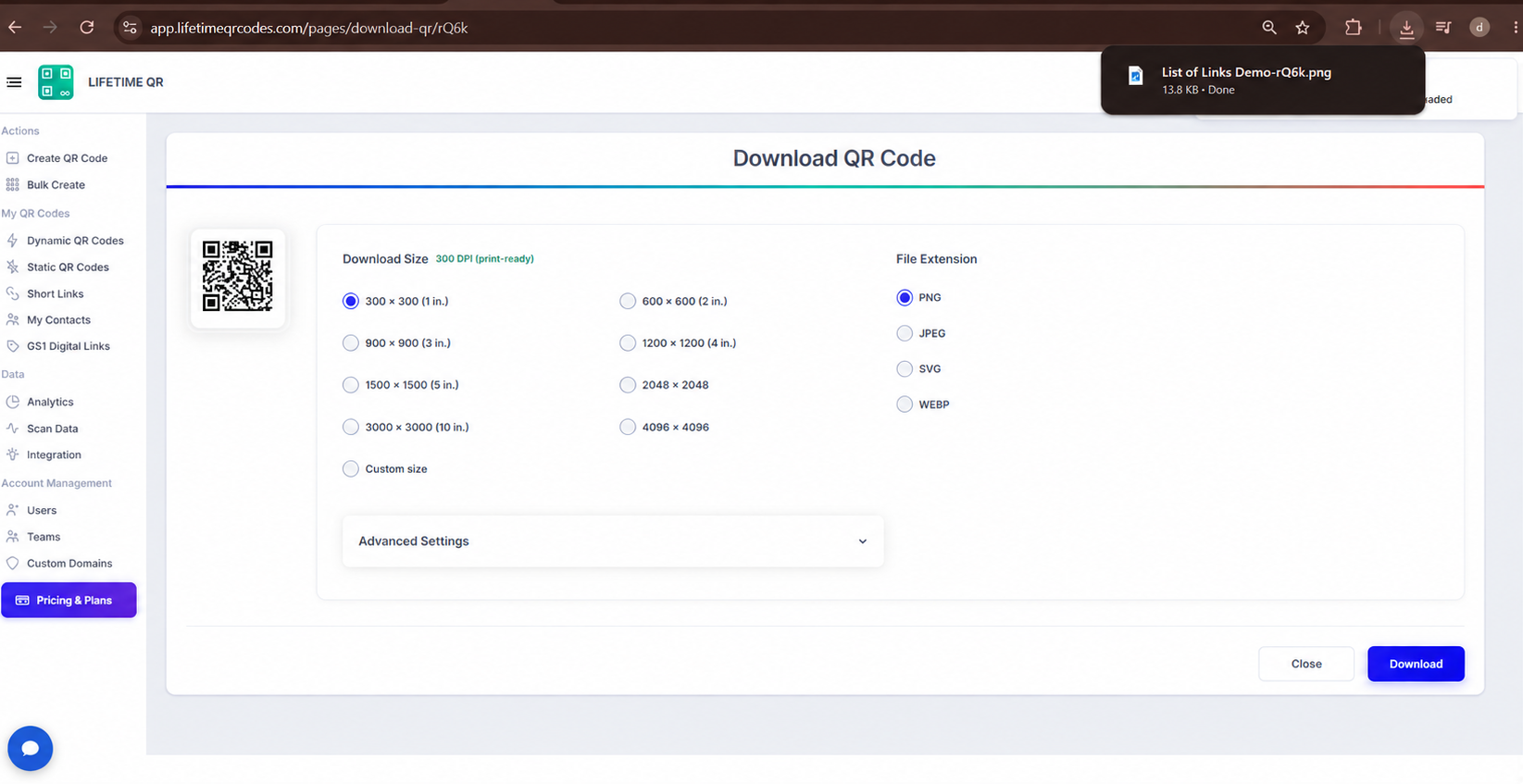
Always test your QR code with a smartphone camera straight from your screen before printing. Confirm that all buttons open their intended destinations and that your landing page loads smoothly on mobile.
Best Practices for List of Links QR Codes
Common Mistakes
- ❌ Pasting destination URLs without https:// or http://.
- ❌ Adding too many links without organizing them clearly.
- ❌ Printing the QR code without testing all links on a real phone.
Launch Checklist
- All destination URLs have been tested and are active.
- Page title, description, and profile image have been added.
- QR code scan test passed successfully.
What Users See After Scanning
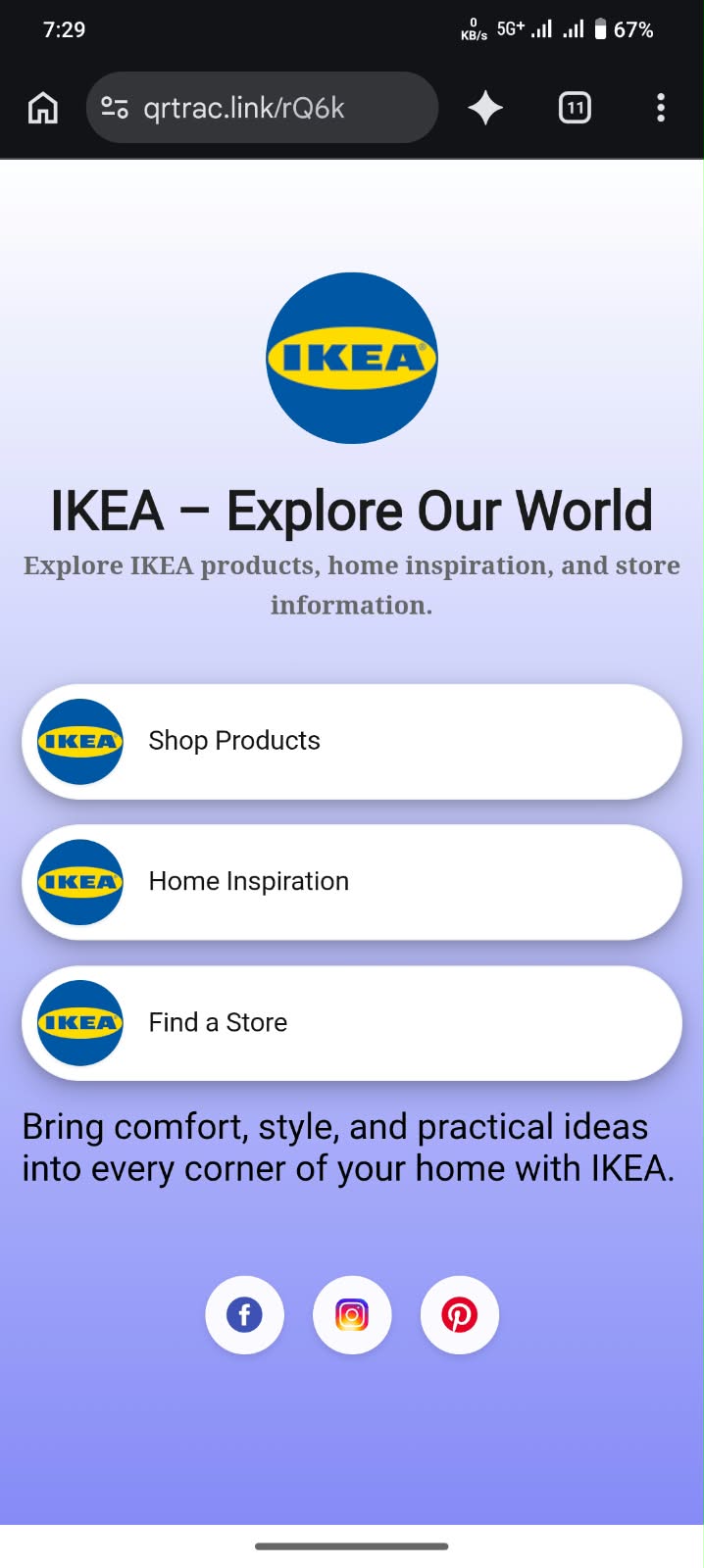
When users scan the List of Links QR Code, they can open the page directly on their phone. They can view the page title, description, links, and social media options, then tap any link to visit its destination.
Frequently Asked Questions
Can I add, edit, or reorder links after printing the QR code?
Yes. Because List of Links QR Codes are dynamic, you can add new links, edit URLs, remove buttons, or drag to reorder them at any time from your Lifetime QR Codes dashboard without changing or reprinting the physical QR code.
Is there a limit to how many links I can add to my page?
No. You can add as many links and widgets as you need. For the best user experience on mobile screens, we recommend keeping your most important 5 to 8 links near the top.
Can I track scans and visitor analytics?
Yes. The analytics dashboard provides real-time metrics for your List of Links QR code, including total scan counts, unique scanners, device operating systems, browsers, and geographic locations.
Can I share my links page directly without the QR code?
Yes. Every List of Links QR Code comes with a shareable short URL that you can copy and paste into social media bios (like Instagram, TikTok, and X), email signatures, and messaging apps.
Can I customize the visual design of my List of Links QR code?
Yes. You can customize the QR code using curated templates, custom brand colors, center logo uploads, custom pattern dots, corner eye markers, and call-to-action frames.
What happens if one of my external destination links changes?
Simply log in to your Lifetime QR Codes dashboard, edit the link URL with the new address, and save. The update takes effect immediately for all subsequent scans.