Current Article
How To Create a Lifetime Product Verification QR Code
How To Create a Lifetime Product Verification QR Code
Step-by-step instructions on generating a dynamic lifetime Product Verification QR Code.
Use a Product Verification QR Code to help customers verify genuine products. Configure product details, scratch-off verification, scan limits, verification messages, and optional warranty information. Each item receives a unique code for traceability.
Tip: For physical retail packaging, pair the QR code with a scratch-off panel containing the second-factor code so buyers can verify authenticity without opening the product seal.
Common uses:
- Luxury & designer goods
- Pharmaceuticals & supplements
- Electronics & hardware
- Cosmetics & skincare
- Wine & premium spirits
- Automotive replacement parts
Before You Create the QR Code
Have the following details prepared before creating your verification batch:
- Batch Details: Information common to the run, such as Batch Number and Manufacturing Date (required labels)
- Verification Method: Decide whether to enable scratch-off 2nd factor verification codes or rely on scan count limits
- Customer Fields: Any buyer information you wish to collect upon verification (e.g. name, email, phone)
- Batch Quantity: The total number of individual product units to generate codes for (1 to 100,000)
Bulk Serialization Architecture
Product Verification automatically generates unique serialized QR codes for every unit in your batch. Ensure your packaging print process supports variable data printing for both the QR code and any associated scratch-off codes.
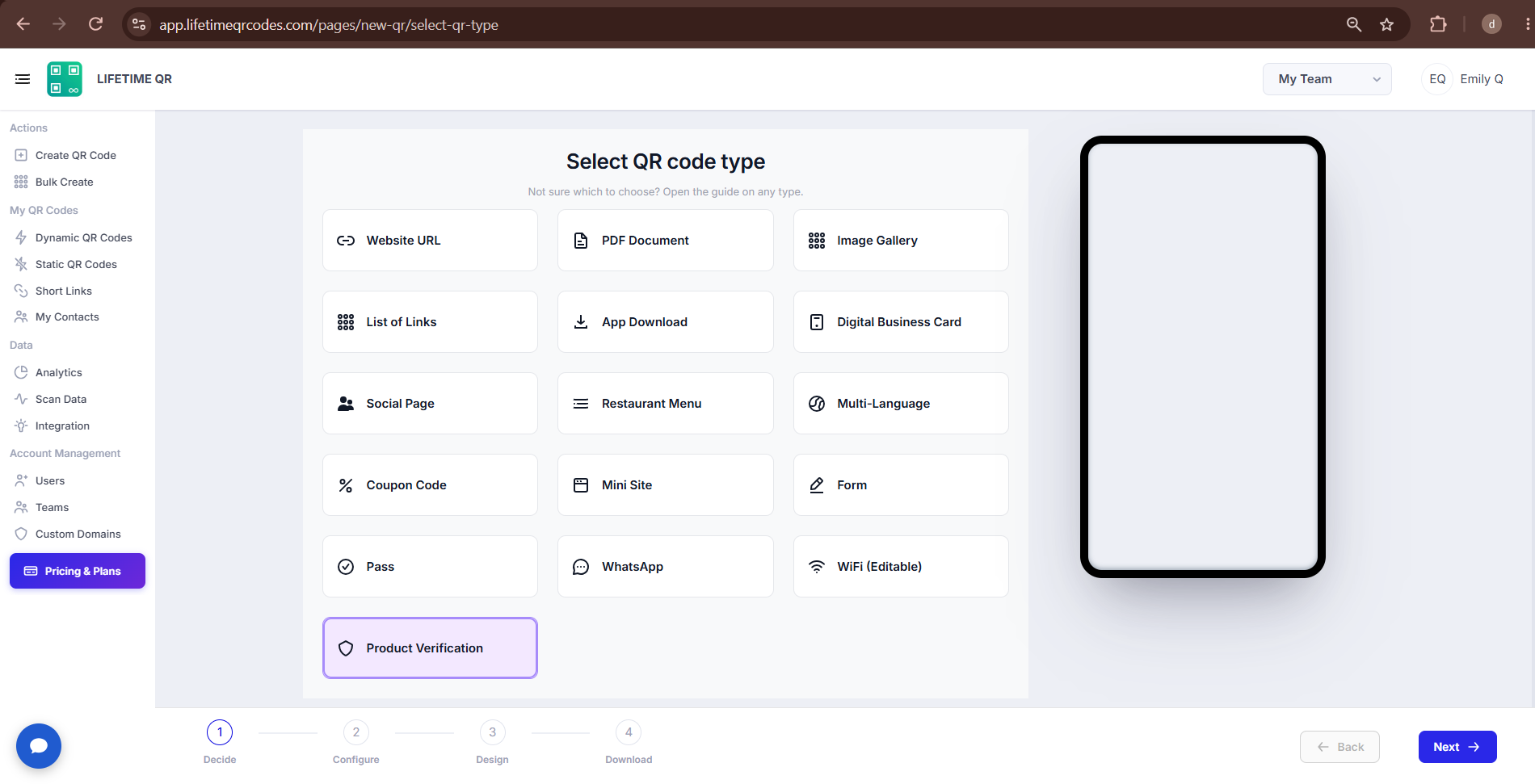
Step 1: Login & Select Product Verification (Decide Phase)
- Log in to your Lifetime QR Codes dashboard.
- Click Create QR Code in the header or sidebar.
- Select Product Verification from the QR code types list.
- Click Next to open the configuration form.
Step 2: Configure Product Verification QR Code (Configure Phase)
Configure your product specifications, authenticity verification rules, customer data collection, and batch quantity:
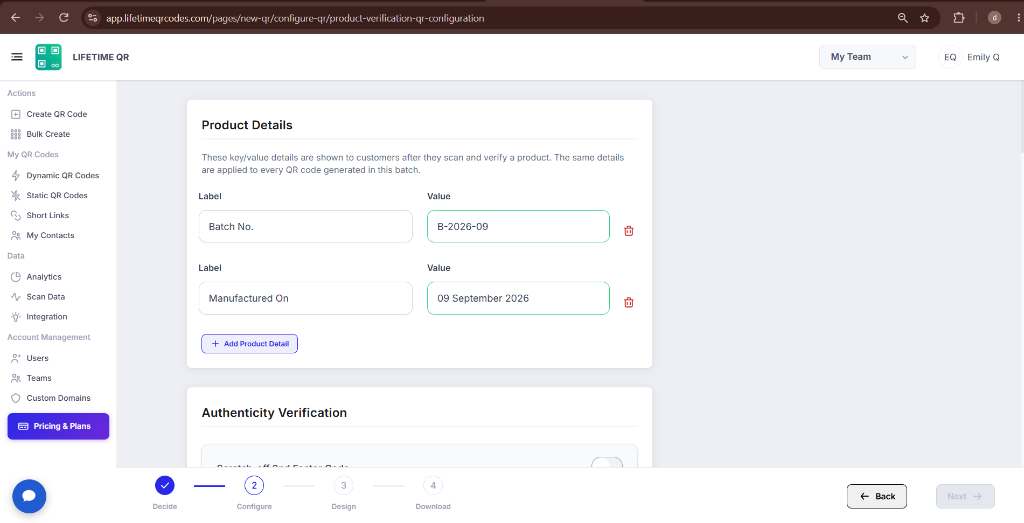
Product Details
These key/value details are shown to customers after they scan and verify a product. The same details are applied to every QR code generated in this batch.
Authenticity Verification
Customer Information
Batch Size
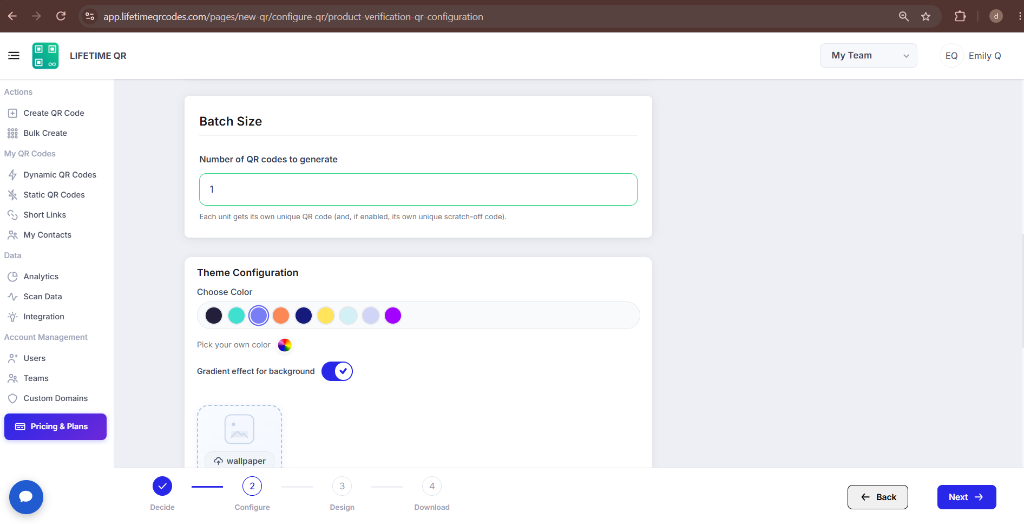
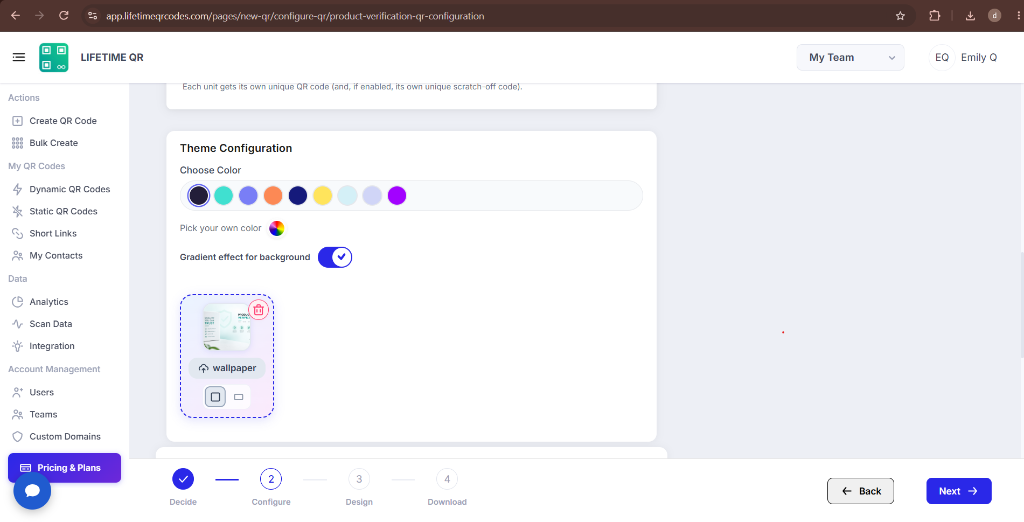
Theme Configuration
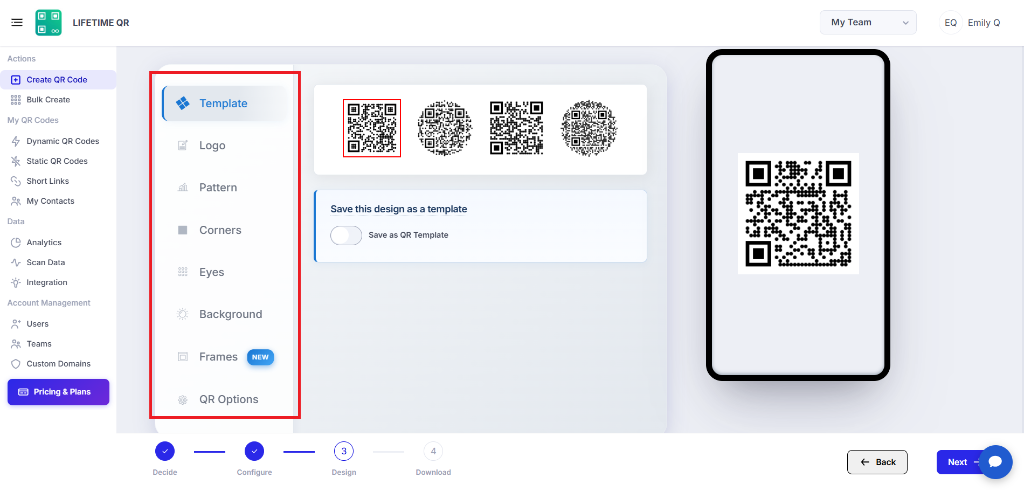
Step 3: Design Your QR Code (Design Phase)
Click Next to customize the visual appearance of your verification QR codes:
- Frames: Add a security frame with instructions (e.g. "SCAN TO VERIFY AUTHENTICITY" or "SCRATCH & SCAN").
- Pattern & Shapes: Choose dot styles, body module shapes, and corner eye patterns.
- Colors: Select brand colors or high-contrast tones for reliable camera detection on packaging materials.
- Logo: Embed your company trademark, verification badge, or security shield in the center of the QR code.
Step 4: Review & Download (Download Phase)
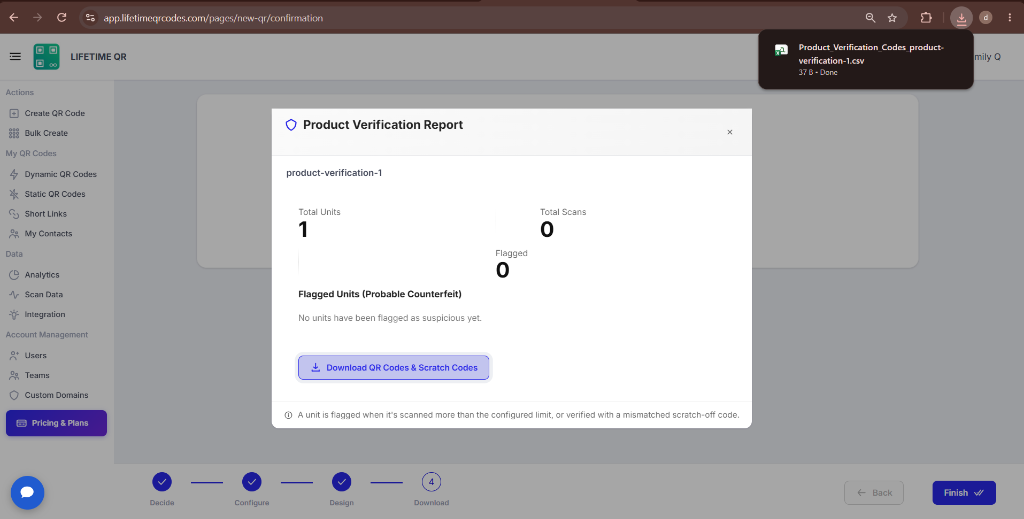
After finalizing your design, the confirmation screen generates your batch of unique serialized verification codes.
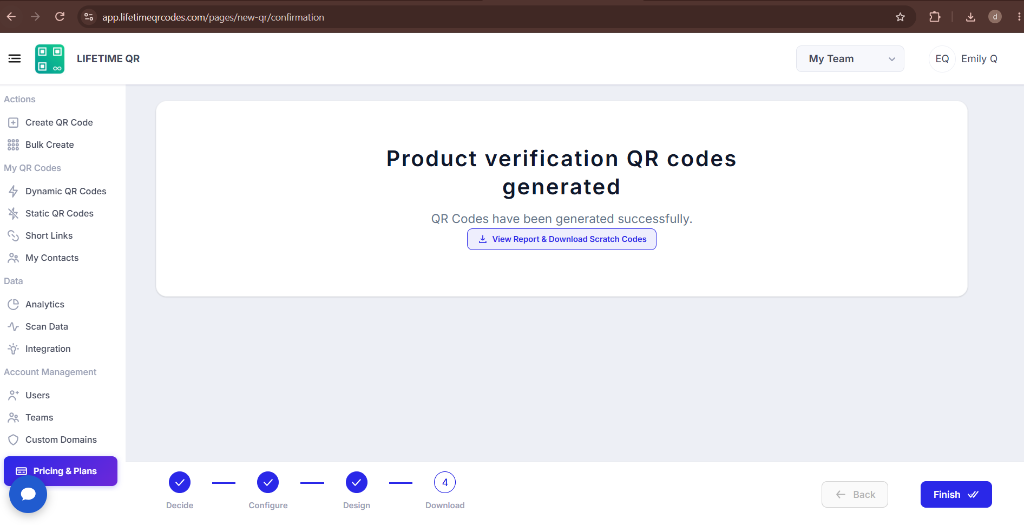
Export your serialized codes and scratch-off credentials:
- Download QR (Batch Archive): Exports an archive containing each serialized QR code in your chosen file format (PNG, SVG, PDF, or EPS).
- View Report & Download Scratch Codes: Opens the verification report modal to download the CSV mapping of QR identifiers and their matching secret scratch-off codes for print production.
- Organize in Folders: Optionally assign the generated verification batch to a designated project folder in your dashboard.
Save as Template
Toggle Save as Template during the design phase to save your brand styling and verification configuration for future product batches.
Frequently Asked Questions
What is a Product Verification QR Code?
A dynamic QR code system designed to verify product authenticity, prevent counterfeiting, and display batch or manufacturing details to customers upon scanning.
How does the scratch-off 2nd factor code work?
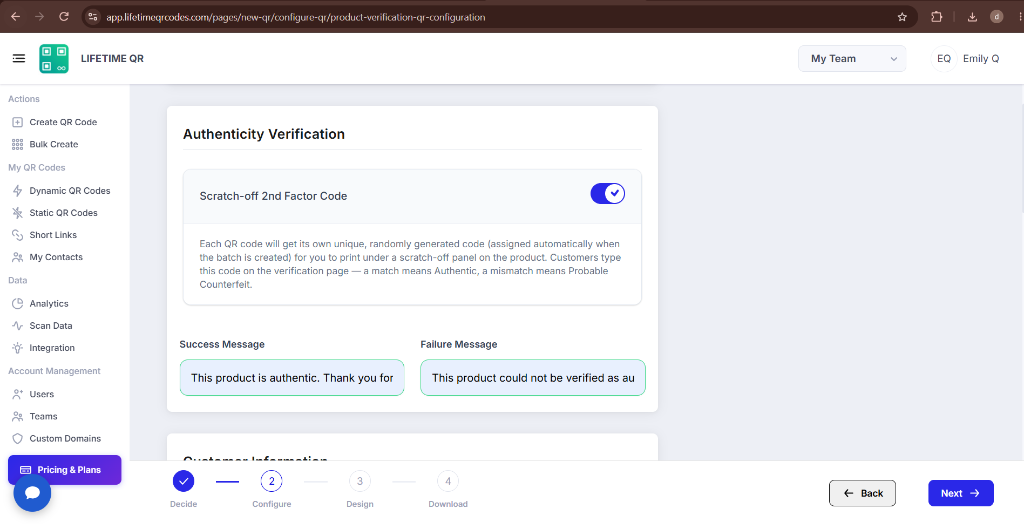
When enabled, each QR code in the batch receives a unique secret code to print under a scratch-off panel; customers enter this code on the verification landing page to confirm authenticity.
What happens if I do not use a scratch-off code?
Authenticity is determined by scan count: the first scan verifies as Authentic, and once the configured scan limit is reached, subsequent scans are flagged as Probable Counterfeit.
Can I collect customer information during product verification?
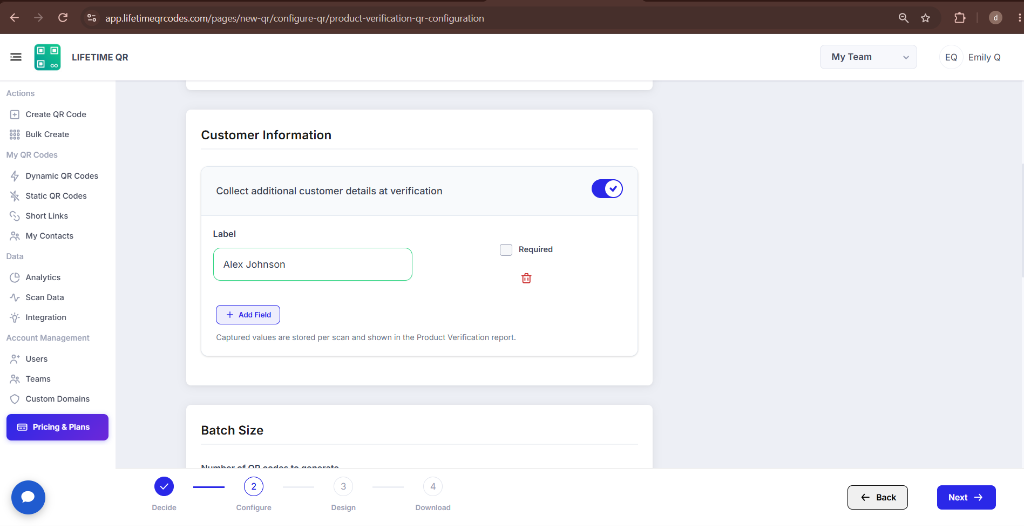
Yes, you can enable Customer Information collection to prompt buyers for details like their name, email, or warranty information during verification.
How many product verification QR codes can I generate in one batch?
You can generate between 1 and 100,000 unique product verification QR codes per batch, with each code ready for bulk download.