Current Article
How to Download QR Links in CSV or Excel (Bulk)
How to Download QR Links in CSV or Excel (Bulk)
Export your QR code short links, destination URLs, and campaign metadata in bulk, as a CSV file (.csv) or an Excel spreadsheet (.xlsx).
Export your selected QR code data into a CSV file for database imports and CRM workflows, or into an Excel spreadsheet for reports and audits. Download all key details and links directly from your dashboard in just a few clicks.
Before You Export
- You can export selected QR codes in bulk.
- You can export a comma-separated
.csvfile or an Excel.xlsxspreadsheet. Both have the same columns. - Exporting does not change or disable your QR codes.
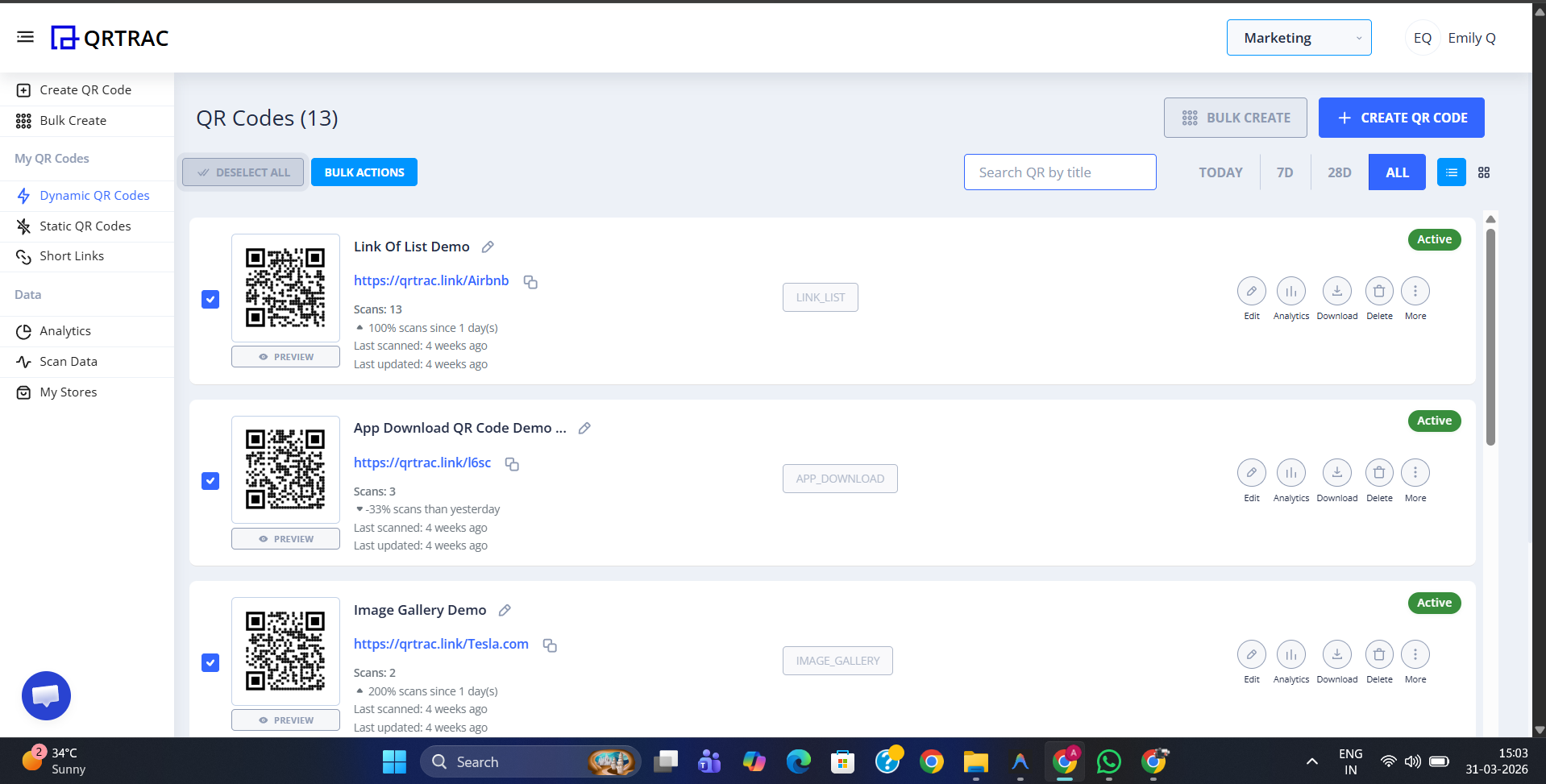
Step 1: Select Your QR Codes
- Log in to your Lifetime QR Codes dashboard.
- Select the QR codes you want to export using the checkboxes.
- You can select multiple QR codes at once.
Step 2: Open Bulk Actions
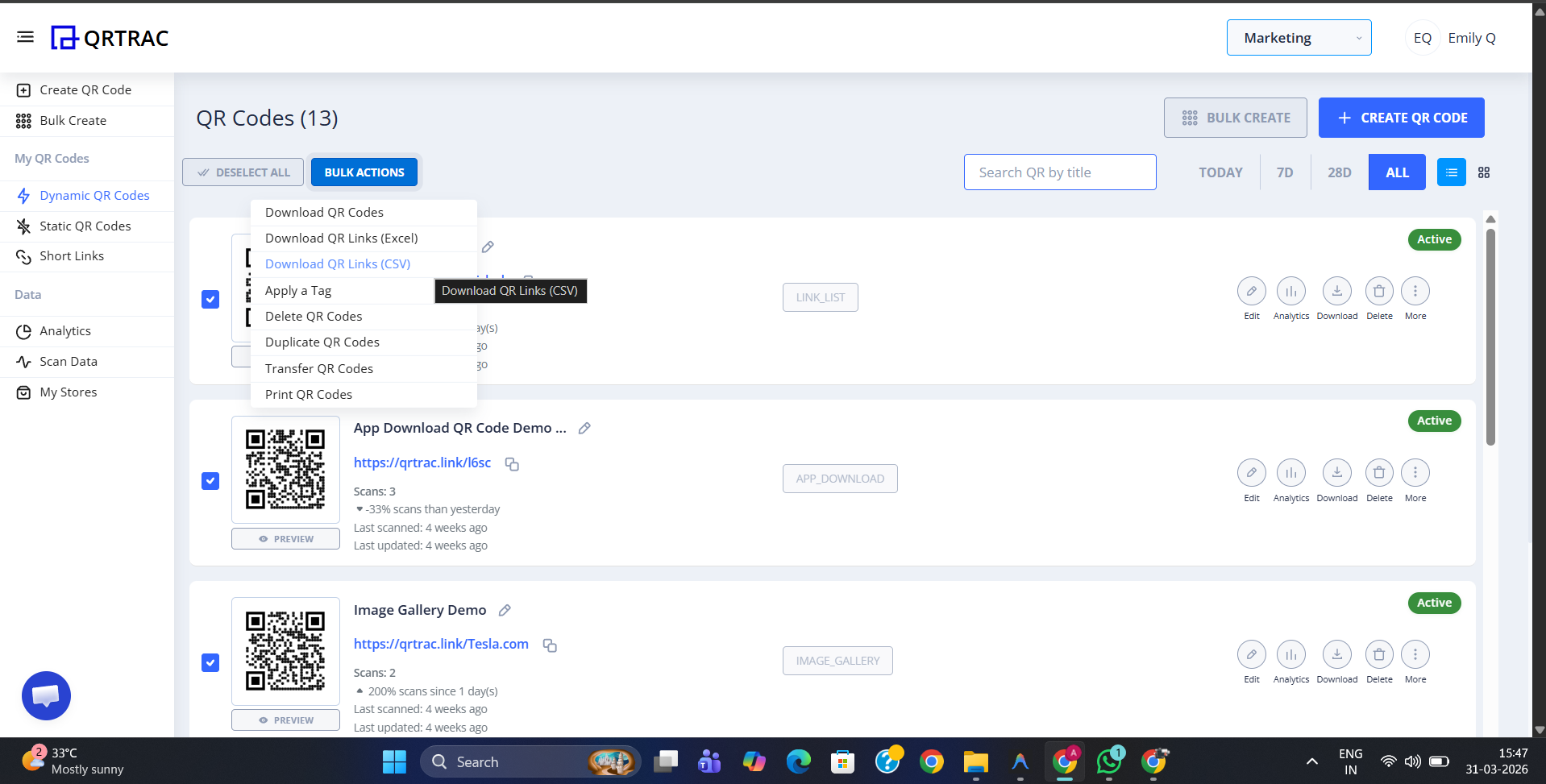
- Click the Bulk Actions button above the QR code list.
- Review the available bulk actions.
Step 3: Choose CSV or Excel
- Select Download QR Links (CSV) for a
.csvfile, or Download QR Links (Excel) for an.xlsxspreadsheet. - The system generates the file in the format you picked.
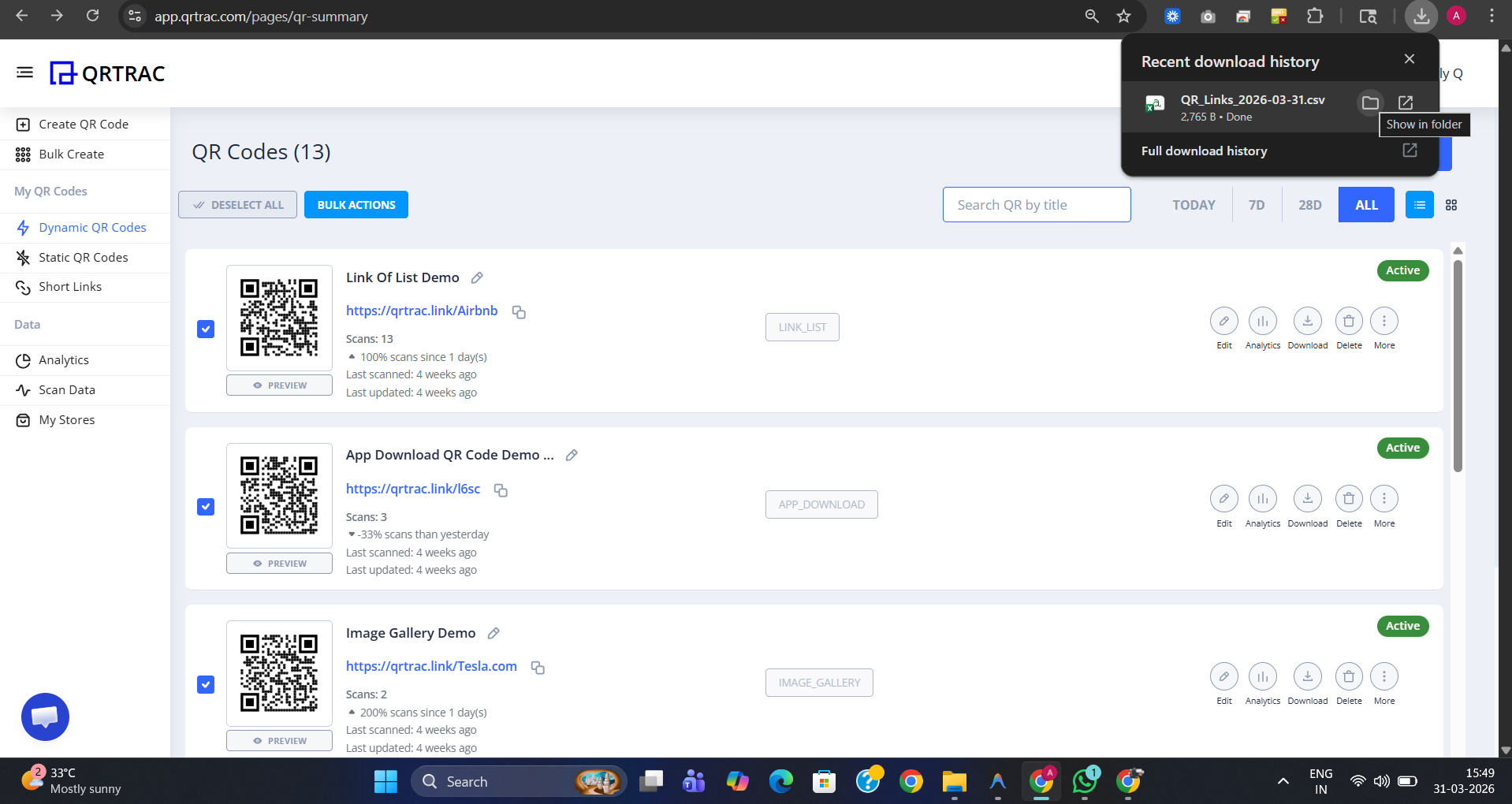
- Your browser downloads the file automatically.
Step 4: Review Your Data
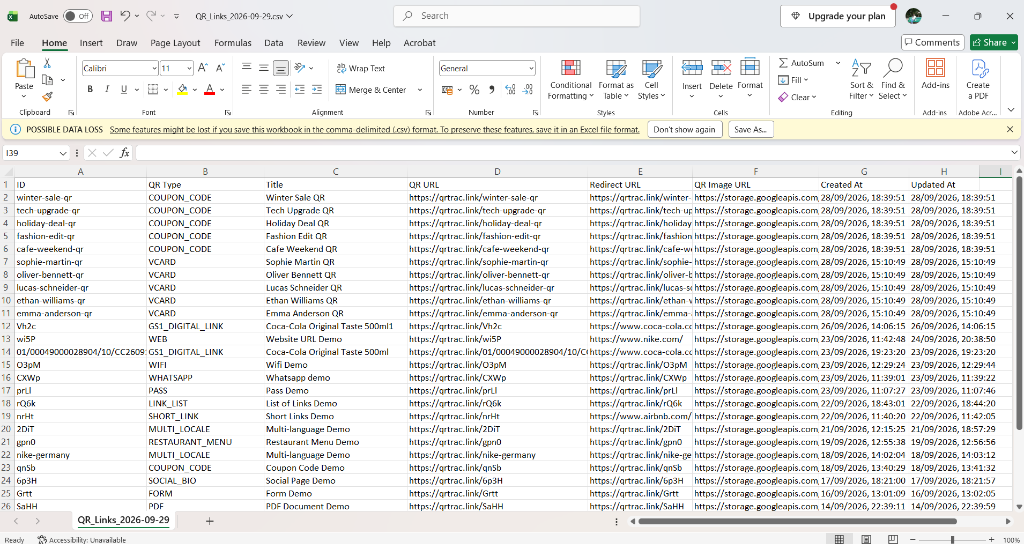
- Open the downloaded
.csvfile in Excel, Google Sheets, a text editor, or your CRM application, or open the.xlsxfile in Excel, Google Sheets, or another spreadsheet app. - Review the exported QR code information.
- The file includes details such as QR ID, Title, QR Type, Short QR URL, Destination URL, Image Link, and Created Date.
Tips for Working with CSV Exports
- Import CSV files into CRM or analytics systems for automated tracking.
- Open the CSV in a spreadsheet program to filter and organize campaign links.
- Keep exported files for offline records and data backups.
What Happens After Exporting?
- The export is read-only.
- Your QR codes remain active.
- Your QR code settings and tracking links are not changed.
Frequently Asked Questions
What file format is used for the export?
You choose. "Download QR Links (CSV)" gives a standard .csv plain-text file that opens in spreadsheet applications, text editors, or CRM tools. "Download QR Links (Excel)" gives an .xlsx Excel spreadsheet. Both contain the same columns.
Should I pick CSV or Excel?
Pick CSV if you are importing the links into a database, CRM, or another system. Pick Excel if you want to open the file as a spreadsheet for reports, audits, or offline record-keeping.
Does exporting QR links change or disable my QR codes?
No. Exporting only downloads the selected QR code information and does not change or disable your QR codes.
What is the difference between the QR URL and Redirect URL?
The QR URL is the short link associated with the QR code, while the Redirect URL is the destination the QR code points to.
Can I export different QR code types together?
Yes. You can export the selected QR codes together in one CSV or Excel file.
Where can I find more help?
Visit the Lifetime QR Codes Help Center or contact the support team.