Current Article
How To Create a Lifetime WhatsApp QR Code
How To Create a Lifetime WhatsApp QR Code
Step-by-step instructions on generating a dynamic lifetime WhatsApp QR Code.
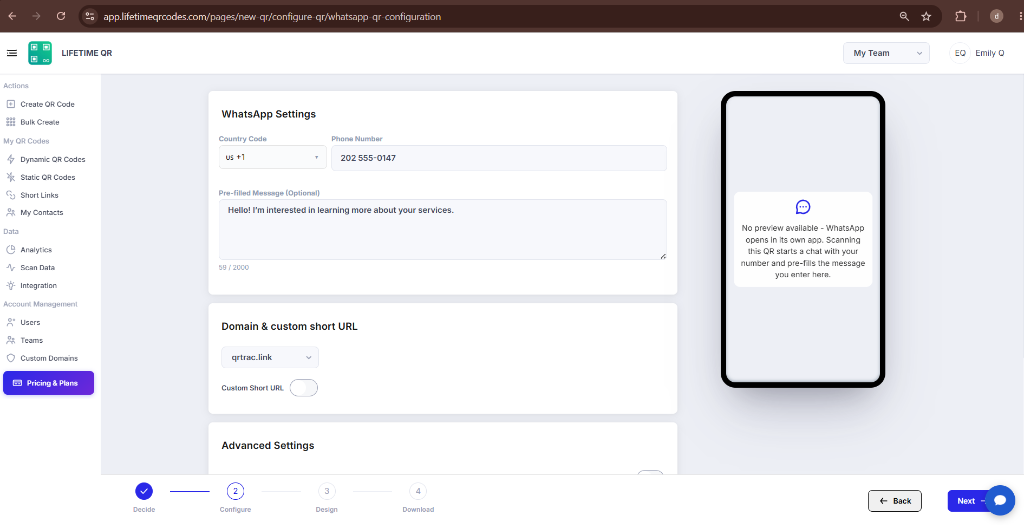
Use a dynamic WhatsApp QR Code to let users scan and open a direct conversation with your designated phone number. You can select your country code, configure your phone number, and draft an optional pre-filled message that automatically populates in the user's chat box upon scanning.
Tip: Test the QR code with a smartphone camera before printing or distributing to confirm that the chat opens directly to the correct WhatsApp number.
Common uses:
- Customer support
- Sales inquiries
- Product consultations
- Appointment booking
- Order status inquiries
- Event networking
Before You Create the QR Code
Have the following details ready before starting:
- Country Code: International dial code for your destination phone number
- Phone Number: 4–15 digit phone number registered with WhatsApp (required)
- Pre-filled Message: Optional starter text (up to 2,000 characters)
Active WhatsApp Account Required
The destination phone number must be registered with an active WhatsApp or WhatsApp Business account. Numbers without an active account cannot receive chats from scanners.
Step 1: Login & Select WhatsApp (Decide Phase)
- Log in to your Lifetime QR Codes dashboard.
- Click Create QR Code in the header or sidebar.
- Select WhatsApp from the QR code types list.
- Click Next to open the configuration form.
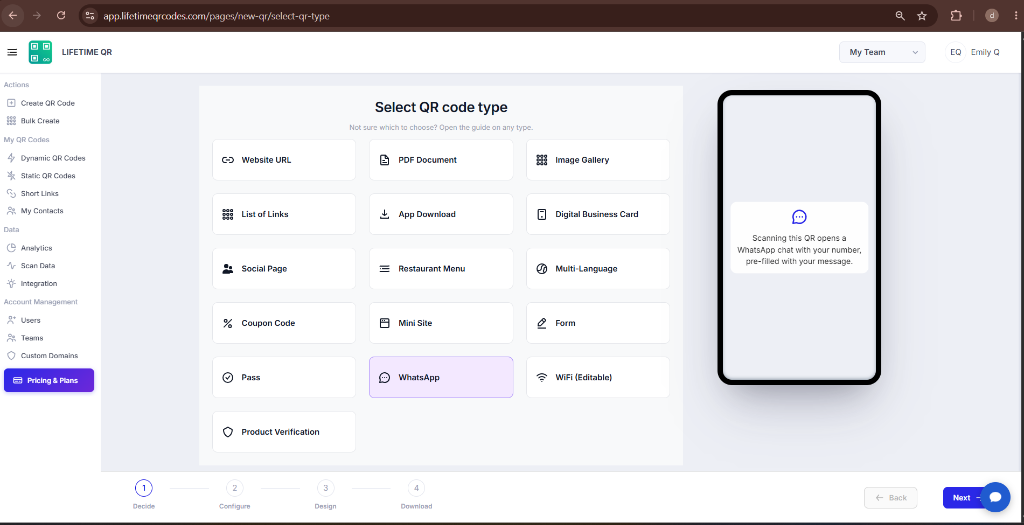
Step 2: Configure WhatsApp QR Code (Configure Phase)
Configure your destination phone number and optional message parameters in the WhatsApp Settings panel:
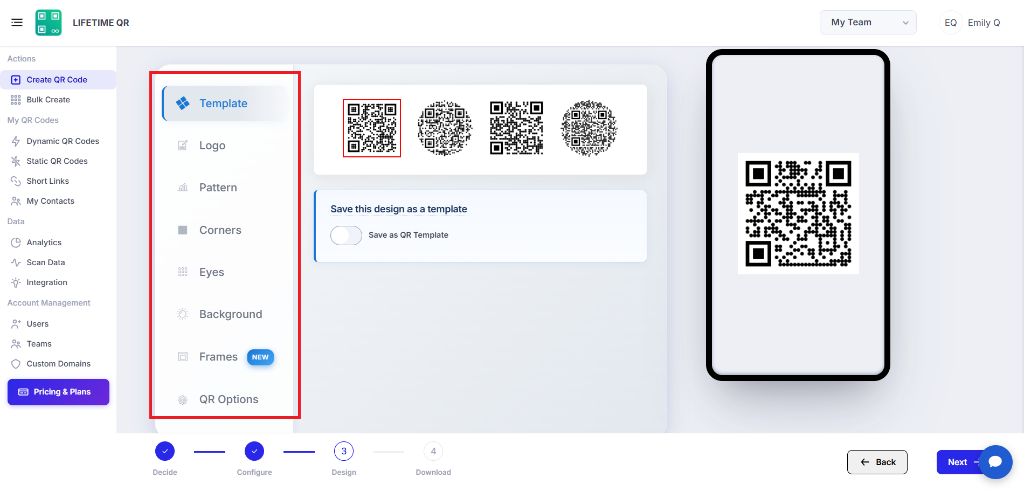
Step 3: Design Your QR Code (Design Phase)
Click Next to customize the visual appearance of your QR code:
- Frames: Add a frame with call-to-action text (e.g. "CHAT WITH US" or "SCAN FOR WHATSAPP").
- Pattern & Shapes: Choose dot patterns, body modules, and corner eye designs.
- Colors: Set single colors or multi-color gradients for foreground and background.
- Logo: Upload an image or logo to center inside the QR code.
Step 4: Review & Download (Download Phase)
Review the WhatsApp configuration on the confirmation screen and check the live mobile preview before downloading.
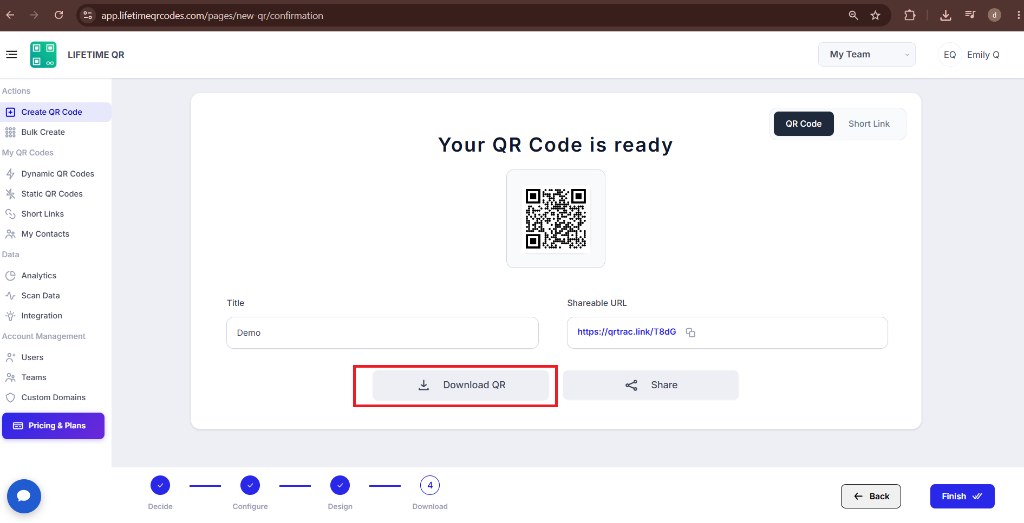
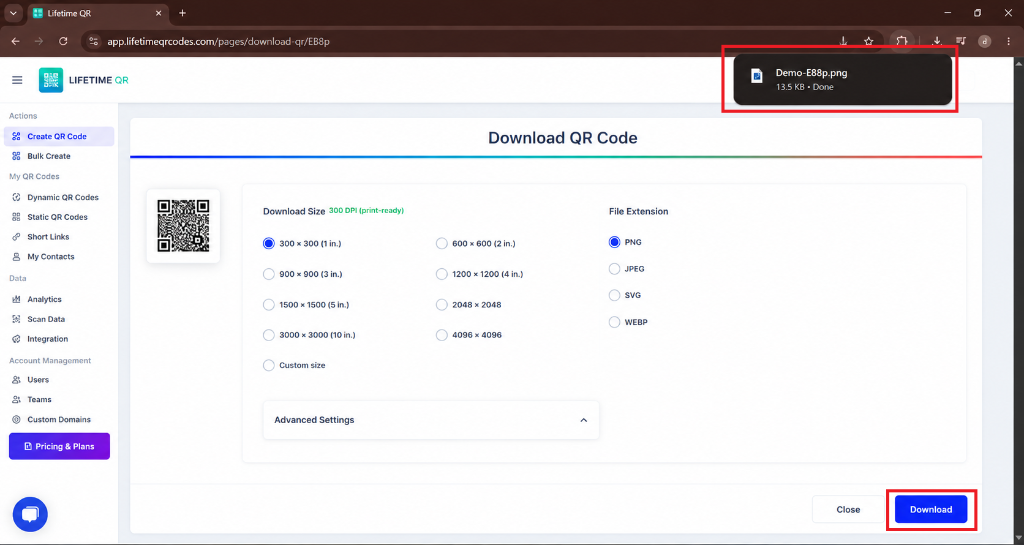
Click Download QR to export your QR code in your preferred format:
- PNG: Standard raster image for digital tickets, emails, and web pages.
- SVG: Vector format for responsive web layouts and digital displays.
- PDF: Print-ready document for event badges, tickets, and lanyards.
- EPS: Vector format for professional printing and signage.
Save as Template
Toggle Save as Template on the confirmation screen to save your design and settings for generating future WhatsApp QR codes.
Frequently Asked Questions
What is a WhatsApp QR Code?
A dynamic QR code that opens a chat with a specific WhatsApp phone number.
What happens when someone scans the QR code?
It opens a WhatsApp chat with your number and the pre-filled message, if added.
Can I include a pre-filled message?
Yes. You can add an optional message of up to 2,000 characters.
Can I change the phone number or pre-filled message after printing?
Yes. You can update the phone number and message from your dashboard without reprinting.
What formats are available for downloading the QR code?
You can download the QR code in PNG, SVG, PDF, or EPS format.