Current Article
How to Create a Lifetime Form QR Code
How to Create a Lifetime Form QR Code
Step-by-step instructions on creating interactive lifetime forms with QR codes for data collection.
A Form QR Code allows users to scan with a smartphone camera and open an interactive mobile form directly in their mobile browser. With the Lifetime QR Codes Form feature, you can build customizable forms with dedicated fields, themes, and submission settings to collect customer information directly from a scan.
Tip: Test your form on a mobile device after generating the QR code to verify required fields, question formatting, and submission confirmation.
Common uses:
- Contact information collection
- Customer feedback
- Surveys
- Event registrations
- Inquiries
- Service requests
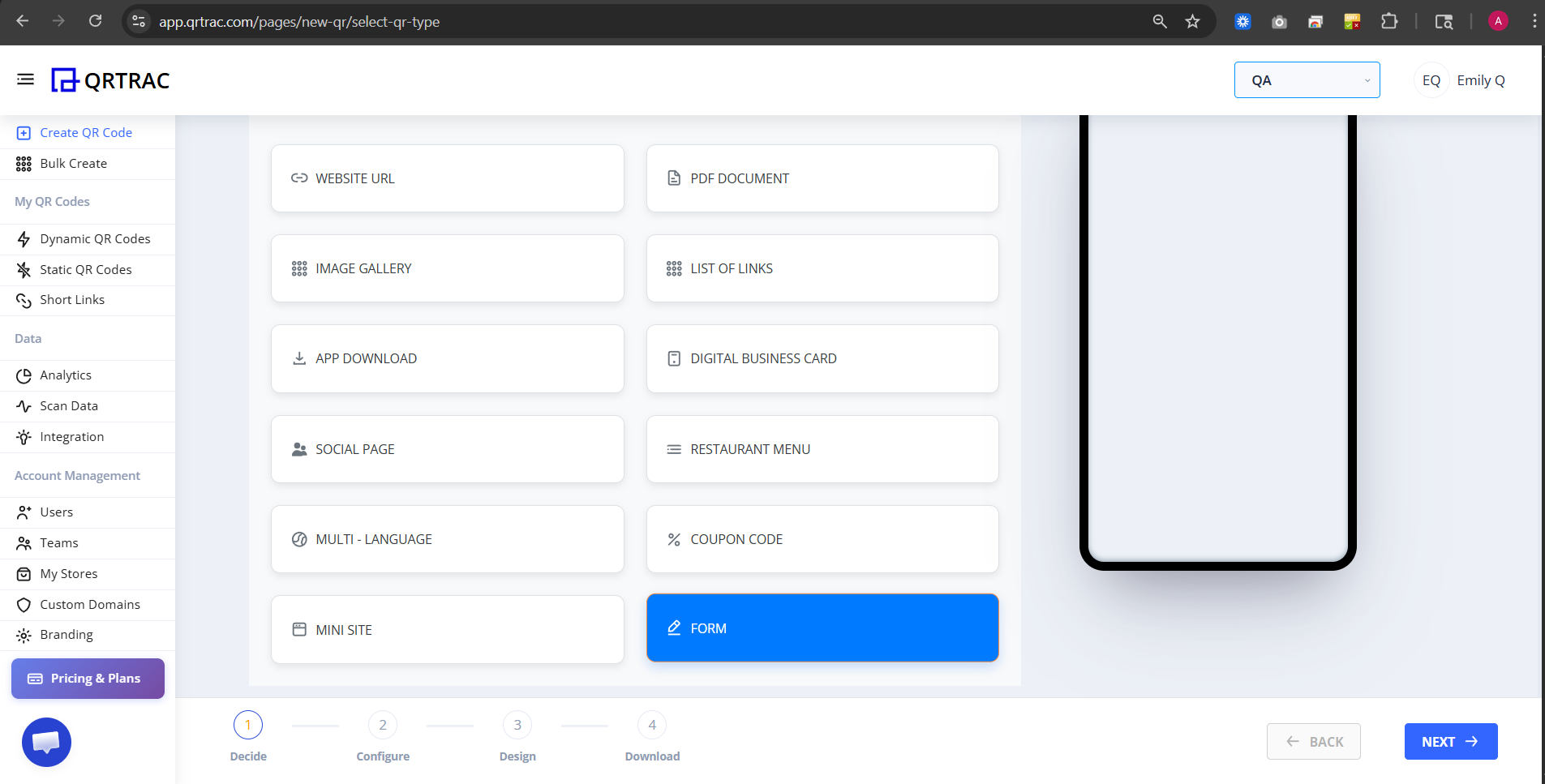
Step 1: Login & Select Form (Decide Phase)
- Log in to your Lifetime QR Codes dashboard.
- Click Create QR Code in the header or sidebar.
- Select Form from the QR code types list.
- Click Next to open the configuration form.
Step 2: Configure Form (Configure Phase)
Configure your form details, input fields, submit actions, and theme styling in the Form configuration panel:
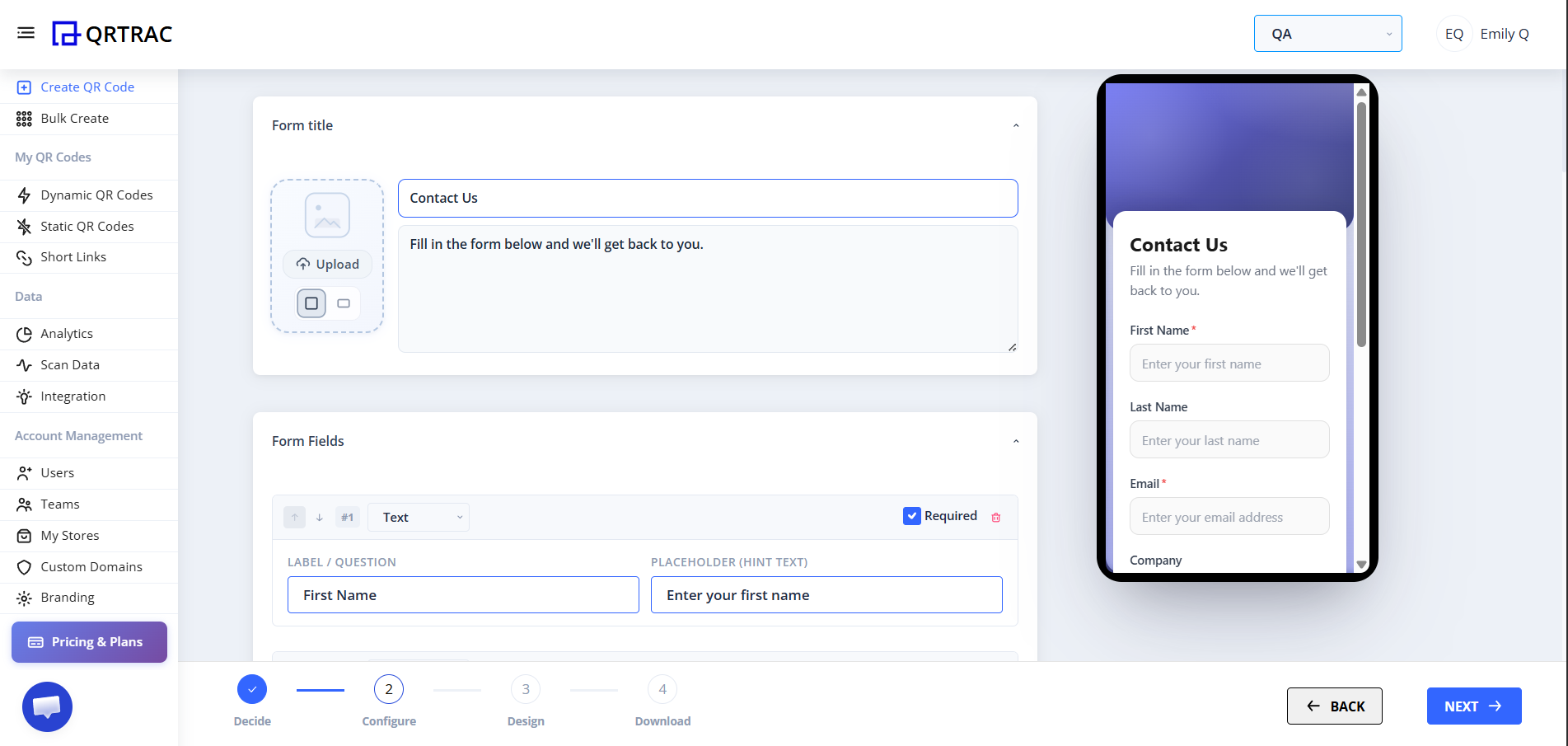
A) Form Title & Header Details
Add a clear title and description for your form. You can also upload an image to appear at the top of the form.
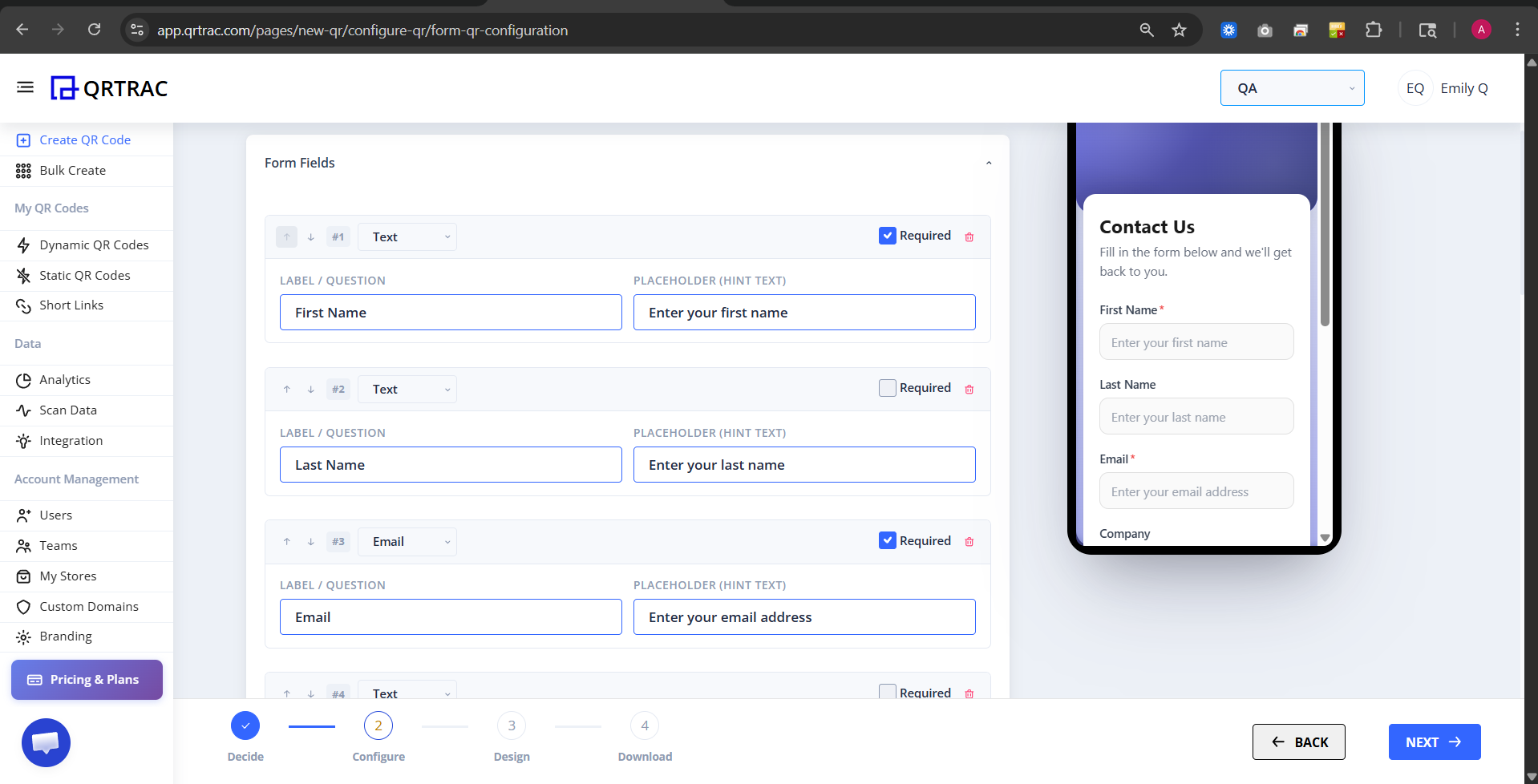
B) Form Fields
Add the fields you want users to complete. For each field, choose the appropriate field type, enter the label or question, and add optional placeholder text. Mark fields as Required when the information must be provided.
You can add multiple fields and use the available controls to reorder or remove them.
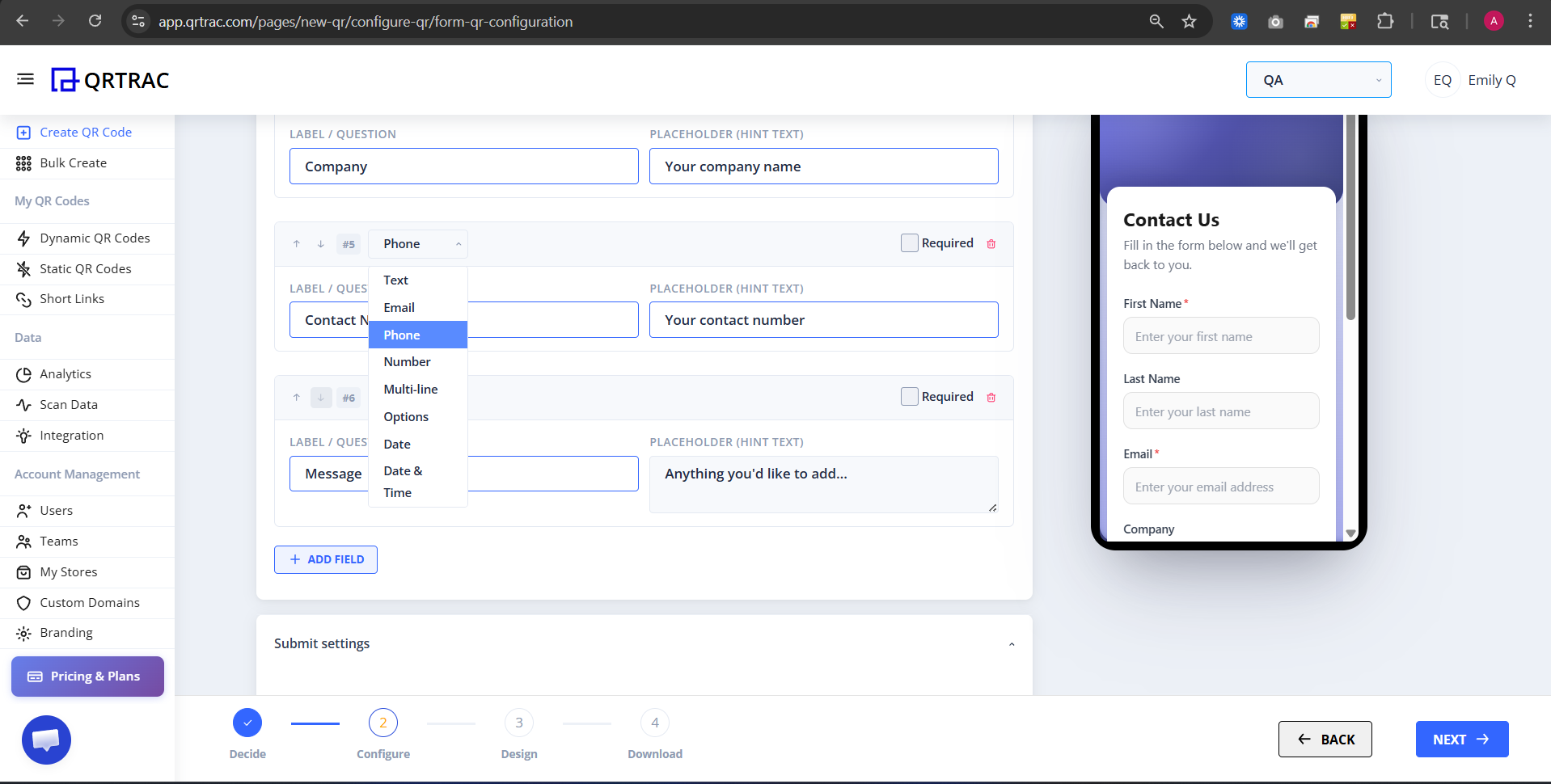
Field Type: Choose the input type that matches the information you want to collect.
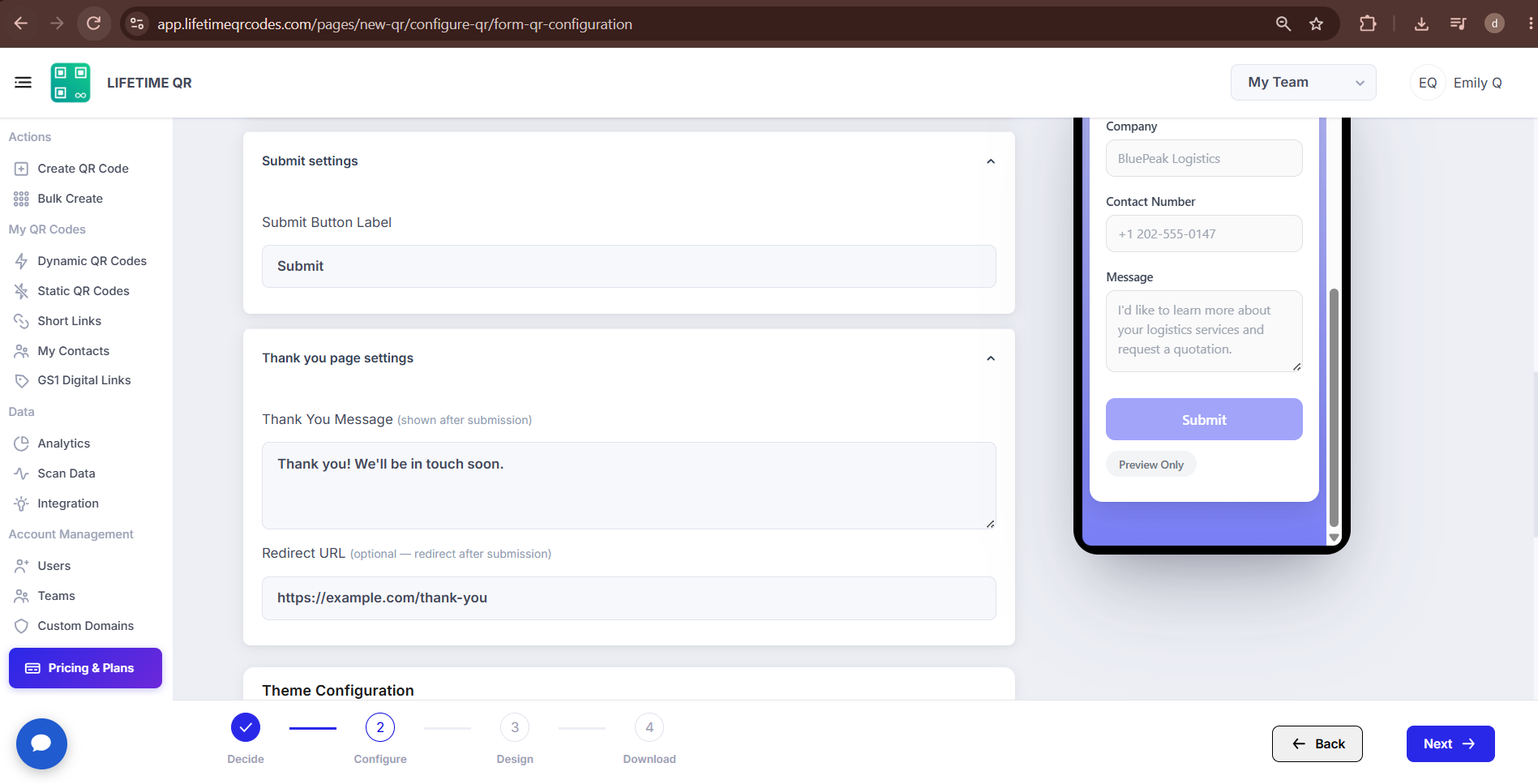
C) Submit & Thank You Page Settings
Set the text displayed on the Submit button and customize the message users see after submitting the form. You can also add an optional redirect URL if you want to send users to another page.
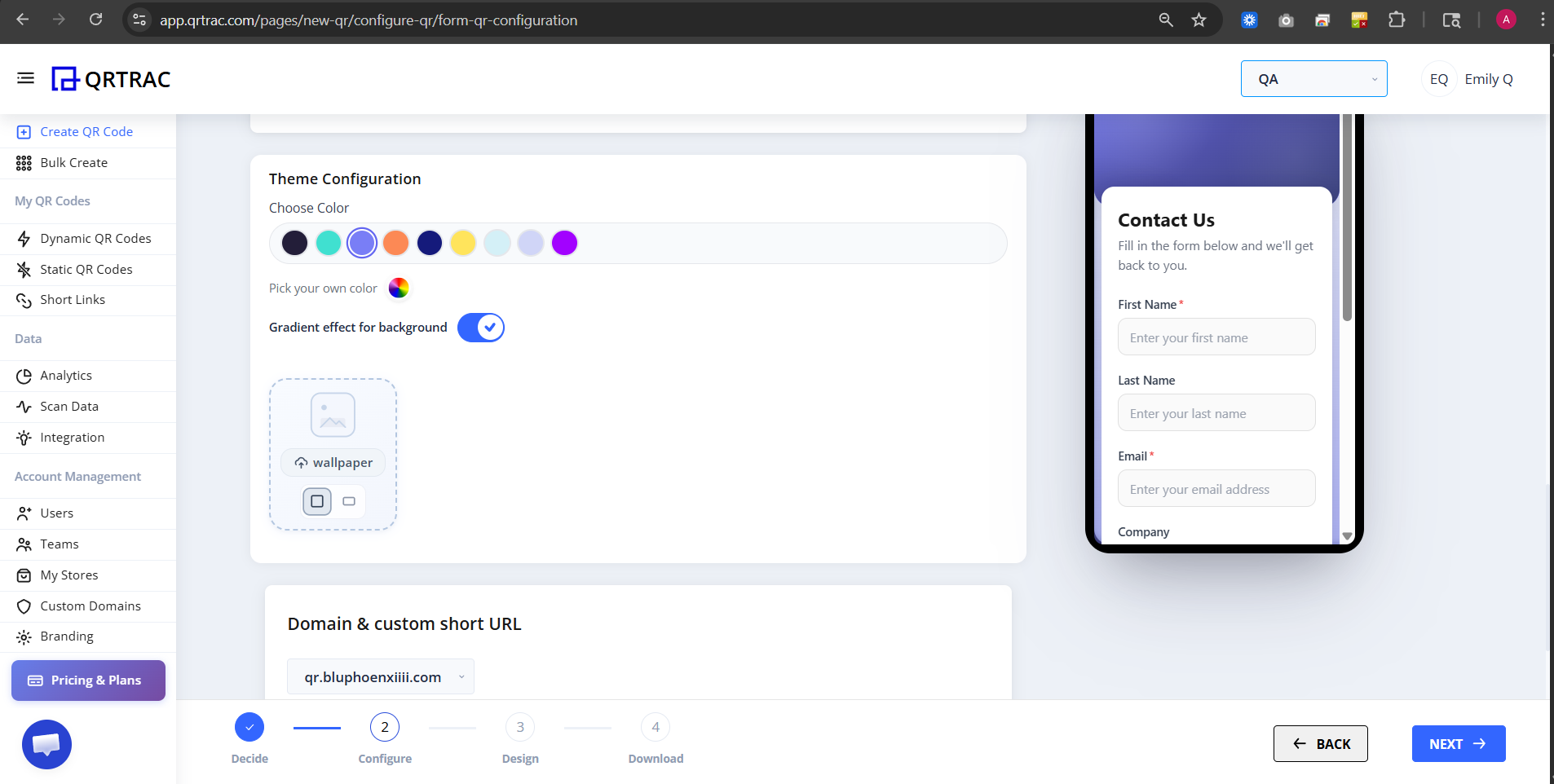
D) Theme Configuration
Customize the appearance of your form by choosing a color, selecting a custom color, enabling the background gradient, or uploading a wallpaper.
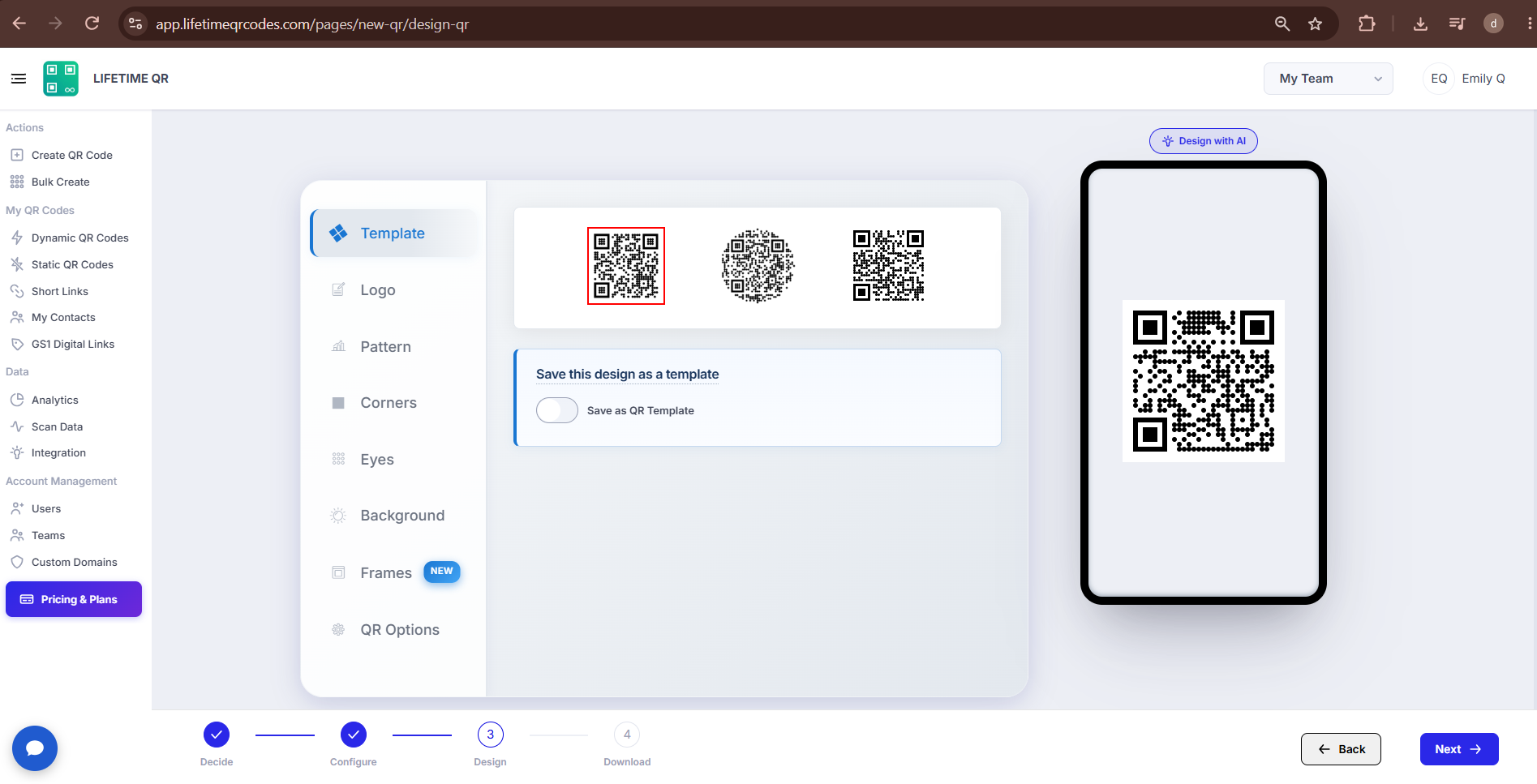
Step 3: Design Your QR Code (Design Phase)
Click Next to enter the Design section where you can make the QR code fully on-brand:
- Template: Choose a ready-made QR design.
- Pattern & Shapes: Customize the QR pattern and shape styles.
- Colors: Customize the QR code colors and background.
- Logo: Add a logo to the center of the QR code.
Dynamic QR — No Reprinting Needed
Because this is a dynamic QR code, you can update your form questions, branding, or redirect links at any time from your dashboard without changing or reprinting the physical code.
Step 4: Review & Download (Download Phase)
Before downloading, preview your QR code on the screen and test it on real devices.
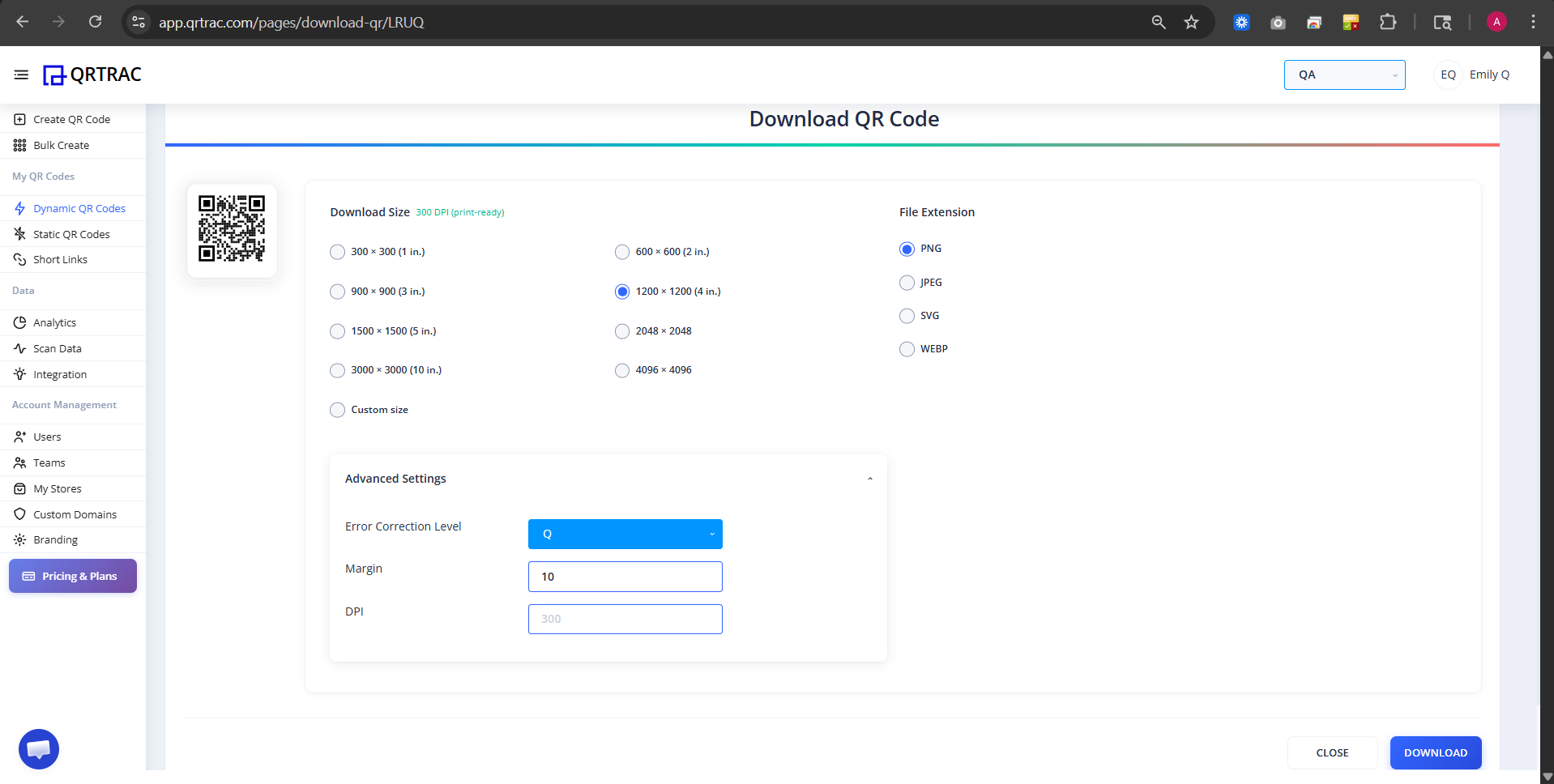
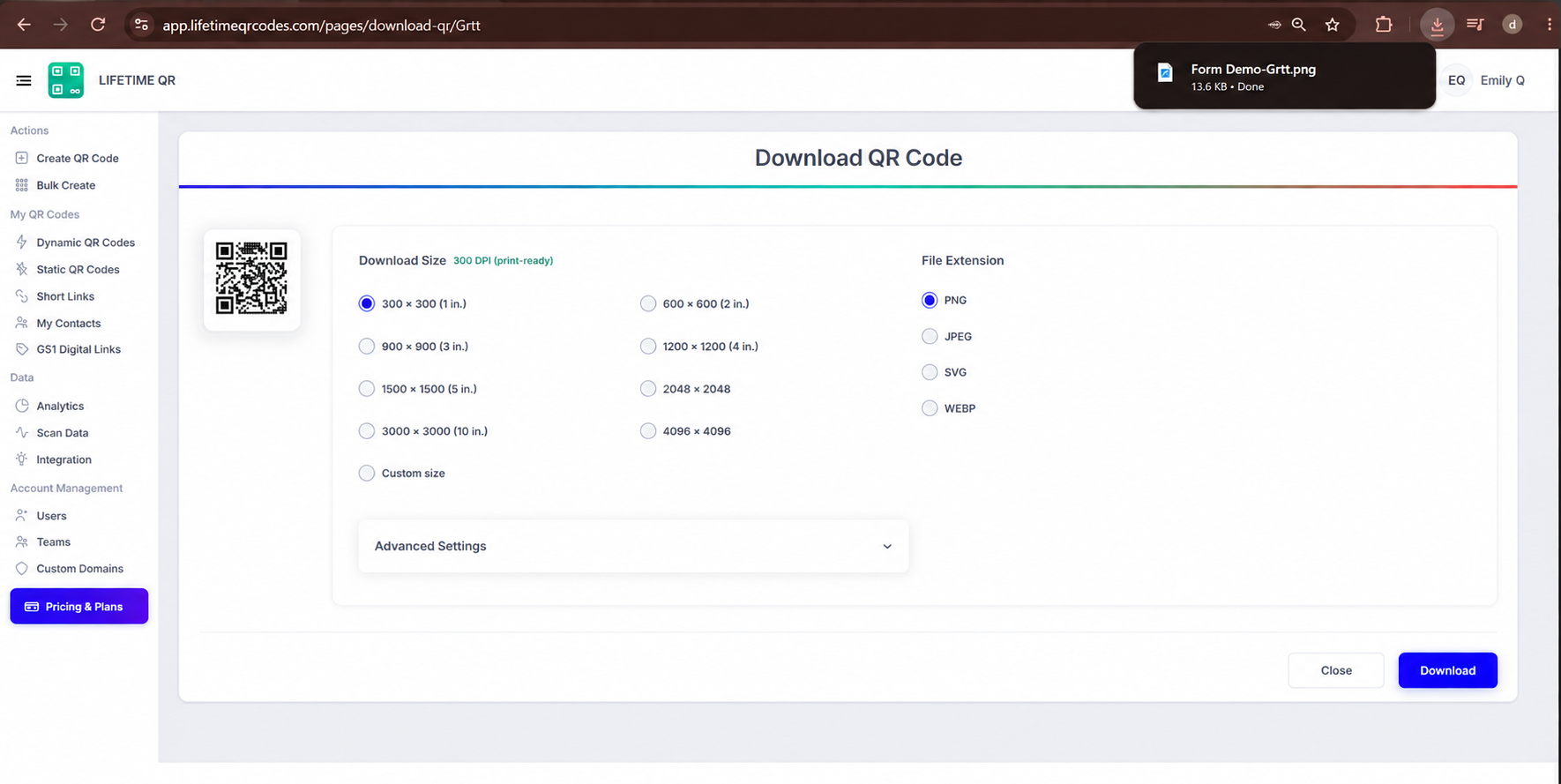
Click Download QR to export your QR code in your preferred format:
- PNG: Standard image format for digital use.
- JPEG: Image format suitable for common digital and print uses.
- SVG: Scalable vector format for high-quality and responsive designs.
- WEBP: Modern image format suitable for web use.
Save as Template
Toggle Save as Template on the confirmation screen to save your design and store settings for generating future Form QR codes.
Pro Tip
Keep mobile forms focused by including only essential fields. Always test the scan-to-submit workflow on a mobile phone before final print distribution.
Frequently Asked Questions
Can I update the form after creating the QR code?
Yes. Because Form QR Codes are dynamic, you can update your form title, description, colors, and configuration from your dashboard at any time without reprinting the physical QR code.
Can I add or change form fields later?
Yes. You can add new fields, edit existing field labels and placeholder text, update field types, or change required statuses in your dashboard whenever needed.
Can I customize the appearance of the form?
Yes. You can select different design templates, choose custom background colors, enable automatic color matching, and upload a header image or logo.
What happens after a user submits the form?
After submission, respondents see your custom on-screen Thank You message, or they are redirected to your designated URL if you configured a redirect link.
Does a user need an internet connection to submit the form?
Yes. Scanning the QR code loads the form webpage in the mobile browser, which requires an active mobile data or Wi-Fi connection to display the form and record responses.