Current Article
How to Create a Lifetime Website URL QR Code
How to Create a Lifetime Website URL QR Code
Create a lifetime dynamic website URL QR code that links directly to any webpage, tracks every scan, and lets you update the destination anytime — no reprinting required.
A Website URL QR Code lets users scan with a smartphone camera to open any webpage directly in their mobile browser with no app download required. Whether you are printing QR codes on business cards, marketing flyers, product packaging, table tents, retail displays, or event banners, follow this step-by-step guide to configure your QR code correctly.
Common uses:
- Company websites & landing pages
- E-commerce product showcases
- Restaurant menus & ordering links
- Event registration & ticketing
- Print advertising & promotional flyers
- Creative portfolios & press kits
Before You Start
Before creating your Website URL QR code, confirm the following:
- Complete URL: Have the complete destination link ready, including
https://. - Browser Verification: Test that the link opens correctly and without errors in a web browser.
- Mobile-Friendly Design: Ensure the target page is optimized for mobile screens, as the vast majority of QR scans happen on smartphones.
Mobile First
Most people scan QR codes from a smartphone. If your website loads slowly or is not optimized for mobile devices, users may bounce before seeing your content.
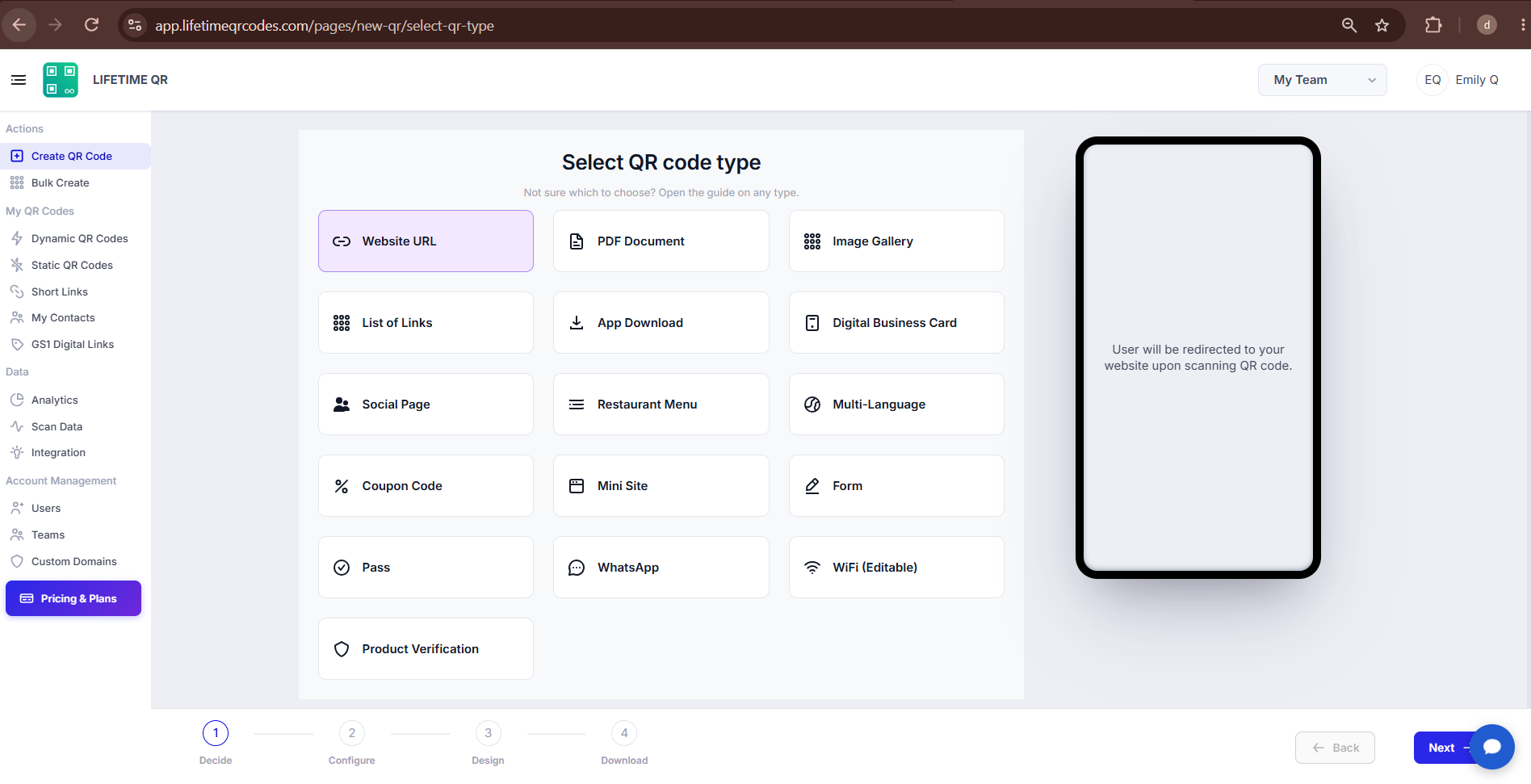
Step 1: Login & Select Website URL (Decide Phase)
- Log in to your Lifetime QR Codes dashboard.
- Click Create QR Code in the header or dashboard navigation.
- Select Website URL from the available QR code types.
- Click Next to open the configuration panel.
Step 2: Configure Website URL (Configure Phase)
Configure your destination website URL in the configuration screen:
A) Website URL
Enter the destination web address where you want users redirected when they scan your QR code:
- Website URL: Enter the complete destination website address (for example,
https://www.airbnb.com/). Always include the protocol (https://) rather than just the domain name. - Full Web Address: Do not enter only the domain without the protocol or trailing path if one is needed.
✅ Correct
https://www.airbnb.com/❌ Incorrect
www.airbnb.com/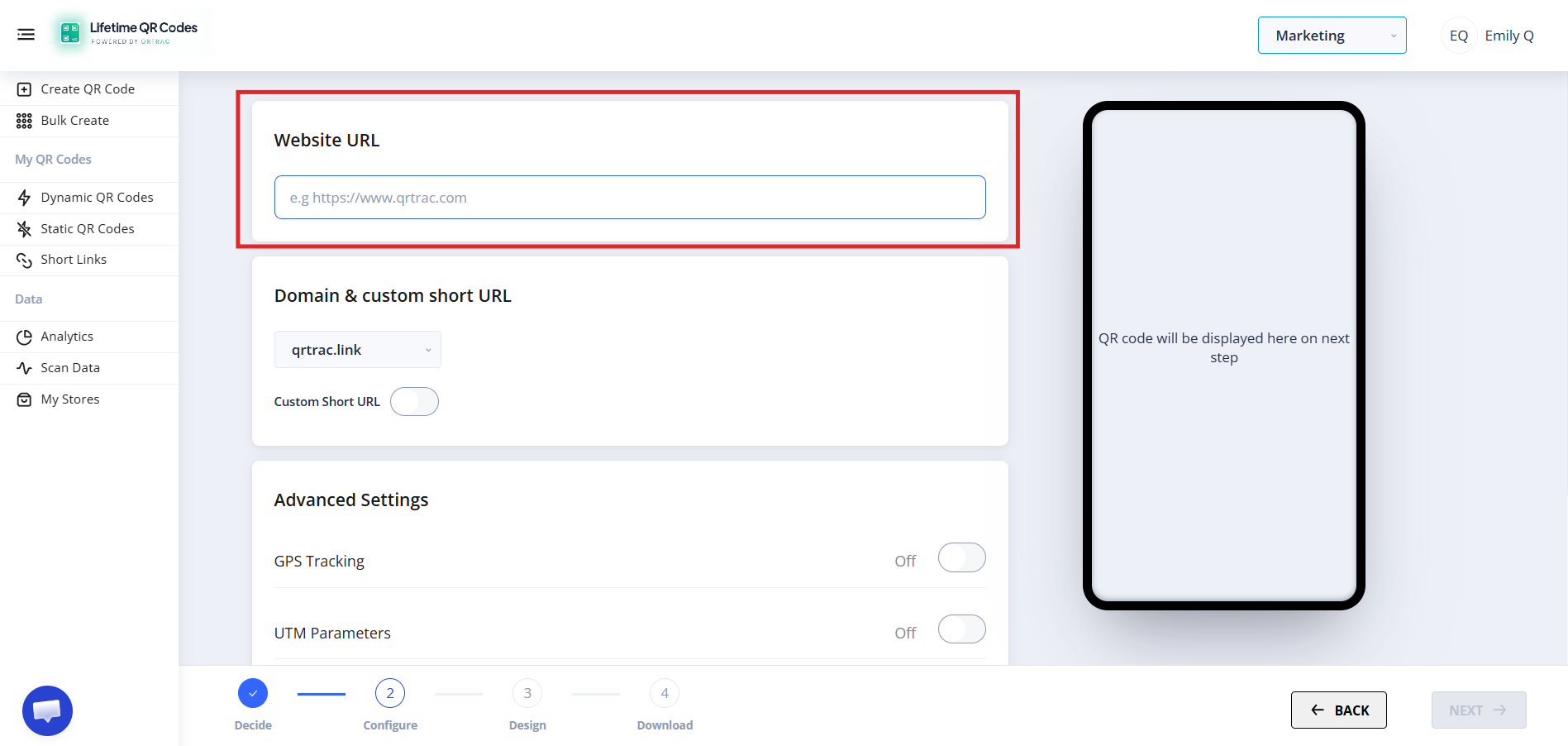
❌ QR Code not opening the website?
- Verify that the destination URL includes
https://. - Check for accidental spaces or typos in the web address.
- Make sure the destination page is publicly accessible and online.
- Verify that the destination website server is responding without errors.
Step 3: Design Your QR Code (Design Phase)
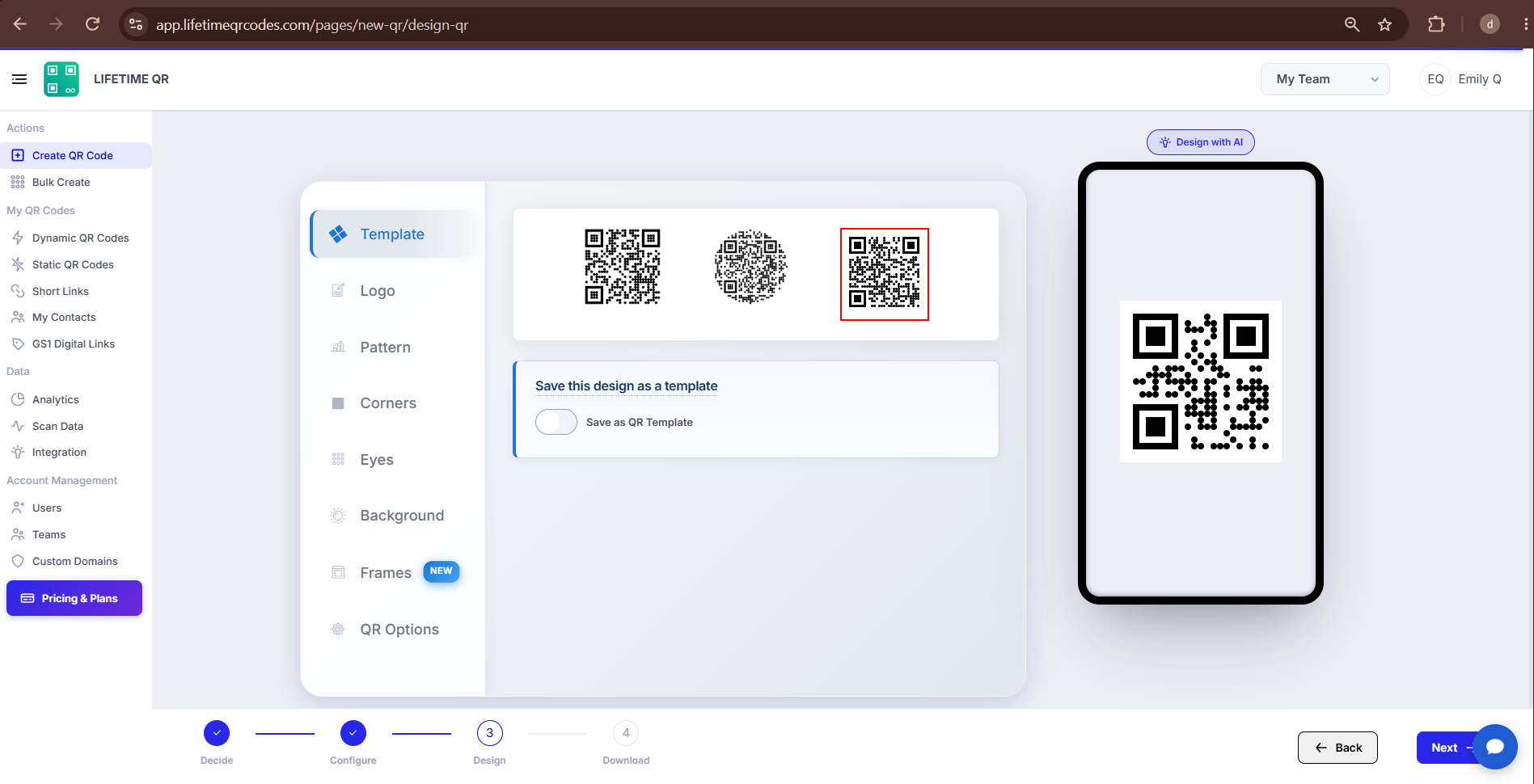
Click Next to customize the design of your QR code to match your brand:
- Colors: Set custom foreground and background colors to match your brand guidelines.
- Logo: Upload your company logo or an icon to center inside the QR code.
- Patterns: Select body dot patterns and module shapes.
- Corner Eyes: Customize the eye frame and corner inner styling.
Dynamic QR — No Reprinting Needed
Need to change your website destination or update a marketing link later? Update the destination URL at any time from your Lifetime QR Codes dashboard. Your printed QR code keeps working with no reprinting required.
Step 4: Review & Download (Download Phase)
Before printing, preview your QR code on screen and test it with a smartphone camera:
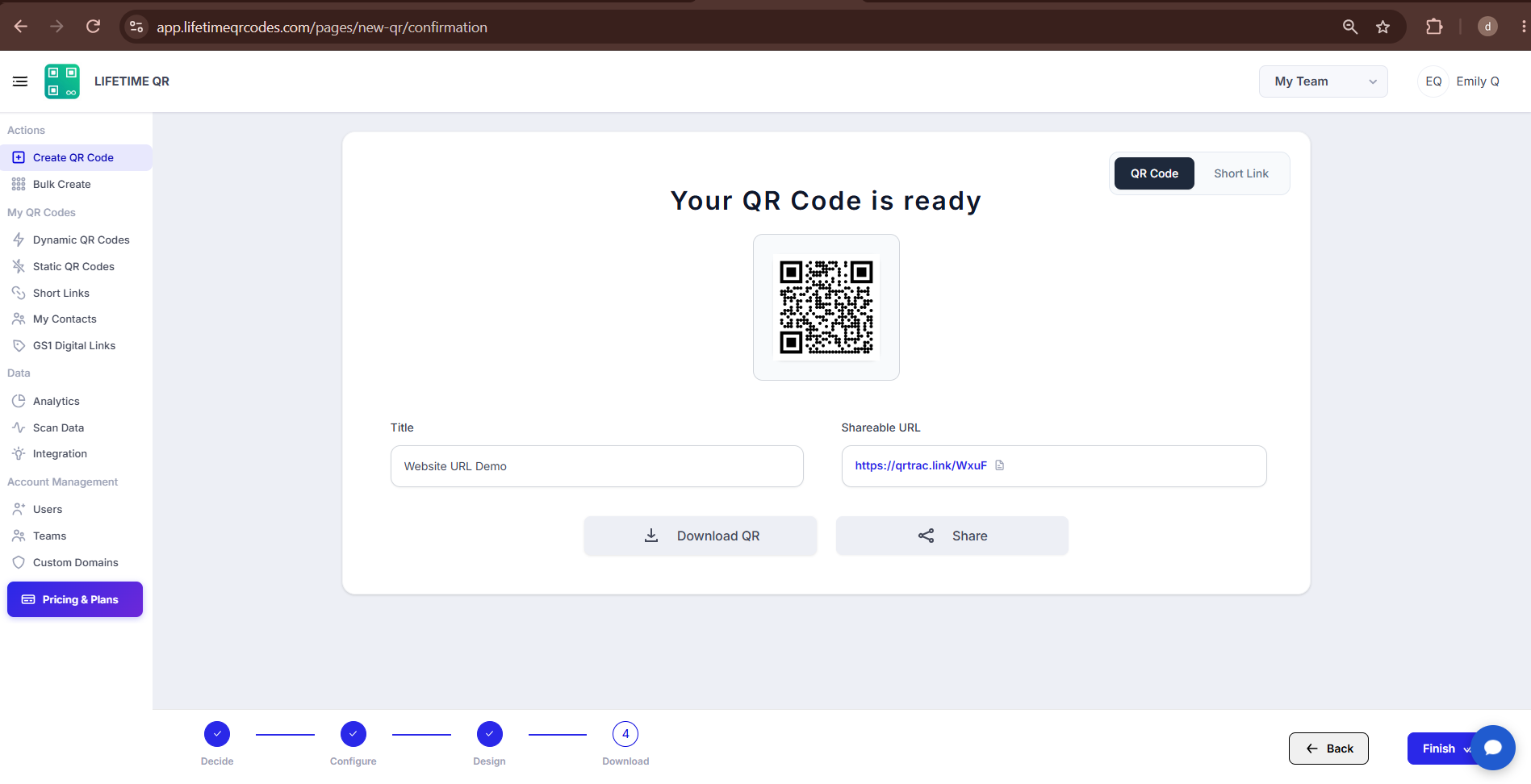
Click Download to export your QR code in your desired format:
- PNG: Standard raster format for digital sharing, email newsletters, presentations, and website displays.
- SVG: Infinitely scalable vector format ideal for responsive web design and digital UI layouts.
- PDF: Vector document format suited for marketing collaterals, flyers, and desktop printing.
- EPS: Professional vector format for print shops, large signage, and merchandise packaging.
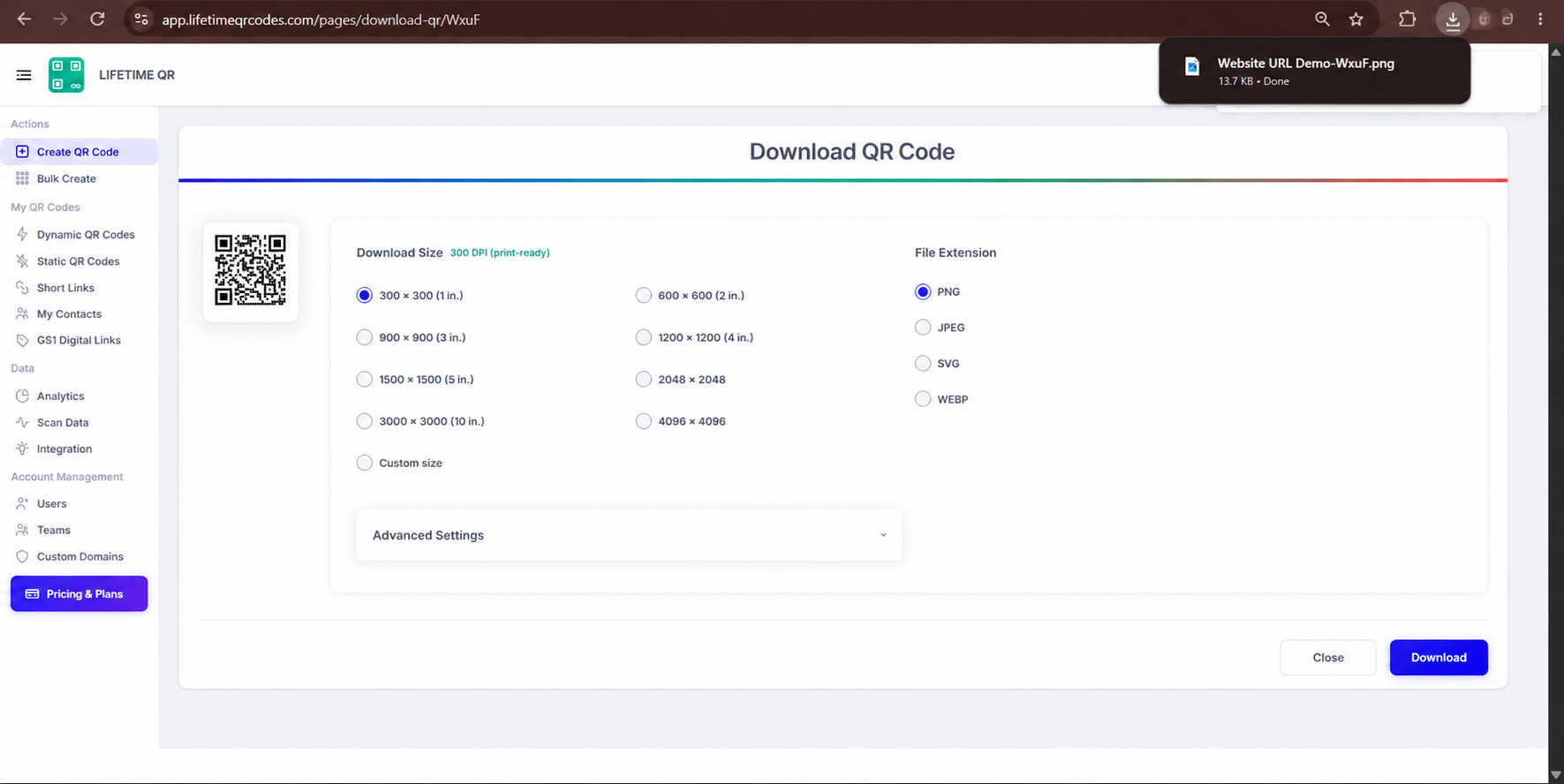
Tip: Always test your QR code with a smartphone camera straight from your computer monitor before you download and print it.
Frequently Asked Questions
Can I change the website URL after creating the QR code?
Yes. Because Lifetime QR Codes creates Dynamic QR codes, you can update your target destination URL at any time from your dashboard without changing the physical QR code.
Can I track scans of my Website URL QR Code?
Yes. The analytics dashboard provides real-time scan metrics, including total scans, unique visitors, device types, operating systems, browsers, and geographic locations.
Do I need to reprint the QR code if I change the website URL?
No. The QR code encodes a permanent short redirect. When you change the destination link in your dashboard, scanners are instantly redirected to the new URL without reprinting.
What URL should I enter when creating a Website URL QR Code?
Enter the full public webpage URL including the protocol (e.g. https://www.airbnb.com/). Do not enter just a domain name or a private internal administrative URL.
Does the QR code require an internet connection?
Yes. When users scan the QR code, their smartphone needs an active internet connection (cellular data or Wi-Fi) to resolve the redirect and display your website.