Current Article
How to Create a Lifetime PDF Document QR Code
How to Create a Lifetime PDF Document QR Code
Convert any PDF document into a trackable lifetime QR code. Perfect for user manuals, product catalogs, brochures, menus, and digital downloads.
A PDF Document QR Code allows users to scan with a smartphone camera and instantly view or download your PDF document in their mobile browser with no app required. Follow this step-by-step guide to configure your PDF QR code correctly and avoid common setup mistakes.
Common uses:
- Product catalogs & brochures
- Restaurant menus & wine lists
- Instruction & user manuals
- Event schedules & agendas
- Real estate sheets & floor plans
- Reports, price lists & whitepapers
Before You Start
Before creating your PDF Document QR code, make sure:
- Final File: Your PDF file is finalized with no pending edits.
- File Verification: The file opens and renders properly on your device.
- File Size: File size is reasonable — very large PDF files load slowly on mobile connections.
- Mobile Readability: The layout and font size are legible on mobile screens without requiring excessive zooming.
Mobile First
Most people scan QR codes from a smartphone. Open your PDF on your mobile phone before uploading to verify that text is legible and layouts render cleanly on smaller screens.
Step 1: Login & Select PDF Document (Decide Phase)
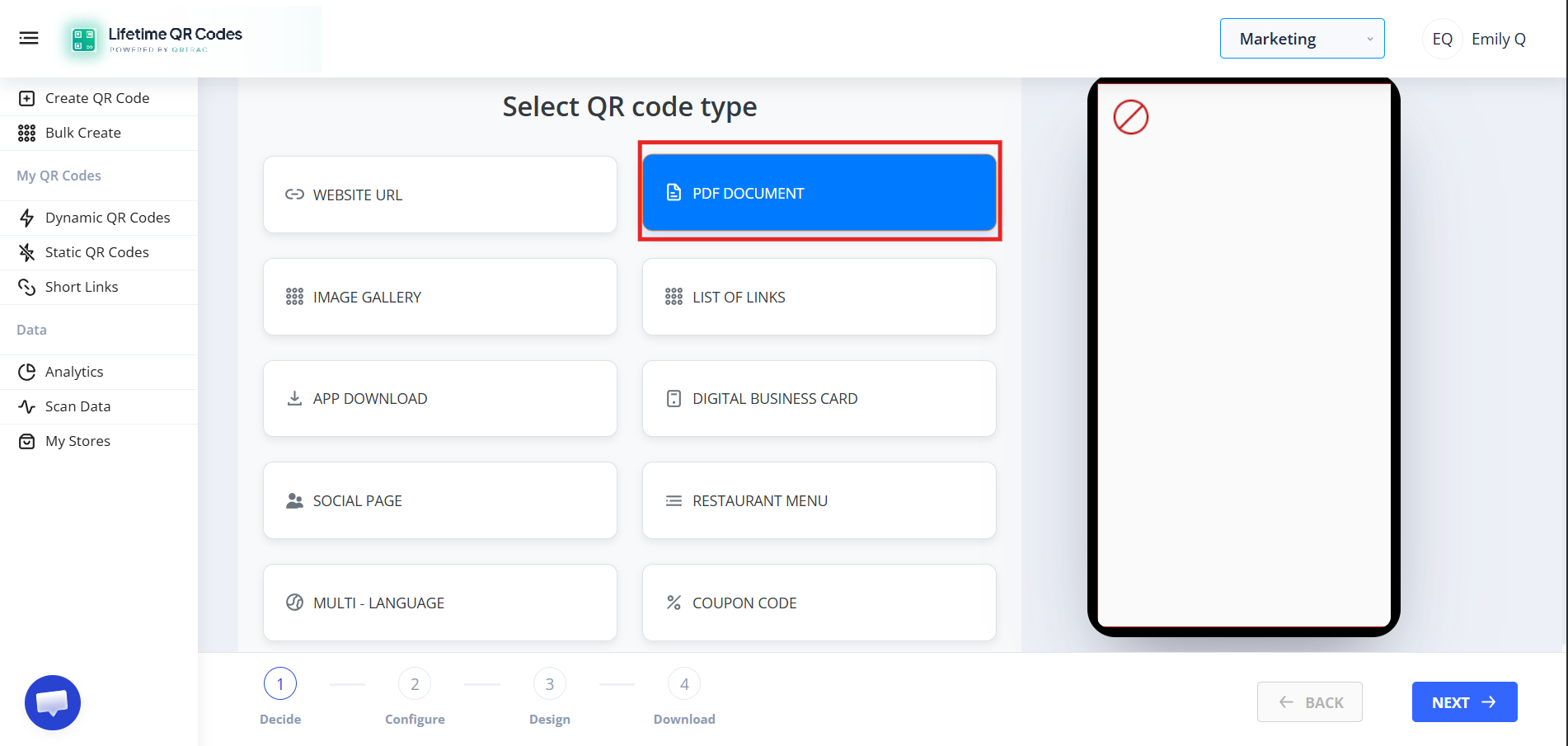
- Log in to your Lifetime QR Codes dashboard.
- Click Create QR Code in the header or dashboard navigation.
- Select PDF Document from the available QR code types.
- Click Next to open the configuration panel.
Step 2: Configure PDF Document (Configure Phase)
Configure your PDF file, document information, and landing page appearance:
A) Upload Your PDF File
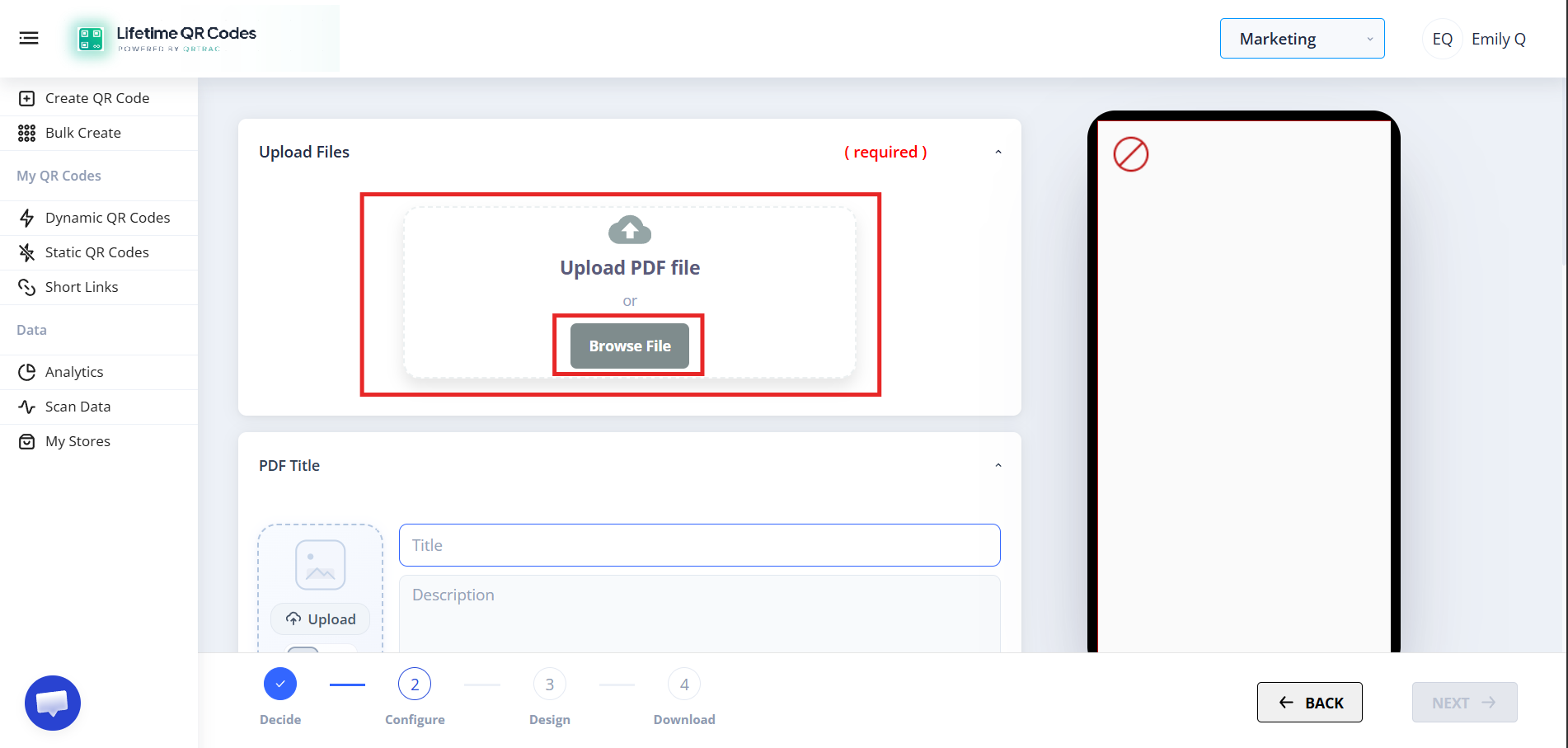
Upload your document in the PDF upload section:
- Click Browse File or drag and drop your document into the upload zone.
- Select your PDF file from your device.
- Wait for the upload to complete until the file name and size are confirmed.
❌ Upload not working?
Check that your file format is a valid .pdf file, your internet connection is stable, and the file size is within supported limits.
❌ Slow loading on mobile?
Large PDF files with uncompressed high-resolution images load slowly on cellular networks. Compress your PDF before uploading.
B) PDF Details
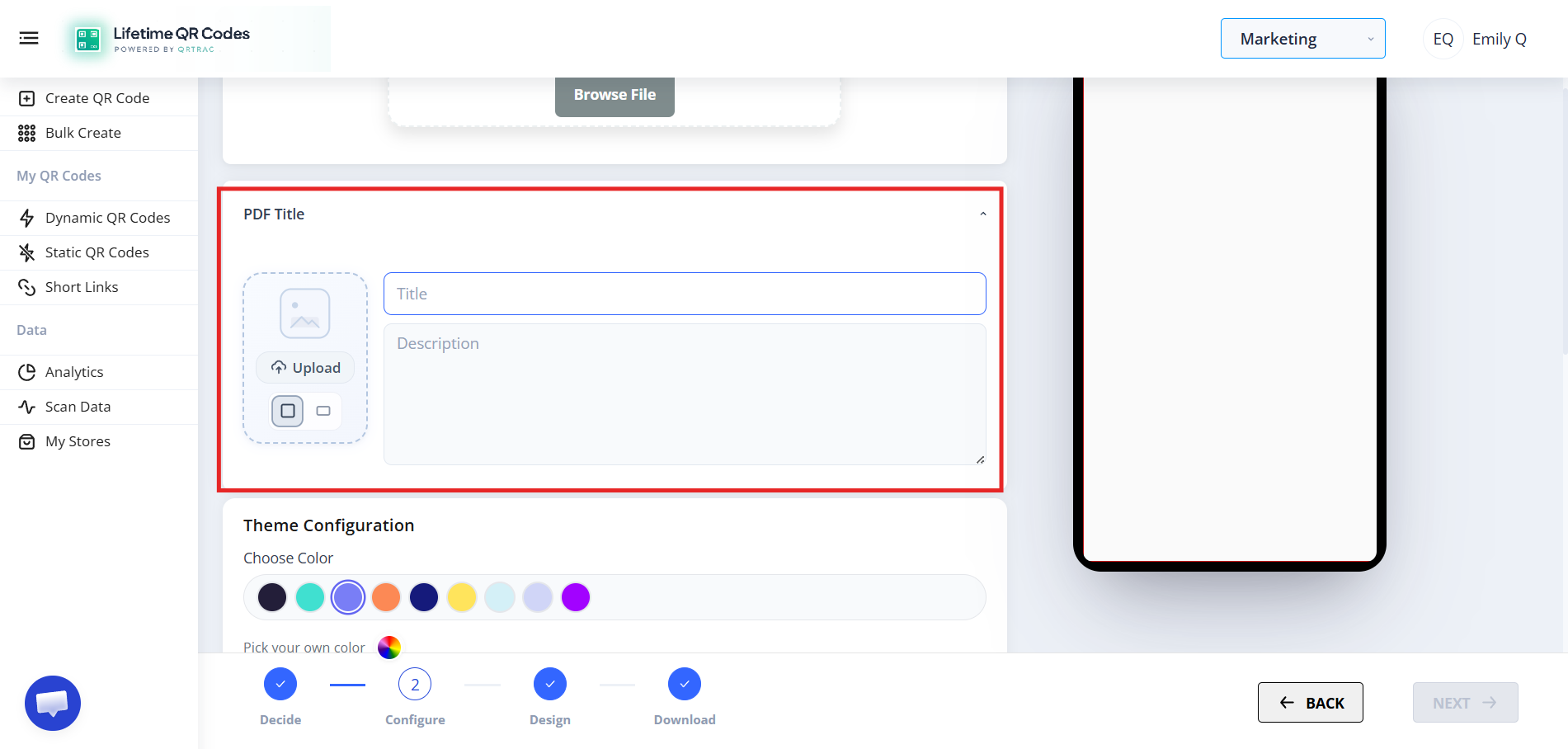
Add descriptive details for your document to give scanners clear context:
- Title: The main document title displayed on the landing page (e.g., "Summer Menu 2026" or "User Manual v2.0").
- Description: A brief summary or instructions for viewers before they download the file.
- Thumbnail: Upload a cover image or preview thumbnail to represent the document visually.
C) Landing Page Appearance
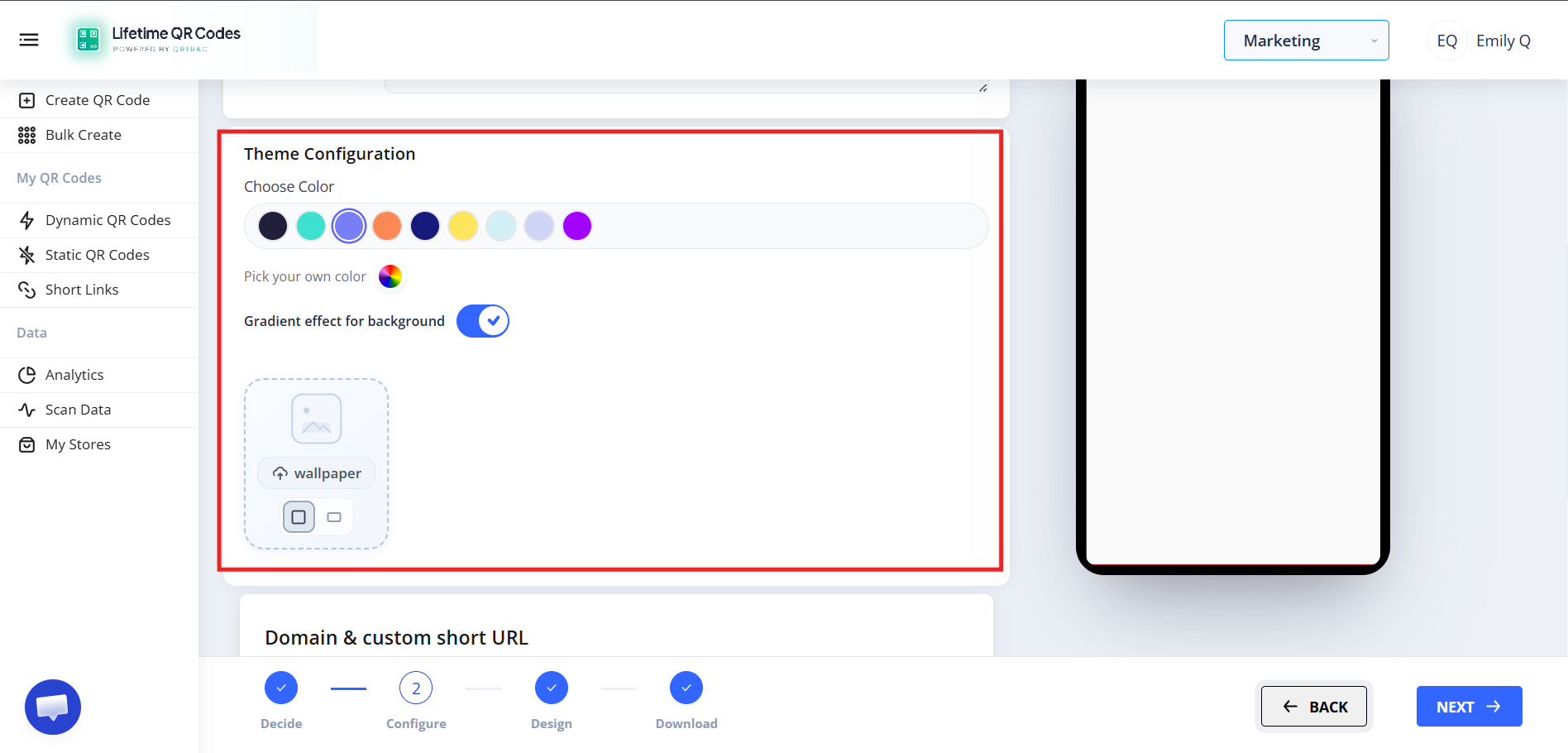
Personalize the mobile landing page that users see when scanning your QR code:
- Theme Color: Choose a preset brand color for buttons and header accents.
- Custom Color: Enter a specific hex color code to match your corporate identity.
- Background: Choose a clean neutral background, enable a gradient background, or upload a custom background image.
Step 3: Design Your QR Code (Design Phase)
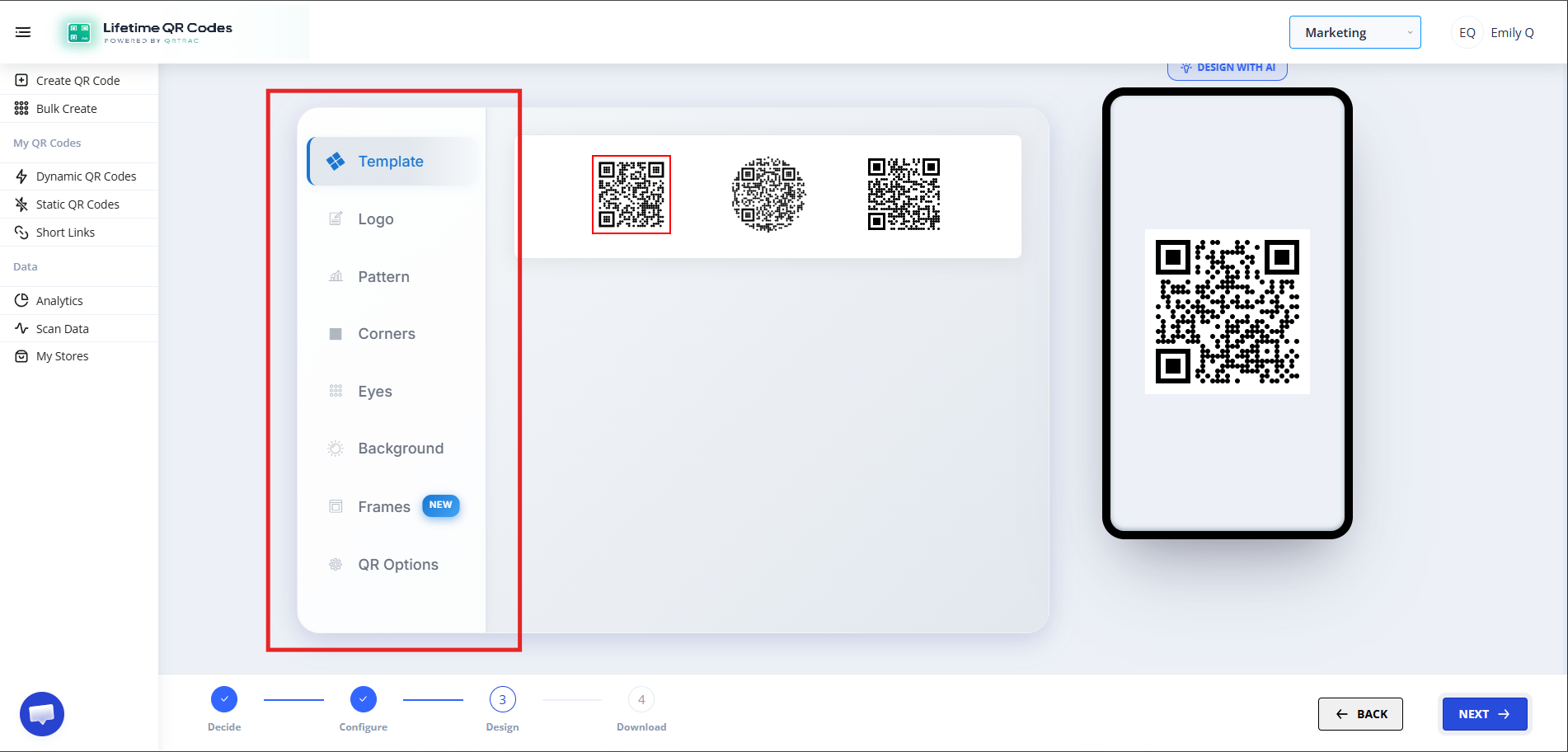
Click Next to customize the visual style of your QR code to align with your brand:
- QR Color: Set custom foreground and background colors with high contrast for quick scanning.
- Logo: Upload your company or organization logo to place in the center of the QR code.
- Dot Style: Customize the module dots and body pattern style.
- Pattern & Eye Style: Choose the outer frame shape and inner eye design for the corners.
- Background Color: Select a solid color, gradient, or transparent background.
Dynamic QR — No Reprinting Needed
Replace or update your PDF file at any time from your dashboard. Scanners will always access the latest version with no reprinting required.
Step 4: Review & Download (Download Phase)
Click Next to review your QR code. Preview the code on your screen and test it with a smartphone camera before downloading:
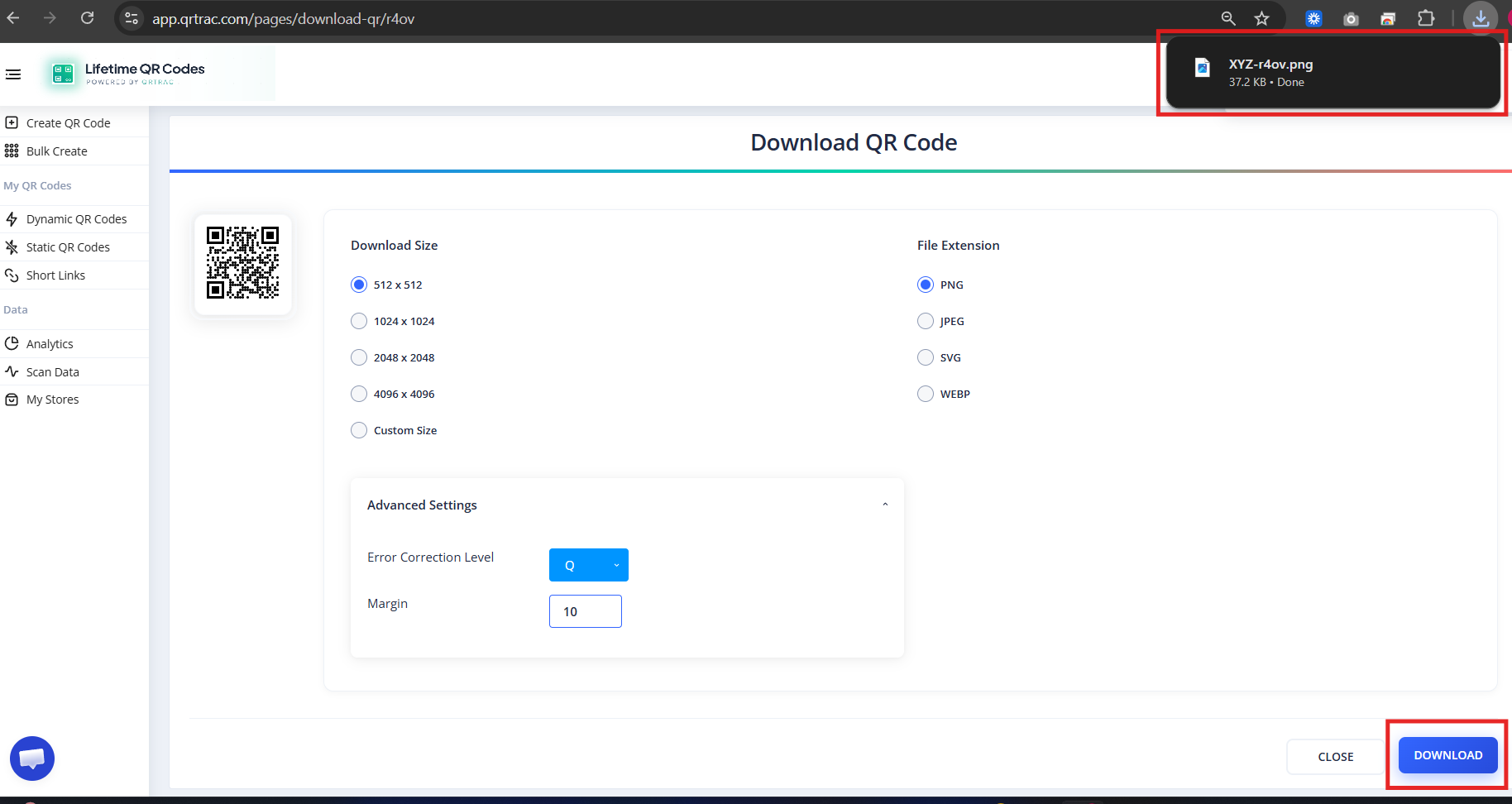
Select your preferred file format and download your QR code:
- PNG: Standard raster format for digital use, email newsletters, presentations, and website displays.
- SVG: Scalable vector format ideal for web design and digital UI layouts.
- PDF: High-resolution vector document ready for print collateral, flyers, and desktop printing.
- EPS: Professional vector format for print shops, large signage, and merchandise packaging.
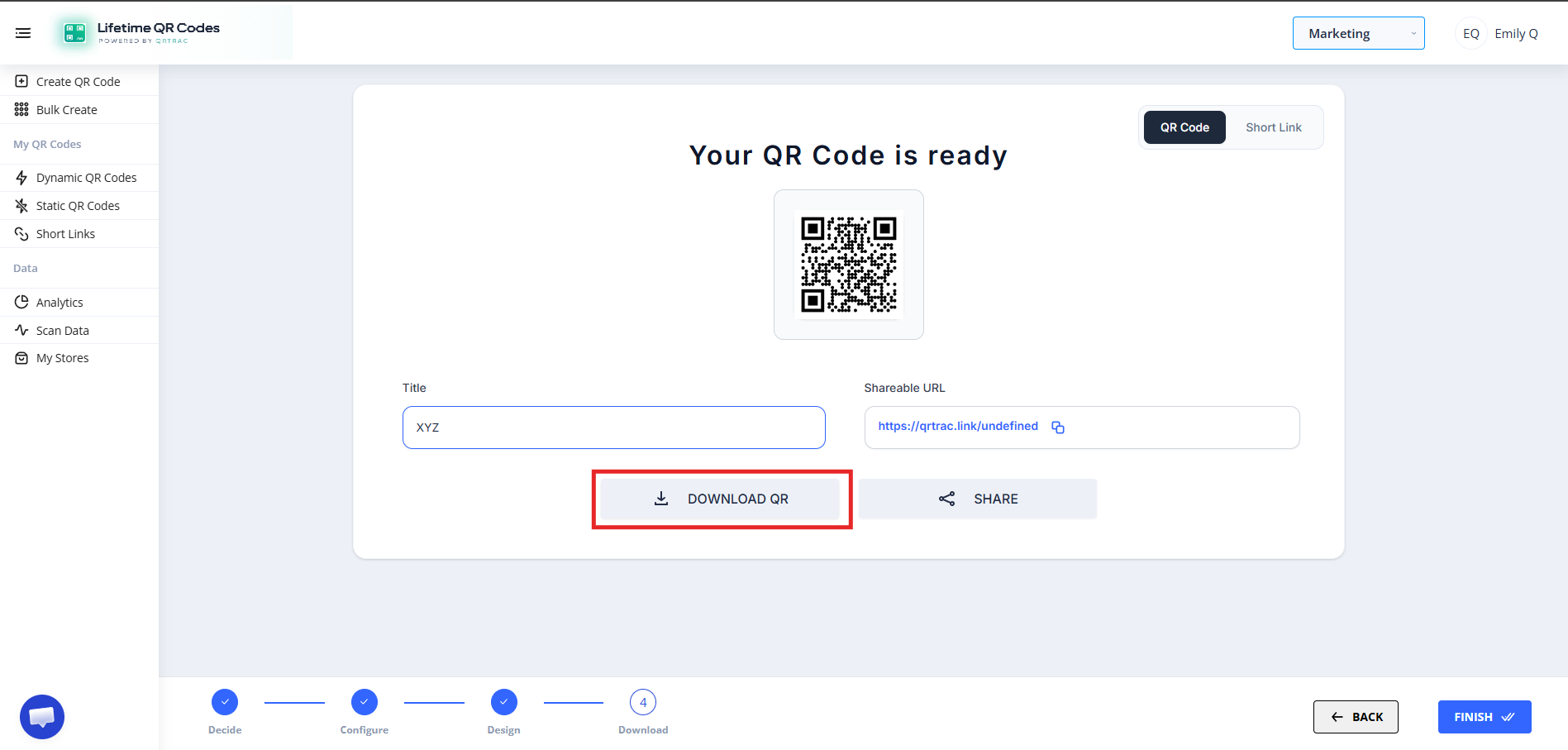
Tip: Always test your QR code with a smartphone camera straight from your computer monitor before you print it on physical materials.
Frequently Asked Questions
Can I replace the PDF later?
Yes. Because this is a Dynamic QR Code, you can upload a new PDF anytime from your dashboard without reprinting the QR code.
What is the maximum file size?
Keep your PDF as small as practical. Very large files load slowly on mobile networks. Compress your PDF before uploading.
Can users download the PDF?
Yes. When the PDF opens in a mobile browser, users can save or share it using their device’s standard options.