Current Article
How to Download QR Codes in Bulk
How to Download QR Codes in Bulk
Learn how to download multiple QR codes at once as PNG or SVG images in a single ZIP archive from your Lifetime QR Codes dashboard.
Download multiple QR codes at once instead of downloading them one by one. Select your QR codes, choose what you want to download, and access your files together.
Before You Start
- Log in to your Lifetime QR Codes account.
- Make sure you have QR codes created under Dynamic QR Codes or Static QR Codes.
- Select the QR codes you want to download.
Note
The BULK ACTIONS button becomes available after you select at least one QR code.
Step 1: Log In and Open Your QR Codes
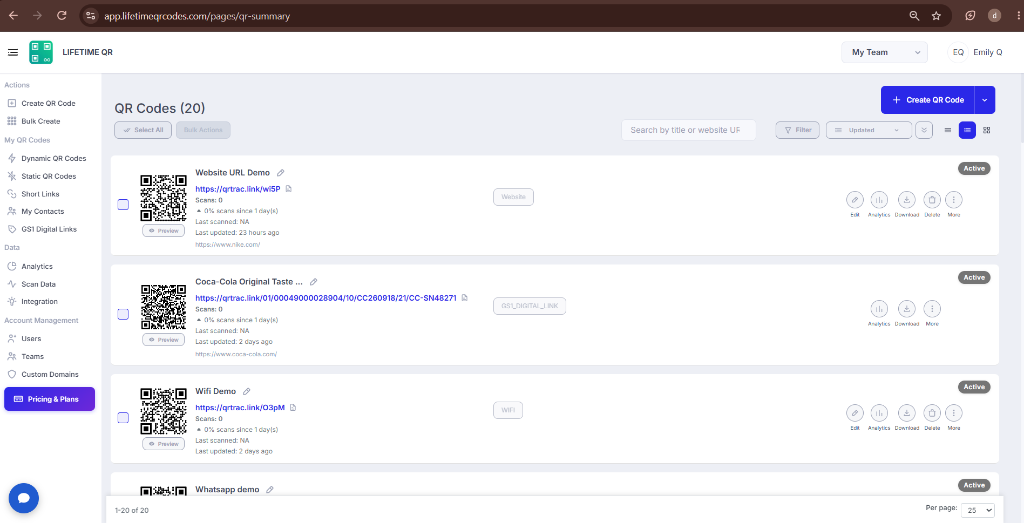
- Log in to your Lifetime QR Codes account and open your dashboard.
- From the left sidebar, open Dynamic QR Codes or Static QR Codes.
Step 2: Select Your QR Codes
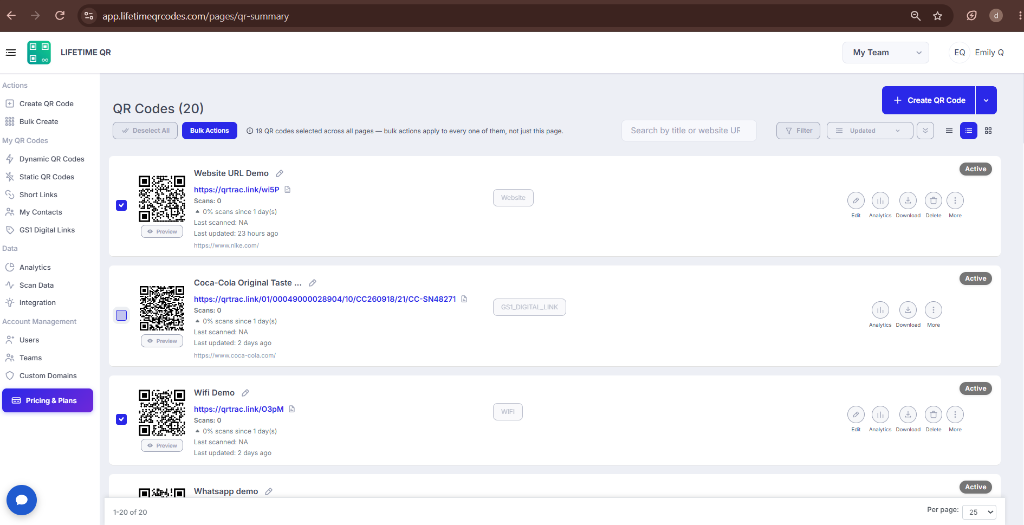
- Select the QR codes you want to download.
- Use the checkbox beside each QR code to select individual codes.
- Use the header checkbox to select all QR codes shown on the current page.
Tip
Use the search bar or date filters to narrow down your QR codes before selecting them.
Step 3: Open Bulk Actions
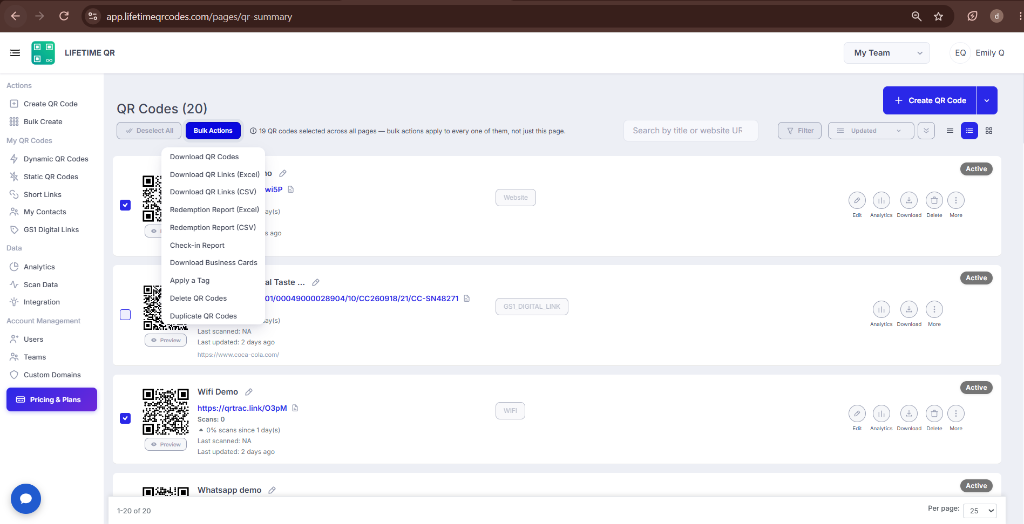
- After selecting your QR codes, click BULK ACTIONS.
- The menu shows the available download options.
Step 4: Choose What to Download
Download QR Codes
- Select Download QR Codes to download QR code images.
- The images are packaged into a single ZIP file.
Download QR Links (Excel)
- Select Download QR Links (Excel) to export QR code information as an .xlsx file.
- The spreadsheet includes QR titles, short links, and destination URLs.
Download QR Links (CSV)
- Select Download QR Links (CSV) to export QR code information as a .csv file.
- CSV files are useful for spreadsheets, databases, or CRM imports.
Step 5: Download and Access Your Files
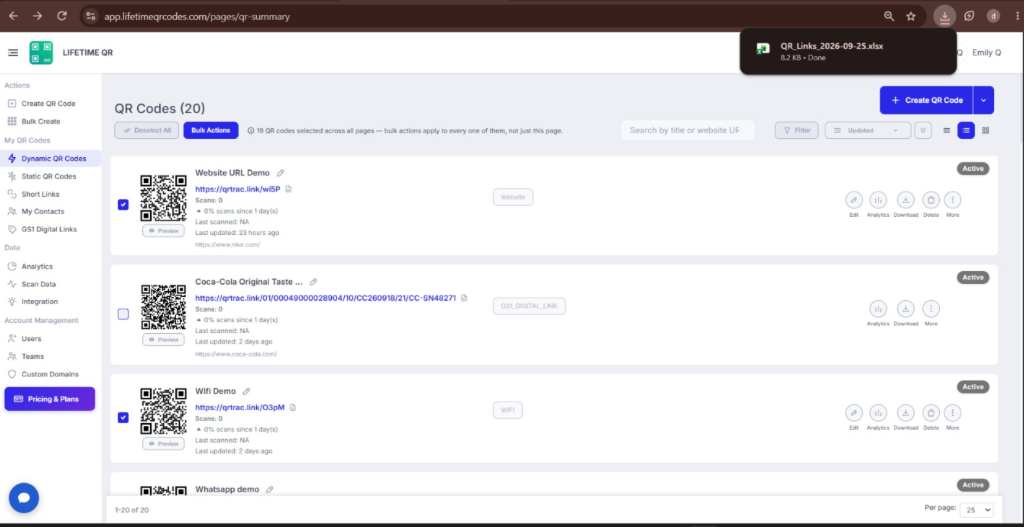
- For Download QR Codes, download the ZIP file and extract it to access your QR images.
- For Excel or CSV, open the downloaded file in your spreadsheet application.
- Use clear QR code titles so your downloaded files and spreadsheet rows are easy to identify.
Tip: Name your QR codes clearly before downloading so your files are easy to identify.
Tips for Getting the Best Results
- Give your QR codes clear and descriptive names before downloading.
- Select only the QR codes you need to keep your download organized.
- Use Download QR Codes when you need the QR images themselves.
- Use Excel or CSV when you need QR code links and destination URLs for data management.
- Check that you have selected the correct QR codes before starting a bulk download.
Popular Use Cases
Here are some common ways to use bulk download in Lifetime QR Codes.
Marketing campaigns
Download QR images for multiple campaigns or promotional materials.
Events and conferences
Prepare QR codes for badges, posters, tickets, or event materials.
Product packaging
Download multiple QR codes for product labels and packaging.
Print projects
Prepare QR images for brochures, flyers, signage, and other printed materials.
Data management
Export QR links to Excel or CSV for spreadsheets, databases, or CRM workflows.
Client projects
Download QR codes or QR link data for multiple client campaigns.
Frequently Asked Questions
Can I download only selected QR codes?
Yes. Select the QR codes you want before opening BULK ACTIONS. Only the selected QR codes will be included in the download.
What can I download in bulk?
You can download QR code images as a ZIP file or export QR code links as an Excel or CSV file.
What is the difference between Excel and CSV?
Both contain QR code information such as titles, short links, and destination URLs. Excel downloads as .xlsx, while CSV downloads as .csv.
Where are my downloaded files saved?
Downloaded files are saved to your browser's default Downloads folder unless your browser is configured to ask where to save them.
What should I do if the download does not start?
Make sure you have selected at least one QR code and that the BULK ACTIONS button is active. Then try the download again.